🎙️
Yes, it does — but only on paid plans, and only with your audio on Zoom's cloud.
Short answer: Yes — Zoom transcribes meetings through a paid-plan feature called Live Transcription. Live captions stream on screen during the call, and Cloud Recording can save a separate transcript file alongside the recording. The trade-offs: it sits behind a paid plan, audio leaves your Mac to be processed by Zoom's servers, and accuracy depends heavily on language, accent, and mic quality. The free workarounds (record locally on your Mac, then transcribe with a Whisper model on-device) give you the same searchable text without sending audio to anyone.
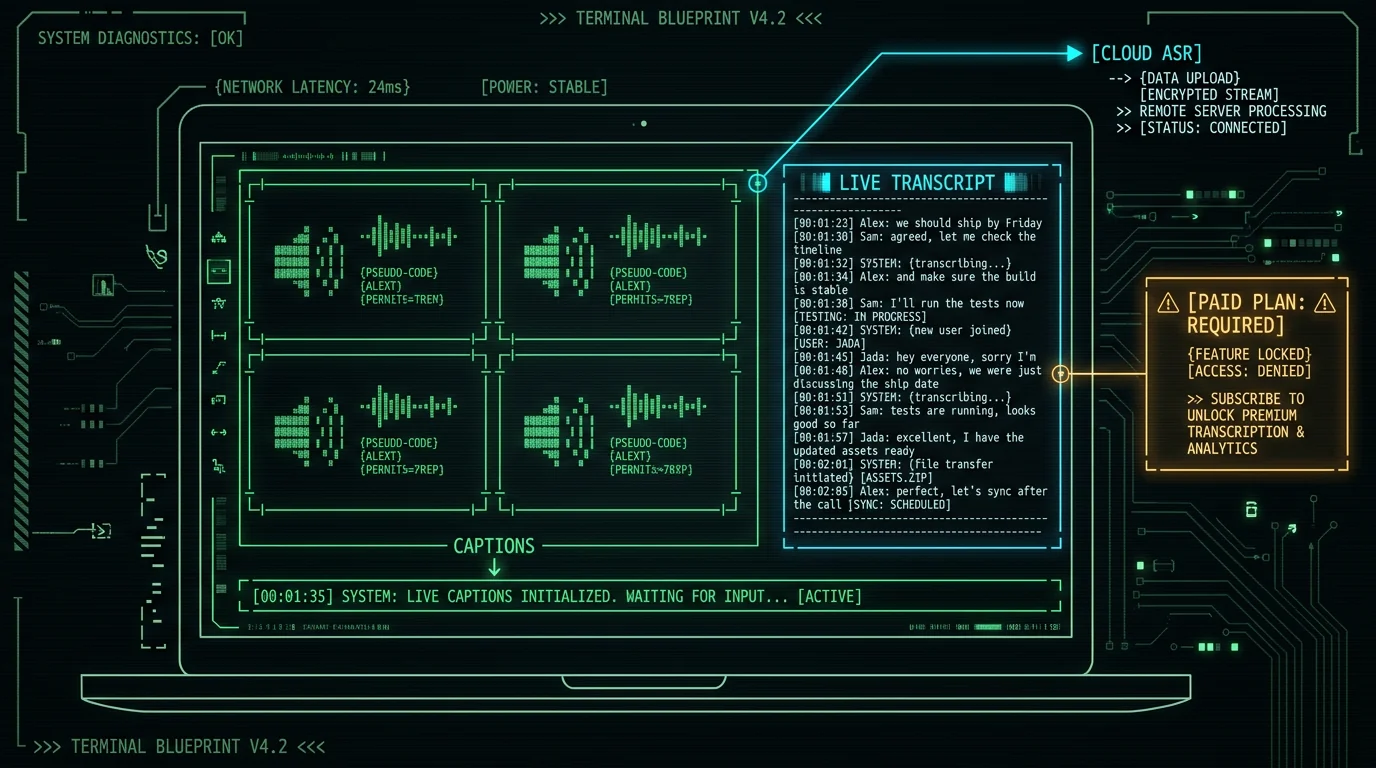
So, does Zoom actually transcribe meetings?
Yes. Zoom has a built-in feature called Live Transcription that converts the spoken audio in a meeting into on-screen captions in real time. When the host also records the meeting to Zoom's cloud, Zoom saves a separate transcript file alongside the recording.
There are two flavors:
- Live captions — text appears under each speaker's video tile during the call, in the language the host picks.
- Recorded transcript — a transcript file attached to the cloud recording, available in the host's Zoom web portal when the meeting ends.
Both pull from the same automatic speech recognition (ASR) engine. Captions disappear when the meeting ends; the transcript file stays available as long as the recording does.
Does Zoom transcribe meetings for free? Mostly no, at least not if you're the host. Zoom's Live Transcription is a paid-plan feature — at minimum Pro on most accounts, and Business or higher on others — so a host on the free 40-minute group plan won't see a captions button in their own meeting controls. Attendees joining a paid host's meeting can see captions without paying themselves, but they can't enable the feature themselves and they don't get a saved transcript file at the end. That transcript file is only generated when the host records to the cloud with "Create audio transcript" turned on. The honest answer: you can read captions and transcripts for free if someone else (a paid customer) is hosting, but you can't run the feature in your own meeting without paying for a plan. Check Zoom's current pricing page for the latest tier lineup if you go that route.
How does Zoom's built-in transcription actually work?
Zoom's transcription isn't done locally on your Mac. When you turn it on, the mixed audio stream is sent over the network to Zoom's ASR servers, processed there, and the resulting text streams back to your screen.
Three moving parts matter for you:
- Host settings. The host has to enable Live Transcription before the meeting starts (or grant a co-host permission to flip it on mid-call). It won't just appear.
- Language selection. English is the default and best-supported. Zoom's documentation lists additional languages it supports; quality drops off noticeably once you leave English or work with heavy accents.
- Recording pipeline. If Cloud Recording is on and the "Create audio transcript" option is checked, Zoom writes a transcript file to the host's cloud storage at the end of the meeting.
There's also a separate integration called Otter Live Notes: when enabled, a participant named "Otter Notetaker" joins your meeting and generates its own transcript on Otter.ai's servers. It's not the same as Zoom's built-in feature; it's a bot attending the call.
What does Zoom's transcription get right?
I'll give them credit where it's due. For a built-in feature that ships to millions of accounts, it's competent.
- Real-time on-screen captions. Useful for accessibility and for following audio that drops out.
- Transcript file alongside the recording. You get a single artifact to share with people who missed the call.
- Speaker labels. Transcripts attribute text to individual speakers.
- Search inside the recording. The transcript makes the recording findable — search by keyword in Zoom's web UI and the player jumps to that moment.
For ordinary meetings where "good enough" is fine and you're already paying for a Zoom plan, the built-in works.
Where does Zoom's transcription fall short?
The honest list, in order of how often people complain about each:
- It's paid. Free plan hosts don't get captions in their own meetings without a workaround.
- Audio leaves your computer. Every speaker's words go to Zoom's cloud for transcription. That's a hard line for HIPAA, attorney-client privilege, journalist sources, and medical consults.
- Accuracy is uneven. Heavy accents, overlapping speakers, jargon, and bad mics all degrade quality. Zoom doesn't publish first-party accuracy numbers, so expect noticeable errors in real-world conditions.
- Retention is tied to cloud recording. If you delete the recording, you lose the transcript.
- Export is fiddly. You can't easily pull just the transcript text out without also keeping the recording or scripting against the API.
That privacy line is the one I hear about most. If the meeting covers anything sensitive — patient info, legal strategy, employee feedback, unreleased product plans — sending audio to a third-party server stops being a small thing.
What's the difference between Zoom Live Transcription and Otter Live Notes? They look similar from inside the meeting, but they are different products run by different companies. Live Transcription is Zoom's built-in feature: Zoom's own speech recognition engine generates the captions and the saved transcript file. Otter Live Notes is Otter.ai's integration — when you turn it on, a bot named "Otter Notetaker" joins your meeting as a participant. Otter's servers capture and transcribe the audio. The captions you see under the Otter bot's tile are generated by Otter.ai, not Zoom, and the saved transcript lives in your Otter account rather than your Zoom cloud recording. The two can be active in the same meeting, which produces two separate transcripts from two different vendors' ASR engines. If you care about which company holds the text, that distinction matters.
How to turn on Zoom Live Transcription step by step
If you want Zoom's built-in captions to appear in your own meeting, the host has to enable the feature before or during the call. Three settings matter, and skipping any one of them usually means no transcript at the end.
- Enable Live Transcription in the host's settings. In the Zoom desktop client, open Settings and look for the Captions and Transcription section (sometimes filed under Accessibility in newer client builds). Toggle on the option that allows captions or live transcription for the meeting. Some accounts require a per-meeting click from the meeting toolbar instead.
- Turn on Cloud Recording with audio transcript. The saved transcript file only exists if the host records to the cloud AND ticks "Create audio transcript" in the recording settings. Without that checkbox, you'll get captions live but no file at the end.
- Pick the language before the call starts. English is the default and best-supported. If you change to another language, the host does that from the Captions menu in the meeting controls. Switching mid-call usually forces the captions to restart.
If you're an attendee on a paid host's meeting and want captions for yourself, look for the "Live Transcript" button in your toolbar. It only shows up if the host enabled the feature; you can't add it on your own.
Tip: Run a quick two-person test meeting before relying on Live Transcription for a real call. Heavy accents, room echo, and a cheap headset can turn captions into a guessing game. Five minutes of testing beats twenty minutes of cleanup later.
What to do with the transcript file after the meeting ends
When Cloud Recording is on and "Create audio transcript" is checked, Zoom saves a transcript file alongside the video. Three things to know about the file itself:
- Where it lives. The transcript shows up in the host's Zoom web portal under Recordings, next to the video and audio files. It downloads as a VTT file by default, and the host can request a TXT export from the same page.
- What's inside. Speaker labels, timestamps, and the spoken text. The Zoom web UI includes a built-in editor so you can trim or correct sections without re-recording.
- How to share it. You can download the file directly, copy a share link to the recording page, or grant view-only access to specific people. The transcript and recording stay linked — deleting one doesn't automatically delete the other, and a transcript-only share link is possible too.
For people who only want the text and not the video, the TXT export is the cleanest option. If you need a Word doc, Markdown, or a clean plaintext file with no timestamps, you can convert it manually or pull the text out of VTT with a short script.
Privacy: where your meeting audio actually goes
This is the part most people skip and the part that matters most. Live Transcription doesn't run on your Mac. The mixed audio stream leaves your computer and is processed by Zoom's automatic speech recognition (ASR) servers, then the resulting text streams back to your screen. The same path applies to the saved transcript file: audio goes to Zoom's cloud, gets transcribed there, and the text is stored alongside the recording in Zoom's hosted storage.
The Otter Live Notes bot works the same way, just with Otter.ai on the other end instead of Zoom. A participant joins, listens to the audio, and Otter's servers generate the transcript. Either way, you're trusting a third party with the raw audio of every speaker on the call.
Privacy warning: If the meeting covers anything sensitive — patient information, legal strategy, journalist sources, employee feedback, unreleased product plans — sending audio to a third-party server is not a small thing. Read Zoom's data handling and retention documentation before turning on Live Transcription for those calls. For an on-device alternative that never uploads audio, see our Mac transcription guide.
If the workflow above makes you uncomfortable for sensitive calls, the local alternative is straightforward: record on your Mac with Zoom's free local recording, then run the audio through a Whisper model on-device. Audio never leaves your machine, no third party gets the text, and there's no monthly bill. We walk through the whole setup in our guide to transcribing audio locally on macOS.
How accurate is Zoom's built-in transcription? Zoom doesn't publish a single word-error-rate number for Live Transcription, so accuracy is best described in practical terms. For clear English speech with one person talking at a time through a decent microphone, the captions are usable for note-taking and following along, but you should expect to fix names, technical terms, and numbers before sharing. Accuracy drops noticeably with heavy accents, multiple people talking over each other, room echo, far-field mics, and specialized vocabulary like product codenames or medical terms. Compared to dedicated services like Otter, Rev, or on-device Whisper models, Zoom's built-in feature sits in the middle for everyday English and falls behind for noisy or multilingual calls. The honest takeaway: treat the transcript as a draft you'll clean up, not a finished document, unless the meeting was unusually quiet and the speakers were clear.
Free ways to get a transcript from any Zoom call
If you don't want to pay Zoom or hand your audio to a third party, the same workflow works for any meeting platform. Record the meeting locally on your Mac, then transcribe the recording with whatever tool you trust. The five-step path looks like this:
- Record locally in Zoom. The host clicks "Record" → "Record on this Computer." A Zoom_Meeting_Recording.mp4 file lands in your Documents folder. No upload happens; the file stays on the Mac. Local recording is free on every Zoom plan, including the free 40-minute group plan.
- Pull the audio out. Use QuickTime or FFmpeg to export just the audio track as an MP3 or WAV. Smaller files mean faster transcription and lower memory use.
- Transcribe with Whisper on-device. Run a Whisper model locally with whisper.cpp or a Mac app that uses it. Audio never leaves the machine and the resulting transcript is a normal text file you control.
- Or use a free tier service. Otter's free tier, MacWhisper's free tier, and a handful of browser-based tools will transcribe a recording for free if you accept uploading the audio to their servers. Read the privacy policy before sending anything sensitive.
- Or paste into AI assistants that accept audio. If you already record locally, the audio file works fine with most modern AI assistants that accept audio uploads, which usually produce a clean transcript you can copy out.
Why this works: Local recording is a free Zoom feature on every plan, including the free 40-minute group plan. Once you have the audio file, transcription is a separate choice. You pick the vendor, the privacy trade-off, and the price. See our roundup of the best local transcription apps for Mac for the current options, and our Otter alternative comparison if you're specifically weighing cloud services against on-device Whisper.
The cleanest end state: a searchable text file on your Mac, no audio leaving the device, and no monthly bill. Same output as Zoom's paid feature, minus the cloud lock-in. If you're comparing Zoom to other meeting platforms, our Google Meet transcription guide covers what Meet does in practice.
Frequently asked questions
Does Zoom transcribe meetings automatically?
Does Zoom transcribe meetings automatically?
Only if the host has enabled Live Transcription AND is recording to the cloud with "Create audio transcript" turned on. If both are off, no transcript file is generated when the meeting ends. Attendees can't enable the feature on their own — it's a host setting that has to be flipped on for the meeting.
Can attendees see captions if the host hasn't paid?
Can attendees see captions if the host hasn't paid?
No. Live Transcription is gated on the host's Zoom plan, not the attendee's. If the host is on the free 40-minute group plan, no one in the meeting sees captions. Attendees joining a paid host's meeting can see captions without paying themselves, but they can't enable the feature on the host's behalf.
How do I get the transcript file after the meeting?
How do I get the transcript file after the meeting?
Log into the Zoom web portal as the host, go to Recordings, and find the meeting. The transcript downloads as a VTT or TXT file. You can also share a read-only link to the recording page, which includes the transcript inline for viewers who don't want to download anything.
Is Zoom Live Transcription HIPAA compliant?
Is Zoom Live Transcription HIPAA compliant?
Zoom offers a HIPAA configuration on certain plans with a signed Business Associate Agreement. For Live Transcription specifically, check your plan's current compliance documentation and confirm with Zoom before using it for protected health information. The free local-record + on-device Whisper workflow sidesteps the question entirely, since no audio leaves your Mac.
Does Zoom transcription work in languages other than English?
Does Zoom transcription work in languages other than English?
Yes, Zoom lists a set of supported languages in its documentation. English is the best-supported. Quality for other languages has historically been less consistent, especially with regional accents, so expect to do more cleanup if your meeting is non-English.
Can I delete the transcript but keep the recording?
Can I delete the transcript but keep the recording?
Yes. In the Zoom web portal, you can delete just the transcript file while leaving the video and audio files intact. The reverse — keeping the transcript and deleting the recording — isn't possible, because the transcript is generated from the recording pipeline and depends on the recording existing.
