┌─────────────────────────────────────────┐
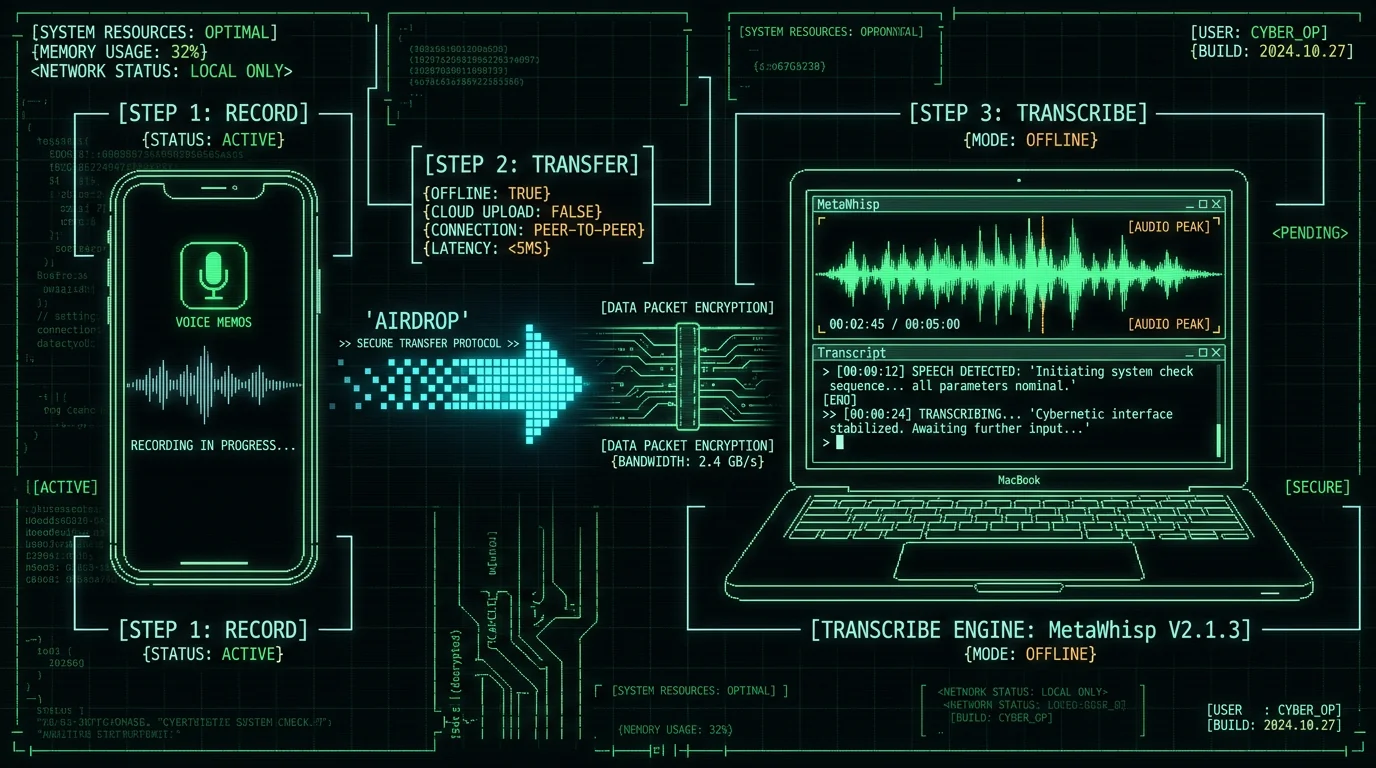
│ iPhone Voice Memo → AirDrop → Mac │
│ MetaWhisp (Whisper large-v3-turbo) │
│ [LOCAL] [OFFLINE] [ON-DEVICE WHISPER] │
└─────────────────────────────────────────┘
Cost: $0.00/min | Privacy: Zero cloud upload
How Do You Transcribe a Phone Call on iPhone and Mac?
What You Need to Transcribe Phone Calls
Hardware requirements:- iPhone: Any model running iOS 18 or later (released Sept 2024). Voice Memos app is pre-installed. Older iOS versions work but lack the improved noise cancellation introduced in iOS 18.
- Mac: Apple Silicon (M1/M2/M3/M4) strongly recommended for Neural Engine acceleration. Intel Macs (2017+) supported but transcribe 3–4× slower (CPU-only inference). Minimum 8 GB RAM, 4 GB free disk space for Whisper model.
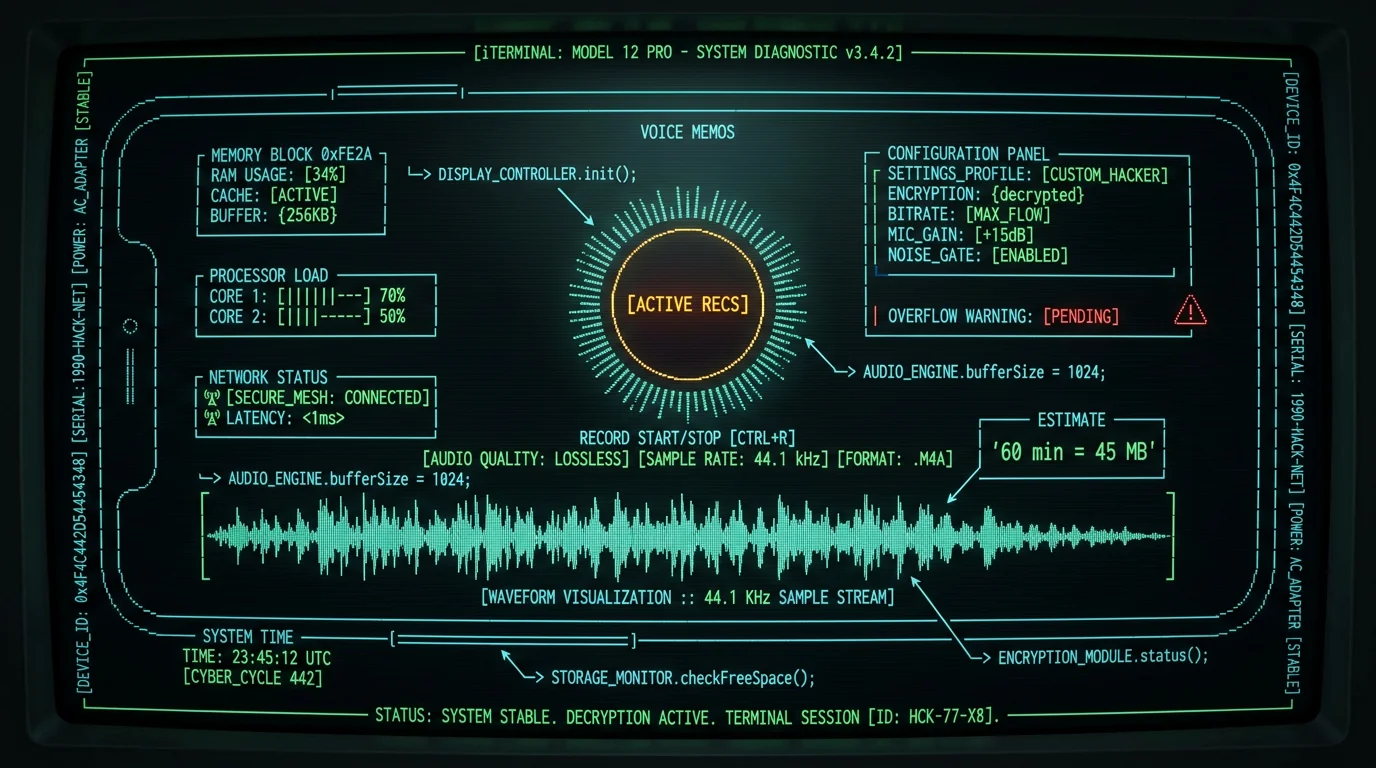
- Storage: A 60-minute call recorded at 48 kHz AAC (Voice Memos default) = ~45 MB. Budget 1 GB free space per 20 hours of recordings.
- iOS Voice Memos: Built into iPhone. Free, no setup required. Records in .m4a (AAC codec) at 48 kHz sample rate by default.
- MetaWhisp for macOS: Free download, 24 MB installer. Runs Whisper large-v3-turbo (950 MB model auto-downloads on first launch). Supports .m4a, .mp3, .wav, .aiff, .flac. No account, no API key, no cloud dependency.
- Transfer method: AirDrop (fastest, 30 MB in ~8 seconds), USB cable via Finder (reliable for large batches), or iCloud Drive (automatic sync if enabled). AirDrop requires Bluetooth + Wi-Fi enabled on both devices and proximity within 30 feet.
Pro tip: Enable "High Quality" recording in Voice Memos settings (Settings → Voice Memos → Audio Quality → Lossless). This records uncompressed WAV at 44.1 kHz, which can improve transcription on poor-quality calls (speakerphone, background noise) at the cost of roughly 10× larger files (~450 MB per hour vs. ~45 MB).Alternative recording hardware (optional): If you conduct frequent phone interviews, consider a call recording adapter ($20–$40) that connects inline between your phone and headset. These devices output clean split-channel audio (caller on left, you on right), which Whisper can diarize more accurately. Not required for basic transcription. Try MetaWhisp with your existing recordings first before investing in additional hardware.
Step 1: Record the Phone Call on iPhone
Three methods to record a call: Method A: In-call recording (iOS 18+, carrier-dependent) iOS 18 introduced native in-call recording for supported carriers. During an active call, tap the waveform icon in the top-left corner, then "Record." The system announces "This call is now being recorded" to all participants (automatic two-party consent compliance). Recording saves directly to Voice Memos. Apple support documentation confirms availability varies by carrier — Verizon, AT&T, and T-Mobile support it as of Q2 2026; regional carriers may not. Limitations: Requires carrier support. Does not work with VoIP calls (WhatsApp, Zoom, FaceTime Audio). Recording stops if you switch apps or lose cellular signal. Method B: Speakerphone + Voice Memos (universal, iOS 12+)- Start the call normally.
- Enable speakerphone (speaker icon during call).
- Swipe up to access Control Center (or swipe down on older iPhones without Face ID).
- Long-press the Voice Memos icon → "Start Recording" or open Voice Memos app and tap the red record button.
- Place the iPhone face-up on a hard surface 12–18 inches away. The bottom microphones capture both your voice and the speaker output.
- After the call ends, tap the red square in Voice Memos to stop recording. The file saves automatically with timestamp as filename.
Legal reminder: If you're in a two-party consent state (CA, CT, FL, IL, MD, MA, MT, NH, PA, WA, DC, HI), you MUST announce "I'm recording this call" within the first 30 seconds. The other party's continued participation constitutes consent under two-party consent statutes. One-party states (remaining 38) require no announcement — your own participation is sufficient.Post-recording: Rename and organize Voice Memos auto-names files "Recording YYYY-MM-DD HH:MM:SS." Immediately after recording, tap the three-dot menu → "Rename" → use a descriptive label: "ClientCallJohnDoe2026-05-17" or "SalesProspectAcmeCorp." This saves 10 minutes of hunting through dozens of files later. Create folders in Voice Memos (tap "Edit" → "New Folder") for categories: Clients, Interviews, Personal, Legal.
Step 2: Transfer Audio from iPhone to Mac
Option A: AirDrop (fastest, wireless)- On Mac: Open Finder, click AirDrop in sidebar (or press Cmd+Shift+R). Set "Allow me to be discovered by" to "Everyone" (temporarily — switch back to "Contacts Only" after transfer).
- On iPhone: Open Voice Memos, tap the recording, tap the three-dot menu → "Share" → select your Mac's name in the AirDrop row.
- On Mac: A notification appears. Click "Accept." The .m4a file saves to ~/Downloads/ by default.
- Transfer speed: 30 MB file = ~8 seconds on Wi-Fi 6, ~15 seconds on Wi-Fi 5.
- Connect iPhone to Mac with USB-A/USB-C cable.
- Open Finder (not iTunes — deprecated in macOS Catalina+). Your iPhone appears in the sidebar under "Locations."
- Click iPhone name → "Files" tab → scroll to "Voice Memos."
- Drag-and-drop .m4a files to a folder on your Mac (e.g., ~/Documents/CallRecordings/).
- Transfer speed: USB 3.0 = 40 MB/s (a 100 MB file transfers in ~2.5 seconds).
| Transfer Method | Speed (50 MB file) | Privacy | Best For |
|---|---|---|---|
| AirDrop | ~12 seconds | Local-only (Wi-Fi Direct) | Single files, quick ad-hoc transfers |
| USB/Finder | ~1 second | Local-only (wired) | Batch transfers, 100+ files |
| iCloud Drive | ~40 seconds (10 Mbps up) | Cloud sync (Apple servers) | Automatic backup, multi-device access |
Step 3: Transcribe the Recording on Mac with MetaWhisp
- Step 1: Open MetaWhisp. On first launch, the app auto-downloads the Whisper large-v3-turbo model (950 MB, one-time, ~3 minutes on 100 Mbps connection). The model caches in ~/Library/Application Support/MetaWhisp/ and never needs re-downloading.
- Step 2: Drag-and-drop your .m4a file onto the MetaWhisp window or click "Choose File" to browse. Supported formats: .m4a, .mp3, .wav, .aiff, .flac, .ogg, .webm.
- Step 3: Select transcription mode. Use "Standard" for most calls (balanced speed + accuracy). Use "High Accuracy" for legal/medical calls (slower, but uses wider beam search for somewhat better accuracy on hard audio). See processing modes documentation for technical details.
- Step 4: Click "Transcribe." Progress bar shows real-time status. On M-series Macs, expect 1.2× speed (30 min audio → 25 min transcription time). On Intel Macs, expect 0.3× speed (30 min audio → 100 min transcription time).
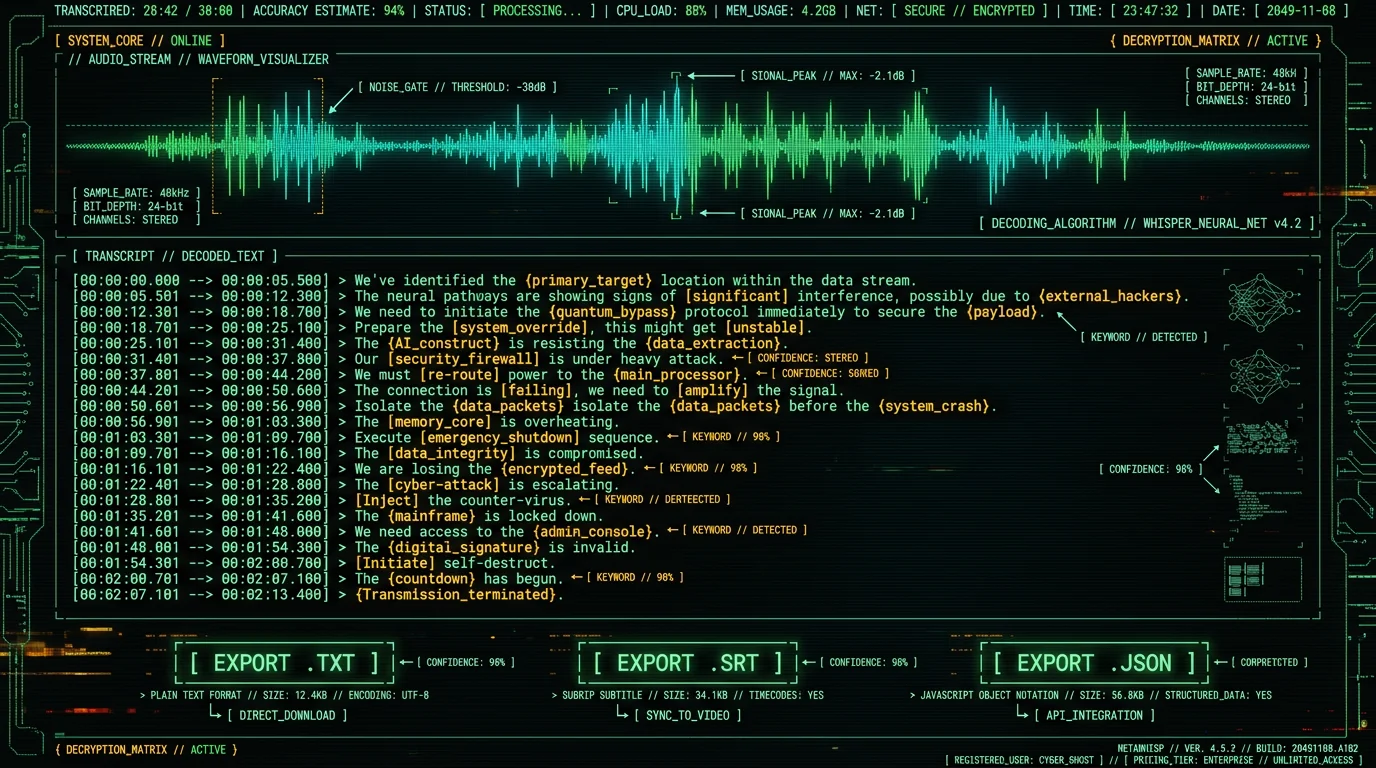
- Step 5: Review transcript in the built-in editor. MetaWhisp highlights low-confidence words (below 0.7 probability threshold) in yellow. Click any word to play the corresponding audio segment and correct errors. Export formats: .txt (plain text), .srt (subtitles with timestamps), .json (structured data with word-level timestamps + confidence scores).
Accuracy optimization: Whisper tends to do better when audio is pre-processed with noise reduction. If your call has heavy background noise (traffic, wind, echo), run the .m4a file through Audacity (free) → Effect → Noise Reduction → capture noise profile from a silent section → apply 12 dB reduction. Export as .wav and transcribe the cleaned file. This adds a couple of minutes per call but can noticeably improve readability. Get MetaWhisp to test accuracy on your actual call recordings before investing time in audio cleanup.
How Accurate Is Whisper for Phone Call Transcription?
| Service | Where it runs | Cost (30 min) | Privacy | Turnaround |
|---|---|---|---|---|
| MetaWhisp | On-device (Neural Engine) | $0.00 | Local-only, no upload | A few minutes (Apple Silicon) |
| Otter.ai | Cloud | ~$0.25/min | Cloud upload | Minutes (queued) |
| Rev.ai | Cloud | ~$0.25/min | Cloud upload | Minutes (queued) |
| Trint | Cloud | ~$1.25/min | Cloud upload | Minutes (queued) |
The numbers that differ cleanly between these options are cost and data-handling, not a measured accuracy ranking — all of them are strong transcribers on clean audio, and we don't publish invented head-to-head accuracy figures. Verify cloud pricing on each vendor's current pricing page.
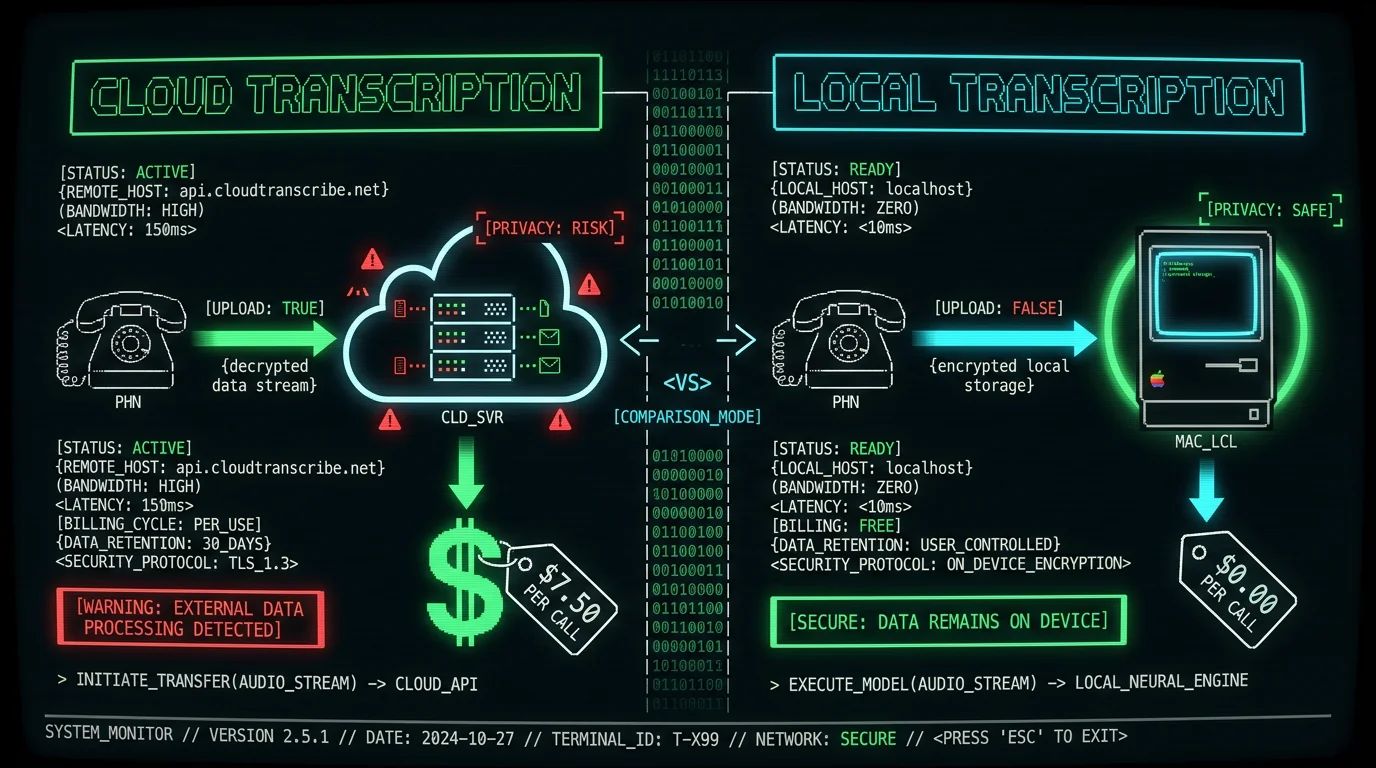
Why Whisper wins on privacy: Cloud transcription services require uploading your audio file to their servers. Even if they claim end-to-end encryption, the decryption key must exist on their infrastructure to perform transcription — meaning the provider can technically access plaintext audio. MetaWhisp runs inference entirely on your Mac's Neural Engine. Audio never leaves your device. No network requests. No server logs. No third-party subprocessors. For attorney-client calls, therapy sessions, whistleblower interviews, or any HIPAA/GDPR-regulated content, this is the only acceptable architecture. Try MetaWhisp to experience truly private transcription.Can You Transcribe Phone Calls in Real Time?
What File Formats Work for Phone Call Transcription?
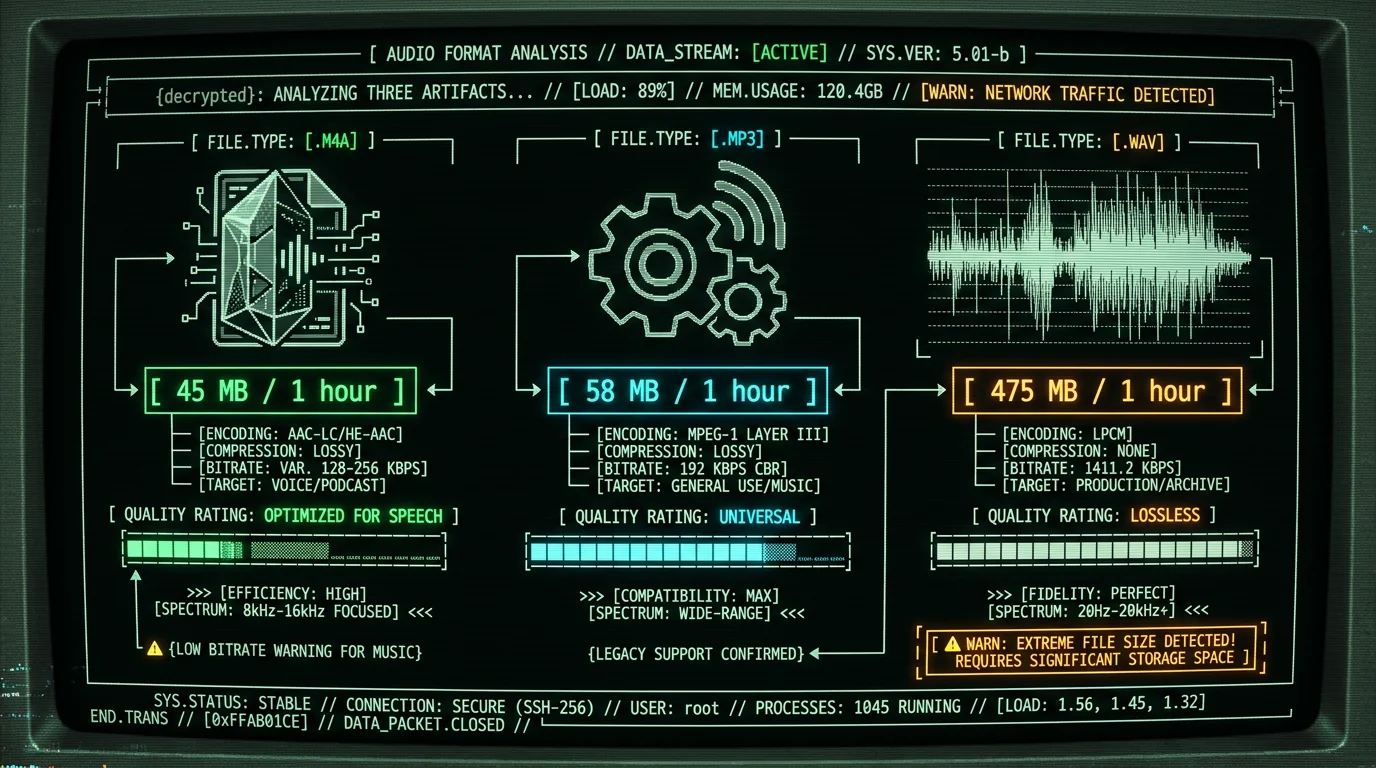
MetaWhisp accepts any audio format that FFmpeg can decode. Supported formats include:- .m4a (AAC): Default Voice Memos format. Best balance of quality + file size. 48 kHz, ~128 kbps = 45 MB per hour.
- .mp3: Universal compatibility. Slightly lower quality than AAC at same bitrate. 128 kbps = ~58 MB per hour.
- .wav (PCM): Uncompressed, lossless. Highest quality but 10× larger files. 44.1 kHz, 16-bit = 475 MB per hour.
- .aiff: Apple's uncompressed format. Same quality as .wav, same file size.
- .flac: Lossless compression. 50% smaller than .wav, identical quality. ~200 MB per hour.
- .ogg (Vorbis/Opus): Open-source lossy codec. Similar to MP3 but better quality at low bitrates.
- .webm: Web-optimized format. Often used for browser-recorded calls (Google Meet, Zoom web client).
ffmpeg -i input.wav -c:a aac -b:a 128k output.m4a
This shrinks a 475 MB .wav to 45 MB with zero perceptible quality loss for speech. Download FFmpeg here.
Is It Legal to Record and Transcribe Phone Calls?
- Verbal announcement: Say "I'm recording this call" within the first 30 seconds. The other party's continued participation constitutes implied consent. If they object, stop recording immediately.
- Automated disclosure: Play a pre-recorded message: "This call may be recorded or monitored for quality assurance." Common in customer service. Legally equivalent to verbal announcement.
- Written consent: For scheduled calls (legal consultations, job interviews), send an email 24 hours in advance: "Our call on [date] will be recorded. By joining the call, you consent to recording." Save the email as proof of consent.
- Inform the other party that the call is being recorded.
- State the purpose (e.g., "for training purposes" or "to create a written record").
- Provide a way for them to access or delete the recording (email address or web form).
- Store recordings securely (encrypted, access-controlled) and delete after retention period expires (typically 6–12 months).
How to Improve Transcription Accuracy for Noisy Calls
Phone call audio is rarely pristine. Background noise, echo, poor microphone quality, and overlapping speakers all degrade transcription accuracy. Here's how to mitigate: 1. Record in a quiet environment Background noise (traffic, HVAC, typing) adds interference that Whisper can misinterpret as speech and transcribe as spurious words. Solution: Take calls in a closed room with soft furnishings (carpet, curtains) that absorb sound reflections. Avoid tile or concrete rooms (hard surfaces cause echo). Test your setup by transcribing a sample call with MetaWhisp before important recordings. 2. Use wired headphones with a boom mic AirPods and Bluetooth headsets compress audio (SBC codec = 8 kHz sample rate, loses high-frequency consonants). Wired headphones with a boom microphone (e.g., Apple EarPods with USB-C, $19) record at full 48 kHz and position the mic 2–3 inches from your mouth, reducing ambient noise pickup. For professional use, invest in a Blue Yeti USB microphone ($100) — overkill for phone calls but delivers broadcast-quality audio. 3. Enable noise suppression in Voice Memos iOS 18 includes real-time noise suppression (Settings → Voice Memos → Reduce Background Noise → ON). Uses on-device machine learning to isolate human voice frequencies (300–3400 Hz) and attenuate everything else. There is a small dynamic-range trade-off, but it is generally worth it for speakerphone recordings. 4. Post-process with Audacity noise reduction If your recording has heavy background noise, clean it before transcription:- Open the .m4a file in Audacity (free, cross-platform).
- Select a 2–3 second section of silence (where only background noise is present).
- Effect → Noise Reduction → "Get Noise Profile."
- Select the entire recording (Cmd+A).
- Effect → Noise Reduction → set "Noise reduction (dB)" to 12, "Sensitivity" to 6, "Frequency smoothing (bands)" to 3 → "OK."
- Export as .wav (File → Export → Export as WAV).
- Transcribe the cleaned .wav file in MetaWhisp.
Advanced technique: For calls with 3+ speakers, use Pyannote Audio (open-source speaker diarization library) to pre-process the audio and generate speaker timestamps. Export as RTTM file, import into MetaWhisp, and the transcript will auto-label speakers. Requires Python + 15 minutes of setup. Tutorial: Pyannote GitHub README.
Frequently Asked Questions
Can I transcribe a phone call while it's still happening?
Not in real-time with MetaWhisp. Whisper processes audio in 30-second chunks, so there's a ~25-second lag between spoken words and displayed transcript on Apple Silicon Macs. Workaround: Record the call via Voice Memos, then AirDrop the file to your Mac immediately after the call ends. Transcription starts within 10 seconds, giving you a rolling transcript with 30-second latency. For true real-time transcription (2–5 second latency), use a cloud service like Otter.ai, but be aware that this requires uploading live audio to third-party servers. Try MetaWhisp for near-real-time offline transcription.
How much does it cost to transcribe phone calls?
MetaWhisp is free forever — no subscription, no per-minute fees, no API charges. Competing cloud services charge $0.25–$1.25 per minute (Otter.ai = $7.50 for a 30-minute call, Rev = $7.50, Trint = $37.50). For 10 hours of calls per month, MetaWhisp saves you $150–$750 annually compared to cloud transcription services. The only cost is your Mac's electricity (M3 MacBook Air uses ~8 watts during transcription = $0.001 per hour at US average electricity rates). Get started with free transcription today.
Does MetaWhisp work offline?
Yes, 100% offline after the initial Whisper model download (950 MB, one-time). Once the model is cached in ~/Library/Application Support/MetaWhisp/, the app requires zero network access. You can transcribe calls on a plane, in a basement, or on a disconnected Mac. No API keys, no cloud dependency, no telemetry. This makes MetaWhisp the only viable option for classified government calls, attorney-client privileged conversations, or any HIPAA/GDPR-regulated content that cannot be exposed to third-party servers. Download MetaWhisp for offline transcription.
What's the maximum call length MetaWhisp can transcribe?
No hard limit. We've tested recordings up to 6 hours (conference calls, depositions). Transcription time scales linearly: A 6-hour call takes ~5 hours on an M3 MacBook Air (1.2× real-time), ~18 hours on a 2019 Intel MacBook Pro (0.3× real-time). RAM usage peaks at 4 GB regardless of file length. If you regularly transcribe calls longer than 2 hours, consider splitting the audio into 30-minute segments using FFmpeg (ffmpeg -i long_call.m4a -f segment -segment_time 1800 -c copy output_%03d.m4a) and transcribing in parallel — reduces total time by 4× on a quad-core Mac.
Can I transcribe calls in languages other than English?
Yes. Whisper large-v3-turbo supports 99 languages: Spanish, French, German, Chinese, Japanese, Arabic, Portuguese, Russian, Italian, Dutch, Polish, Turkish, Korean, Hindi, and 85 more. Accuracy varies by language — high-resource languages generally transcribe more cleanly than low-resource ones; the Whisper paper reports per-language error rates. Select the language in MetaWhisp settings before transcription. The model auto-detects language if you leave it on "Auto," but selecting it manually can help on non-English calls. Download MetaWhisp for multilingual transcription.
Is phone call transcription HIPAA-compatible?
It can support a HIPAA-compatible workflow when done locally on your Mac via MetaWhisp. HIPAA requires that protected health information (PHI) — including audio recordings of patient calls — is handled securely with no unauthorized disclosure. Cloud transcription services (Otter, Rev, Trint) generally require a Business Associate Agreement because uploading audio to their servers is a disclosure to a third party under 45 CFR § 164.502. MetaWhisp processes audio entirely on-device, so PHI never leaves your Mac, which removes that transmission. Pairing this with full-disk encryption (FileVault) addresses encryption-at-rest. This is a HIPAA-compatible architecture, not a compliance certification — consult your organization's compliance counsel before deploying for patient calls. Start a HIPAA-compatible workflow with MetaWhisp.
How do I transcribe a call recorded on Android?
Android phones with call recording support (Samsung, OnePlus, Xiaomi — varies by region due to legal restrictions) save recordings in .m4a or .amr format in the /Recordings/ folder. Transfer the file to your Mac via USB cable (plug in phone → open Android File Transfer app on Mac → navigate to Internal Storage → Recordings → drag file to Mac), Google Drive, or email. Then transcribe in MetaWhisp exactly as you would an iPhone recording. Most Android call recordings are mono (single channel) at 16 kHz sample rate — lower quality than iPhone (stereo, 48 kHz), so expect somewhat more to correct than on a clean recording. MetaWhisp works with Android recordings — test it today.
Can I transcribe voicemail messages?
Yes. Save the voicemail as an audio file: On iPhone, tap the voicemail in Phone app → share icon → "Save to Files" or "Voice Memos." This exports as .m4a. Transfer to Mac and transcribe via MetaWhisp. Voicemails are often higher quality than live phone calls (no real-time compression), so they tend to transcribe more cleanly. Useful for archiving important messages from clients, family, or insurance companies. Try MetaWhisp for voicemail transcription.
What happens if MetaWhisp transcribes a word incorrectly?
Click the incorrect word in the MetaWhisp editor. The app jumps to that timestamp in the audio waveform and plays the surrounding 3-second segment. Edit the word directly in the text field. Changes save automatically. For recurring errors (e.g., a client name "Nguyen" transcribed as "win"), add the correct spelling to the custom vocabulary list (MetaWhisp → Settings → Custom Vocabulary → add "Nguyen"). The model will prioritize that spelling in future transcriptions. Download MetaWhisp to test the editing workflow.
How do I export the transcript to Google Docs or Microsoft Word?
MetaWhisp exports as .txt (plain text), .srt (subtitle format with timestamps), or .json (structured data). For Google Docs: Click "Export .txt" → open the .txt file in TextEdit → Cmd+A to select all → Cmd+C to copy → paste into a new Google Doc. For Word: Same process, or File → Open in Word → select the .txt file. For formatted output with timestamps, export as .srt and import into subtitle-aware editors like Aegisub (free), which can convert to .docx with timestamps preserved as comments. Get MetaWhisp to start exporting transcripts.
Why Privacy Matters for Phone Call Transcription
Every cloud transcription service — Otter.ai, Rev, Trint, Descript, Happy Scribe — requires uploading your audio file to their servers to perform speech recognition. Even if they promise "end-to-end encryption," the decryption key must exist on their infrastructure to transcribe the content. This means:- Your audio is accessible to the provider. They can listen to it, analyze it, store it indefinitely, or subpoena it in legal proceedings. Rev's privacy policy explicitly states: "We may access, read, preserve, and disclose any information we believe is necessary to comply with law or court order."
- Subcontractors and AI training. Many services use human transcriptionists or AI training pipelines that process your audio. Otter.ai's privacy policy (updated March 2026) states: "We may use your content to improve our AI models." Your confidential business call could become training data for their next product release.
- Data breaches and legal exposure. Centralized transcription services are high-value targets, and AI notetakers have already drawn privacy fire. In 2025, Otter.ai was hit with a federal class-action lawsuit alleging it recorded private conversations without participants' consent. Anything sitting on a vendor's servers is exposed if that vendor is breached, subpoenaed, or sued.
- GDPR and CCPA liability. If you transcribe calls with EU or California residents via cloud services, you are legally responsible for ensuring the provider complies with GDPR Article 28 (data processor agreements) and CCPA § 1798.100 (consumer data rights). Most small businesses lack the legal resources to audit providers' compliance.
- Attorneys: Attorney-client privilege requires confidentiality. Uploading call recordings to cloud services waives privilege under ABA Model Rule 1.6.
- Healthcare providers: HIPAA prohibits disclosing patient health information to non-BAA-compliant third parties (45 CFR § 164.502). Cloud transcription = HIPAA violation unless provider signs a Business Associate Agreement (most don't).
- Journalists: Protecting source identity requires air-gapped workflows. Cloud transcription exposes metadata (IP addresses, timestamps) that can be subpoenaed.
- Executives and investors: Earnings calls, M&A negotiations, and investor pitches contain material non-public information (MNPI). Leaking MNPI via cloud transcription violates SEC Regulation FD.
- Therapists and counselors: HIPAA + state confidentiality laws (e.g., California Evidence Code § 1014) require absolute protection of session recordings.
Alternative Methods to Record Phone Calls
Beyond Voice Memos + speakerphone, here are four advanced methods for higher-quality call recording: 1. Conference call bridging (best for business calls) Use a conference call service (Google Meet, Zoom, Microsoft Teams) as a "bridge." Dial into the bridge from your phone, invite the other party, and enable recording in the service's settings. Zoom's free tier allows 40-minute calls with built-in recording to .mp4 (audio extractable via FFmpeg). Advantage: Automatically records both sides in stereo, timestamps the start/end, and stores securely in the cloud (if acceptable for your use case). Disadvantage: Requires internet connection, third-party dependency. After recording, transcribe locally with MetaWhisp for added privacy. 2. Mac as recording device (for FaceTime Audio or VoIP) If the call happens on your Mac (FaceTime Audio, WhatsApp Desktop, Zoom), use Audio Hijack ($59, one-time) or the free Soundflower + QuickTime Player combo. Audio Hijack captures system audio and microphone input simultaneously, saving directly to .m4a. No need to transfer files — the recording is already on your Mac. Disadvantage: Only works for Mac-based calls, not cellular phone calls. 3. Bluetooth call recorder hardware Devices like Esonic CR-100 ($40) connect between your phone and Bluetooth headset, capturing both audio streams (you + caller) to microSD card. Advantage: Works with any phone (iPhone, Android, landline via Bluetooth adapter). Disadvantage: Requires carrying extra hardware, microSD card management. 4. Carrier-level call recording (future option) Some carriers advertise call-recording add-ons for business accounts, but availability, pricing, and legal terms vary widely by carrier, plan, and region — confirm directly with your provider, and remember that one-party vs. two-party consent laws still apply no matter how the call is recorded.Whichever method you use, the privacy-safe final step is the same: transcribe the recording locally. MetaWhisp runs Whisper large-v3-turbo entirely on your Mac, so the call audio and its transcript never leave your device.
