NATIVE VS LOCAL · TEAMS TRANSCRIPTION
What Is Microsoft Teams Transcription?
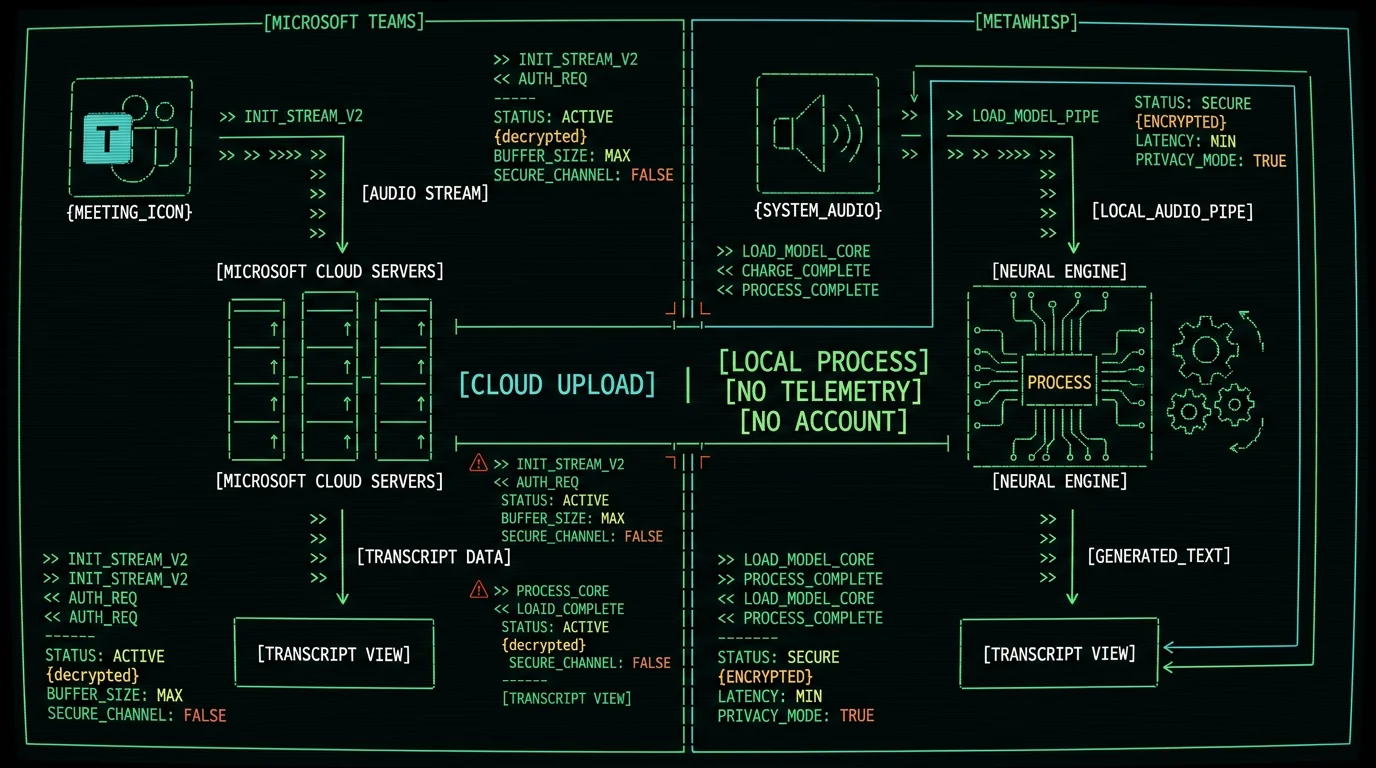
Microsoft Teams has a built-in transcription feature. When a meeting organizer turns it on, Teams sends the meeting audio to Microsoft's cloud, runs it through Microsoft's speech-to-text service, and attaches a transcript to the meeting record. The transcript shows up in the meeting chat, on the recording page in OneDrive or SharePoint, and becomes searchable through Microsoft 365 Copilot if your tenant has it. The feature has been around for a few years and covers a long list of supported languages. Per Microsoft's Teams documentation, the exact set of languages and the licensing tier that unlocks transcription have shifted over time, so treat any specific number you find in a help article as a snapshot. What matters for this comparison is the architecture: the audio leaves your machine, gets processed in Microsoft's cloud, and the transcript lives in your tenant's storage. That's the foundation everything else (privacy, accuracy, cost) sits on.What is Microsoft Teams transcription and how does it work?
Microsoft Teams transcription is the built-in feature that turns spoken meeting audio into searchable text. When an organizer clicks "Start transcription" inside a meeting, Teams streams the audio to Microsoft's speech-to-text service in the cloud. The result is a transcript attached to the meeting in the chat, the recording page, and Microsoft 365 Copilot search if your tenant has it. The organizer can also turn on speaker attribution and download the file as a .docx or .vtt. Per Microsoft's current documentation, availability depends on the Microsoft 365 plan and the tenant's policy settings, so check your admin center before assuming it's on. If the meeting is in a language other than English, the organizer picks it before starting transcription.
Why People Look Beyond Native Teams Transcription
Three reasons come up over and over when I talk to people who have moved off the native feature: 1. Cost. Microsoft 365 plans that include transcription (or Premium features layered on top) aren't free. For a small team or a solo operator, paying per seat just to read meeting text is a lot. 2. Privacy. Anything said in a meeting where transcription is on is being sent to Microsoft. The transcripts live in your tenant, yes — but the audio passes through Microsoft's cloud and is processed by their STT service. If you're a lawyer, doctor, journalist, or just paranoid, that matters. The GDPR rules on international data transfers don't go away because it's a US-headquartered vendor. 3. Accuracy on hard audio. Native transcription is solid for a clean English internal standup. It stumbles more on heavy accents, technical jargon, multiple people talking over each other, and industry-specific vocabulary. That has been the consistent pattern in every community report I've seen.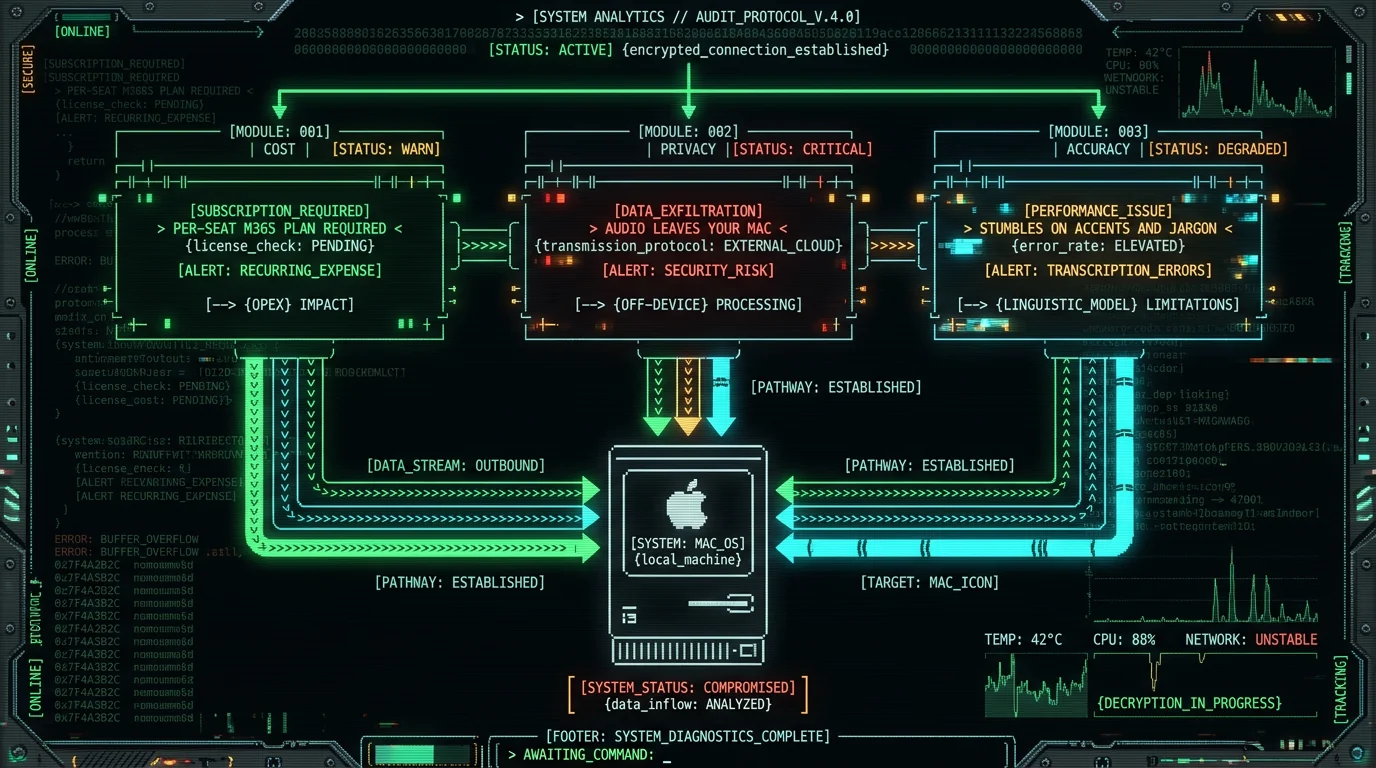
How to Enable Microsoft Teams Transcription
If you want the native route, the path is short. The exact UI moves a little between Teams desktop versions, but in 2026 it's roughly: 1. Open Teams and start or join a meeting. 2. Click the "More actions" menu (the ••• button in the meeting controls). 3. Choose Transcription > Start transcription. 4. Pick the spoken language of the meeting. 5. (Optional) Turn on Speaker attribution to label who said what. 6. When the meeting ends, the transcript lands in the meeting chat and the recording page. A couple of gotchas that bite people: - The organizer controls it. If you join a meeting organized by someone else, you can't force transcription on. You can ask. You can also leave a Teams meeting and re-join with your own meeting link if you want full control. - Tenant policy matters. Admins can turn the feature off entirely, or require a specific add-on. The Teams admin center is where you check this. - It's not free forever. Microsoft has been known to gate parts of the experience behind Microsoft 365 plans or add-ons. Always check the current pricing page before budgeting.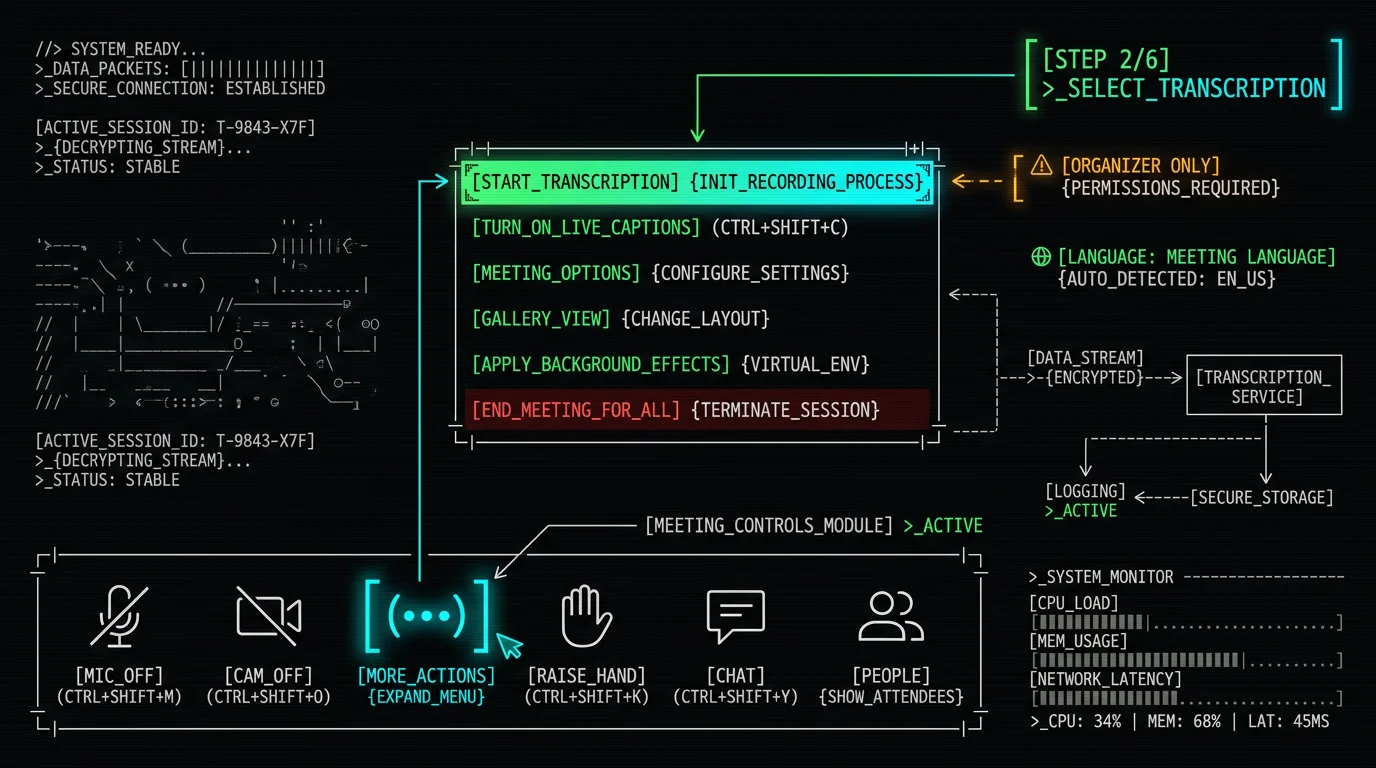
What Is the Local Capture Alternative?
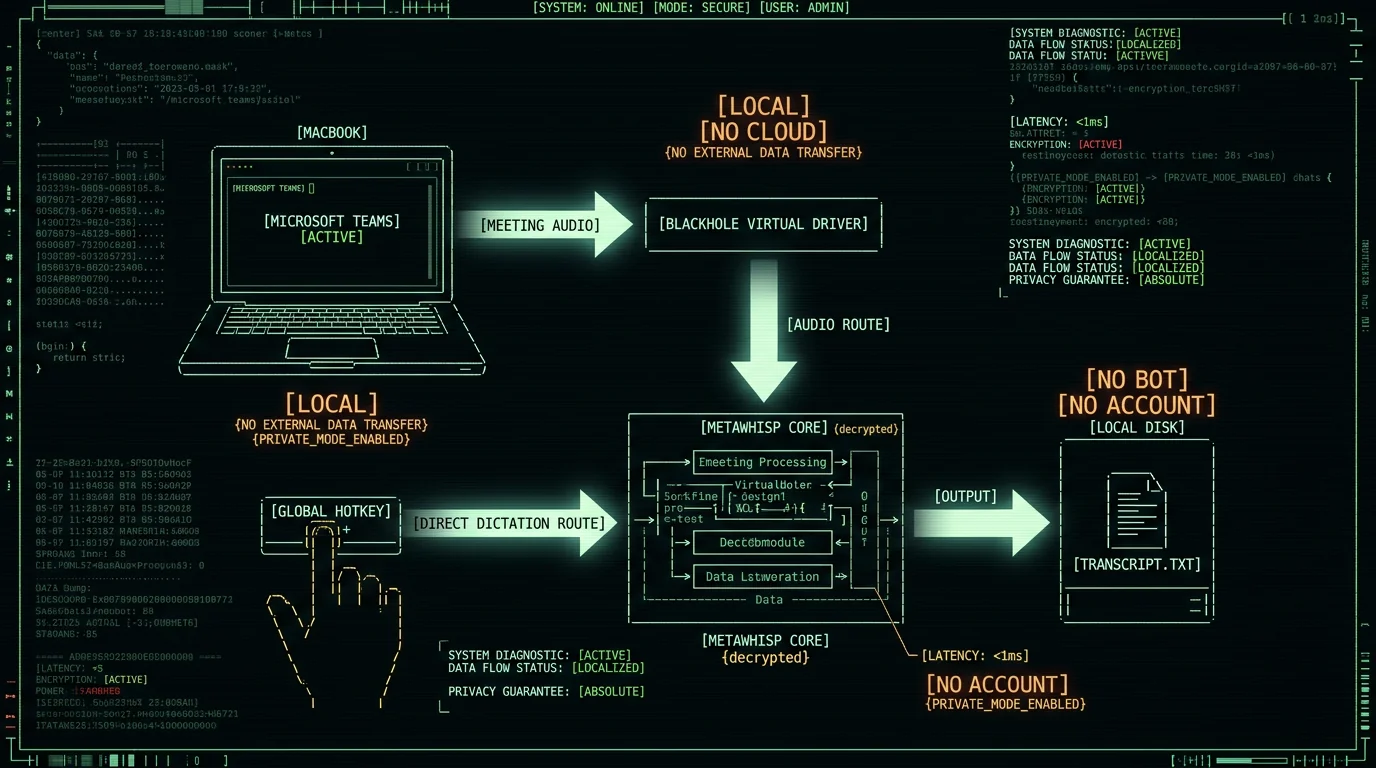
A local capture tool doesn't talk to Teams at all. It listens to your Mac's audio — either your microphone or the system audio output — and runs speech-to-text on the device. No bot joining your meeting, no cloud upload, no tenant admin to ask. MetaWhisp is one of these. It runs WhisperKit on top of OpenAI's Whisper large-v3-turbo model, executing the inference on the Apple Neural Engine. You hold a hotkey (Right Option by default), talk, and the transcript gets pasted into whatever app has focus. Audio never leaves the Mac in local mode. For Teams specifically, there are two ways to use it: - Capture your own voice during a call. Useful for live notes, action items, or "let me dictate that follow-up email right now." Works without any extra setup. - Capture the meeting audio with a virtual device. Install something like BlackHole (a free macOS virtual audio driver), set it as the system output, and MetaWhisp will transcribe everything the meeting says — not just you. This is the closest you get to a bot-free meeting transcript. If you want the full walkthrough, the article on meeting transcription without a bot goes deeper on this setup.Pro tip: If you go the BlackHole route, route only the meeting audio through it (use a multi-output device in Audio MIDI Setup). Sending your mic and your system audio into the same capture will double the speech and hurt accuracy more than any model improvement ever will.
Can you transcribe a Microsoft Teams meeting without a bot joining?
Yes, by capturing system audio locally on your Mac. The pattern is: install a virtual audio driver (BlackHole is the common free one on macOS), create a Multi-Output Device in Audio MIDI Setup that includes both your headphones and the virtual driver, set Teams to use that as the speaker, and run a local STT tool (MetaWhisp, MacWhisper, etc.) with the virtual driver as its input. The tool transcribes the meeting audio on-device; no bot joins, no cloud upload happens. The catch is that you're not getting an official meeting record — you have a local file. For an internal record you control, that's a feature, not a bug. The other option is to just dictate your own notes into MetaWhisp while the call is happening.
How Does Privacy Compare: Cloud Transcripts vs Local Audio?
The privacy difference is the most important part of this comparison, and it's the part the marketing material usually skips. Native Teams transcription. Audio streams from your machine to Microsoft's cloud. Microsoft's STT service processes it and returns the text. The transcript is stored in your tenant's storage (OneDrive/SharePoint), so access control is in your hands — but the audio was processed by Microsoft. Microsoft has a service description and a data handling addendum that governs this; both are written for big enterprise customers and not always easy to read. If you operate under HIPAA, GDPR, or a client confidentiality agreement, you should assume the audio is leaving the building. Local capture with MetaWhisp (or any on-device tool). Audio is processed on the Neural Engine in your MacBook. Nothing is uploaded. MetaWhisp has no telemetry in local mode. If you turn on Pro cloud features (the "Structured" processing modes described in our processing modes docs), then yes, audio goes to the cloud — but that's a deliberate opt-in, not the default. For regulated industries, the practical question is: do you need the transcript inside the Microsoft tenant, or do you need a transcript you fully control? Those are different products.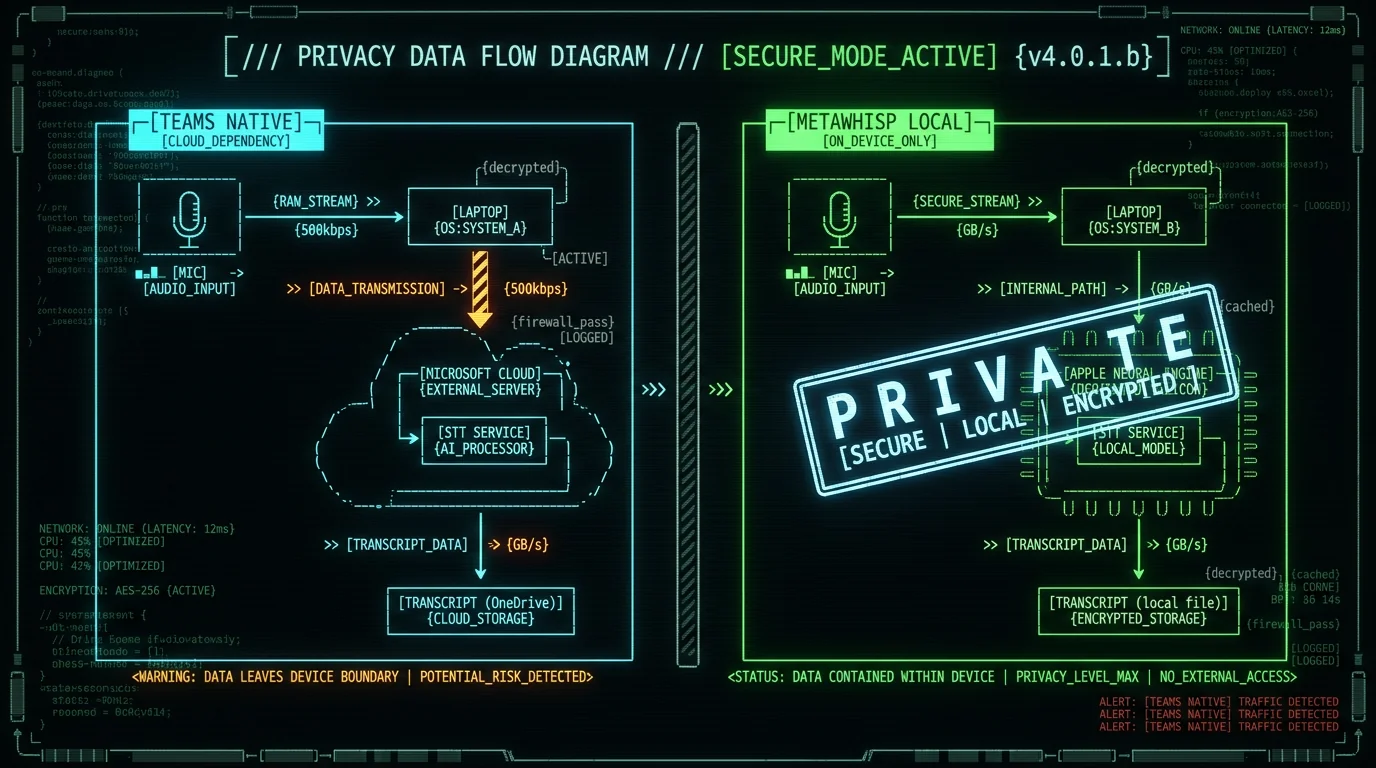
Is Microsoft Teams transcription private enough for sensitive calls?
It depends on what "private" means to you. Microsoft processes the audio in their cloud and stores the transcript in your tenant. Microsoft's security and compliance certifications (SOC 2, ISO 27001, HIPAA BAA availability) cover the platform, but your firm's compliance posture still depends on how you configure the tenant. For purely internal meetings under your own Microsoft 365 tenant, that is usually acceptable. For client work where the contract forbids data leaving your country, or for healthcare conversations where you want zero third-party processing, a local capture tool that keeps audio on the MacBook is the cleaner answer. Always check the latest Microsoft service description and your own counsel's guidance before making the call.
How Accurate Is Microsoft Teams Transcription vs Whisper?
I can't give you a Teams number from my own testing — I haven't run a controlled head-to-head with the Teams service. What I can say with verified data is the model layer that local tools sit on: - OpenAI Whisper large-v3 reports about 3.5% WER on the LibriSpeech test-clean benchmark, per the Whisper model card on Hugging Face. - Whisper large-v3-turbo (the one MetaWhisp uses) is a distilled, faster variant of the large-v3 model. In our 7-app head-to-head test, MetaWhisp running this model hit 3.7% WER. - MetaWhisp on the same audio: 2.76% WER in our own LibriSpeech test-clean run. The only first-party accuracy number I have. Community feedback and Microsoft documentation on Teams native transcription suggest it's competitive on clean English but degrades on accents, jargon, and overlapping speakers. None of that is a hard number I can pin to a public benchmark. If you want the strongest local accuracy, the open-source Whisper stack on Apple Silicon is the best I've measured. If you want a transcript that's automatically attached to the Teams meeting, native is the path of least resistance.Which Languages Does Each Option Support?
| Capability | Microsoft Teams (native) | Local (Whisper large-v3) |
|---|---|---|
| Auto language detect | Yes (per current docs) | Yes, 99 languages |
| Approx. supported languages | See current docs (number shifts with updates) | 99 |
| Translate output | Built-in in some plans | Limited selection (MetaWhisp Pro) |
| Speaker labels | Yes (with attribution on) | Not shipped in MetaWhisp |
| Runs without internet | No | Yes (local mode) |
How accurate is Microsoft Teams transcription vs Whisper?
On clean English speech, both are good enough that most people stop noticing the errors. On the underlying model layer, OpenAI's Whisper large-v3 reports about 3.5% WER on LibriSpeech test-clean. In our 7-app head-to-head test, MetaWhisp running the turbo variant hit 3.7% WER, and our own LibriSpeech test-clean run came in at 2.76% WER — the only first-party numbers I have. For Microsoft Teams native transcription specifically, I don't have a controlled WER measurement and the published material from Microsoft doesn't include one for the public to compare against. In practice, what breaks both systems is the same stuff: strong accents, technical vocabulary not in the training set, and overlapping speakers. A good microphone and a quiet room do more for accuracy than swapping models.
How Do You Use a Local Tool Inside a Teams Call?
If you go the local route, the workflow on macOS looks like this: 1. Install MetaWhisp and let the ~950 MB Whisper large-v3-turbo model download. 2. Decide what you want to capture. Just your own voice? Skip BlackHole. The whole meeting? Set up BlackHole as described in the bot-free meeting transcription guide. 3. Join your Teams call as normal. 4. When you want to dictate, hold the global hotkey (Right Option by default), talk, release. The text appears in the focused app — Slack, Notion, your email draft, anywhere. 5. If you want richer cleanup of the transcript, switch on one of the Pro processing modes like "Structured" or "Email". These are the only MetaWhisp features that hit the cloud. The big win is that this works in every meeting app, not just Teams. Same workflow in Zoom, Google Meet, Webex, around the kitchen table. For a deeper look at the Zoom side of the same problem, see Zoom transcription on a Mac.How Much Does Each Option Cost?
| Option | What you pay | Per-minute fees | Where the audio goes |
|---|---|---|---|
| Microsoft Teams native | Microsoft 365 subscription (plan-dependent) or Teams Premium add-on | None | Microsoft cloud |
| MetaWhisp local mode | $0 | $0 | Stays on the Mac |
| MetaWhisp Pro | $30/year or $7.77/month | $0 (per current Pro tier limits) | Optional, only when Pro features are on |
| Other cloud STT APIs | $0 to start | Varies; typically a fraction of a cent per minute | Vendor cloud |
Pro tip: Per-minute cloud STT fees are usually a rounding error at the team level. The real cost of cloud transcription is the meeting data leaving your infrastructure, not the line on the credit card statement. Price accordingly.
When Should You Use Native vs Local?
Pick native Teams transcription if: - You need the transcript to live inside the Microsoft 365 tenant (search, retention, eDiscovery). - The meeting is internal, low-sensitivity, and your tenant policies already allow it. - You want speaker labels, Copilot summaries, and zero setup. Pick a local capture tool if: - Privacy is a hard requirement — client contracts, regulated industries, journalism, healthcare. - You want one workflow that works across Teams, Zoom, Meet, Webex, and in-person. - You need a language the Teams transcription list doesn't cover. - You don't want to pay per seat for a feature that's also free as a 950 MB model download. Both can co-exist. Many of the people I talk to use Teams native for the official meeting record and a local tool for their personal notes, follow-up emails, and the calls where they want nothing to leave the laptop. If you want to try the local path, grab MetaWhisp free for Mac — local mode is unlimited, no account, no time caps.What's the best alternative to Microsoft Teams native transcription?
For a privacy-first Mac workflow, the strongest alternative is a local Whisper-based tool that captures system audio on the device. MetaWhisp, MacWhisper, and SuperWhisper all sit on top of OpenAI's Whisper models; MetaWhisp uses WhisperKit to run the large-v3-turbo model on the Apple Neural Engine, which is what makes it fast and free of cloud fees. Pair it with a virtual audio driver (BlackHole) to capture the meeting audio without a bot joining. The tradeoff is that you don't get a transcript that's automatically linked to the Teams meeting record — you get a local file you control. For many people, that's exactly the point.
FAQ
Does Microsoft Teams have a built-in transcription feature?
Yes. Organizers can turn on transcription from the More actions (•••) menu during a meeting. The transcript shows up in the meeting chat and the recording page. Availability depends on the tenant's Microsoft 365 plan and admin policies, so check your admin center if you don't see the option.
Is Microsoft Teams transcription free?
It depends on the plan. Some Microsoft 365 subscriptions include it; others require an add-on like Teams Premium. Per Microsoft's current pricing page, availability has shifted over time, so confirm against the live page before budgeting. Native transcription itself doesn't charge per minute — you pay per seat.
Where are Microsoft Teams transcripts stored?
Transcripts are stored in the meeting organizer's OneDrive or SharePoint, depending on the meeting type. They inherit the same permissions as the recording. Admins can also set retention and deletion policies through the Microsoft Purview compliance portal.
How accurate is Microsoft Teams transcription?
It works well on clean English with one speaker. Accuracy drops on heavy accents, technical vocabulary, and overlapping speakers — the same weak points every cloud STT system has. Microsoft doesn't publish a public WER benchmark for the live service, and I don't have a first-party number from my own testing.
Can I transcribe a Teams meeting on macOS without uploading audio?
Yes. Install a virtual audio driver like BlackHole, route Teams audio through it, and run a local STT tool (MetaWhisp, MacWhisper, etc.) on the MacBook. Audio never leaves the device. The full walkthrough is in the meeting transcription without a bot guide.
Is Microsoft Teams transcription HIPAA compliant?
Microsoft offers a Business Associate Agreement (BAA) for qualifying Microsoft 365 plans, which covers the platform. Whether your specific use is compliant depends on your own policies and risk tolerance — compliance belongs to the practice using the tool, not the app itself. For zero third-party processing, a local tool on the MacBook is the safer answer.
Does Microsoft Teams transcription work in languages other than English?
Yes, Microsoft supports a long list of languages for transcription — per current documentation, though the exact number shifts with updates. For wider language coverage (99 languages with auto-detect), Whisper-based local tools lead.
What is the best alternative to Teams native transcription?
For most people who want privacy, cost control, and accuracy on a Mac, a local Whisper-based tool is the best alternative. It works across every meeting app, keeps audio on the device, and on the model layer hits the same accuracy as the best commercial cloud STT. The tradeoff is that you don't get a transcript automatically attached to the Teams meeting record.
About the author
Andrew Dyuzhov is the solo founder of MetaWhisp, a free on-device voice-to-text app for macOS. He built MetaWhisp with AI coding tools on top of open-source Whisper because, as someone with ADHD, dictation is how he gets past writing paralysis. He runs a 7-app head-to-head WER test on his own audio and writes about the results here.
Find him on X or the MetaWhisp GitHub.
