Decisions, owners, and next steps — extracted locally
What does an AI meeting recap actually produce?
An AI meeting recap is more than a transcript. The transcript is just the raw material. The recap is the structured pass on top — the document you'd hand to someone who wasn't in the room and wanted to know what happened, what was agreed, and who needs to do what next.
In practice, a good meeting recap has four sections:
- Summary. Two to four sentences describing the meeting's purpose and outcome.
- Decisions. Things the group actually agreed on, phrased as commitments, not discussion topics.
- Action items. Tasks with an owner, a verb, and ideally a deadline. The who, the what, and the when.
- Open questions or next steps. Things deferred, parking-lot items, follow-up meetings.
That last section — action items with owners — is the part most people actually want. It's also the hardest to extract well, because real meetings are messy. People interrupt themselves, change their minds mid-sentence, and say "I'll handle that" without ever saying what "that" is. A useful recap has to do some reading between the lines.
The non-negotiable: every action item needs an owner and a verb. "Follow up on pricing" is not an action item — it's a topic. "Sarah to send revised pricing to Acme by Friday" is. The recap should also separate decisions (things committed to) from discussions (things still under debate), and flag anything that was actually said versus anything implied. If the AI can't confidently identify the owner, it should say so rather than guess — guessing is how "Sam will follow up" turns into a wasted Monday morning. A good recap also marks items as tentative when they're tentative, so the meeting recap isn't read as a signed contract.
How does MetaWhisp extract action items on Mac?
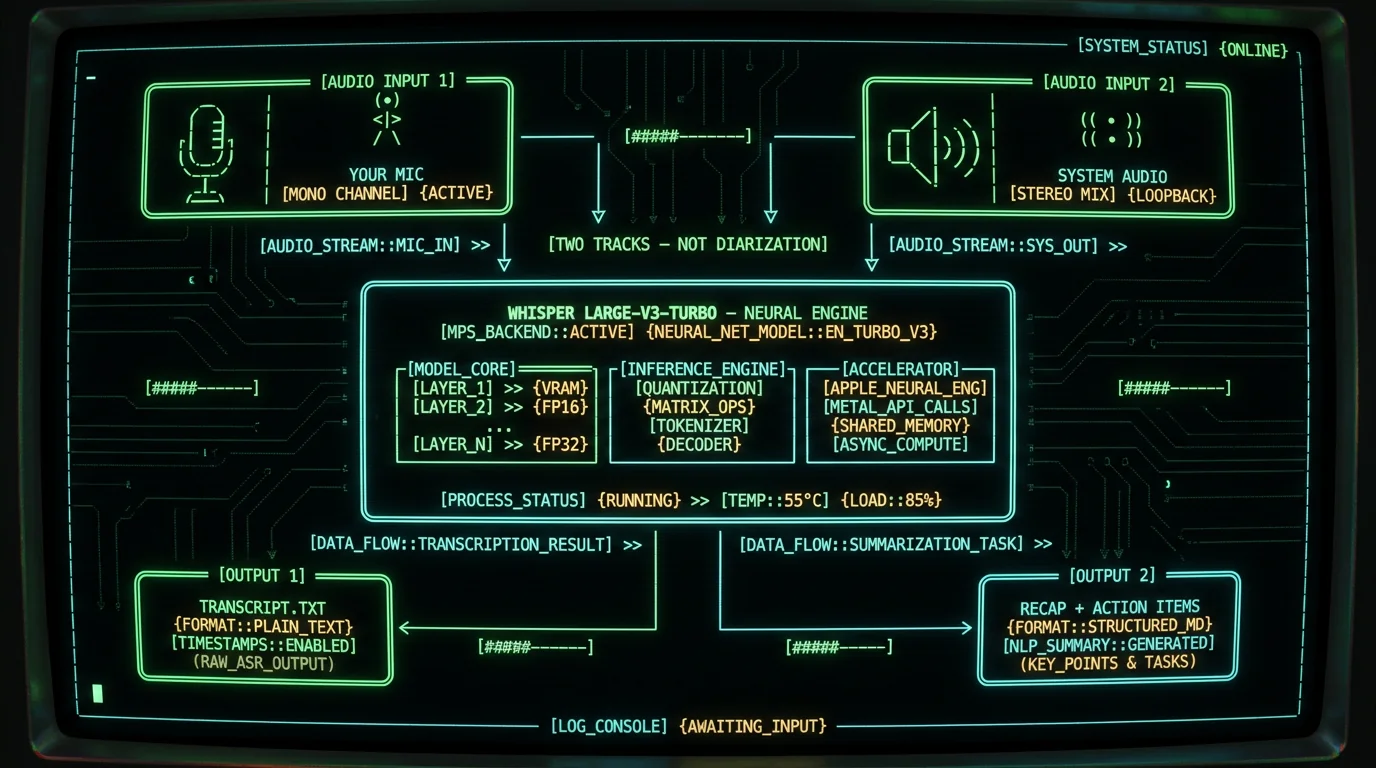
MetaWhisp runs in two stages: transcription, which is local and always free, then recap generation, which needs an AI model to read the transcript and pull out structure. Both stages stay on your Mac by default.
The processing modes are how you choose what happens after the transcript lands. The one built for meeting recaps is called Structured: it takes the transcript and asks the AI to return decisions, action items, and follow-ups in a fixed format.
Walk-through for a real meeting:
- Open MetaWhisp and click Record — or hit the global hotkey (Right Option ⌥ by default) from any app.
- Pick your sources. Turn on Microphone for your own voice; turn on System Audio to capture the other side of a Zoom, Meet, or Teams call. macOS will ask for screen-recording permission the first time — Apple's standard consent flow covered on support.apple.com.
- Hold the meeting normally. There's nothing to wear, nothing to ask your participants to install.
- Stop the recording when the call ends. The two tracks land in your project folder as separate files.
- Open the transcript, switch the processing mode to Structured, pick your AI route (local model on your Mac, your own OpenAI or Cerebras key, or MetaWhisp Pro) and let it produce the recap.
Pro tip: Don't try to record from a noisy open-plan room without headphones — system audio capture in macOS will pull in your laptop mic as part of the system track too if Apple's app-device routing is confused. Test with a five-second clip before a real client call.
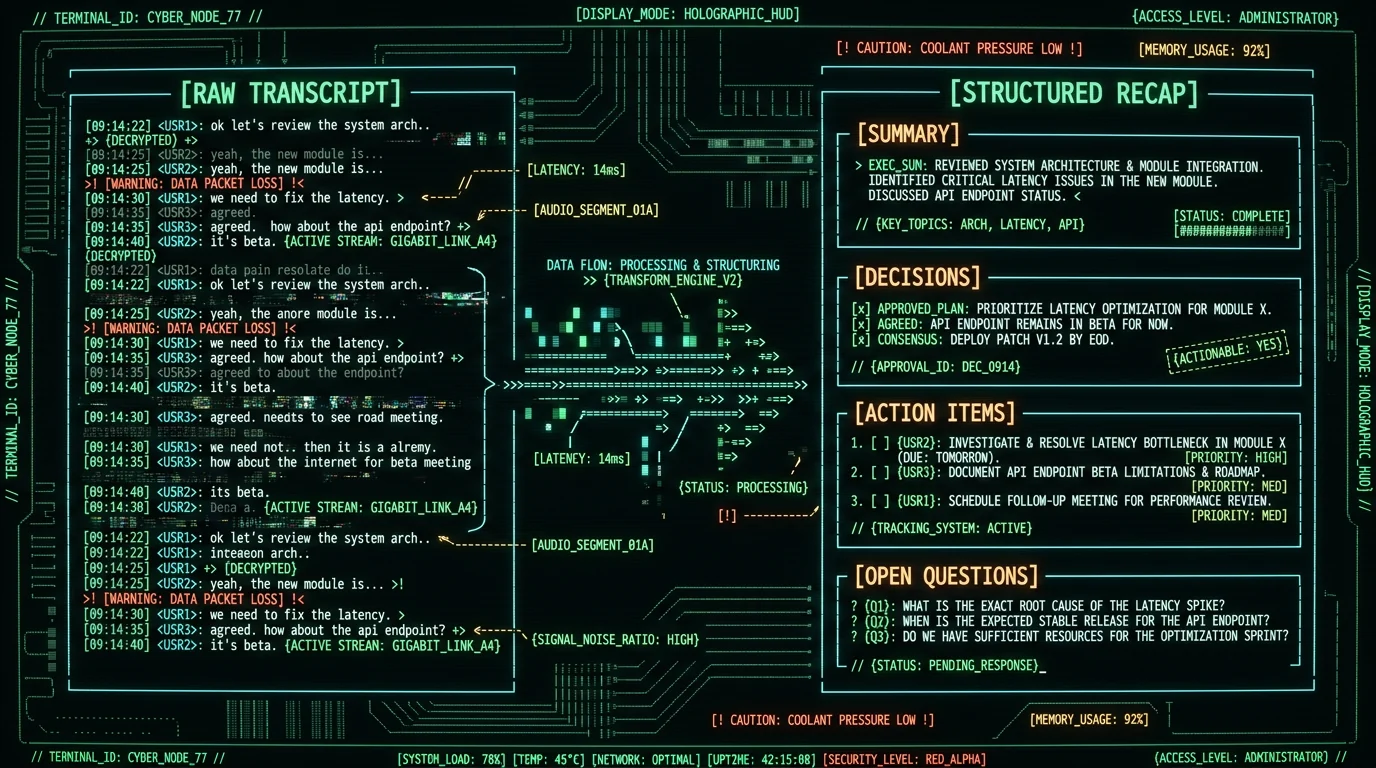
After Whisper large-v3-turbo finishes the transcript on the Neural Engine, the text — never the audio — gets handed to a language model that you choose. The prompt is a meeting-specific template that asks for four blocks: a short summary, a list of decisions phrased as commitments, a list of action items with the pattern "[owner] to [verb] [object] by [date]", and a list of unresolved questions. The model returns JSON, which the app renders into a clean outline you can copy into Notion, Obsidian, or your CRM. Local mode on the free tier means the recap is generated by a model you run on your Mac (no audio leaves the device, no transcript leaves the device); bring-your-own-key routes the text to OpenAI or Cerebras using your account, not MetaWhisp's; Pro routes it to MetaWhisp's cloud, which is documented on the pricing page.
Why two-track recording isn't speaker diarization
This is the part I want to be very honest about, because it's where marketing copy usually lies.
MetaWhisp can record your microphone and your system audio at the same time. That's useful — one track is your voice, the other is the people on the other end of a Zoom call. But:
- Two tracks means two sources, not two speakers.
- If three people are in a physical room meeting you, your Mac's mic hears all three of them as one channel — they cannot be separated by who they are.
- If four people are on a Zoom call you joined, you hear them as one merged system-audio track. We can split into individual remote participants only if your meeting tool gives us separate audio streams, which most don't expose.
- We do not identify voices by biometric matching. We do not label a voice as "Maria" or "the engineer".
True speaker diarization — the "who spoke when" labels you see in Otter or documented on Wikipedia — is a separate pipeline that requires a different model family. It is not shipped in MetaWhisp today. If a recap says "Sarah committed to sending the proposal", that's because the model inferred an owner from context or transcript cues — name mentions, role tags — not because we identified Sarah's voice.
No, and the difference matters. Two tracks just mean "your mic" and "everyone else's audio as routed by macOS". Speaker diarization means "this person, then this person, then this person", each labeled. They are two different problems. The use case for two tracks is honest: you can listen back to yourself on one channel and the call on the other, or run the recap and ask the model "what did the meeting participants agree to" without conflating your own thoughts with theirs. The use case for diarization is honestly identifying who said what — which MetaWhisp doesn't do yet, and which you should not assume it does based on the existence of two audio files.
Does the recap leave your Mac?
It depends on which mode you pick. The app itself is local. The audio never leaves your Mac in local mode — there is no upload, no telemetry, no analytics, no account. The recap generation adds an AI step, and that step has three possible destinations.
| Route | Where the transcript goes | Where the audio goes | Cost |
|---|---|---|---|
| Local model on your Mac | Stays on your Mac | Stays on your Mac | Free, unlimited |
| Bring-your-own-key (OpenAI / Cerebras) | To your API account | Stays on your Mac | Your API spend |
| MetaWhisp Pro cloud | To MetaWhisp servers | To MetaWhisp servers (cloud mode) | $30/yr or $7.77/mo |
The local-only free path gives you a transcript. It does not give you a structured recap — that's what the AI step is for. Local-model recap is technically possible if you install something like Ollama and wire MetaWhisp to it (documented on our processing modes page). For most people on the free tier, the practical path to action items is BYOK: paste your OpenAI key once, then every meeting gets a recap structured the way you want.
Honest gap: Recording and recap AI are both off by default in MetaWhisp. You have to click Record and you have to enable Structured mode. This is on purpose — voice capture is the kind of thing that should never run silently on someone's laptop. On Pro, the only cloud touchpoint is the explicit cloud-transcription opt-in; the transcript and recap live on your disk and you decide what happens to them.
Consent and recording law: what to tell your participants
This part is non-negotiable. Recording other people — even just their side of a video call — has legal and ethical weight that varies wildly by jurisdiction.
The technical reality: when you turn on system audio capture in a Zoom call, you are recording the other participants' voices. Whether that's legal depends on where you and they are.
- One-party consent jurisdictions — including U.S. federal law and many U.S. states — only require one person in the conversation to consent. That's you.
- All-party consent jurisdictions — California, Florida, Illinois, Massachusetts, Washington, and others in the U.S., plus most EU countries under GDPR and stricter local laws — require every participant to consent.
- Industry rules. Healthcare conversations covered by HIPAA, attorney-client conversations covered by privilege rules, and certain financial conversations have their own recording restrictions on top of general law.
The good news is that consent is cheap. At the start of the call, say something like:
"Quick heads-up — I'm recording this on my end to take notes, so a transcript and summary are off your hands. If anyone objects, just say so and I'll turn it off. I'll share the recap afterward."
For a deeper jurisdictional overview, the telephone recording laws comparison on Wikipedia is a reasonable starting point. For medical and legal practices, the FTC and HHS HIPAA guidance set the floor. None of this is legal advice — when in doubt, talk to your counsel.
In many U.S. states and most EU countries, yes — even if you're recording on your own laptop. The default in MetaWhisp is recording off specifically so you make the choice deliberately, but the app doesn't enforce consent on your behalf; that's on you. If you're in a one-party-consent state you may not need verbal permission, but you should still tell participants because (a) it's the polite move, (b) many states have carve-outs even in one-party law, and (c) "I didn't know I was being recorded" is the exact framing that escalates a normal business dispute into a tortious-interference claim. A two-second announcement at the top of the call buys you a lot of protection.
MetaWhisp vs Granola vs Otter for meeting recaps
If your priority is "AI meeting recap action items on Mac", three tools come up consistently: MetaWhisp, Granola, and Otter. They take genuinely different approaches, and the "best" answer depends on whether your priority is meeting-specific polish or keeping the audio off the cloud.
| MetaWhisp | Granola | Otter | |
|---|---|---|---|
| Primary model | Audio-as-input — Whisper large-v3-turbo on Mac Neural Engine | Audio-as-input — cloud transcription per their docs | Audio-as-input — cloud transcription |
| Default data location | On-device. Audio never leaves the Mac in local mode | Cloud (per their privacy docs) | Cloud (per their privacy docs) |
| Recording | Off by default. Two-track mic + system audio | Per their product, requires their app or browser-side capture | Otter Notetaker can join a meeting for you |
| Free tier | Local transcription, unlimited | Per their current pricing page — limited free tier exists | Per Otter's current pricing — limited free tier exists |
| Paid tier (recap) | $30/yr Pro, or BYOK using your own key on the free tier | Per their current pricing page | Per Otter's current pricing page |
| Speaker diarization | Not shipped | Per their product docs | Yes — per Otter's product |
| iOS / mobile | Not shipped (planned for 2026) | Per their product, mobile capture supported | Per Otter's product, iOS and Android apps available |
Where MetaWhisp wins is privacy-by-default and zero-config on a Mac you already own. You record, you get a transcript, the audio never leaves your laptop. If you want action items, you wire Structured mode to a local model or your own API key. There's no "send this to a SaaS dashboard" step.
Where Granola and Otter win is meeting-specific polish and bot-in-call workflows. If you're in heavy customer-facing meetings and a polished recap UI is worth the trade-off of sending audio to a server, both are legitimate choices — that's the deeper MetaWhisp vs Otter comparison and the broader Granola alternatives for on-device Mac users we cover elsewhere.
The honest version of the decision tree:
- Pick MetaWhisp if your meeting content is sensitive (legal, medical, financial), if recording consent is friction you don't want, or if you simply want the audio to stay on the laptop.
- Pick Granola or Otter if you want a polished recap UI with diarization, a mobile capture app, and "it just joined my meeting for me" automation — and you're okay with audio going to a third-party server under their terms.
None of them wins everywhere. Otter wins on diarization because it's shipped and battle-tested. Granola wins on meeting-specific UX polish — per their product, recap is the headline use case. MetaWhisp wins on the privacy/price axis: local-first, free local transcription, recap generated under your control, no audio sent to a third-party server unless you turn on Pro. Treat the comparison as a matrix, not a leaderboard. The right answer is whichever trade-off matches the sensitivity of your meeting content and your tolerance for sending audio to a server you don't run.
Which workflow actually fits a one-person meeting?
Here's the case I think most about: the weekly call where it's me, sometimes a client, often no one, and the reason it matters is because the action items never make it back to my task list.
The setup that works for me on an M1 Air:
- Open the meeting URL in the browser, hit Right Option ⌥ to start MetaWhisp.
- Both mic and system audio on. I speak normally; the call audio captures on the other track.
- End the call, hit Right Option ⌥ again to stop.
- Switch the project to Structured mode and let the recap generate. With a local model this takes a few minutes for a 30-minute meeting; with OpenAI via BYOK it's seconds, but the transcript still goes nowhere I didn't authorize.
- Paste the recap block into a Notion page, tag the action items, and stop thinking about the meeting.
For lawyers and doctors reading this: local mode keeps the transcript and recap on your Mac and nothing leaves the device, which is what fits a HIPAA-compatible or attorney-client workflow. That means the AI recap in local mode needs to come from a local model you run on your own hardware, or be skipped entirely and done by hand. We don't claim any "HIPAA compliant" or "HIPAA certified" status — that belongs to the practice — but local mode is the configuration that lines up with those obligations. The how-to-transcribe-meeting-minutes walkthrough covers the transcription side in more detail.
Founder's note: I run my own standups through this — the Monday planning call with myself where I'm thinking out loud about the week. Two-track recording means I get my own voice on one channel and the background ideas bouncing around in the recording app on the other. After the recap, action items land in Todoist before I close the laptop. ADHD tax on writing things down is real; this is the workaround I built for myself and shipped.
The split between "AI meeting recap" and "action items" is also worth naming. A recap is a structured narrative. Action items are a list of verbs. Some teams want both, some want only the list. MetaWhisp's Structured mode returns both. If you only want the list, you can ask for it with a custom prompt in the same processing modes interface.
Practical defaults I'd start with
If you're new to meeting recaps on Mac, this is the configuration I'd set up on day one:
- Recording source: mic + system audio together, both on for the whole call.
- Hotkey: Right Option ⌥ to start/stop, so you can launch from inside Zoom without window switching.
- Processing mode: Structured, with a meeting-specific prompt template.
- AI route: your own OpenAI or Cerebras API key, if you want recaps without paying for Pro. Local model on the Mac if you want zero external calls. Pro only if you also want cloud transcription.
If you want to try this today, the free Mac download is on the site — Apple Silicon, macOS 14+, model download about 950 MB on first run. No account, no telemetry.
Frequently asked questions
Can MetaWhisp identify who spoke in the meeting?
Two ways. With your own Gemini or Deepgram key it labels voices per speaker. Without a key it records your microphone and system audio as two separate tracks — you get which side spoke, not which person. Three people in a physical room meeting you are captured as one channel via your Mac's mic. The recap may still attribute action items to a name because the model read the name in the transcript — that's inference from the text. For real voice identification, add your own Gemini or Deepgram key.
Do I need the paid Pro plan to get action items?
No. Recap generation — including the action-items block — runs on the free tier if you bring your own OpenAI or Cerebras key, or if you run a local LLM on your Mac. Pro is for people who want MetaWhisp to handle the cloud AI step itself, and for cloud transcription per the pricing page. Pricing is on the pricing page.
How long can a meeting recording be in local mode?
Local mode has no time cap. Storage is the only limit — audio is saved to your disk as two separate tracks, so storage scales with call length and quality.
Does the meeting recorder work with Zoom, Google Meet, and Teams?
Yes — MetaWhisp captures system audio, which is what those apps play back to you. The other side of the call shows up on the system-audio track. No browser extension or bot joining the call on your behalf is required. Some apps let you select a virtual audio device; MetaWhisp uses whatever macOS routes to your speakers.
Is it legal to record a meeting on my Mac?
It depends on where you and your participants are. U.S. federal law and many U.S. states are one-party-consent, which means your consent is enough. Other U.S. states (California, Florida, Illinois, and others) and most EU countries under GDPR require all-party consent. Always announce you're recording at the start of the call and check your local rules — the telephone recording laws page on Wikipedia is a starting point. This isn't legal advice.
What languages does the meeting transcription support?
99 languages with auto-detect, including Russian and English which I dictate daily. The Whisper model family and the WhisperKit runtime handle the heavy lifting. Translation to a set of supported languages is a separate step you can enable in the same processing-mode flow.
Does MetaWhisp upload my recording to a server?
Not in local mode. Audio never leaves the Mac in local mode, period. The only configuration that uploads audio is MetaWhisp Pro's cloud-transcription feature, and you have to opt in. AI recap via your own OpenAI or Cerebras key sends text to your account — never audio — and MetaWhisp never sees the request because the call goes directly to your key.
What happens to my recordings and transcripts after a meeting?
They're saved to your local project folder on disk. MetaWhisp doesn't keep a server-side copy. You decide retention: archive, delete, or move to encrypted storage. There's no auto-upload "in case you lose your laptop" backup by default.
Is there an iPhone or iPad app I can record a meeting on?
Not yet — the MetaWhisp is macOS-only today. but not shipped. MetaWhisp today is macOS 14+ on Apple Silicon only.
Where can I learn more before downloading?
The transcribe-meeting-minutes walkthrough is the closest deep dive we already have. The MetaWhisp vs Otter comparison and Granola alternatives for on-device Mac go deeper on the competitive trade-offs. The free app lives at the download page.
