Which Dictation Method Works Best with Obsidian?
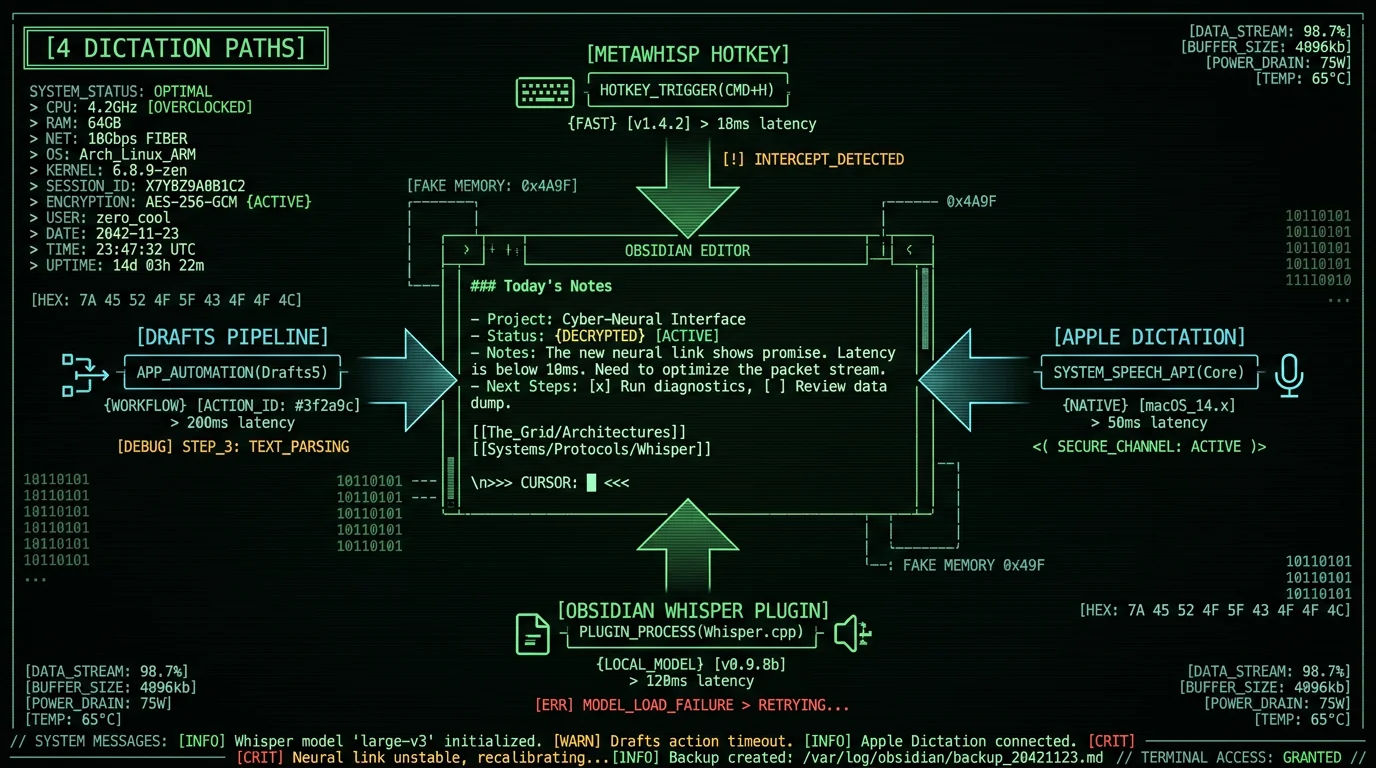
The right answer depends on what part of Obsidian you're dictating into and how much setup friction you're willing to accept:- Most general use (capturing notes, editing files, quick captures): System-wide voice-to-text app like MetaWhisp. Press Right Option in the Obsidian editor, speak, text appears. Works in every part of Obsidian without plugin overhead.
- Casual occasional use, native macOS only: Apple Dictation. Free, zero setup, but lower accuracy and frequent reliability issues in Electron apps like Obsidian.
- Want recording attached to specific notes: Obsidian community plugins (Whisper, Voice2Text). Stores audio files alongside transcripts in your vault.
- iPhone capture sync to Mac vault: Drafts + Obsidian. Dictate on iOS via Drafts' excellent voice handling, then export to Obsidian vault.
Method 1: MetaWhisp Global Hotkey (Recommended)
The lowest-friction option for Obsidian users is a system-wide voice-to-text app with a global hotkey. MetaWhisp presses Right Option, captures audio, transcribes with Whisper large-v3-turbo on Apple Neural Engine, and pastes the result wherever your cursor is — including inside Obsidian's editor. Setup:- Download MetaWhisp from metawhisp.com (free, no account)
- Launch MetaWhisp; it downloads Whisper large-v3-turbo (~800 MB, one-time)
- Grant Accessibility permission in System Settings → Privacy & Security → Accessibility
- Open MetaWhisp Settings → Global Hotkey → assign Right Option
- Choose Hold-to-talk or Toggle mode
- Open Obsidian, position cursor in any note, hold Right Option, speak, release
- Text appears at the cursor
- Main editor — dictate into any note
- Command palette (Cmd+P) — dictate command names
- Quick switcher (Cmd+O) — dictate file names to navigate
- Search (Cmd+Shift+F) — dictate search queries
- Properties / frontmatter — dictate metadata values
- Plugin settings — dictate configuration values
- Daily notes template — dictate journal entries
- Modal dialogs that block text input (rare; usually only confirmation prompts)
- Code blocks where you need exact syntax (better to type)
Pro tip: Combine MetaWhisp's Clean mode with Obsidian's daily notes template. Press Right Option in your daily note, speak your stream-of-consciousness journal entry, release. The transcript appears with filler words removed and grammar fixed, ready for tags and linking. This workflow turns Obsidian into a fast-capture journaling tool without the friction of typing every entry.
Method 2: Apple's Built-in Dictation
Every Mac on macOS 14+ has built-in Dictation. Free, no install, available immediately. The official documentation lives at Apple's Dictation support page. Setup:- System Settings → Keyboard → Dictation → toggle on
- Set shortcut: default is press Fn twice; can be remapped
- On Apple Silicon: enable "Use Enhanced Dictation" for on-device processing
- Open Obsidian, position cursor in a note
- Press Fn-Fn (or your configured shortcut)
- Speak; text appears at cursor
- Free, zero installation
- 40+ languages
- Apple Silicon Enhanced Dictation runs on-device
- Works in most native macOS apps
- Frequent failures in Obsidian's Electron-based editor — text sometimes doesn't insert, sometimes appears in the wrong location, sometimes triggers focus loss
- Lower accuracy: roughly 11-14% word error rate on accented English vs Whisper's 5-7% per OpenAI's Whisper benchmarks
- No AI cleanup or processing modes
- Standard mode (not Enhanced) sends audio to Apple servers
- Can't reliably dictate into Obsidian's command palette or quick switcher
Method 3: Obsidian Community Plugins (Whisper, Voice2Text)
The Obsidian plugin ecosystem includes several voice-to-text plugins that integrate directly with the vault. The most popular options:- Whisper plugin by djmango — Records audio in-vault, transcribes via OpenAI Whisper API, inserts transcript into the current note
- Speech to Text by bramses — Similar workflow with local Whisper model option
- Voice Notes by SeunghyunMin — Audio recording with separate transcription step
- Open Obsidian Settings → Community plugins → Browse
- Search "Whisper" → Install → Enable
- Plugin settings → enter OpenAI API key (for cloud Whisper)
- Configure: where to save audio files, transcript format, language
- Use the command palette to trigger "Whisper: Start recording"
- Speak; recording saves as MP3 in your vault
- Transcript inserts into the current note
- Audio files saved alongside notes (useful for journalism, research interviews)
- Tight Obsidian integration — commands appear in the command palette
- Customizable transcript formatting (Markdown, callouts, timestamps)
- Works on Mac, Windows, Linux, mobile if the plugin supports it
- Most plugins use OpenAI Whisper API which requires uploading audio to OpenAI servers
- Per-transcription cost via OpenAI API ($0.006 per minute)
- Only works inside Obsidian — can't use the same shortcut for Slack, Mail, Cursor
- Plugin maintenance depends on community volunteers; abandoned plugins break with Obsidian updates
Method 4: Drafts as a Capture Layer for Obsidian
Drafts by Greg Pierce is the canonical "capture-first" text app on iOS and macOS. Its voice handling is excellent — fast, low-friction, integrated with iOS Voice-to-Text and iCloud sync. Many Obsidian users use Drafts as a capture layer that feeds into their Obsidian vault. Workflow:- Install Drafts on Mac and iOS (free with Pro tier for advanced features at $19.99/year)
- On iOS: tap the microphone button on the Drafts capture screen, dictate, save
- On Mac: Cmd+N for new draft, use Apple Dictation Fn-Fn or paste from clipboard
- Drafts syncs via iCloud to your Mac automatically
- Create a Drafts "Action" that exports to your Obsidian vault folder (Pro feature)
- Trigger the action; the draft becomes a markdown file in your vault
- iOS voice-to-text in Drafts is faster than Obsidian Mobile's built-in dictation
- iCloud sync handles cross-device transfer automatically
- Drafts actions are scriptable for advanced workflows (frontmatter generation, file naming, tag injection)
- Captures stay in Drafts inbox until you process them, avoiding clutter in your vault
- Two-app workflow adds friction versus direct dictation in Obsidian
- Drafts Pro is $19.99/year; free tier limits action count
- Mobile-first design means Mac workflow is less polished than iOS
How Do I Dictate Markdown Formatting Into Obsidian?
Voice-to-text tools produce plain text without markdown syntax. To dictate formatted notes into Obsidian, you have three workflow options:- Dictate plain text, format manually — Fastest for short notes. Speak the content, then add headers, bullets, links via keyboard shortcuts.
- Speak markdown syntax explicitly — "hash hash heading" for an H2, "dash space" for a bullet. Slow and awkward but works for occasional structured notes.
- Use Clean mode with markdown awareness — MetaWhisp's Clean mode and similar tools recognize structural verbal cues ("next bullet", "new heading") and insert appropriate markdown. Inconsistent across tools.
What's the Privacy Story for Each Obsidian Dictation Method?
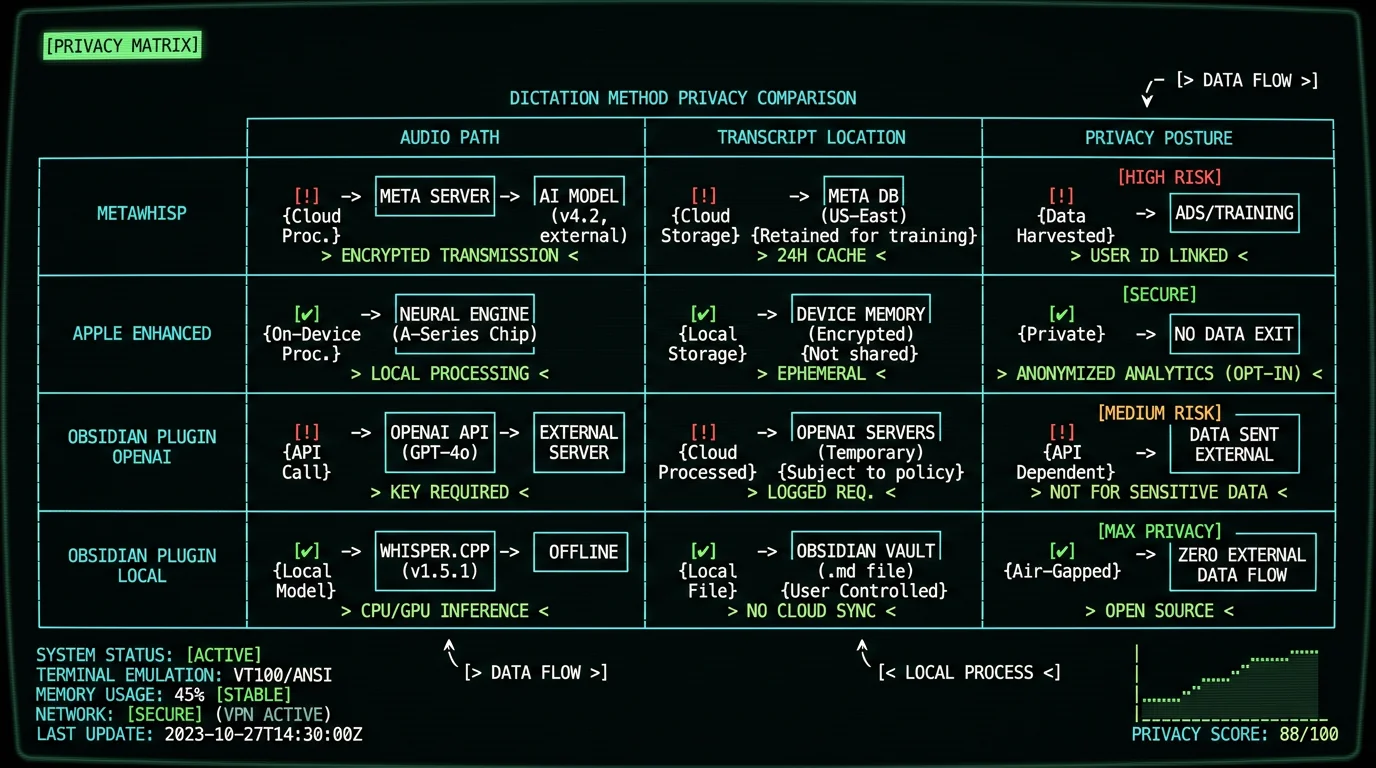
| Method | Where audio goes | Where transcript goes | Privacy posture |
|---|---|---|---|
| MetaWhisp + Obsidian | Local memory only | Obsidian vault on disk | Fully on-device |
| Apple Enhanced Dictation | Local memory only | Obsidian vault on disk | Fully on-device |
| Apple Standard Dictation | Apple servers | Obsidian vault on disk | Cloud audio upload |
| Obsidian Whisper plugin (OpenAI API) | OpenAI servers | Obsidian vault on disk | Cloud audio upload |
| Obsidian Whisper plugin (local model) | Local memory only | Obsidian vault on disk | Fully on-device |
| Drafts capture + Apple Dictation | Apple servers | Drafts → vault on disk | Cloud audio upload |
For Obsidian users storing sensitive content — therapy journals, medical research notes, legal case notes, financial planning — the privacy posture of your dictation tool matters as much as your sync setup. Audio is often more revealing than text because intonation, pauses, and tone communicate emotional content the typed transcript doesn't capture.
How Do Obsidian Plugins Compare to MetaWhisp for Dictation?
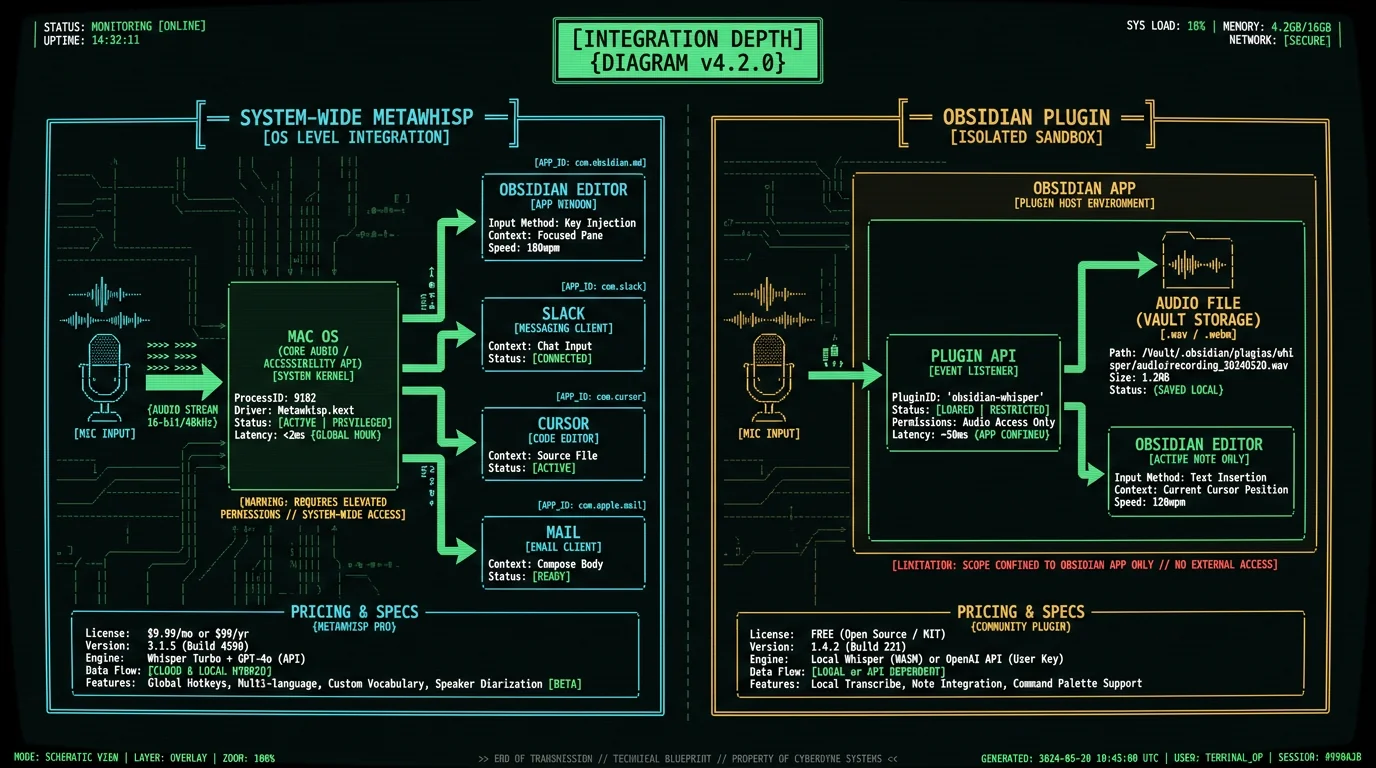
The fundamental difference between Obsidian community plugins and system-wide voice tools comes down to scope and architecture:- Obsidian Whisper plugin scope — Works only inside Obsidian's main editor. Activated via Obsidian's command palette or hotkey. Stores audio in your vault. Uses OpenAI Whisper API or local Whisper model depending on plugin.
- MetaWhisp scope — Works system-wide. Activated via global hotkey from any app. No audio storage. Always on-device with Whisper on Apple Neural Engine.
- If you dictate in 5+ apps per day (Slack, Cursor, Mail, Notion, Obsidian) — system-wide tool wins
- If you dictate only in Obsidian and need the audio archived — plugin wins
- If you want maximum privacy with on-device processing — both can work; check plugin settings for local model option
How Do I Sync Dictated Notes Across Mac and iPhone?
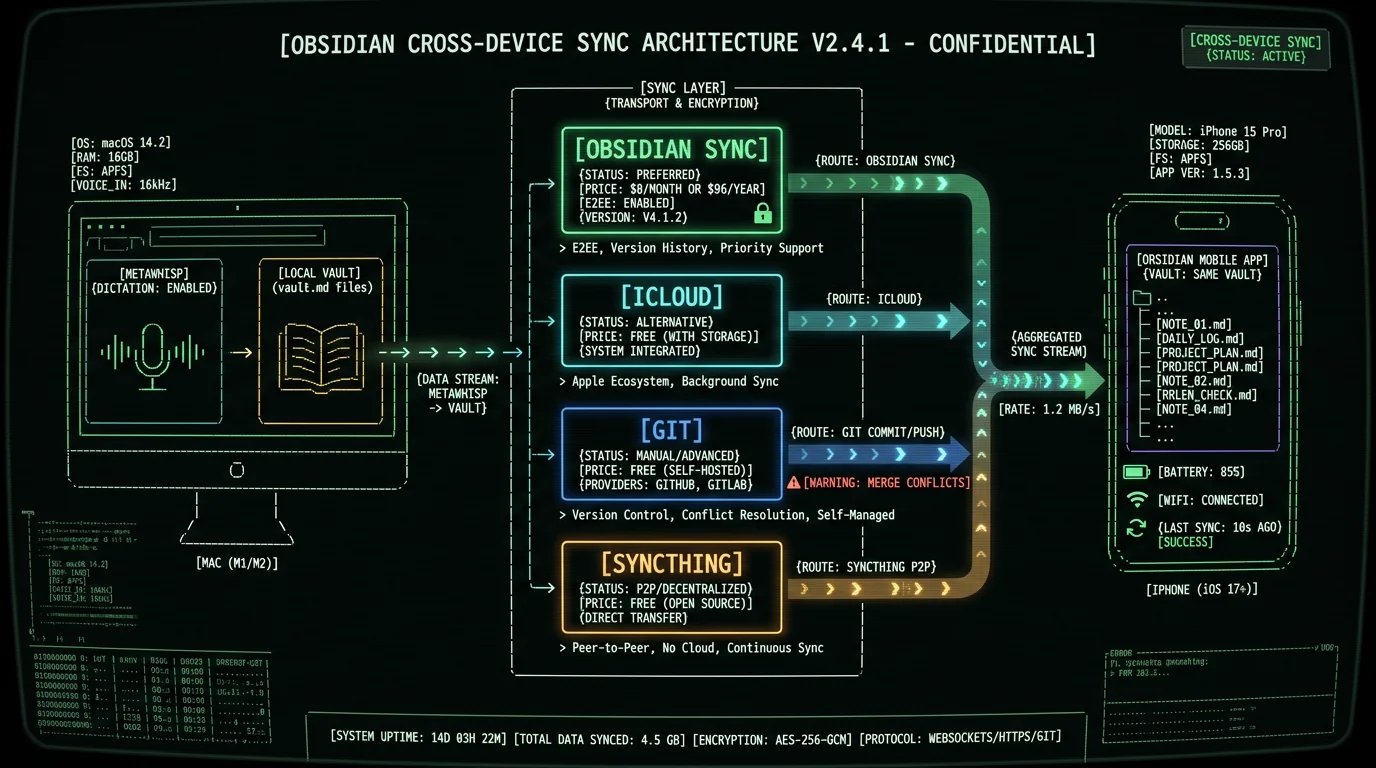
Obsidian's primary sync options:- Obsidian Sync — Official paid service ($8/month or $96/year for Standard plan). End-to-end encrypted. Handles markdown files and configuration.
- iCloud Drive — Free if you have Apple One or sufficient iCloud storage. Place your vault in iCloud Drive folder; works across Mac/iPhone/iPad.
- Git + GitHub/GitLab — Free for personal use. Version-controlled. Requires technical setup. Best for users already familiar with git.
- Syncthing / Resilio Sync — Free peer-to-peer sync. No cloud intermediary. Most private option for users who run their own sync.
- On Mac: dictate via MetaWhisp into the open vault. Save (Cmd+S, auto-saves anyway).
- Obsidian Sync or iCloud uploads the change
- On iPhone: open Obsidian Mobile, see the synced note within 5-30 seconds
- Continue dictating on iPhone via iOS Voice-to-Text (long-press microphone on keyboard)
- Changes sync back to Mac
Can I Dictate Code Blocks or Mermaid Diagrams Into Obsidian?
Generally no — voice-to-text struggles with exact syntax for code, math, and diagram languages. Whisper transcribes natural language, not symbolic notation. What works for code in Obsidian via voice:- Dictating natural-language code comments inside code blocks
- Speaking high-level pseudocode that you then translate to real code via keyboard
- Dictating commit messages, PR descriptions, code-review comments
- Dictating AI prompts to Claude or ChatGPT in a separate app that generate the code
- Exact code syntax with brackets, semicolons, quotes
- Mermaid diagram syntax
- LaTeX math equations
- Regex patterns
Frequently Asked Questions About Dictating to Obsidian
What is the best voice-to-text app for Obsidian on Mac?
For most users, a system-wide voice-to-text app like MetaWhisp works best. It uses a global hotkey (Right Option) to dictate into any part of Obsidian — editor, command palette, search, frontmatter — and runs on-device with Whisper large-v3-turbo. No plugin maintenance, no Obsidian-specific setup, no cloud upload. For users who specifically want audio files saved in their vault, an Obsidian Whisper plugin is the alternative.
Why doesn't Apple Dictation work reliably in Obsidian?
Obsidian is built on Electron, the cross-platform framework. Electron apps render their UI in a Chromium webview rather than using native macOS text input controls. Apple's Dictation expects to interact with native NSTextView controls, which causes inconsistent behavior in Electron-based editors. System-wide voice-to-text tools that use the macOS Accessibility API for paste (MetaWhisp, Wispr Flow, SuperWhisper) work reliably because Electron apps handle standard clipboard paste correctly.
Can I dictate directly into Obsidian without a plugin?
Yes. A system-wide voice-to-text app like MetaWhisp uses a global hotkey to dictate into any Mac app, including Obsidian's editor. No plugin needed. The transcribed text auto-pastes at your cursor position. This approach works in every part of Obsidian and also works in your other apps (Slack, Cursor, Mail), so one tool handles all your dictation across the Mac.
Are there free voice-to-text plugins for Obsidian?
Yes. The community plugin marketplace includes free voice-to-text plugins like Whisper (by djmango) and Voice Notes. Most free plugins require an OpenAI API key for cloud Whisper transcription, which costs roughly $0.006 per minute of audio — typical cost is $1-5 per month for moderate use. A few plugins support local Whisper models for fully free operation, but setup requires installing additional dependencies.
How do I dictate on Obsidian Mobile for iPhone?
Use iOS Voice-to-Text built into the iPhone keyboard. Open Obsidian Mobile, position cursor in a note, long-press the microphone button on the keyboard, dictate. Text inserts as you speak. Apple Intelligence on iPhone 15 Pro and newer runs voice-to-text on-device for privacy. For users who want better accuracy than iOS Voice-to-Text, third-party iOS voice apps with share-sheet integration (like Whisper Memos) can dictate then share-send into Obsidian.
Can I save audio files in my Obsidian vault?
Yes, via Obsidian community plugins like Whisper or Voice Notes. These record audio (typically as .mp3 or .m4a) directly into your vault folder, attach the file link to the note, and transcribe the audio in the same operation. Useful for journalism, research interviews, and any workflow where you need to verify quotes against the original audio. System-wide tools like MetaWhisp don't save audio — they only insert the transcript text.
What's the accuracy difference between Whisper and Apple Dictation in Obsidian?
Whisper large-v3-turbo (used by MetaWhisp and most Whisper-based plugins) achieves 5-7% word error rate on clean English. Apple's Dictation produces roughly 11-14% WER on the same audio per OpenAI's published benchmarks. For Obsidian users who often dictate technical content (project names, library terms, proper nouns), the accuracy gap is meaningful — Whisper produces materially cleaner transcripts that require less manual correction.
Does dictation work in Obsidian's command palette and quick switcher?
System-wide voice-to-text tools like MetaWhisp work reliably in Obsidian's command palette (Cmd+P), quick switcher (Cmd+O), and search bar — these are standard text input fields that respond to keyboard paste. Apple Dictation works inconsistently in these UI elements. Obsidian plugins typically don't help here because they're scoped to the main editor, not the command palette.
About the Author
Andrew Dyuzhov is the solo founder and CEO of MetaWhisp, a free on-device voice-to-text app for macOS that runs Whisper large-v3-turbo on Apple Neural Engine. He uses Obsidian for personal knowledge management and built MetaWhisp's system-wide hotkey to work reliably in Electron-based apps like Obsidian, Slack, Cursor, and Discord where Apple Dictation often fails. The four methods compared in this article reflect hands-on testing inside Obsidian's editor, command palette, and quick switcher on his M3 MacBook Air. Connect on X or GitHub.
Related Reading
- Voice Coding on Mac: 6 IDEs — adjacent workflow for VS Code, Cursor, Zed
- Voice-to-Text for ADHD Writers — cognitive pattern that pairs well with Obsidian
- 7 Best Voice-to-Text Apps for Mac (2026) — broader app comparison
- Private Voice-to-Text on Mac — privacy architecture for local-first workflows
- Remove Filler Words from Whisper — post-process raw transcripts for cleaner notes
