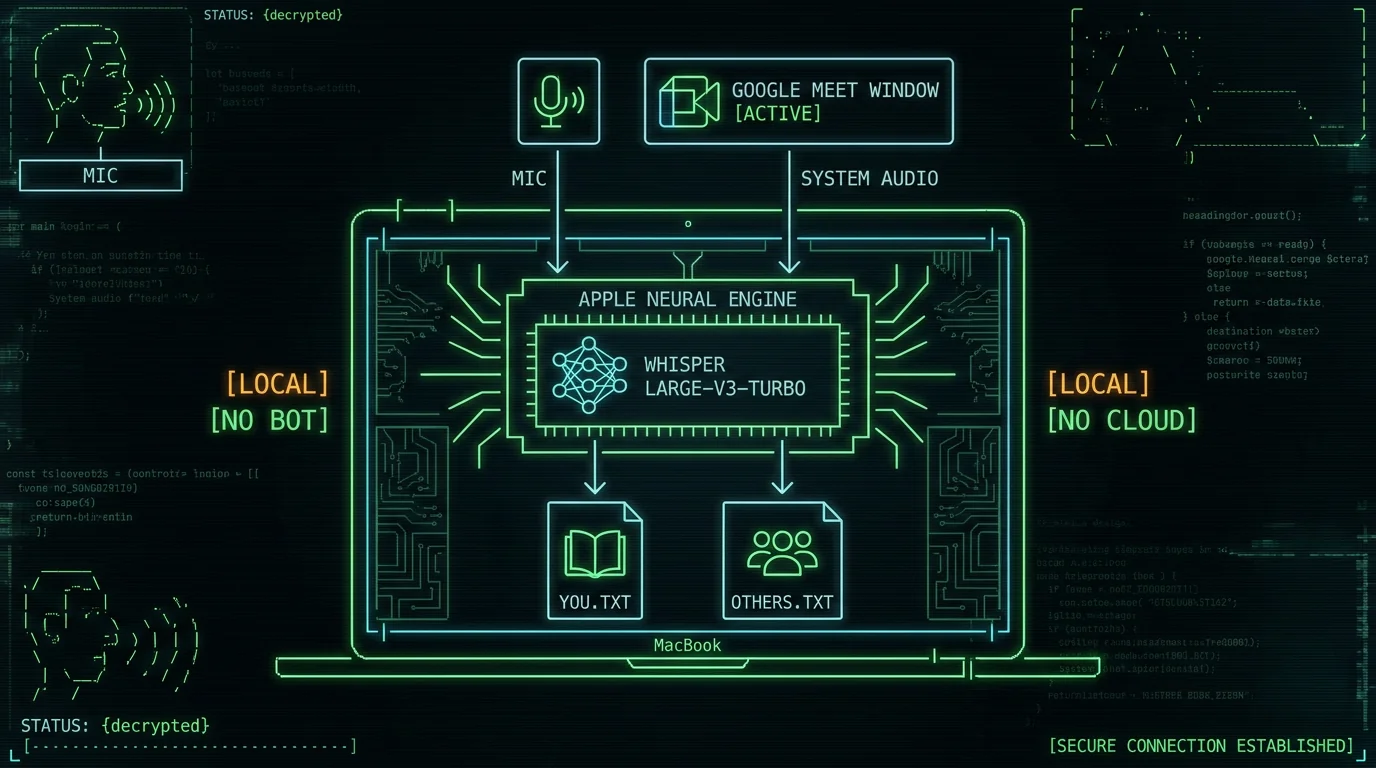
TL;DR: Yes, you can transcribe a Google Meet on a Mac without a bot joining the call. MetaWhisp records your microphone and the Meet tab's system audio as two separate tracks and runs Whisper large-v3-turbo through WhisperKit on the Apple Neural Engine — audio never leaves your Mac in local mode. Recording and any AI recap pass are off by default. The free local tier gives you transcripts; meeting recaps and translations need a local LLM, your own OpenAI or Cerebras API key, or MetaWhisp Pro. Telling your participants you're recording is on you, not the app — see the consent section below.
Can you transcribe Google Meet on a Mac without a bot joining the call?
Yes. The simplest path is to record the meeting yourself — your microphone and the system audio coming out of the Google Meet tab — and feed both streams into a local speech-to-text engine. Nothing needs to join the call on your behalf. MetaWhisp does exactly this on macOS 14 or later on Apple Silicon (M1 or newer): it captures the two streams as separate audio files, runs WhisperKit with Whisper large-v3-turbo on the Neural Engine, and writes two transcripts to your disk.
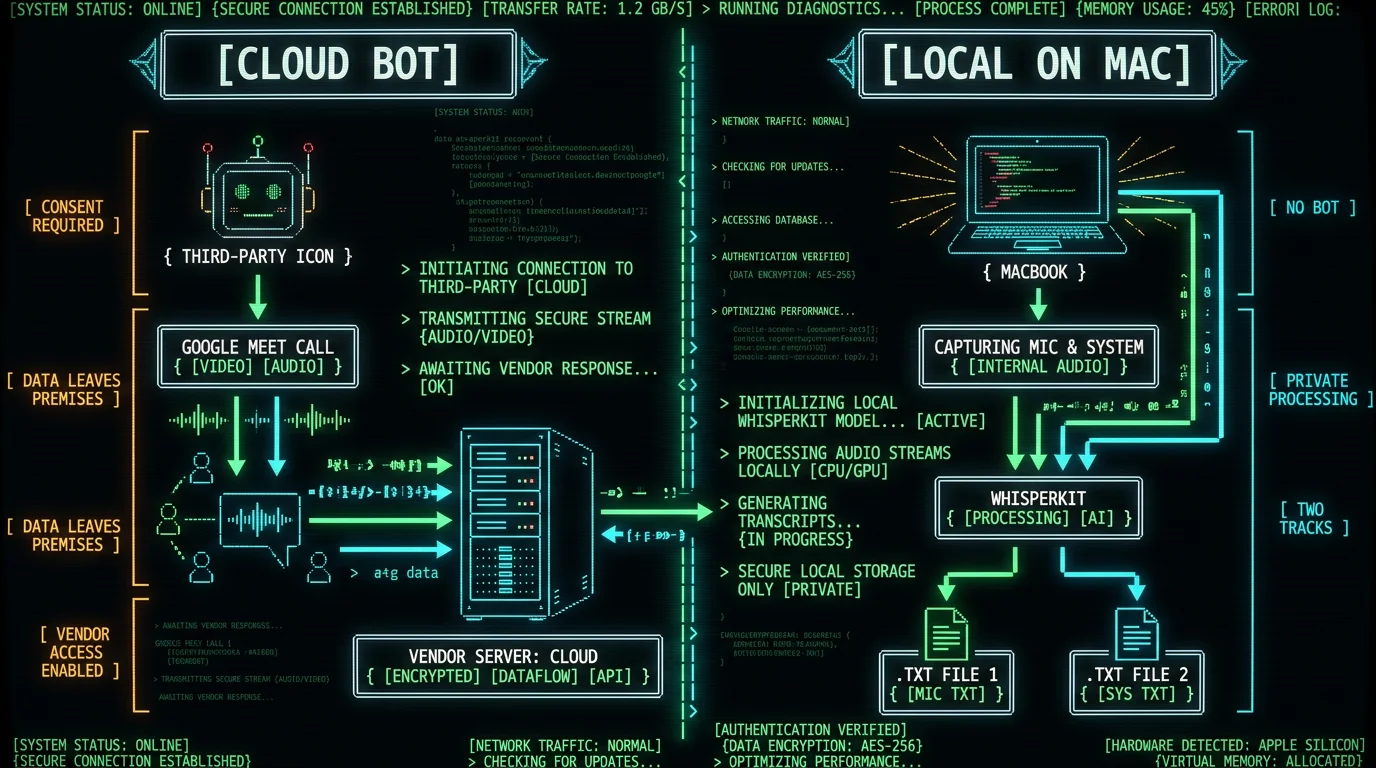
No bot account. No calendar permissions for a third party. No meeting URL shared with a transcription vendor. The pattern is the same one used for Zoom transcription on Mac and Microsoft Teams transcription — only the source app changes.
What does Google Meet do on its own?
Google Meet has a built-in transcription feature, but it is not free and not universal. Per Google's Meet support documentation, the "Take notes for me" AI summary and the meeting transcript are gated by Workspace tier and language. If your organization is on a tier that does not include them, you do not get them — there is no self-serve toggle for personal accounts.
The transcript lives in the meeting owner's Google Drive, which means the audio is processed and stored by Google. That is fine for many teams and less fine if your call touches client-confidential work, healthcare conversations, or anything else you would rather not hand to a hyperscaler.
Heads-up: Built-in Meet transcription excludes some languages entirely and depends on the Workspace SKU your organization bought. Check Google's current docs for your exact edition before assuming the feature is on.
Why people want a local, bot-free option
Three reasons show up over and over:
- External clients on the call. A bot named "Fireflies.ai" or "Otter.ai" dropping into a sales call with a Fortune 500 buyer changes the room. People self-censor around bots.
- Regulated content. Lawyers, therapists, and clinicians often cannot send audio to a third-party server, even one that will sign a BAA. Local-only recording sidesteps that entirely.
- Internet blips. If your Wi-Fi drops mid-call, cloud transcription drops with it. A local recorder keeps going because nothing was leaving the machine in the first place.
What "two separate tracks" actually means
MetaWhisp records your microphone and the system audio coming out of the Google Meet tab as two distinct files — typically `mic.wav` and `system.wav`. You get a transcript for each. That is not speaker diarization. We do not identify who in the meeting said what. If Alice and Bob both spoke into the same system-audio stream, the system-audio transcript is one undifferentiated block of words.
If you can label speakers after the fact — because you remember who said what, or because one person was in your office and the rest were remote — the two-track layout makes that easy. The mic track is reliably "you." The system track is reliably "everyone else on the call." Everything more granular than that is either manual labeling or a separate diarization model, which we do not ship.
This is the same shape used in the broader no-bot meeting workflow across Zoom, Teams, and Meet.
Step-by-step: transcribe a Google Meet on your Mac, locally
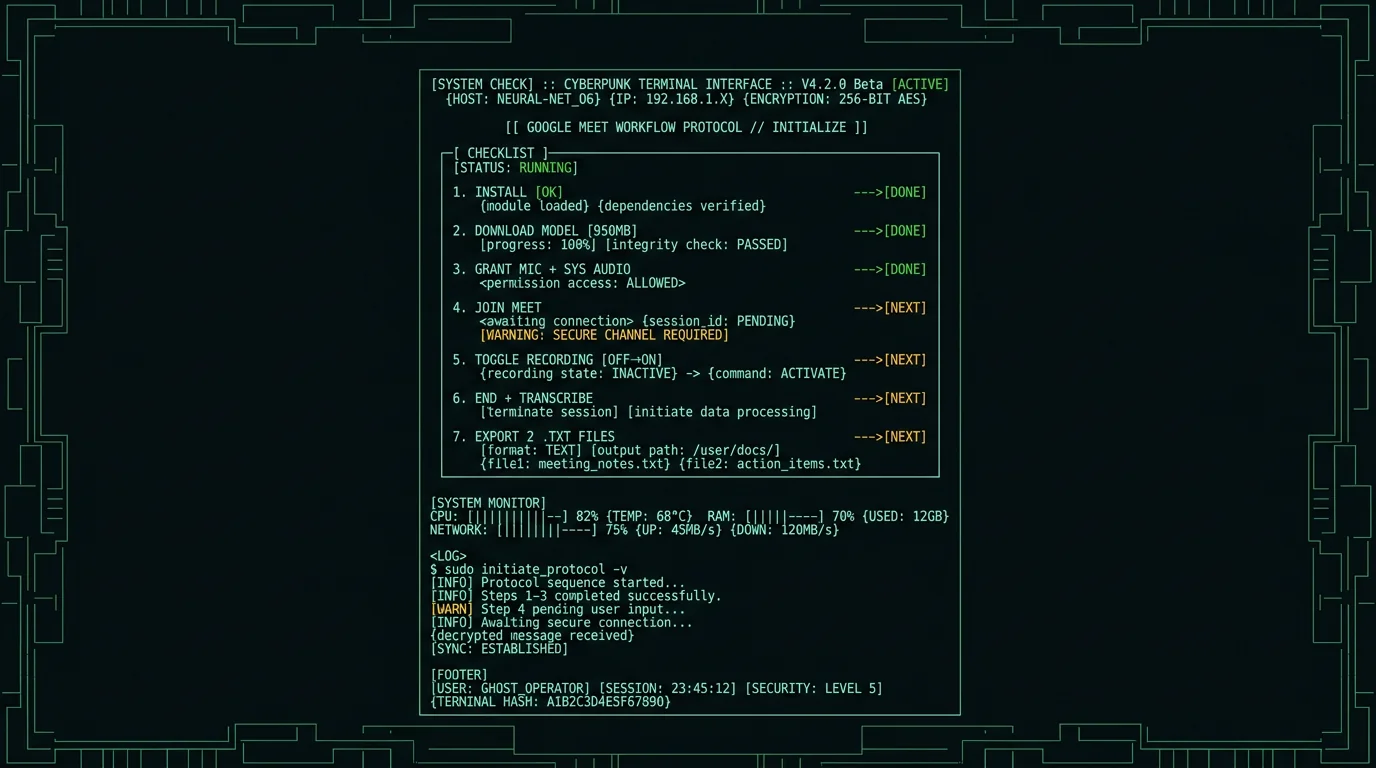
- Install MetaWhisp. Grab it from the download page and drop it in Applications. Requires macOS 14 or later on Apple Silicon.
- Let the model download once. Whisper large-v3-turbo is roughly 950 MB. It downloads the first time you open the app, then stays cached locally.
- Open Google Meet in your browser. Chrome works best because Meet is built by Google and Chromium handles audio routing cleanly.
- Grant microphone and system-audio permission. macOS prompts you the first time. System audio needs Screen & System Audio Recording permission in System Settings → Privacy & Security.
- Join the meeting. Mute and unmute normally.
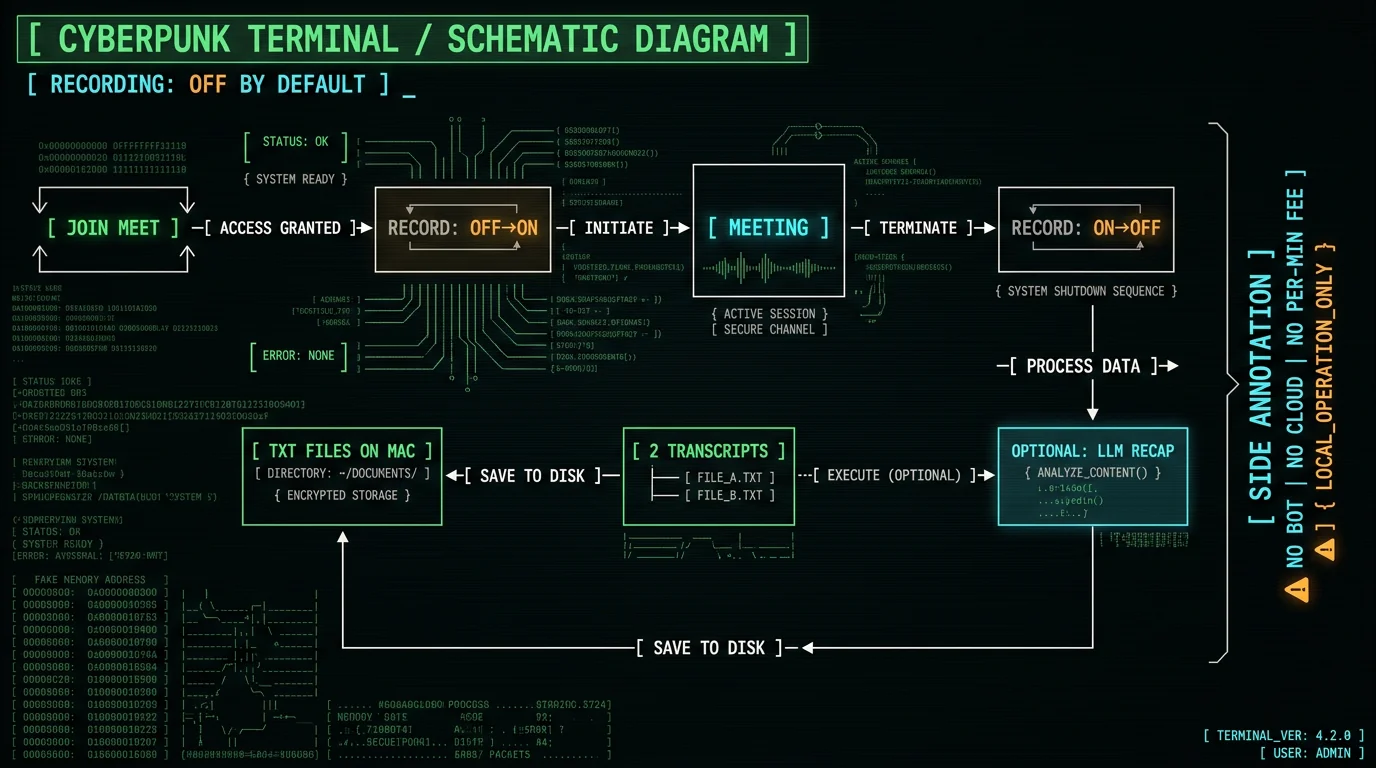
- Toggle Recording from the menu bar. Recording is off by default. You have to switch it on.
- End the meeting, stop the recording, and pick a processing mode. For pure transcription, you are done. For polished text, the Structured, Correct, and Rewrite modes apply an LLM pass over the transcript — but those need AI access (see the next section).
When the recording stops you will see two audio files and two transcripts. Drop them into the same folder, rename them sensibly, done.
Can you get meeting recaps, not just transcripts?
Yes, with one of three paths, in increasing order of cloud involvement:
- Fully local LLM. Run a local model server (Ollama, LM Studio, or similar) on the same Mac. MetaWhisp can call it. Audio and transcript both stay on-device.
- Bring your own key (BYOK). Available on the free tier. Paste your OpenAI or Cerebras API key into settings. Only the transcript text — never the audio — is sent to your own provider account. You are billed by them, not by us.
- MetaWhisp Pro. $30 per year or $7.77 per month, no key required. Pro adds built-in cloud AI plus cloud transcription. For meeting recaps with zero setup, Pro is the convenient option. See pricing.
Without one of those three, MetaWhisp gives you transcripts only. It will not summarize. Recording and any AI pass are off by default — you turn them on.
The structure here is identical to the Teams transcription setup and our Zoom transcription walkthrough — capture, transcribe, optionally summarize.
Who handles consent — the app or you?
You are responsible for consent. MetaWhisp can record audio. It cannot tell your participants that you are recording. That is a human job, and the law varies by jurisdiction.
In most US states, at least one-party consent is the legal minimum — meaning you can record a call you are part of. A handful of states (California, Florida, Illinois, Maryland, Massachusetts, New Hampshire, Pennsylvania, Washington, and Montana in some circumstances) require all-party consent. The EU, UK, and most other jurisdictions require explicit consent from everyone on the call. Wikipedia's summary of telephone recording laws is a reasonable starting point, but it is not legal advice.
Best practice regardless of jurisdiction:
- Tell participants at the start of the meeting. "I'm recording this locally for note-taking" is enough words for most contexts.
- Note it in the calendar invite. People who do not want to be on a recorded call can decline up front.
- Check your employer's policy. Many companies have stricter rules than the underlying law.
- If you are recording on someone else's behalf — a client, a patient, a witness — confirm in writing.
The two-track capture makes it easier to delete one stream and keep the other if a participant withdraws consent mid-call.
How does the local path compare to bots and Google's built-in?
| Approach | Bot joins? | Audio leaves Mac? | Tier / price | Two-track output |
|---|---|---|---|---|
| Google Meet "Take notes for me" | No (it is Meet's own feature) | Yes — to Google | Workspace tier required (per Google's docs) | No |
| Cloud bot (Otter, Fireflies, etc.) | Yes | Yes — to vendor | Per their pricing pages | Usually no |
| MetaWhisp local | No | No — audio stays on the Mac | Free local tier | Yes — mic + system as separate files |
| MetaWhisp Pro | No | Optional — local or built-in cloud | $30 / year or $7.77 / month | Yes |
The "two-track output" row is the one that tends to matter most for regulated and professional workflows. Bot services usually mix everyone into one stream.
How do you fix common recording problems?
A handful of issues show up for first-time users. Most are setup, not bugs.
- System audio capture is greyed out. macOS requires explicit permission. Open System Settings → Privacy & Security → Screen & System Audio Recording and tick MetaWhisp. Restart the app.
- Only one transcript appears. You probably forgot to grant microphone access, or the meeting was entirely in headphones with no mic input. Open Audio MIDI Setup and confirm Meet is sending audio to your output device.
- The transcript is gibberish. Usually means system audio is not capturing. Re-check the permission above, and confirm the Meet tab is not muted in Chrome.
- The model is slow on an older Mac. large-v3-turbo is fast on M2, M3, and M4 chips. On an M1 Air it still works but real-time factor is closer to 1:1. For long meetings, let it finish after the call rather than watching words stream in live.
- Language detection picked the wrong one. Whisper auto-detects across 99 languages. If your meeting mixed two languages heavily, you can re-transcribe a track with the language forced in MetaWhisp's settings.
Most of these are first-run permission issues. Once the recording chain is set up, it tends to keep working.
When should you skip the local path?
An honest list of gaps, because pretending they do not exist helps nobody:
- You need real speaker labels. Two tracks is not diarization. If you need "Alice said X, Bob said Y" with high confidence, you will want a real diarization tool, or to label the transcript manually.
- You are on a Mac without Apple Silicon. MetaWhisp requires M1 or later. Intel Macs and macOS 13 or older are out.
- The meeting is in a language we do not support well. Whisper supports 99 languages but quality is uneven. English, Spanish, French, German, Russian, Mandarin, Japanese, Korean, Portuguese, and Italian are strong. Smaller languages are improving but spotty.
- You want a hosted shareable link to the transcript. We do not ship a hosted workspace. The text file lives on your Mac. Sync it however you sync the rest of your files.
For diarization-grade needs, layer a separate tool on top of the transcripts, or pick a bot-based service and accept the trade-offs.
What's the shortest version of the workflow?
If MetaWhisp is already installed:
- Open the Google Meet.
- Click record in MetaWhisp's menu bar (off by default).
- Have your meeting.
- Click stop.
- Read or paste the two transcripts.
- If you want a recap, send the system-track transcript to your own OpenAI or Cerebras key, to a local LLM, or to MetaWhisp Pro.
That is the entire loop. No bot invitation. No calendar permissions for a third party. No audio uploads. No per-minute charges. Free forever on the local path.
One more time, because it matters: tell the people on the call. Then tell them in the invite next time. Recording law is your job, not the app's.
FAQ
Does Google Meet have built-in transcription?
Yes, but it is gated by Workspace tier and language coverage. See Google's official Meet documentation for which editions include the feature. Transcripts are stored in the meeting owner's Google Drive, so the audio is processed by Google.
Can I transcribe a Google Meet without a bot joining?
Yes. Record your microphone and the Meet tab's system audio on your Mac, and run both through a local speech-to-text engine. MetaWhisp does this with WhisperKit and Whisper large-v3-turbo on the Apple Neural Engine. No bot account, no meeting URL shared with a third party.
Is the audio sent to a server?
In MetaWhisp local mode, no — audio never leaves your Mac. AI post-processing and translation can use a local LLM or your own OpenAI or Cerebras API key. In those cases only the transcript text is sent, and to your own provider account, not ours. Pro is the only tier that uses MetaWhisp's own cloud AI.
Does two-track recording mean speaker diarization?
No. Two tracks means we save your microphone as one audio file and the system audio as another. We do not identify which meeting participant said which words. If multiple people are on the call, the system-audio track is a single mixed stream, and the transcript reflects that. Manual labeling or a separate diarization tool is needed for per-speaker attribution.
Do I need to tell people I am recording?
Yes — and that applies to any recording tool, not just this one. US law varies by state (one-party versus all-party consent), and the EU, UK, and most other jurisdictions require explicit consent. Announce it at the top of the call and note it in the invite.
Can I get a meeting summary, not just a transcript?
Yes, with one of three paths: a local LLM (Ollama, LM Studio), your own OpenAI or Cerebras API key on the free tier, or MetaWhisp Pro. Without one of those, you get transcripts only. Recording and AI features are off by default.
Will it work on an Intel Mac?
No. MetaWhisp requires macOS 14 or later on Apple Silicon (M1 or newer). WhisperKit targets the Apple Neural Engine, which only exists on M-series chips.
What languages does it support?
99 languages with auto-detect, which is what the underlying Whisper model supports. Quality is strongest in English, Spanish, French, German, Russian, Mandarin, Japanese, Korean, Portuguese, and Italian. For mixed-language meetings you can force a language on a specific track in MetaWhisp's settings.
About the author
Andrew Dyuzhov is the CEO and solo founder of MetaWhisp. He builds the app with AI coding tools on top of open-source Whisper, dictates in Russian and English daily, and writes the kind of comparisons he wishes existed when he started. @hypersonq on X.
