One local pipeline · Mic + system audio as separate tracks · No bot in the call
Why call apps make transcription harder than it should be
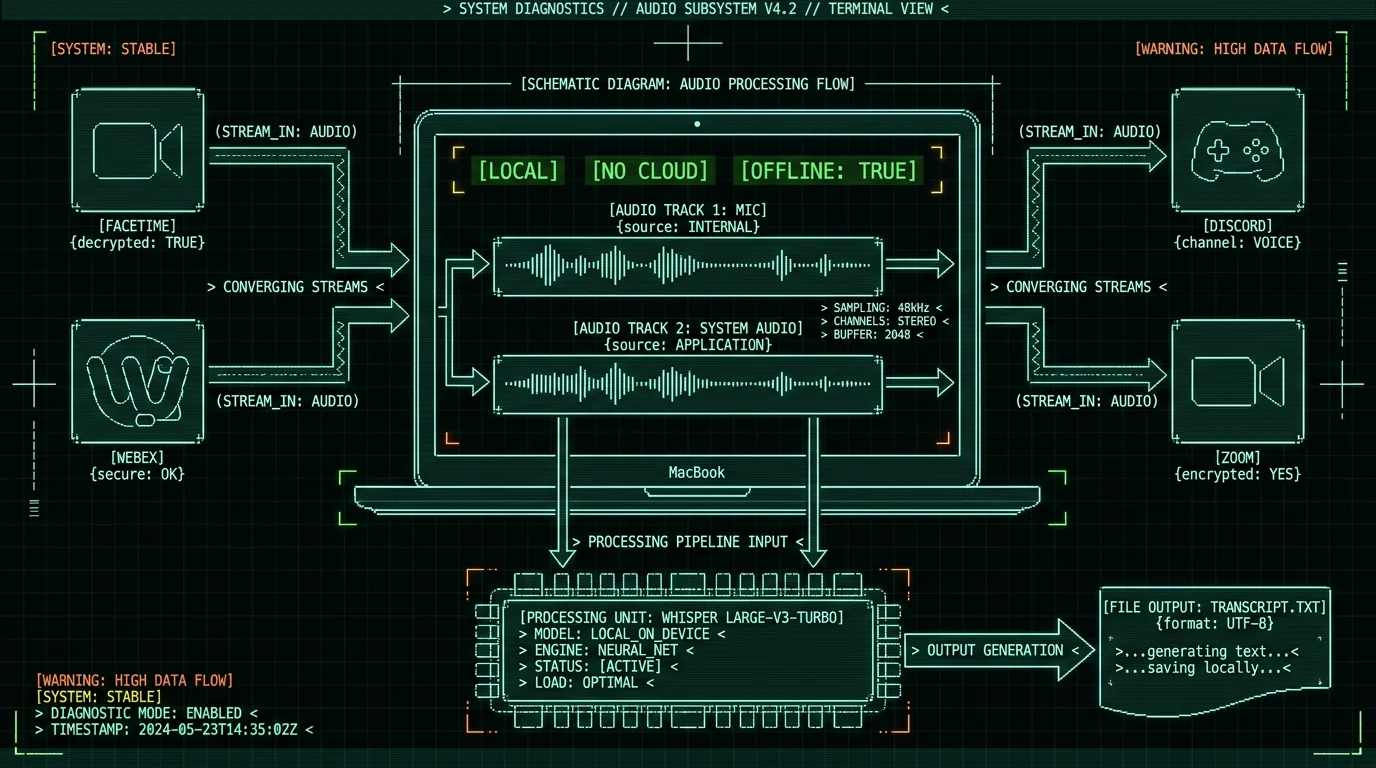
Zoom, Meet, and Teams each ship their own transcription. It's built-in, it identifies who spoke, and the meeting stays on their platform. The moment the same conversation moves to FaceTime, Webex, Discord, or a browser huddle, that built-in transcription is gone — or it's locked behind the vendor's portal and billed by usage minutes. Your day doesn't live in one app. A customer Zoom in the morning. A 1:1 in FaceTime. A Discord voice channel with a contractor. A Slack huddle to close it out. None of those calls share a consistent transcription layer you can drop into one folder. The honest answer is a tool that doesn't care which app produced the audio. Capture the mic. Capture the system audio. Run Whisper locally through WhisperKit. Write a transcript file when the call ends. Repeat for every call. If you'd rather skip the per-app guides, the same approach in a bot-free pipeline works for every meeting tool.What "any call on Mac" actually covers
A "call" in this context is any real-time audio conversation happening on your Mac. In practice that means:- FaceTime — Apple's video and audio calling app, built into macOS
- Webex — Cisco's meeting client, common in larger enterprises
- Discord — voice channels and DMs, popular with engineering and gaming teams
- Zoom, Google Meet, Microsoft Teams — the big three, also covered (see the Zoom-specific guide and the Teams-specific guide if you want vendor detail)
- Slack huddles — audio-first rooms inside Slack
- Browser calls — anything running in Safari or Chrome (Whereby, Around, Jitsi, browser-based Meet, browser-based Teams)
- WhatsApp, Telegram, Signal, Viber — desktop apps and browser versions
- Voice memos and dictation — same engine, same pipeline, no call involved
The "any call on Mac" promise is not marketing. It's a consequence of how the audio is captured. MetaWhisp records system audio — whatever is playing out of your Mac's speakers — alongside your microphone. It doesn't sit inside FaceTime, Webex, Discord, Zoom, Meet, Teams, Slack, or any browser tab. It sits next to them, listening to the same audio stream they all eventually produce. That makes the pipeline portable across every conferencing app on macOS, including apps that don't have a transcription feature at all. The list above is not exhaustive; it's the apps people actually ask about. Anything else that makes sound — even an obscure SIP client — works the same way.
Tell people you're recording (yes, really)
Before anything else: check the law where you and your participants live, and tell people you're recording. In U.S. one-party-consent states, only one person on the call needs to consent — and that can be you. In all-party-consent states (California, Florida, Illinois, and a handful of others), every participant has to agree. The EU, UK, Canada, Australia, and most of Asia have their own variants — a useful overview lives on Wikipedia's wiretapping page. The conservative move is to assume the strictest rule applies, because it usually does once you cross a border.Practical rule: say it out loud at the start of the call, and put it in the calendar invite. "I'm going to record this for notes — anyone object?" If someone does, stop recording or don't start one.This isn't a MetaWhisp-specific rule. It's true for Zoom's built-in recording, for a phone call, for anything. The pipeline is local, the file is yours, but the consent belongs to you. If you record without it and someone later complains, no piece of software will save you.
How to capture mic and system audio as separate tracks on macOS
This is the bit that surprises people. macOS exposes two audio sources that show up differently:- Your microphone — anything you say into the Mac's built-in mic or a USB headset
- System audio — everything the Mac plays out of its speakers, which is what the other person's voice becomes once it reaches your machine
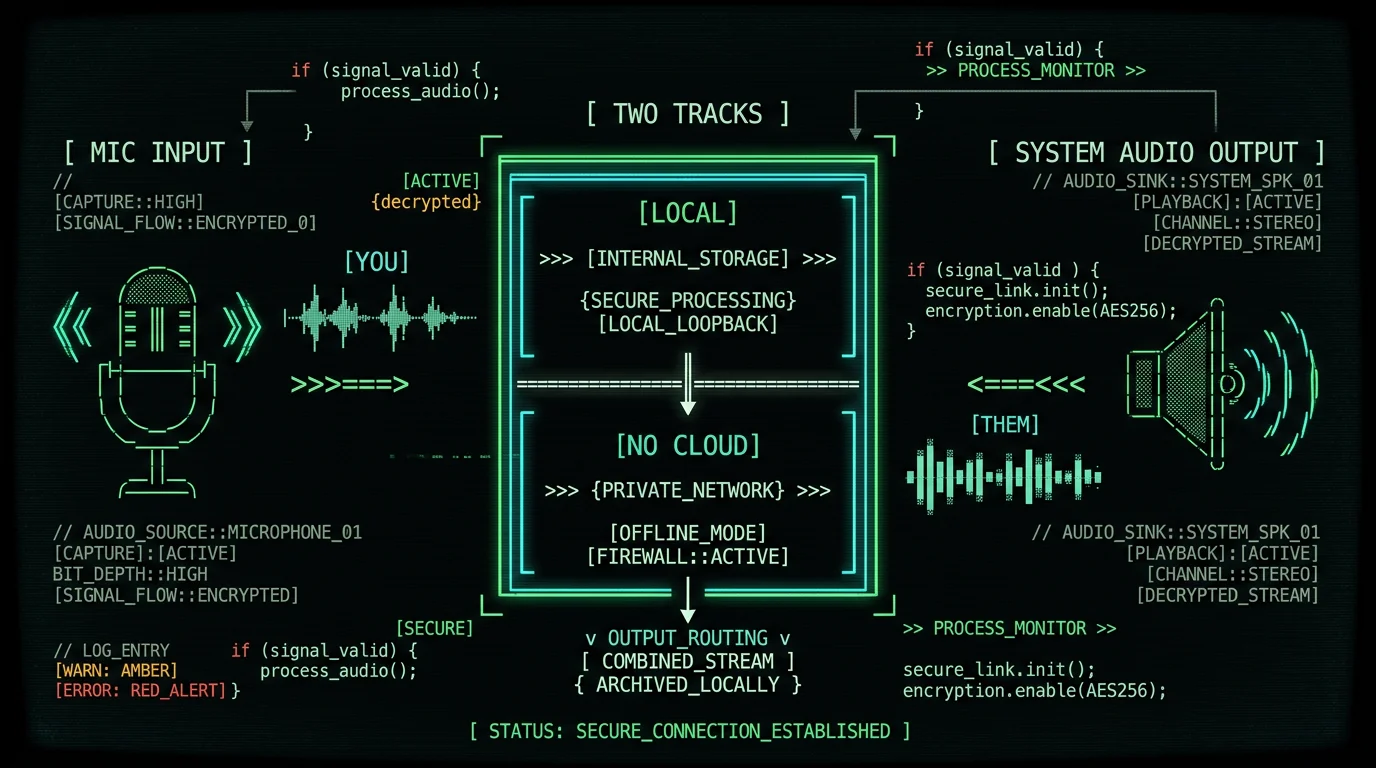
The two-track setup is what makes a transcript usable later. If you record only the mic, you lose everything the other person said. If you record only system audio, you lose your own voice — which is half the conversation. Capturing both and keeping them as separate tracks means you can re-listen to either side, re-transcribe one side at higher quality, or feed only one track into an AI pass that needs to ignore you. The macOS plumbing that makes this possible — ScreenCaptureKit — was added in macOS 13 and stabilised in macOS 14. If you're on an older macOS, you'll get mic only and a clear "system audio unavailable" message in MetaWhisp. That's not a bug; it's the OS saying it can't safely hand over system audio.
How to start transcribing a call in 4 steps
Here's the actual flow. Recording is off by default in MetaWhisp, so nothing starts until you do.- Open MetaWhisp and hit the hotkey (default Right Option, ⌥). That arms the recorder. A small indicator appears.
- Make or join the call in FaceTime, Webex, Discord, or whatever app. Audio is captured app-agnostically through the system audio path.
- Talk. Both tracks fill in parallel. Your mic on one, the other side's audio on the other.
- Hit the hotkey again to stop when the call ends. MetaWhisp hands the audio to Whisper large-v3-turbo running on Apple Silicon's Neural Engine. A transcript file appears in your session folder when it's done.
I tested this on my own calls for a week before shipping it. A Discord voice chat with a contractor in Berlin, a FaceTime with my mum in Moscow, two Zooms with customers. The mic/system-audio separation worked every time. The other side's track came through clean even on AirPods. The transcript file showed up in the session folder before I closed the lid.
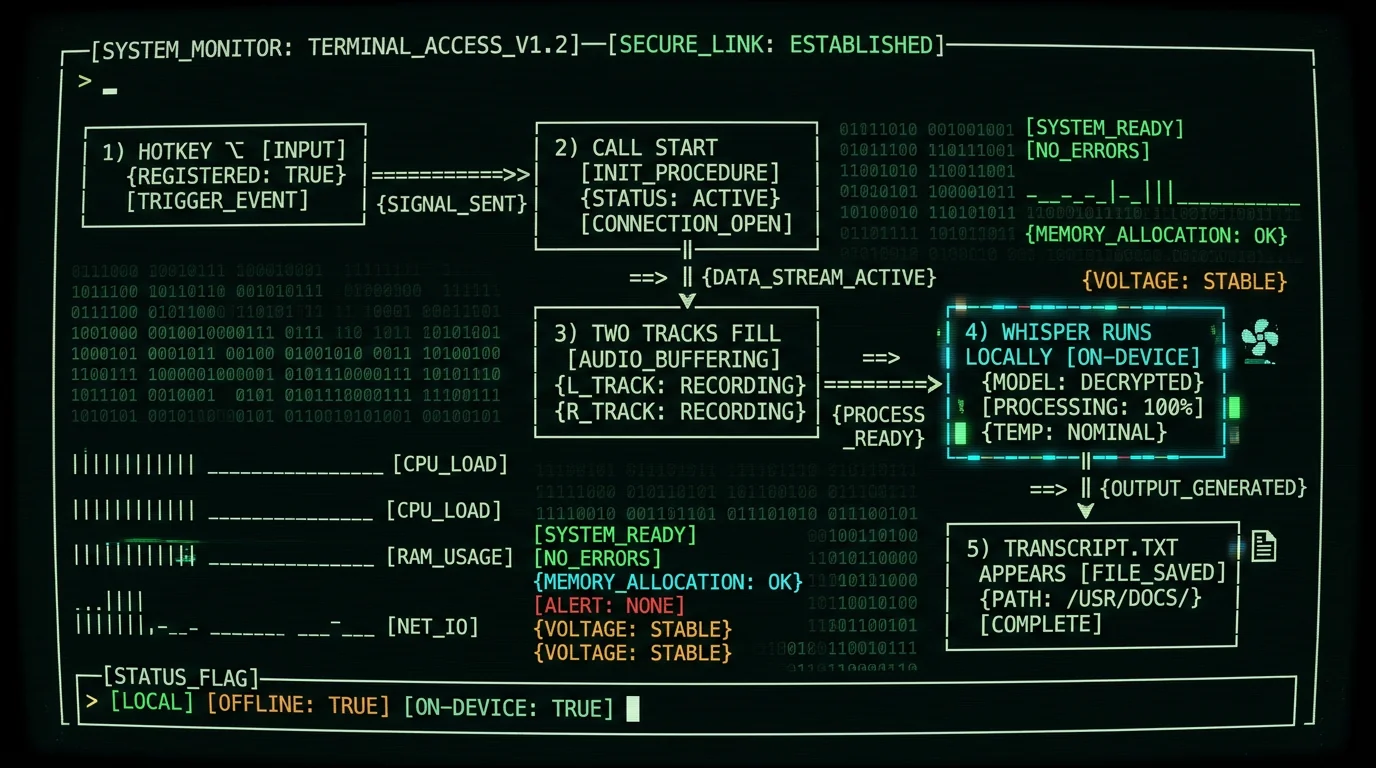
The four-step flow looks longer than it feels. In practice you press ⌥, take the call, press ⌥ again when you hang up. The transcript is ready by the time you've closed your notebook tab. There's no "upload to the cloud" step and there's no waiting on a queue — Whisper large-v3-turbo on a modern Mac Neural Engine runs entirely on-device. The longer bottleneck is whatever you do with the transcript after: reading it, tagging action items, dropping it into a doc. The transcription step itself is the fast part.
What you get after the call: transcript, recap, action items
The transcript itself is the default output. Two tracks, one timeline, plain text or SRT — your choice in the settings. From there you can run any of the AI passes MetaWhisp supports:- Correct mode — fixes punctuation, capitalisation, and filler words ("um", "uh", false starts)
- Rewrite mode — turns spoken prose into cleaner written prose, with paragraphs
- Structured mode — extracts action items, decisions, owners, and dates as headings and bullets
- Translation — to other languages, off the original transcript
Which AI path for the recap: local LLM, BYOK, or Pro
Three honest options. Pick based on how sensitive the call was.| Path | Cost | Audio leaves Mac? | Speed |
|---|---|---|---|
| Local LLM | Free | No — fully on-device | Slowest |
| BYOK (your API key) | Pay provider | Text only, to your key | Fast |
| Pro | $30/yr or $7.77/mo | Audio for cloud transcription, or text for AI recap | Fast |
- Local LLM (free). Fully on the Mac, nothing leaves the device. You bring your own local model via something like Ollama. Slowest of the three on most Macs, but audio and transcript never go anywhere.
- BYOK (free tier). Bring your own OpenAI or Cerebras API key. Only the transcript text (never the audio) is sent to your key's provider, billed against your account. Fast and capable, but the text does leave the Mac.
- Pro ($30/year or $7.77/month). Adds cloud transcription and built-in cloud AI, no BYOK setup needed. Same speed as BYOK for the AI recap, same text-out-of-Mac caveat for that step, with the convenience of one bill. See the full pricing breakdown for what's included.
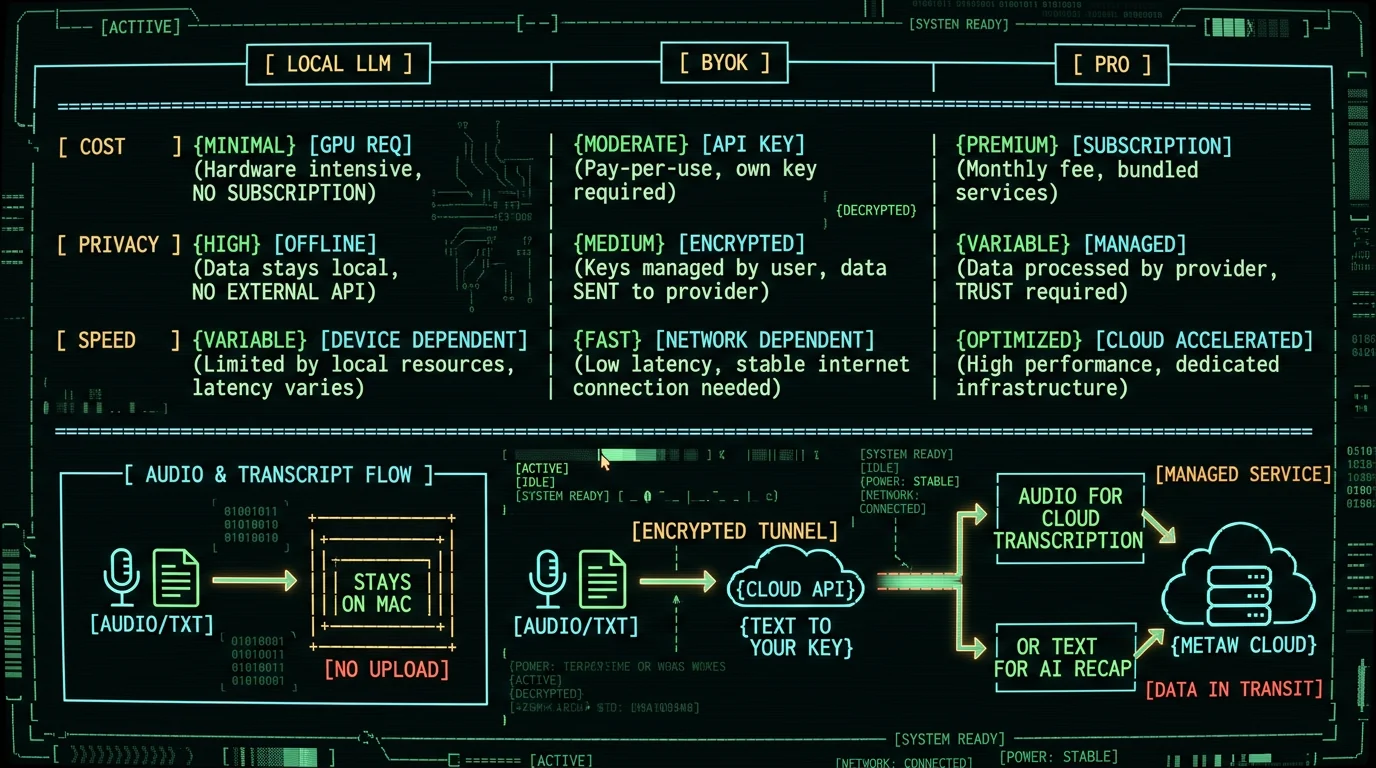
On the free local path, audio never leaves your Mac. The audio leaves only when you opt into Pro's cloud transcription — that's a feature, not a leak: cloud transcription needs the audio to transcribe it, and MetaWhisp's servers do that work in place of your Mac's Neural Engine. MetaWhisp deletes the raw audio after transcription unless you tell it to keep it. For AI recap (Structured, Correct, Rewrite, translation) via BYOK or Pro, what leaves the Mac is the transcript text, never the raw audio. If that distinction matters for the call you just had, pick local. If it doesn't, the cloud passes are noticeably nicer.
Where this pipeline honestly stops
Three things to call out before you get excited:- No speaker diarization. The pipeline gives you "you" (mic) and "them" (system audio). It does not split "them" into four speakers. If you need who-said-what on a multi-party call, pair this with a tool that does diarization on the same audio file later — Otter, Fireflies, or a dedicated diarization pass over the system track.
- No iOS app yet. The pipeline runs on macOS 14+ on Apple Silicon (M1 or later). iPhone and iPad are not supported. If your calls happen on the Mac side anyway — and most calls do, when you're at a desk — grab the Mac app and you're set.
- No first-party legal or medical accuracy benchmarks. MetaWhisp runs Whisper large-v3-turbo. Public model-level numbers for that engine are published by OpenAI; we don't have first-party benchmarks for specialised vocabulary, and we won't pretend we do.
The "mic plus system audio, not diarization" line is the one most likely to bite people who skim. If you join a five-person Zoom and expect a transcript that says "Sarah: I disagree with the Q3 numbers / David: Let's table it / Mei: I'll send the revised deck Friday", this pipeline will not give you that. It will give you a transcript of everything said, attributed to "you" or "them". Getting Sarah and David split out requires either the meeting platform's own transcript (if it has one) or a separate diarization step run over the system track after the fact. Build for that, and you won't be disappointed.
Quick fixes when the call app won't capture
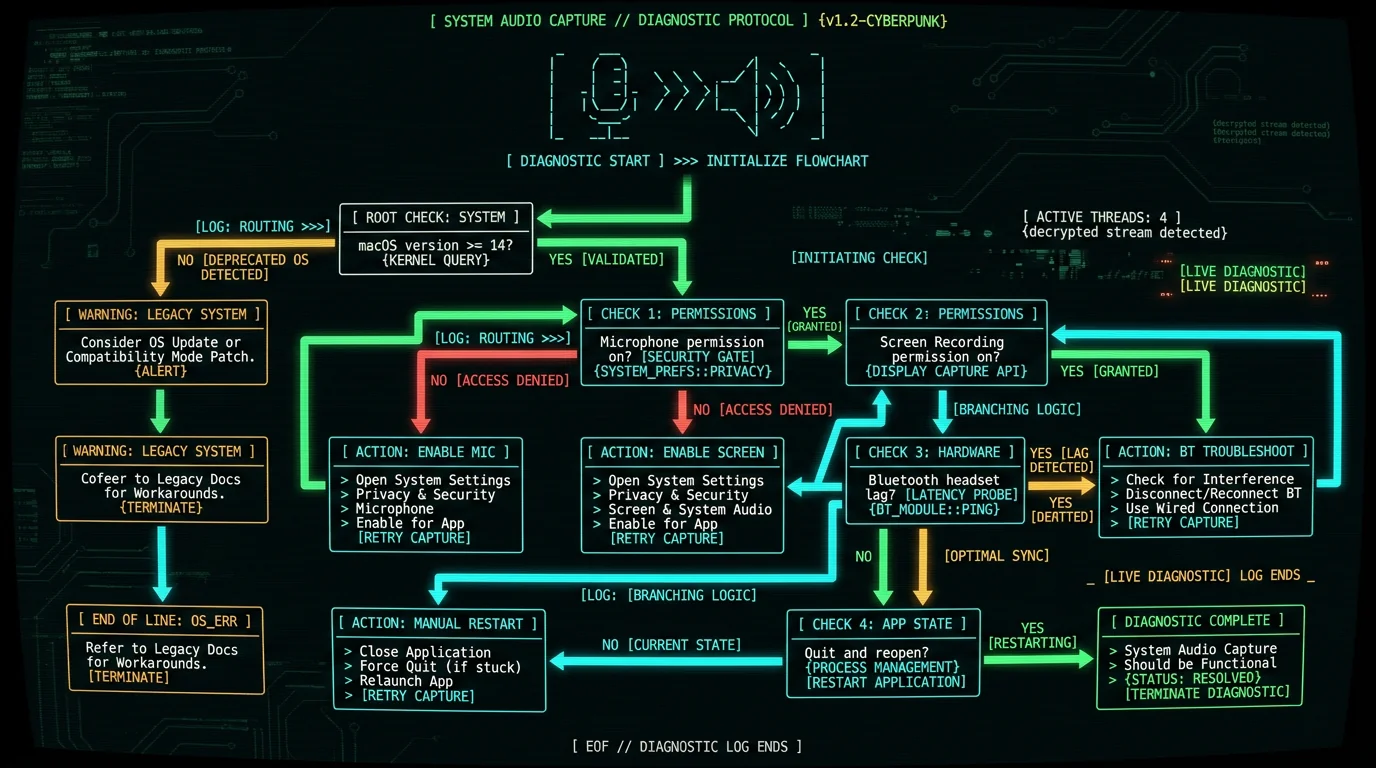
If the system audio track comes out silent, check these in order:- macOS version. ScreenCaptureKit system-audio capture needs macOS 14 or later. On macOS 13 and below, you'll get mic only — the OS simply won't hand over system audio safely.
- Microphone permission. macOS asks the first time. If you said "no" earlier, open System Settings → Privacy & Security → Microphone and flip MetaWhisp on. Same for any app that captures audio.
- Screen Recording permission. Same place, also needed for system audio. Yes, the toggle says "Screen Recording" — Apple uses it to gate audio capture too. Confusing label, but it's the one macOS gives you.
- Bluetooth headset lag. AirPods and other Bluetooth headsets add a delay. The transcript will still come out correct, just offset by a fraction of a second. For accurate two-track timing, switch to a wired headset or the Mac's built-in mic and speakers.
- The other side is on a meeting-room speaker. That's mic-on-mic echo, not a transcription bug. Ask them to switch to a headset.
FAQ
Can I really transcribe FaceTime, Webex, and Discord with the same tool?
Yes. The pipeline captures system audio app-agnostically. If the audio plays out of your Mac, the same recorder catches it. FaceTime, Webex, Discord, Zoom, Meet, Teams, Slack huddles, WhatsApp, Telegram, Signal — same setup, same file output. You don't change tools when you change apps.
Do I have to tell people I'm recording the call?
In most jurisdictions, yes. U.S. law splits between one-party and all-party consent states. The EU, UK, Canada, Australia, and most of Asia have their own rules. The conservative move is to say it at the start of the call, every time. The pipeline itself doesn't enforce that — you do.
Does the audio leave my Mac?
On the free local path, no. MetaWhisp runs Whisper large-v3-turbo on the Neural Engine, so audio stays on your Mac. If you opt into Pro's cloud transcription, audio is sent to MetaWhisp's servers for transcription. For AI recap via BYOK or Pro, only the transcript text is sent to your chosen provider, never the raw audio.
Will this tell me who said what on the call?
No. The pipeline records your mic and system audio as two separate tracks. It tells you which side of the call said what. It does not identify individual speakers inside the system-audio track. If you join a four-person Zoom, you get "you" and "them", not four named speakers.
Can I get a recap or action items automatically?
Yes, via the AI passes. Structured mode extracts action items, decisions, and owners as headings. Correct and Rewrite modes clean up the prose. You can run these on the free tier via your own OpenAI or Cerebras API key (BYOK), or via Pro without needing a key. The local-only path on the free tier gives you the raw transcript.
How long can a single recording be?
There's no hard cap inside MetaWhisp itself. Real-world limits are the free disk space on your Mac and how long the Whisper engine takes to finish a long file. A 90-minute meeting will produce a usable transcript quickly; a 4-hour marathon will produce one too, just slower.
Does it work with browser-based calls like Google Meet in Chrome?
Yes. System audio capture doesn't care whether the call lives in a native app or a browser tab. If the audio plays out of your speakers, it gets captured and routed to Whisper the same way. Same caveat applies: tab audio isn't diarized.
Is there a meeting bot that joins the call?
No. That's the point. MetaWhisp runs on your Mac and records what your Mac already hears and plays. It doesn't send a bot to join the meeting, doesn't show up as a participant, doesn't need calendar access, doesn't need a vendor account. Your calls look the same to everyone else.
About the author
Andrew Dyuzhov is the solo founder of MetaWhisp. He built the app with AI coding tools on top of open-source Whisper, after years of fighting through writing paralysis with his own voice. He runs MetaWhisp on an M1 Air, dictates in Russian and English, and tests every Mac voice app he can get his hands on. Follow him on X for updates on what's shipping and what isn't.
Related reading
- How to transcribe Zoom meetings on a Mac — Zoom-specific setup, hotkey, and post-call workflow
- Microsoft Teams transcription on Mac — Teams-specific quirks, permissions, and audio routing
- Meeting transcription without a bot — why bot-free recording is the right default for sensitive calls
- Processing modes in MetaWhisp — Correct, Rewrite, Structured, and Translation explained
