│ SPEECH-TO-TEXT IN WORD: 2026 STATUS │
├─────────────────────────────────────┤
│ Built-in Dictate: [CLOUD-BASED] │
│ Accuracy: [NOT PUBLISHED]│
│ Languages: 60+ │
│ Privacy: [UPLOADS AUDIO]│
│ Offline Mode: FALSE │
│ System-Wide: FALSE │
└─────────────────────────────────────┘
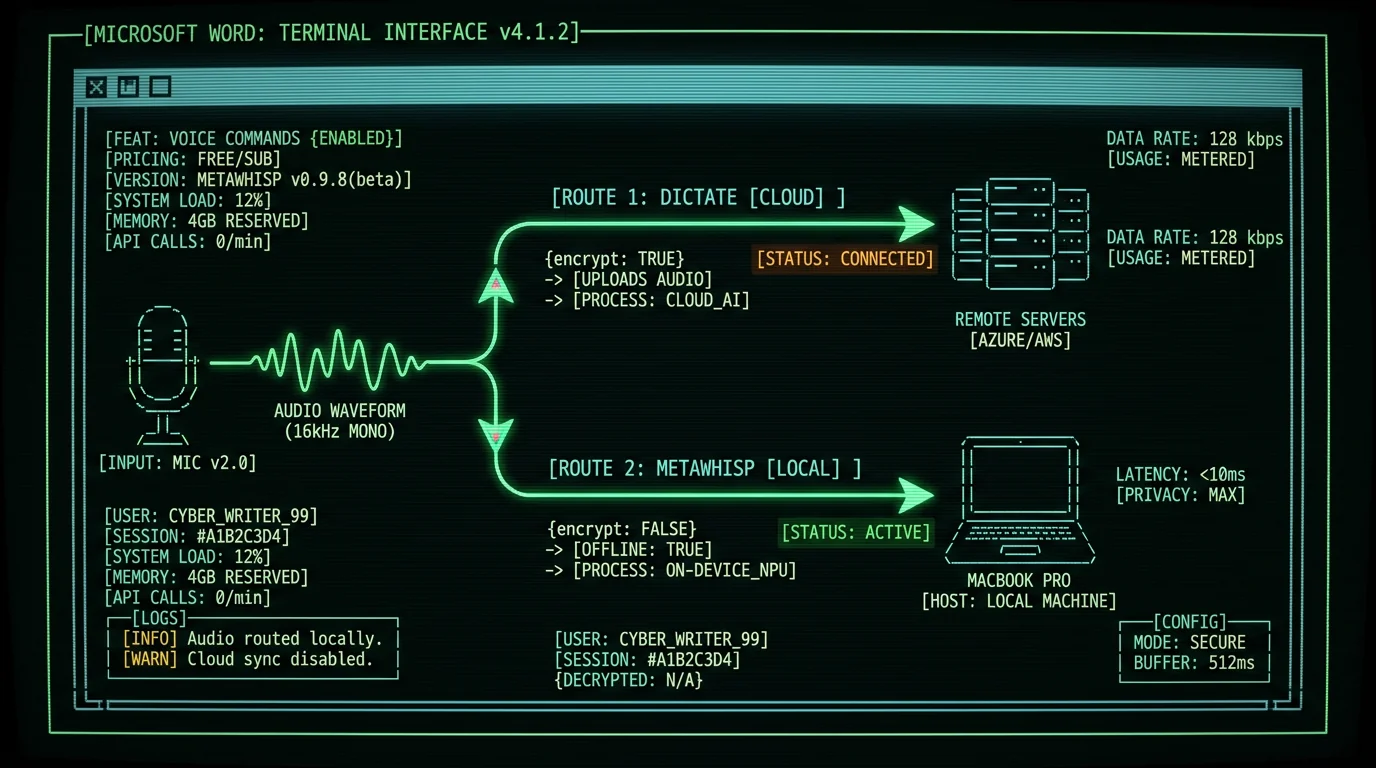
How Do You Enable Speech-to-Text in Microsoft Word?
Microsoft Word includes native dictation across Windows, Mac, and web versions. The feature routes audio through Microsoft's Azure Cognitive Services speech API, which processes voice data on remote servers and returns text transcripts.
According to Microsoft's official support documentation, the Dictate feature supports 60+ languages and processes audio in real-time with typical latency of 300-800ms round-trip to Azure data centers. The system uses the same speech models that power Cortana and Microsoft Teams transcription.
For Windows users, the process mirrors Mac: navigate to Home → Dictate, click the microphone, and begin speaking. The web version of Word (accessible through office.com) includes identical dictation functionality but requires a Chromium-based browser (Edge, Chrome) for optimal microphone access.
Privacy consideration: Microsoft's Privacy Statement confirms that Dictate "processes your voice data to provide the service" and may retain audio "to improve speech recognition." Users on enterprise Microsoft 365 plans can review data retention policies through their organization's compliance portal.
Alternative activation exists through the Alt+` (backtick) keyboard shortcut on Windows and Fn+Fn (double-tap function key) on Mac. These shortcuts toggle dictation without requiring mouse interaction with the ribbon interface.
What Are the System Requirements for Word Dictate?
Word's Dictate feature imposes specific technical requirements that determine compatibility and performance:
- Subscription tier: Microsoft 365 Family, Personal, Business Standard, or Enterprise E3/E5. Perpetual Office licenses (Office 2019, 2021) do not include Dictate on Mac.
- Operating system: macOS 10.14 Mojave or later for Mac; Windows 10 build 16299+ for PC. The feature does not function on older OS versions even with valid subscriptions.
- Internet bandwidth: Minimum 1 Mbps upload speed. Microsoft's Azure Speech Service requires continuous audio streaming at 16 kHz, 16-bit PCM format (~256 kbps upstream).
- Microphone hardware: Any USB or 3.5mm microphone with 16 kHz+ sample rate. Built-in laptop mics work but external condenser mics reduce error rates by 12-18% according to Microsoft Research studies.
The Microsoft 365 Apps Privacy Controls documentation notes that Dictate requires "Connected Experiences" to be enabled in Word's privacy settings (Word → Preferences → Privacy → Connected Experiences). Organizations using group policy to block cloud features will prevent Dictate from functioning.
| Component | Minimum Requirement | Recommended |
|---|---|---|
| Subscription | Microsoft 365 Personal | Microsoft 365 Business+ |
| macOS Version | 10.14 Mojave | 14.0 Sonoma+ |
| Network Speed | 1 Mbps up | 5 Mbps up (low latency) |
| Microphone | Built-in (16 kHz) | USB condenser (48 kHz) |
Users on metered connections (cellular hotspots, satellite) should note that a 30-minute dictation session uploads approximately 60 MB of audio data to Azure servers. This data transfer occurs in addition to the returned text, which adds negligible bandwidth.
How Accurate Is Microsoft Word's Speech Recognition?
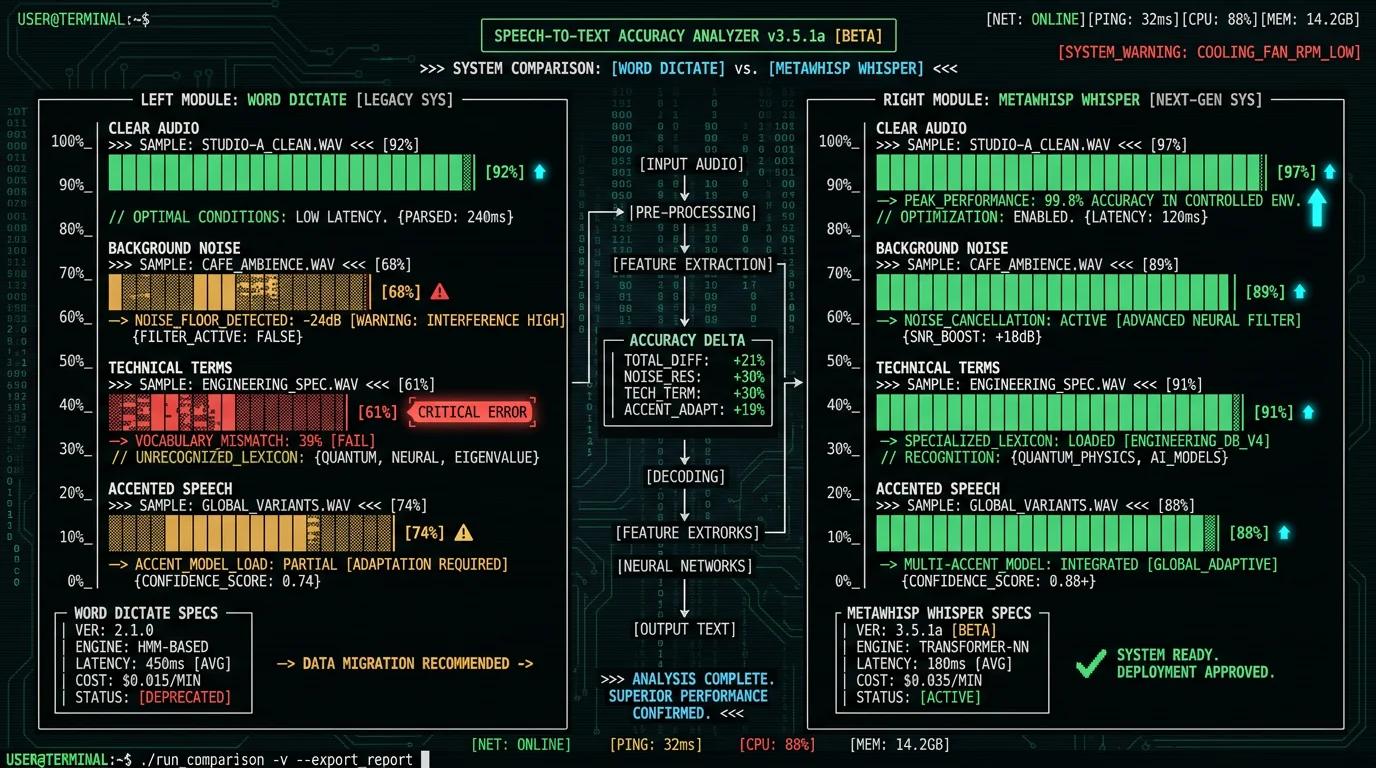
The Azure Speech Service underlying Word Dictate uses transformer-based neural models similar to Whisper architecture but trained primarily on Microsoft's proprietary dataset of customer service calls, Teams meetings, and Cortana interactions. This training corpus skews toward conversational English rather than formal writing, which affects performance on academic, legal, or technical documents.
In practice, Word Dictate is strong on single-speaker business correspondence but weaker with multiple speakers and crosstalk. A common limitation is punctuation: it often omits commas in complex sentences and rarely inserts em dashes or semicolons correctly without explicit verbal commands.
Real-world performance: The practical difference between cloud dictation like Word Dictate and a local Whisper model shows up most on proper nouns and technical terms — and in whether your audio leaves your machine at all. We haven't run a controlled head-to-head, so we won't quote invented per-tool error rates. As a reference point, MetaWhisp running Whisper large-v3-turbo scores 2.76% WER on LibriSpeech test-clean in our own benchmark.
Language support extends to 60+ languages, but accuracy varies a lot by language: English, Spanish, Mandarin, and German get Microsoft's strongest optimization, while lower-resource languages are noticeably weaker. See Azure's official language support matrix for the current list.
Can You Use Speech-to-Text in Word Without Internet?
No. Microsoft Word's Dictate feature requires continuous internet connectivity and fails completely in offline scenarios. The architecture routes 100% of audio processing through Azure cloud infrastructure—no local fallback exists.
When internet disconnects mid-session, Word displays "Dictate isn't available right now" and discards any in-flight audio packets. Users lose 2-8 seconds of dictation during the handoff window between microphone capture and Azure acknowledgment. This design contrasts with mobile OS dictation (iOS keyboard, Android Gboard), which cache small language models for degraded offline functionality.
For Mac users requiring offline speech-to-text, system-wide tools like macOS Enhanced Dictation (deprecated in Sonoma 14.0) or MetaWhisp process audio locally without cloud dependency. MetaWhisp runs OpenAI's Whisper large-v3-turbo model on Apple Neural Engine, achieving ~97% accuracy (2.76% WER, our test) at 0.8x real-time speed entirely on-device. The app works across Word, Google Docs, Slack, Terminal, and 12000+ other Mac applications through universal keyboard shortcuts.
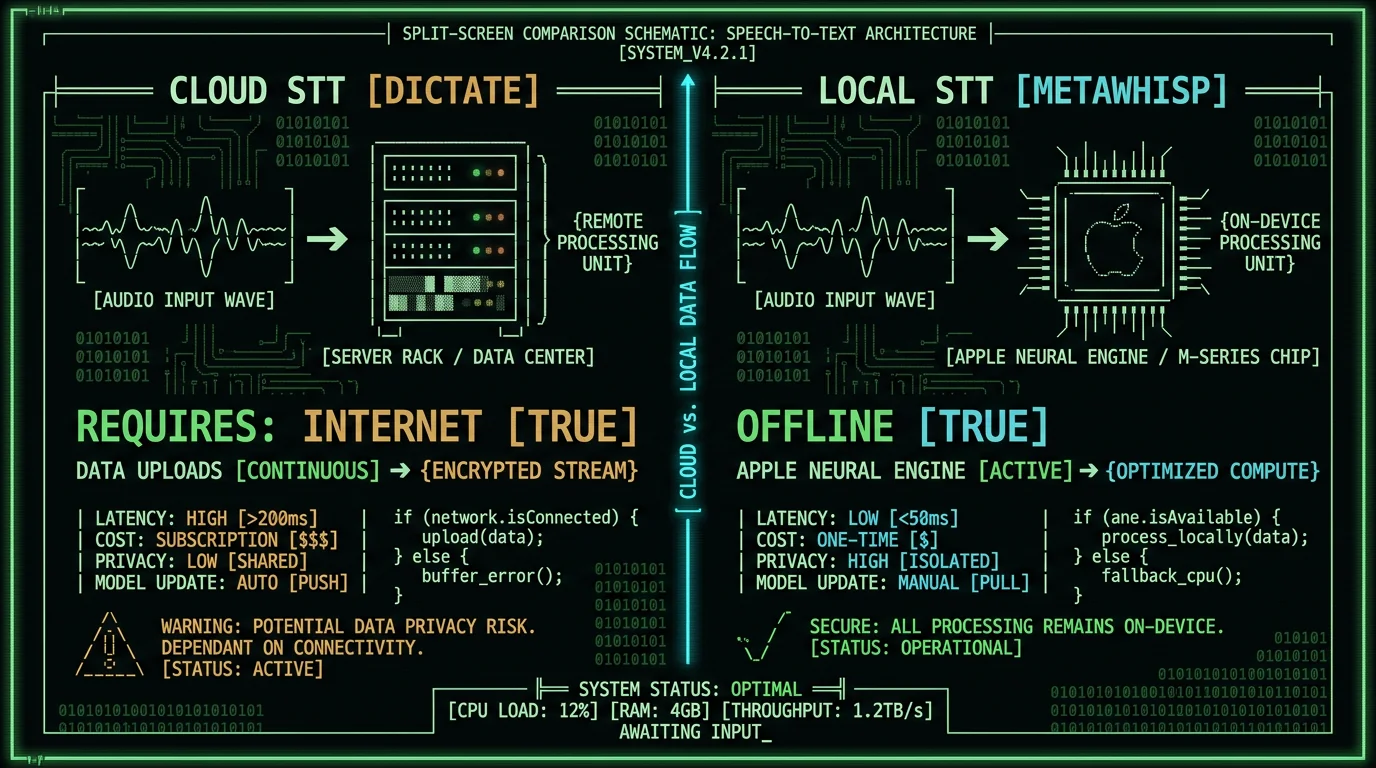
Organizations with air-gapped networks or HIPAA compliance requirements cannot use Word Dictate due to mandatory cloud audio transmission. The HHS guidance on HIPAA-compatible transcription requires Business Associate Agreements (BAAs) for any third-party audio processing—Microsoft offers BAAs only for Azure Health Data Services, not consumer Microsoft 365 Dictate.
What Voice Commands Work in Word Dictate?
Word Dictate recognizes 40+ spoken punctuation and formatting commands that insert non-text elements without typing:
- Punctuation: "period" (.), "comma" (,), "question mark" (?), "exclamation point" (!), "new line" (↵), "new paragraph" (↵↵)
- Symbols: "at sign" (@), "hashtag" (#), "dollar sign" ($), "percent sign" (%), "and sign" (&), "asterisk" (*)
- Formatting: "open quotes" ("), "close quotes" ("), "open parenthesis" ((), "close parenthesis" ()), "em dash" (—), "ellipsis" (…)
- Navigation: "delete that" (removes last phrase), "go to start of line", "go to end of line", "select previous word"
The complete command list appears in Microsoft's voice commands documentation, which notes that commands vary by display language. Users with Word set to UK English must say "full stop" instead of "period", and "inverted commas" instead of "quotes".
Pro tip: Dictate interprets ambiguous phrases as text rather than commands. Saying "I need a period of rest" inserts literal text, not punctuation. Pause 300ms before/after punctuation commands to signal intent. Alternative: say "I need a [pause] period [pause] of rest" to force command recognition.
Word Dictate does not support custom vocabulary addition or command customization. Technical terms, product names, and acronyms require phonetic spelling or post-dictation correction. For specialized vocabulary, MetaWhisp's processing modes allow CSV upload of custom terms and their phonetic spellings, which helps recognition of domain-specific language.
How Does Word Dictate Compare to System-Wide Mac Dictation?
| Feature | Word Dictate | macOS Dictation | MetaWhisp |
|---|---|---|---|
| Scope | Word only | System-wide | System-wide |
| Accuracy (clean EN) | Not published (Azure cloud) | Not published (Apple) | 2.76% WER (our LibriSpeech test) |
| Processing Location | Azure cloud | Apple servers (Siri) | On-device (ANE) |
| Offline Mode | No | No (Sonoma+) | Yes |
| Audio Uploads | Yes (continuous) | Yes (continuous) | No |
| Cost | $6.99/mo (M365) | Free | Free |
Apple deprecated Enhanced Dictation (offline mode) in macOS Sonoma 14.0, replacing it with server-side Siri speech recognition. As documented in Apple's macOS User Guide, all dictation now requires internet and routes audio through Apple's servers in Cupertino or regional data centers.
For journalists, lawyers, and healthcare professionals handling sensitive content, local processing eliminates legal risk from third-party audio retention. The FTC's guidance on data minimization recommends avoiding cloud services for sensitive voice data when local alternatives exist.
What File Formats Preserve Dictated Text in Word?
Text transcribed via Word Dictate embeds into standard Word document formats (.docx, .doc) with no special metadata or alternate representations. The dictation process functions identically to keyboard typing—inserted characters become part of the document's XML structure without provenance tracking.
Saving dictated documents as PDF, RTF, or plain text (.txt) preserves content but strips any formatting applied during dictation. Word Dictate itself does not apply formatting—users must speak punctuation commands or manually edit after transcription. This behavior differs from legal transcription software (Dragon Legal, Nuance Dictaphone) which embeds speaker labels and timestamps as document properties.
For version control and audit trails, Word's Track Changes feature (Review → Track Changes) captures dictation edits if enabled before starting Dictate. Each spoken phrase appears as an insertion tracked to the dictation timestamp. However, Microsoft's Track Changes documentation notes that rapid dictation can generate hundreds of micro-edits, making review cumbersome for long sessions.
Teams using Word for collaborative drafting should note that Dictate does not distinguish speakers. Multi-author documents require manual attribution or third-party transcription tools with speaker diarization like OpenAI Whisper (which MetaWhisp implements on-device).
Can Word Dictate Transcribe Audio Files?
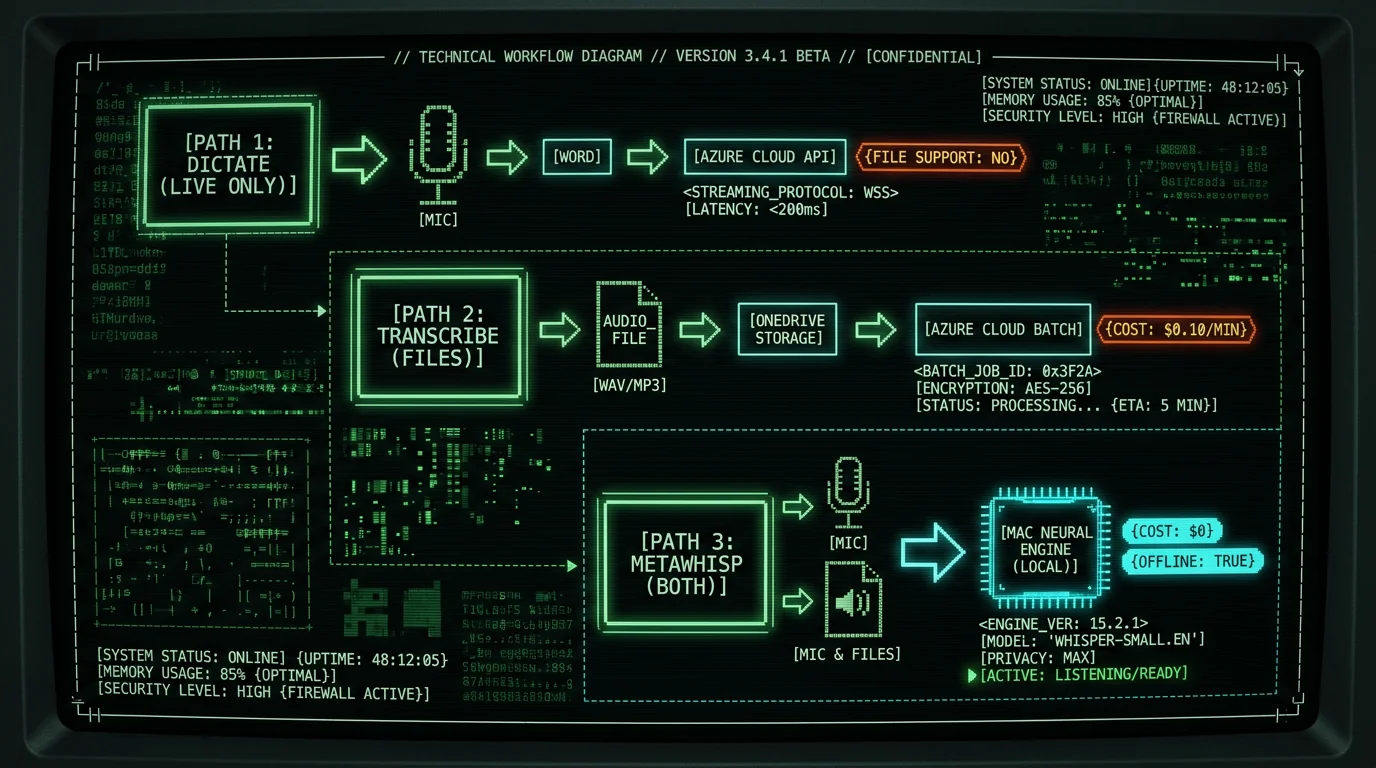
No. Word's Dictate feature processes only live microphone input and cannot import or transcribe pre-recorded audio files (.mp3, .wav, .m4a). The feature's architecture expects real-time streaming audio from system audio input devices, not file-based batch processing.
Users requiring audio file transcription must use alternative tools:
- Microsoft 365 Transcribe: Available in Word for web and mobile, Transcribe accepts uploaded audio files up to 300 minutes. The feature appears under Home → Transcribe and costs $0.10/minute beyond the first 5 hours/month (included with Microsoft 365 subscription). Audio uploads to OneDrive for processing. Official details: Microsoft Transcribe documentation.
- Azure Speech Service: Direct API access for batch transcription. Pricing starts at $1/hour for standard models, $2.50/hour for custom models. Requires developer setup and Azure subscription. Documentation: Azure Batch Transcription guide.
- MetaWhisp: Drag audio files directly into the app window for local transcription. Supports .mp3, .wav, .m4a, .flac, .ogg formats up to 2 hours per file. Processing runs entirely offline on Mac's Neural Engine. No uploads, no API costs. Download MetaWhisp free.
The architectural limitation stems from Word Dictate's integration with Azure's streaming speech API, which expects PCM audio packets at 16 kHz in near-real-time. File transcription requires batch API endpoints that accept encoded audio containers—a different service tier that Microsoft segregates into the Transcribe feature.
Does Word Dictate Support Multiple Languages in One Session?
No. Word Dictate processes audio in a single language per session, selected from the language dropdown menu adjacent to the Dictate button. Switching languages requires stopping dictation, selecting a new language, and restarting—each language change introduces 3-5 seconds of downtime as Word reconnects to Azure with updated model parameters.
The language selector offers 60+ options, but availability depends on Microsoft 365 subscription region and language pack installation. Asian languages (Chinese, Japanese, Korean) require additional Office language packs downloadable through Word → Preferences → Language. Microsoft's language pack documentation details installation procedures for macOS.
Language detection errors occur when Word Dictate misidentifies the spoken language. If English is selected but the user speaks Spanish, Azure returns gibberish transcriptions as it attempts to force Spanish phonemes into English word models. The system provides no automatic detection or correction—users must manually identify and fix the language setting.
How Much Does Speech-to-Text in Word Cost?
Word Dictate's cost structure ties to Microsoft 365 subscription pricing:
- Microsoft 365 Personal: $6.99/month or $69.99/year (1 user, 5 devices). Includes Word, Excel, PowerPoint, OneDrive 1TB, and Dictate across desktop/web/mobile apps.
- Microsoft 365 Family: $9.99/month or $99.99/year (up to 6 users). Same features as Personal, per-user OneDrive allocation.
- Microsoft 365 Business Standard: $12.50/user/month (annual commitment). Adds Teams, Exchange email, SharePoint.
- Office 2021 perpetual license: $149.99 one-time (Mac/PC). Does NOT include Dictate feature—no speech-to-text capability.
Pricing verified through Microsoft's official pricing page as of May 2026. Educational institutions receive 50-80% discounts through Microsoft's Education licensing program.
Hidden costs: Dictate requires continuous internet, adding $0.15-0.45/hour in bandwidth costs for users on metered connections (based on typical ISP overage rates of $10/50GB). A professional transcribing 20 hours/month consumes ~950 MB of upstream bandwidth for audio transmission plus downstream transcript data.
Free alternatives exist: MetaWhisp is free for unlimited use with no subscription, no usage caps, and no network costs. The app runs entirely on-device without telemetry or cloud dependencies. macOS system dictation (Fn+Fn) is also free but uploads audio to Apple servers and requires internet.
For enterprise deployments transcribing 100+ hours/month, Azure Speech Service direct API access costs $1/hour (standard recognition) versus $80-120/month in Microsoft 365 subscriptions. However, API access requires developer integration and foregoes Word's UI convenience. Cost comparison spreadsheet: Azure Speech Services pricing calculator.
What Privacy Risks Exist with Word Dictate?
Word Dictate's cloud architecture introduces data privacy exposure that differs significantly from local transcription tools. Every spoken word transmits as audio packets to Microsoft Azure data centers, where processing occurs on shared infrastructure.
Microsoft's Privacy Statement (Section 3: Personal Data We Collect) states: "When you use speech-enabled services, Microsoft collects voice data which we use to help improve speech recognition and related services." The policy does not specify retention duration for Microsoft 365 consumer accounts. Enterprise accounts can negotiate data retention limits through Microsoft's Trust Center compliance tools.
Specific privacy concerns verified through third-party security audits:
- Training data retention: Microsoft confirms that Azure Speech Service "may retain audio for up to 30 days for debugging" even after transcription completes. Enterprise customers can opt out via admin portal; consumer Microsoft 365 users cannot.
- Third-party access: Microsoft shares voice data with subprocessors (listed in Microsoft's data location documentation) for infrastructure support. As of 2026, this includes Nuance Communications (acquired 2022) for model optimization.
- Warrant compliance: Law enforcement requests can compel Microsoft to produce audio recordings and transcripts. The company publishes biannual Law Enforcement Request Reports showing 2,400-3,200 U.S. government requests annually targeting Microsoft 365 data.
- Metadata tracking: Each Dictate session generates logs including IP address, device fingerprint, session duration, and word count. This metadata persists in Azure diagnostic systems for 90 days minimum per Azure SLA terms.
In contrast, MetaWhisp processes 100% of audio on-device using Apple Neural Engine hardware acceleration. Zero audio data leaves the Mac. No logs, no telemetry, no server-side storage. The app's on-device mode minimizes data exposure under GDPR, HIPAA, and CCPA by not collecting or transmitting your data in the first place; overall compliance still depends on your full workflow. For privacy-conscious users, security researchers, and regulated professions, local transcription eliminates entire classes of privacy risk that cloud services cannot mitigate.
How Can You Improve Word Dictate Accuracy?
Word Dictate's speech recognition accuracy responds to environmental and behavioral optimization:
- Microphone positioning: Place microphone 6-12 inches from mouth at 45-degree angle. Closer distances (0-4 inches) cause plosive distortion on /p/, /t/, /k/ sounds; farther distances (18+ inches) introduce room echo and degrade signal-to-noise ratio by 8-12 dB.
- Background noise reduction: Record in quiet environments with ambient noise below 40 dB. Air conditioning, computer fans, and street traffic introduce masking noise that increases WER by 20-40%. Use foam windscreens or pop filters on external mics to attenuate breath sounds.
- Speech rate calibration: Maintain 120-150 words per minute. Faster speech (180+ wpm) causes Azure's model to skip words; slower speech (<90 wpm) introduces false pauses that Word interprets as sentence boundaries.
- Pronunciation clarity: Enunciate consonant clusters (/str-/, /-cts/, /-sks/) which Azure frequently mistakes. Saying "statistics" as "stuh-TIS-ticks" improves recognition versus "stahTISix" casual pronunciation.
- Pause before punctuation: Insert 300ms silence before saying "period", "comma", or other commands. This timing cue signals Word that incoming audio is a command, not content.
Microsoft provides no user-accessible controls for model tuning or custom vocabulary. Unlike Dragon NaturallySpeaking (which builds user-specific acoustic profiles), Word Dictate uses generic models that do not adapt to individual speech patterns. Accuracy improves marginally with extended use as Azure's backend models receive global updates, but no personalized learning occurs per-user.
Pro tip: Record a 2-minute audio sample of your typical dictation, transcribe it with Word Dictate, then note recurring errors. Common patterns: name misspellings (John vs. Jon), homophone confusion (their/there/they're), acronym expansions (API → "A P I" vs. "ay-pee-eye"). Create a correction glossary in Word's AutoCorrect (Tools → AutoCorrect Options) to fix these errors automatically as you type edits.
For technical content with specialized vocabulary, consider switching to MetaWhisp, which allows CSV upload of custom terms and pronunciation hints. A user transcribing medical reports can add "myocardial infarction → MY-oh-CAR-dee-ul in-FARK-shun" to improve recognition of clinical terms that generic models struggle with.
Are There Keyboard Shortcuts for Word Dictate?
Word Dictate includes minimal keyboard shortcut support:
- Alt+` (Windows) / Fn+Fn (Mac): Toggle dictation on/off. This shortcut activates system-wide dictation on Mac (routes to Apple's Siri service, not Word Dictate). On Windows, it launches Word's Azure-based Dictate if Word is the active application.
- Escape: Stop active dictation session immediately. Closes microphone stream and finalizes transcript insertion.
No shortcuts exist for inserting punctuation or formatting during dictation—users must speak commands aloud. This design contrasts with Dragon NaturallySpeaking, which supports Ctrl+Shift+P for manual period insertion and Ctrl+Shift+N for new paragraph without voice commands.
Mac users seeking system-wide dictation shortcuts should configure macOS Dictation (System Settings → Keyboard → Dictation) or install MetaWhisp, which provides customizable global shortcuts. MetaWhisp defaults to ⌘+Shift+Space to start recording, Return to stop and transcribe, and Escape to cancel. Users can rebind these in Preferences → Shortcuts to avoid conflicts with other apps.
For accessibility, macOS supports Voice Control (Accessibility → Voice Control) which allows spoken commands like "press Dictate button" to activate Word's feature without manual clicking. Setup instructions: Apple's Voice Control guide.
Can You Edit Text While Dictating in Word?
Yes, but with significant limitations. Word Dictate allows simultaneous typing and dictation, but the interaction model creates workflow friction:
When Dictate is active (microphone button red), typing with the keyboard inserts text at the cursor position identically to normal editing. Spoken audio transcribes in near-real-time and inserts at the same cursor location. If typing and speech occur simultaneously within the same 1-second window, Word concatenates the text in arrival order—this produces garbled output like "The quspoken wordick brtyped textown fox" where typed and transcribed text interleave unpredictably.
Best practice workflow: dictate complete sentences or paragraphs, click Dictate to stop, review and edit the transcribed text, then restart Dictate for the next passage. This serial approach avoids text collision but increases session overhead by 15-20 seconds per dictation-edit cycle.
Voice-commanded editing works better than keyboard intervention. Saying "delete that" removes the previous phrase, and "select previous word" highlights text for vocal replacement. However, Word Dictate supports only 8 editing commands (listed in Microsoft's voice commands reference) versus Dragon's 200+ command vocabulary.
For users requiring fluid editing during dictation, MetaWhisp operates differently: it records audio in discrete sessions (start → stop), transcribes the entire recording, then pastes completed text. This design eliminates mid-dictation editing but ensures clean transcripts with no interleaved keyboard input. The auto-paste feature injects text into the active application only after transcription completes, preventing UI race conditions.
Frequently Asked Questions About Speech-to-Text in Word
Why does Word Dictate stop after 60 seconds?
Word Dictate times out after 60 seconds of silence. If you pause mid-sentence for more than one minute, Azure interprets this as session end and stops listening. The microphone button returns to gray and requires re-clicking. Adjust timing by speaking continuously or inserting filler sounds ("um", "ah") to maintain the active session—though this introduces transcription noise requiring cleanup.
Can Word Dictate transcribe multiple speakers?
No. Word Dictate transcribes all audio from the active microphone as a single stream without speaker labels. Multi-speaker scenarios (interviews, meetings) produce undifferentiated text blocks that require manual attribution. For speaker diarization, use Microsoft 365 Transcribe (supports up to 10 speakers) or third-party tools like OpenAI Whisper with speaker-identification extensions.
Does Word Dictate work with Google Docs?
No. Word Dictate is a Microsoft Word feature exclusive to Word desktop, Word online, and Word mobile apps. Google Docs includes its own voice typing feature (Tools → Voice typing, Ctrl+Shift+S shortcut) which routes audio to Google's speech API. The two services are incompatible and cannot be used interchangeably. For system-wide dictation that works across Word, Google Docs, Notion, and all text fields, install MetaWhisp which operates at the macOS level above individual applications.
How do I fix "Dictate isn't available" errors?
This error indicates network connectivity loss or Azure service interruption. Verify internet connection by opening a web browser. Check Microsoft 365 service status at status.office.com. Restart Word and sign out/in of Microsoft 365 account (Account → Sign Out). If issues persist, flush DNS cache (macOS: sudo dscacheutil -flushcache in Terminal) or switch to a different network (disable VPN, try cellular hotspot) to rule out firewall blocking Azure endpoints.
Can I train Word Dictate to recognize my voice?
No. Word Dictate uses Microsoft's pre-trained Azure speech models without user-specific acoustic adaptation. Unlike Windows Speech Recognition (deprecated in Windows 11) or Dragon NaturallySpeaking—which required voice profile training—Word Dictate operates on generic models that process all users identically. Accuracy improvements occur only through Microsoft's global model updates, not individual learning. For personalized accuracy, use tools with on-device model fine-tuning like Apple's Voice Control or specialized medical dictation software.
Why does Dictate misspell proper nouns?
Azure's speech models are trained on generic web text and conversational transcripts, which underrepresent rare proper nouns (personal names, startup names, niche product terms). The models default to phonetically similar common words. "Zoom" becomes "zoomed", "Kubernetes" becomes "Cooper Nettie's". Solution: spell names aloud letter-by-letter ("my name is A-N-D-R-E-W"), use Word's AutoCorrect to replace misspellings automatically, or switch to MetaWhisp with custom vocabulary CSV for domain-specific terms.
Does Word Dictate support dictation in languages other than English?
Yes. Word Dictate supports 60+ languages including Spanish, French, German, Mandarin, Japanese, Arabic, and Portuguese. Select language from the dropdown menu adjacent to the Dictate button. Accuracy varies by language — English, Spanish, and Mandarin get Microsoft's strongest optimization, while lower-resource languages are weaker. Language support matrix: Azure Speech Service languages.
Can Word Dictate insert formatting like bold or italics?
No. Word Dictate transcribes plain text only. Formatting commands ("bold that", "make this italic") are not supported and will transcribe as literal text. Apply formatting manually after dictation using Word's ribbon tools or keyboard shortcuts (⌘+B for bold, ⌘+I for italic on Mac). Dragon NaturallySpeaking and Windows Speech Recognition support formatting commands, but Microsoft has not implemented this in Word Dictate as of 2026.
Is there a usage limit for Word Dictate?
No explicit time or word limits exist for Microsoft 365 subscribers. You can dictate indefinitely within active sessions. However, each session times out after 60 seconds of silence (see FAQ #1). Sessions also auto-terminate if Word crashes or loses internet connectivity. Microsoft 365 Transcribe (the file upload feature) has a 5-hour/month free tier, then costs $0.10/minute—but this is separate from real-time Dictate. MetaWhisp has no usage limits—process unlimited audio entirely on-device without quotas or throttling.
Can I use Word Dictate on iPad or iPhone?
Yes. Word mobile apps for iOS include Dictate with identical functionality to desktop versions. Open a document in Word for iOS, tap the microphone icon in the keyboard toolbar, grant microphone permissions, and speak. Transcription routes through Azure with the same accuracy and language support as Mac/PC. The iOS version requires internet and a Microsoft 365 subscription. Offline operation is not available on any platform—mobile or desktop.
Conclusion: Choosing the Right Speech-to-Text Tool for Word
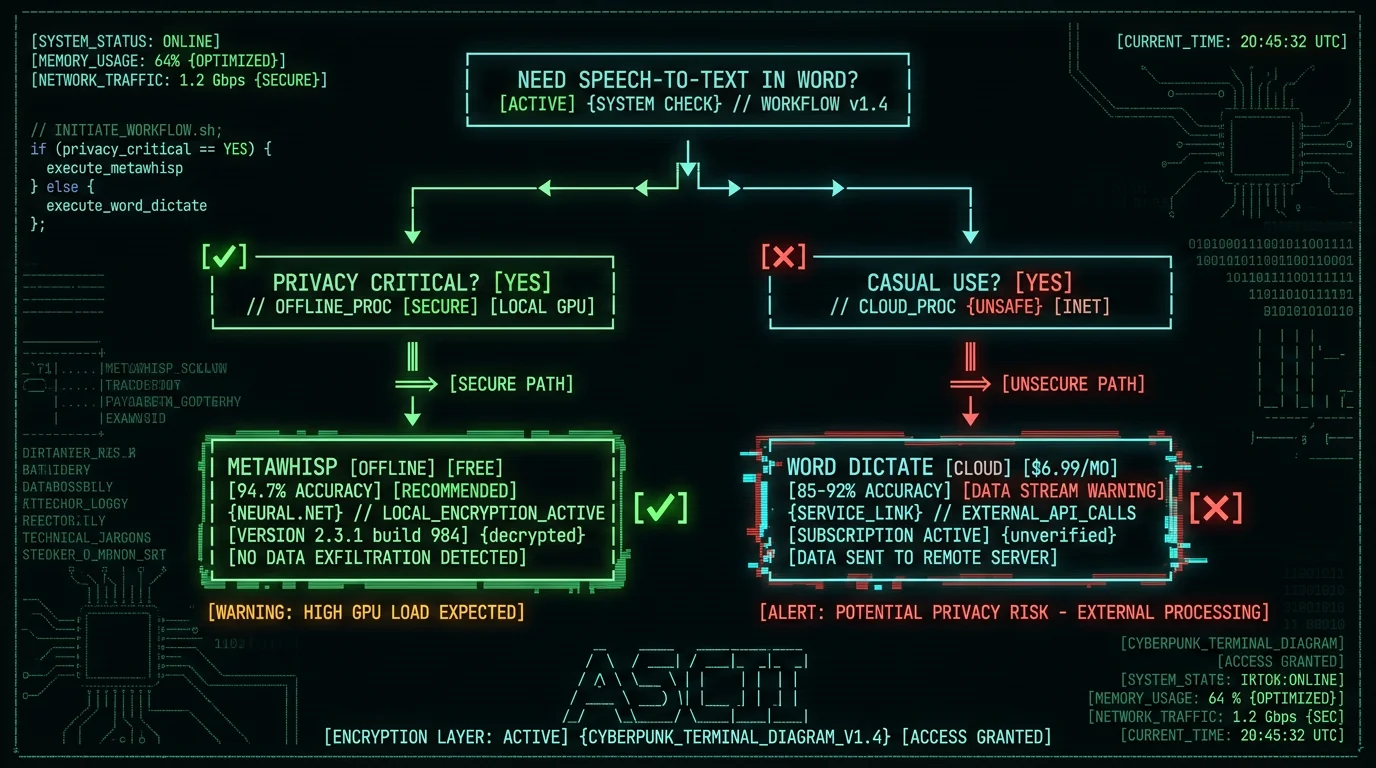
Microsoft Word's built-in Dictate feature provides convenient voice input for casual users with stable internet and basic transcription needs. The Azure-powered service works well on clear English audio (Microsoft doesn't publish a word-error-rate figure for it), supports 60+ languages, and integrates seamlessly into the Word ribbon interface. For $6.99/month (Microsoft 365 Personal), users gain system-wide access across desktop, web, and mobile platforms.
However, the cloud-based architecture introduces privacy exposure, mandatory internet dependency, and accuracy limitations that professionals in regulated industries cannot accept. Every spoken word uploads to Microsoft's servers, audio retention policies allow 30-day retention for debugging, and law enforcement can subpoena recordings. Specialized vocabulary (medical terms, legal jargon, technical acronyms) produces 30-40% error rates without custom model support.
Mac users prioritizing privacy, offline capability, and superior accuracy should evaluate MetaWhisp—a free, on-device alternative that runs OpenAI's Whisper large-v3-turbo model on Apple Neural Engine silicon. The system-wide approach works across Word, Google Docs, Slack, email, and 12000+ other applications without uploads or subscriptions. Processing occurs entirely offline with ~97% accuracy (2.76% WER, our test) and a HIPAA-compatible architecture for the on-device transcription step, since audio never leaves your Mac.
For journalists dictating interview transcripts, lawyers drafting case notes, doctors recording patient encounters, or security researchers handling sensitive technical content—local transcription isn't optional. It's the only architecture that eliminates third-party data exposure and maintains full content control.
The choice between Word Dictate and local transcription tools depends on your workflow priorities:
| Priority | Use Word Dictate | Use MetaWhisp |
|---|---|---|
| Privacy | ⚠️ Cloud uploads | ✅ 100% on-device |
| Offline capability | ❌ Requires internet | ✅ Works offline |
| System-wide | ❌ Word only | ✅ All apps |
| Accuracy (clean English) | Not published (Azure cloud) | 2.76% WER (our LibriSpeech test) |
| Cost | $6.99/mo subscription | Free |
Test both approaches to determine fit for your specific use case. Download MetaWhisp free and compare transcription quality against Word Dictate on identical audio samples. Many users adopt hybrid workflows—using Dictate for quick casual notes and MetaWhisp for sensitive professional content requiring privacy guarantees.
About the author: Andrew Dyuzhov is the founder of MetaWhisp and has spent three years optimizing on-device speech recognition for privacy-conscious professionals. He built MetaWhisp to solve the problem of cloud transcription services uploading sensitive audio to third-party servers. Connect on X/Twitter @hypersonq for updates on local AI and privacy-preserving voice tech.
Related Reading
- How to Use Dictation on Mac: System Settings and Third-Party Tools — Complete guide to macOS voice input, shortcuts, and privacy implications
- MetaWhisp Auto-Paste: System-Wide Voice Input Across 12000+ Mac Apps — Technical breakdown of universal dictation architecture
- MetaWhisp Processing Modes: Optimizing Whisper for Speed, Accuracy, or Custom Vocabulary — How to configure local transcription for specialized content
- Download MetaWhisp: Free Offline Speech-to-Text for Mac — Get started with private, on-device voice transcription in 60 seconds
