Why Is Wispr Flow Not Working on My Mac?
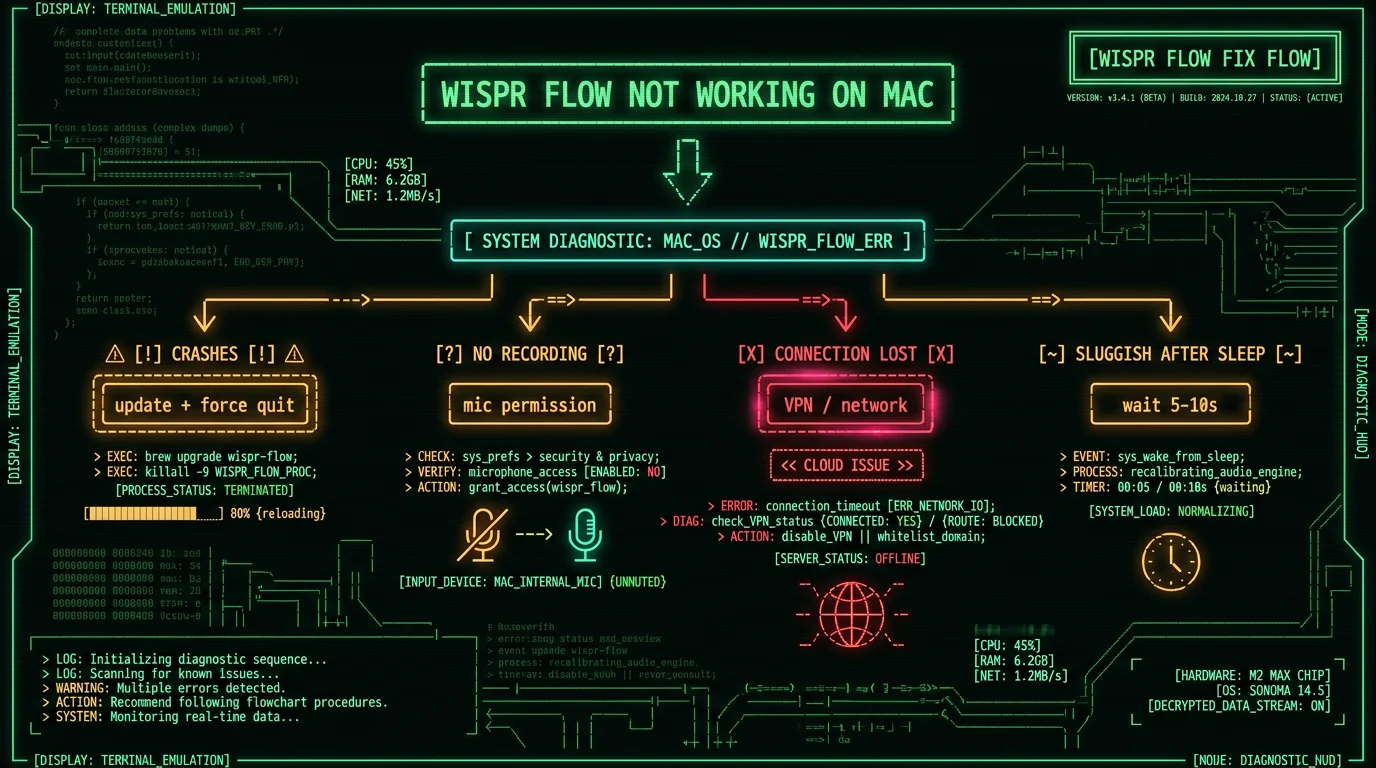
Wispr Flow failures on Mac cluster into a few categories, and knowing which one you're hitting points to the fix:- Won't launch / crashes — usually an outdated version; several crash bugs were fixed in recent releases
- Not recording your voice — almost always a Microphone permission issue
- "Connection lost" errors — a VPN, firewall, or security tool blocking Wispr's servers, or a network drop
- Sluggish or unresponsive after sleep — the app is reconnecting; it usually recovers in seconds
- Won't start after sign-in — a known startup edge case with a specific fix
Fix 1: Update Wispr Flow to the Latest Version
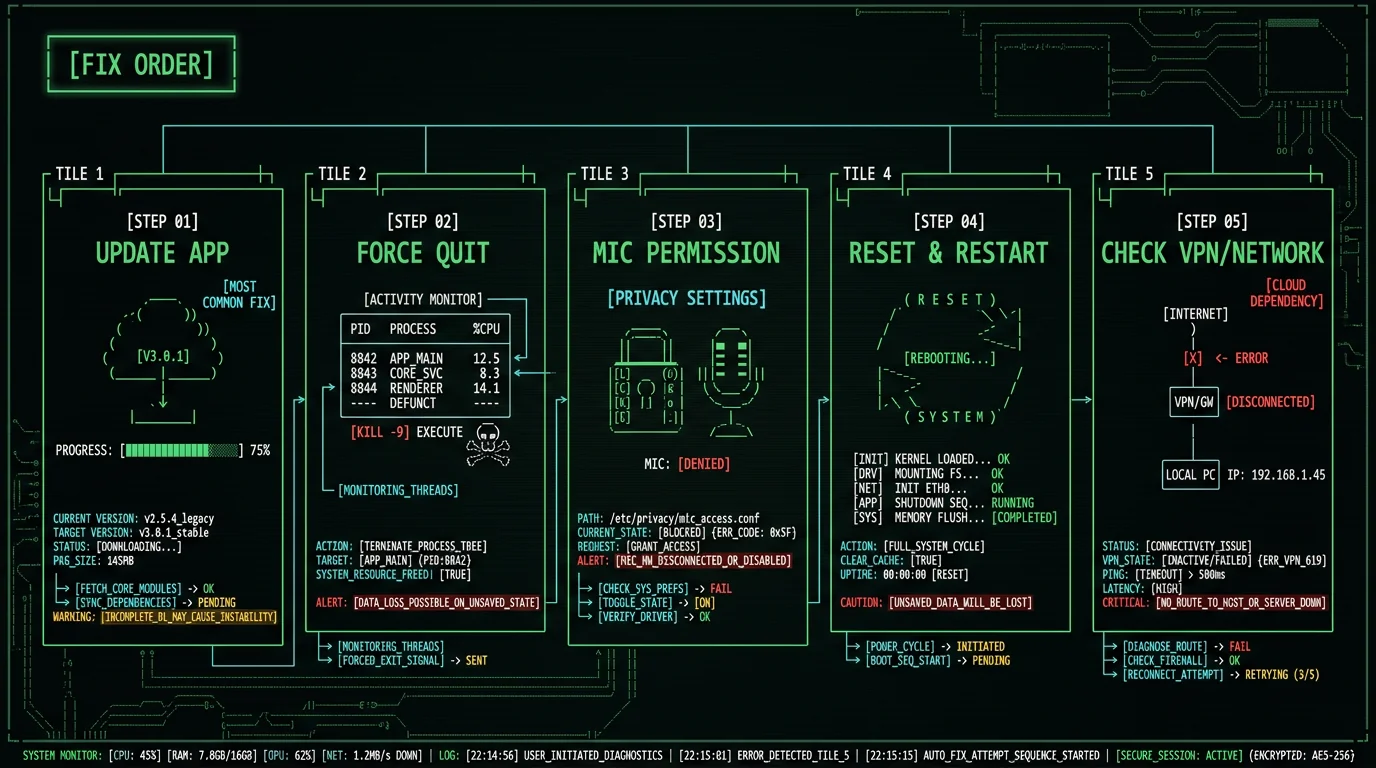
Several crash and launch bugs were fixed in recent Wispr Flow releases, so this is the first thing to try. An outdated version is the most common cause of crashes-on-launch.- Open Wispr Flow
- Check Settings for an update prompt, or download the latest version from wisprflow.ai
- Install the update and relaunch the app
- Test dictation
Fix 2: Force Quit and Relaunch
If Wispr Flow is frozen or unresponsive, force-quit all its processes and relaunch. Per Wispr's official guidance (help center):- Press Command + Space to open Spotlight
- Type "Activity Monitor" and press Return
- In the search bar (top right), type "Wispr"
- Select each process with "Wispr" in the name
- Click the X (stop) button in the toolbar, then Force Quit
- Relaunch Wispr Flow
Fix 3: Grant Microphone Permission
If Wispr Flow launches but isn't capturing your voice, it almost certainly lacks Microphone permission. Per Wispr's "why isn't Flow recording my voice" guide:- Open System Settings
- Go to Privacy & Security → Microphone
- Confirm microphone access is on and Wispr Flow is in the allowed list, toggled on
- If it was already on, toggle it off and back on, then relaunch Wispr Flow
- Test dictation
Fix 4: Reset and Restart the App
Wispr Flow has a built-in reset that clears local app data without uninstalling. Per their reset guide:- Click the Settings icon in Wispr Flow
- Select System → Data
- Click "Reset & restart"
- Confirm by clicking "Reset & restart" again in the dialog
Fix 5: Check for "Connection Lost" — VPN and Security Tools
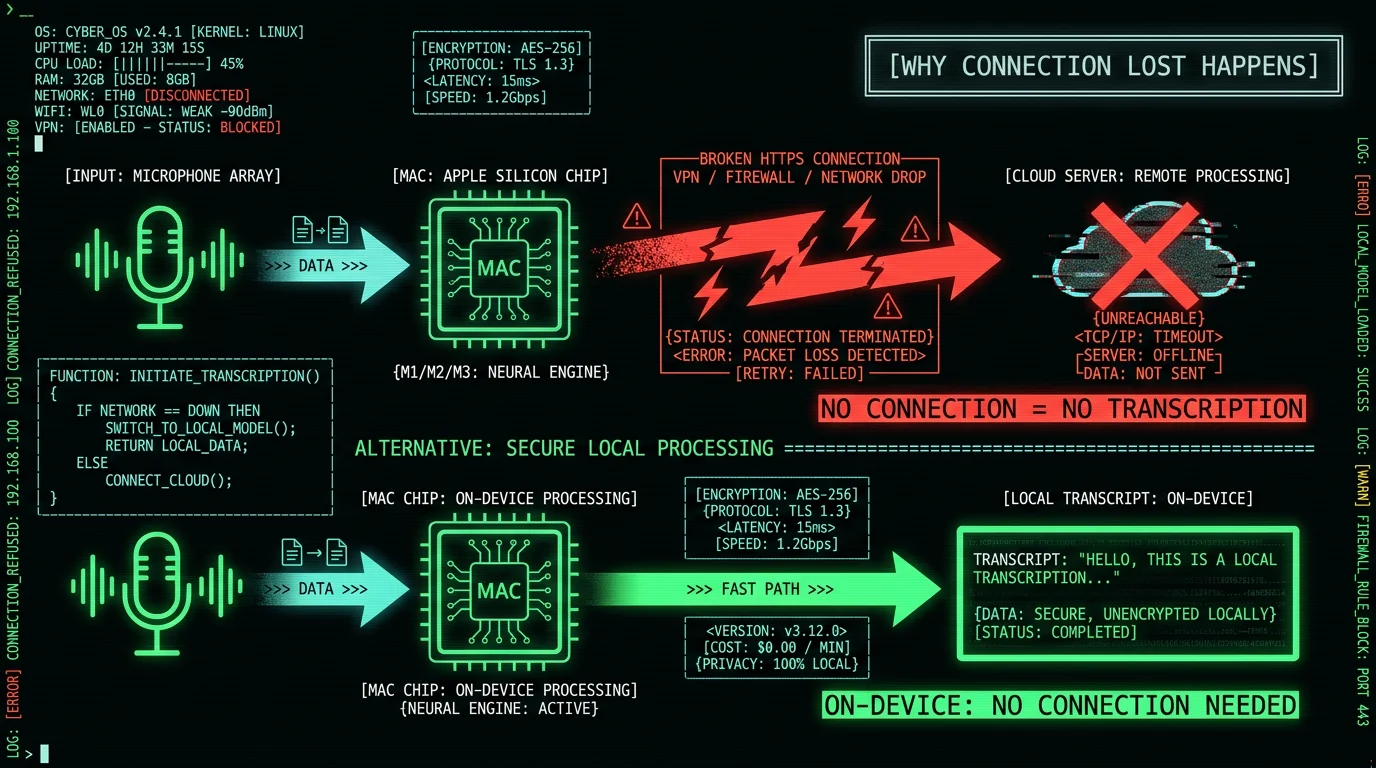
If you see "connection lost" or network errors, a VPN, firewall, or security tool is likely blocking Wispr Flow's connection to its servers. Per Wispr's VPN/security troubleshooting:- Temporarily disable your VPN and test — if it works, add Wispr Flow as a VPN exception
- Check corporate firewall or security software that may block its endpoints
- Confirm your internet connection is actually working (open a website)
- Switch networks (e.g., from corporate WiFi to a hotspot) to isolate the issue
Fix 6: Wait After Waking from Sleep
If Wispr Flow is sluggish or unresponsive right after your Mac wakes from sleep, it's reconnecting to its servers. Per Wispr's guidance, wait 5–10 seconds — it often recovers automatically. If it doesn't recover after 10 seconds, force-quit and relaunch (Fix 2). This post-sleep lag is another symptom of cloud dependency: the app has to re-establish its server connection after the network stack wakes up. On-device tools don't have this delay because there's no connection to re-establish.Fix 7: App Won't Start After Sign-In
If you sign in, click "Open Wispr Flow," and nothing happens, there's a specific fix in Wispr's startup troubleshooting:- Force-quit any Wispr processes (Fix 2)
- Relaunch the app directly from your Applications folder, not from the browser sign-in link
- If it still won't start, reinstall the latest version
Fix 8: Check Accessibility Permission
Wispr Flow needs Accessibility permission to insert text into other apps. If dictation transcribes but text doesn't appear where you're typing:- Open System Settings → Privacy & Security → Accessibility
- Confirm Wispr Flow is listed and toggled on
- Toggle off and on if it was already enabled, then relaunch
Fix 9: Reinstall as a Last Resort
If nothing above works, do a clean reinstall:- Quit Wispr Flow and force-quit any processes (Fix 2)
- Move Wispr Flow from Applications to Trash
- Download the latest version from wisprflow.ai
- Install fresh and sign in again
- Re-grant Microphone and Accessibility permissions
When the Real Fix Is a Different Architecture
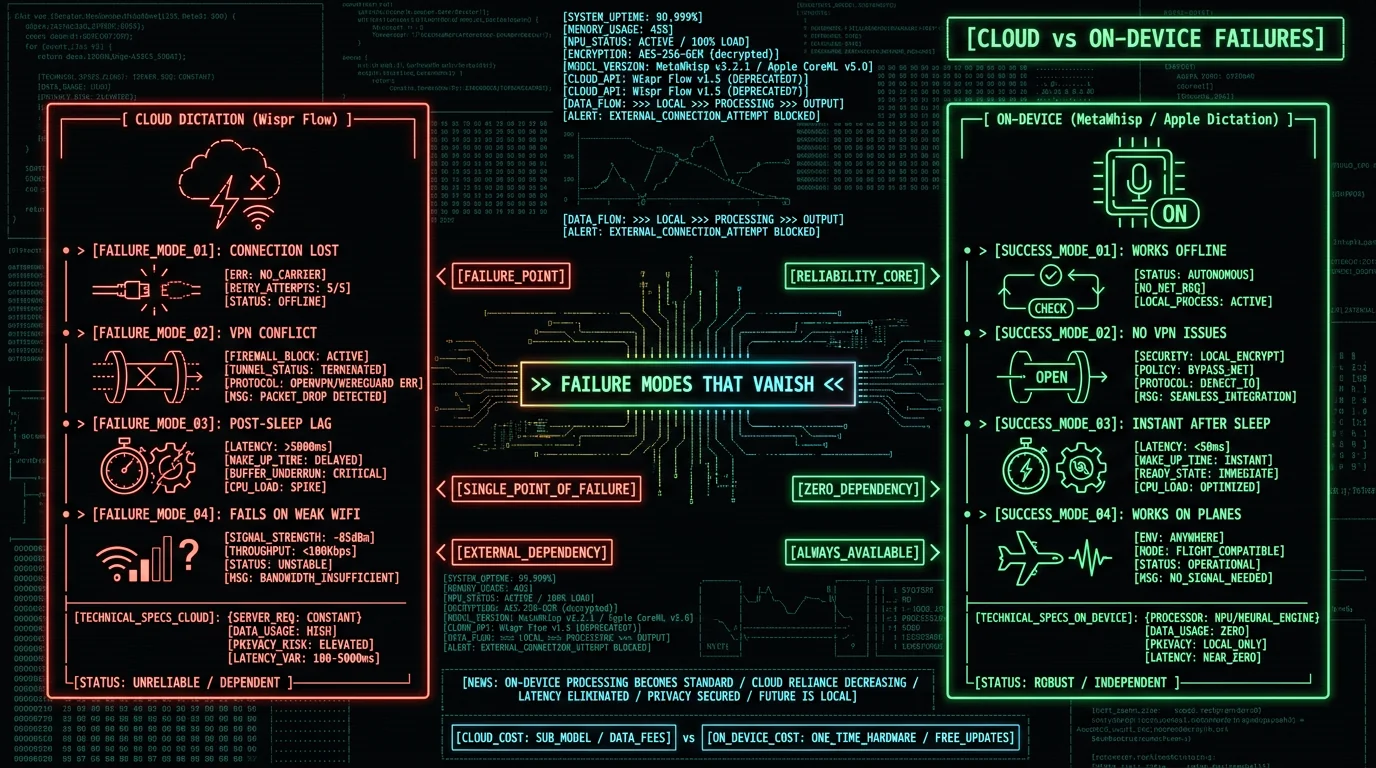
Several of the fixes above — VPN exceptions, network switching, post-sleep waiting — exist only because Wispr Flow processes audio in the cloud. If your Wispr Flow problems are network-class and recurring, the underlying issue isn't something you can troubleshoot away. On-device dictation tools work differently. Apps like MetaWhisp, MacWhisper, and Apple's built-in Dictation run the speech model locally on your Mac. That eliminates an entire category of failures:- No "connection lost" — there's no connection to lose
- No VPN or firewall conflicts — nothing is being blocked
- No post-sleep reconnection lag — nothing to reconnect
- Works on planes, weak WiFi, and behind strict firewalls
Frequently Asked Questions
Why isn't Wispr Flow recording my voice on Mac?
Almost always a Microphone permission issue. Open System Settings → Privacy & Security → Microphone, confirm Wispr Flow is allowed and toggled on. If it was already on, toggle it off and back on, then relaunch. macOS updates sometimes reset this permission, so check it even if dictation worked before.
Why does Wispr Flow say "connection lost"?
A VPN, firewall, or security tool is blocking Wispr Flow's connection to its servers, or your network dropped. Wispr Flow is cloud-based, so it needs a live server connection to transcribe. Temporarily disable your VPN to test; if that fixes it, add Wispr Flow as an exception. On-device dictation tools don't have this error because they don't use the network.
Why does Wispr Flow keep crashing on Mac?
Most often an outdated version — several crash bugs were fixed in recent releases, so update first. If it still crashes, force-quit all Wispr processes via Activity Monitor and relaunch, then try the in-app Reset & Restart (Settings → System → Data). A clean reinstall is the last resort for persistent crashes.
Why is Wispr Flow slow after my Mac wakes from sleep?
Wispr Flow reconnects to its servers after your Mac wakes, which causes brief lag. Wait 5–10 seconds and it usually recovers automatically. If it doesn't recover after 10 seconds, force-quit and relaunch. This post-sleep delay is a cloud-dependency symptom — on-device dictation tools have no connection to re-establish, so they don't lag after sleep.
Wispr Flow transcribes but text doesn't appear — why?
Wispr Flow needs Accessibility permission to insert text into other apps. Open System Settings → Privacy & Security → Accessibility, confirm Wispr Flow is listed and toggled on. Toggle off and on if it was already enabled, then relaunch. This permission, like Microphone, can reset after macOS updates.
How do I stop Wispr Flow problems from recurring?
If your problems are network-class (connection lost, post-sleep lag, VPN conflicts), they recur because Wispr Flow depends on a live server connection. No troubleshooting step changes that. For travelers, weak-WiFi users, or those behind strict firewalls, the durable fix is an on-device dictation tool (MetaWhisp, MacWhisper, Apple Dictation) that transcribes locally — eliminating network-class failures entirely.
About the Author
Andrew Dyuzhov is the solo founder and CEO of MetaWhisp, a free, open-source, on-device voice-to-text app for macOS that runs Whisper large-v3-turbo locally via WhisperKit. He builds a competing on-device tool, which is why this guide leads with that disclosure, sources every fix from Wispr Flow's own help center, and flags where the cloud architecture — not a fixable bug — is the underlying issue. Connect on X or GitHub.
Related Reading
- Wispr Flow Review 2026 — full standalone review
- Wispr Flow Alternatives — on-device options that avoid network failures
- Wispr Flow vs SuperWhisper — cloud vs on-device comparison
- Mac Dictation Not Working? 7 Fixes — Apple Dictation troubleshooting
- Offline Voice-to-Text on MacBook — dictation without the network
