What macOS Permissions Does Voice-to-Text Actually Need?
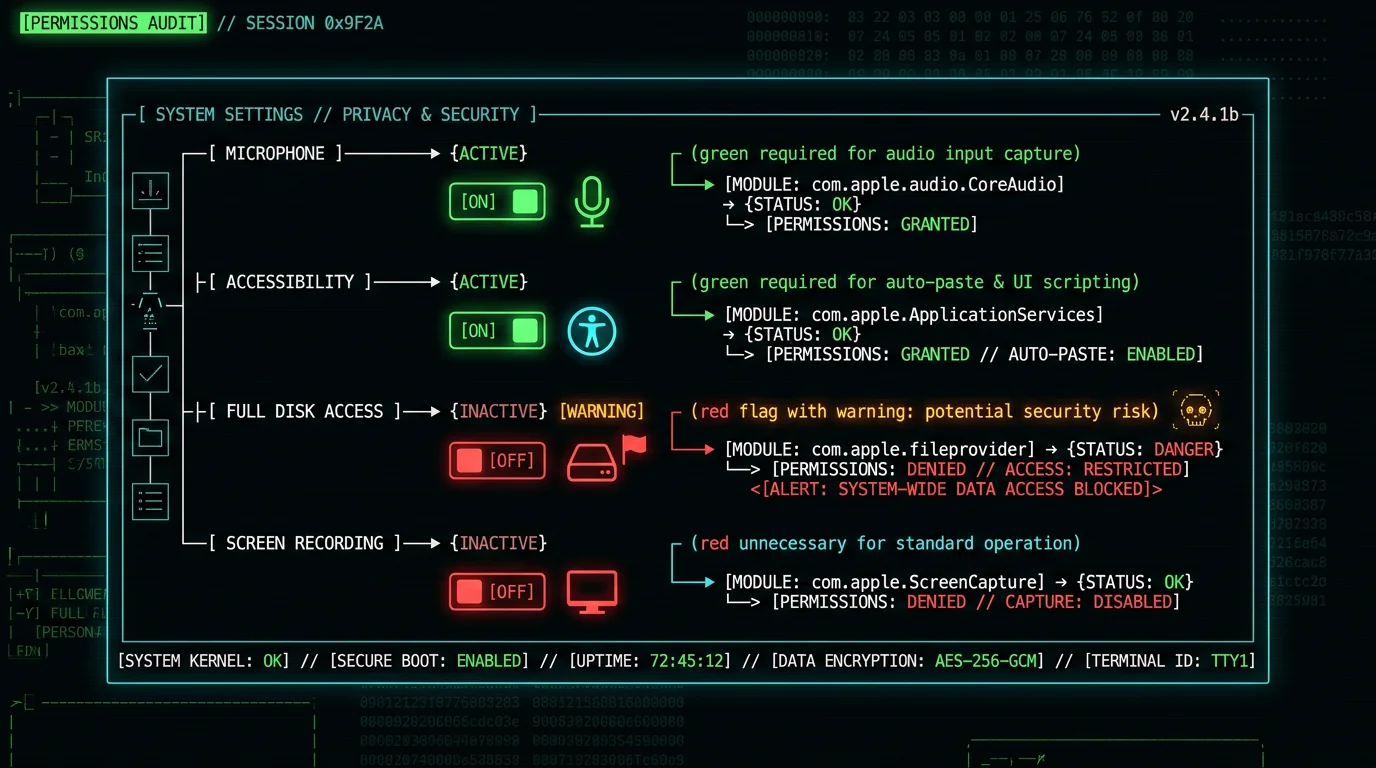
A well-architected voice-to-text app on Mac needs exactly two macOS permissions. Anything more should make you suspicious. 1. Microphone permission — Required to capture audio from your built-in or external mic. Without this, the app can't record speech to transcribe. Granted via System Settings → Privacy & Security → Microphone. The permission scope is narrow: the app can only read audio from microphone inputs while it's running. 2. Accessibility permission — Required to simulate a Cmd+V paste keystroke that delivers the transcribed text to your active app. Without this, the app can transcribe but can't insert the text anywhere — you'd have to manually copy from the app's own window each time. Granted via System Settings → Privacy & Security → Accessibility. Those are the only two permissions a voice-to-text app fundamentally needs. Apps that ask for more are either:- Cloud-based and need network access (which is granted by default; no separate permission required)
- Trying to do something beyond core voice-to-text functionality
- Poorly architected with broader-than-necessary access requests
Why Does My Voice-to-Text App Want Accessibility?
The Accessibility permission is the one users most often question. It sounds invasive — "Accessibility" implies broad access to everything on screen. The technical reality is narrower. What Accessibility actually grants:- Ability to simulate keyboard input (Cmd+V paste, function-key presses, character input)
- Ability to read the names and roles of UI elements via the macOS Accessibility API
- Ability to detect which app is currently focused
- Ability to register global hotkeys that work in any app
- Reading the contents of text fields beyond what's needed for accessibility (e.g., the value of password fields is hidden)
- Reading screen pixels (that's Screen Recording, separate permission)
- Reading file contents on disk (that's Files & Folders or Full Disk Access)
- Network access
- Microphone access (separate)
NSPasteboard to write text to the clipboard, then uses Accessibility's keyboard simulation to send Cmd+V to the focused window. This is the only way to deliver text to apps that don't expose direct text-input APIs — which is most apps, especially Electron-based ones like Slack, VS Code, Discord, and Obsidian.
Why this matters: Apple's text-insertion APIs only work for native macOS apps using NSTextView. Modern apps built on Electron, Chromium, web views, or cross-platform frameworks (Qt, Tauri) don't expose those APIs. The Accessibility-based paste approach is the universal fallback that works in every app. Voice-to-text tools that don't request Accessibility have to limit themselves to a narrow set of native apps, which defeats the purpose of being a system-wide tool.
What's the Difference Between Files & Folders and Full Disk Access?
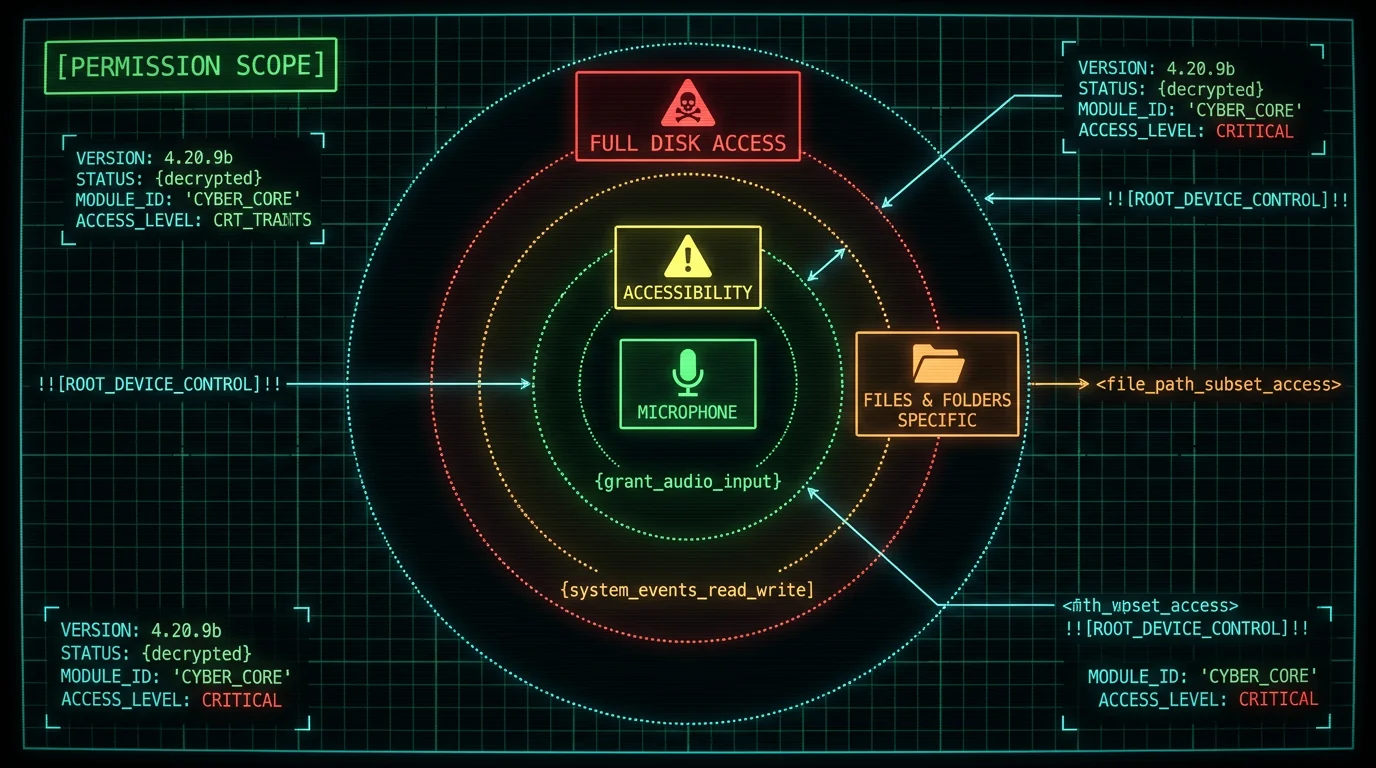
Apple's Files & Folders permission has two flavors, and the difference matters:- Files & Folders (specific) — Grants access to specific folders like Desktop, Documents, Downloads, iCloud Drive. Each folder is a separate toggle. The app can only read/write the folders you explicitly enable.
- Full Disk Access — Grants access to everything: system files, hidden user-Library contents, other users' folders, kernel extensions, even encrypted Time Machine backups. This is the most powerful permission on the Mac.
- Backup tools (Time Machine, Carbon Copy Cloner) — Legitimate need
- Antivirus / endpoint security — Legitimate need
- System utilities (CleanMyMac, OnyX) — Sometimes legitimate
- Voice-to-text apps — Never legitimate, always a red flag
Which Voice-to-Text Apps Ask for What Permissions?
Quick reference table of what permissions each major Mac voice-to-text app requests:| App | Microphone | Accessibility | Network | Other |
|---|---|---|---|---|
| MetaWhisp | Yes | Yes (auto-paste) | No (free tier) | None |
| Wispr Flow | Yes | Yes (auto-paste) | Yes (cloud) | None |
| SuperWhisper | Yes | Yes (auto-paste) | Optional (cloud mode) | None |
| MacWhisper | Yes | No | No (local) | Files (export folder) |
| Otter.ai | Yes | No (web only) | Yes (cloud) | Calendar (for auto-join) |
| Apple Dictation | Built-in | Built-in | Optional (standard mode) | None |
How Do I Audit a Voice-to-Text App's Permissions?
Before installing any voice-to-text app, check what permissions it requests. Three ways to audit:- Read the app's privacy policy — Reputable apps disclose what permissions they request and why. Vague or missing privacy policies are a red flag.
- Check the App Store privacy nutrition label — For Mac App Store apps, Apple requires developers to declare data collection categories on the listing page. Direct-download apps (Gumroad, vendor websites) don't have this requirement, so you have to dig deeper.
- Install in a separate user account first — Create a test user on your Mac, install the app there, observe what permissions it requests at first launch. Revoke any unexpected requests before granting access from your main account.
- System Settings → Privacy & Security → Microphone — see which apps have mic access
- System Settings → Privacy & Security → Accessibility — apps that can paste keystrokes
- System Settings → Privacy & Security → Files & Folders — folder-by-folder file access
- System Settings → Privacy & Security → Full Disk Access — the dangerous one; should be empty or near-empty
- System Settings → Privacy & Security → Screen Recording — voice apps should NEVER be here
- System Settings → Privacy & Security → Camera — voice apps should NEVER be here
Pro tip: macOS shows a brief "App X is using your microphone" indicator in the menu bar when an app has the mic active. Watch for this indicator unexpectedly — if your voice-to-text app shows mic-active when you didn't trigger recording, something is wrong. Same for camera (orange dot near the green Touch ID indicator on M-series MacBooks).
Does MetaWhisp Need Full Disk Access?
No. MetaWhisp uses only Microphone and Accessibility permissions. It does not need, request, or use:- Full Disk Access
- Files & Folders (specific folders)
- Screen Recording
- Camera
- Calendar
- Contacts
- Photos
- Location
What Permissions Do Cloud-Based Voice-to-Text Apps Add?
Cloud-based voice-to-text apps (Wispr Flow, Otter.ai, OpenAI Whisper API) have the same Microphone + Accessibility baseline but add network-related capabilities. These don't show up as separate macOS permissions but matter for privacy:- Outbound network connections — The app sends audio to the vendor's servers. macOS doesn't prompt for this; network is granted by default. Block at the firewall layer (Little Snitch) if you want explicit control.
- Authentication tokens — The app stores cloud session tokens, often in macOS Keychain. Granting Keychain access is per-credential, not per-app.
- Background sync — Some cloud apps run a background process that periodically syncs even when the app isn't actively used.
How to Spot a Suspicious Voice-to-Text Permission Request
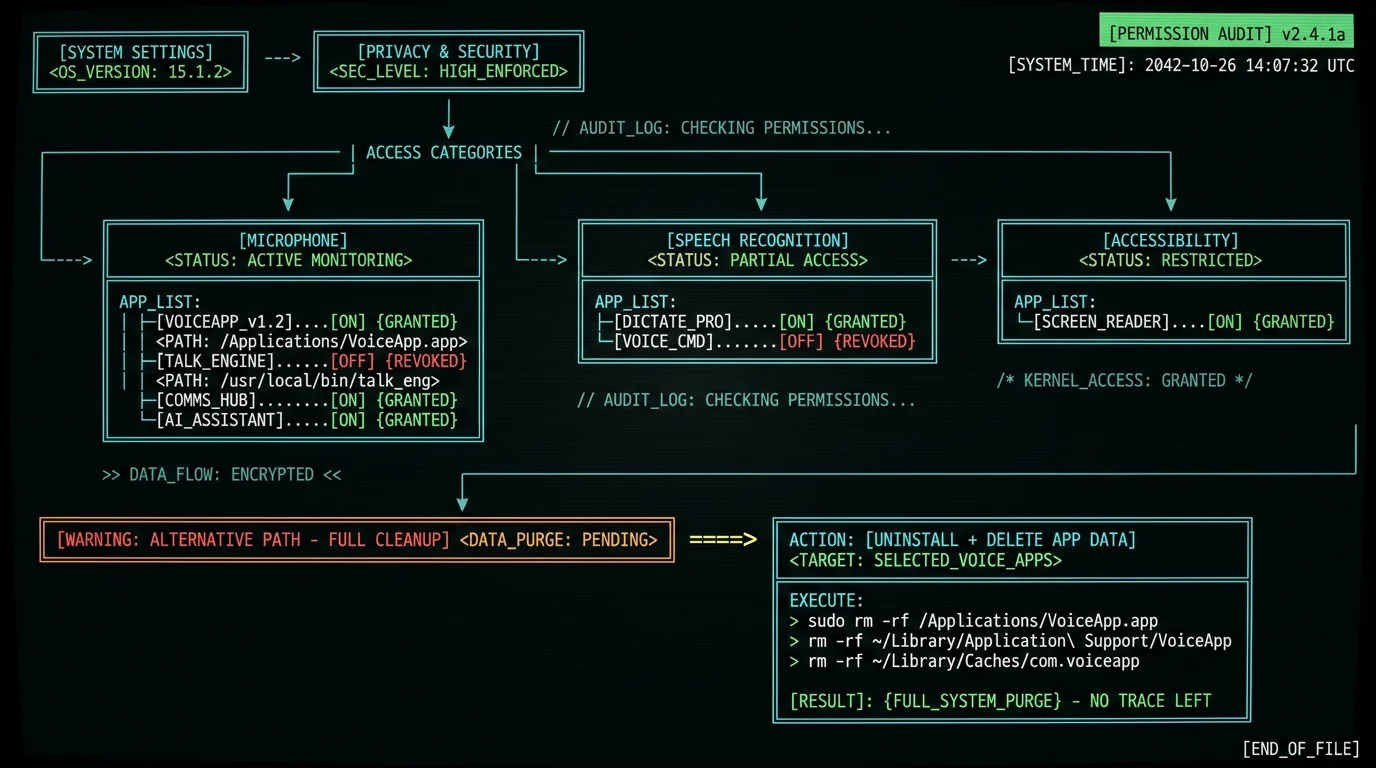
Red flags to watch for when an app requests permissions:- Full Disk Access requested for "feature compatibility" — never legitimate for voice-to-text
- Screen Recording requested for "audio capture" — audio capture only needs Microphone, not Screen Recording
- Camera requested for "future features" — never grant speculative permissions; revoke when re-asked specifically
- Contacts or Calendar without auto-join feature — only Otter and similar meeting-transcription apps legitimately need these
- Network access for an "offline" app — if the marketing says "100% offline" but the app makes network calls, the marketing is misleading
- Vague permission descriptions — Apple lets developers write custom strings for permission prompts. "We need this for your experience" is a non-answer; reputable apps explain specifically what each permission does
What If I Already Granted Too Much Access?
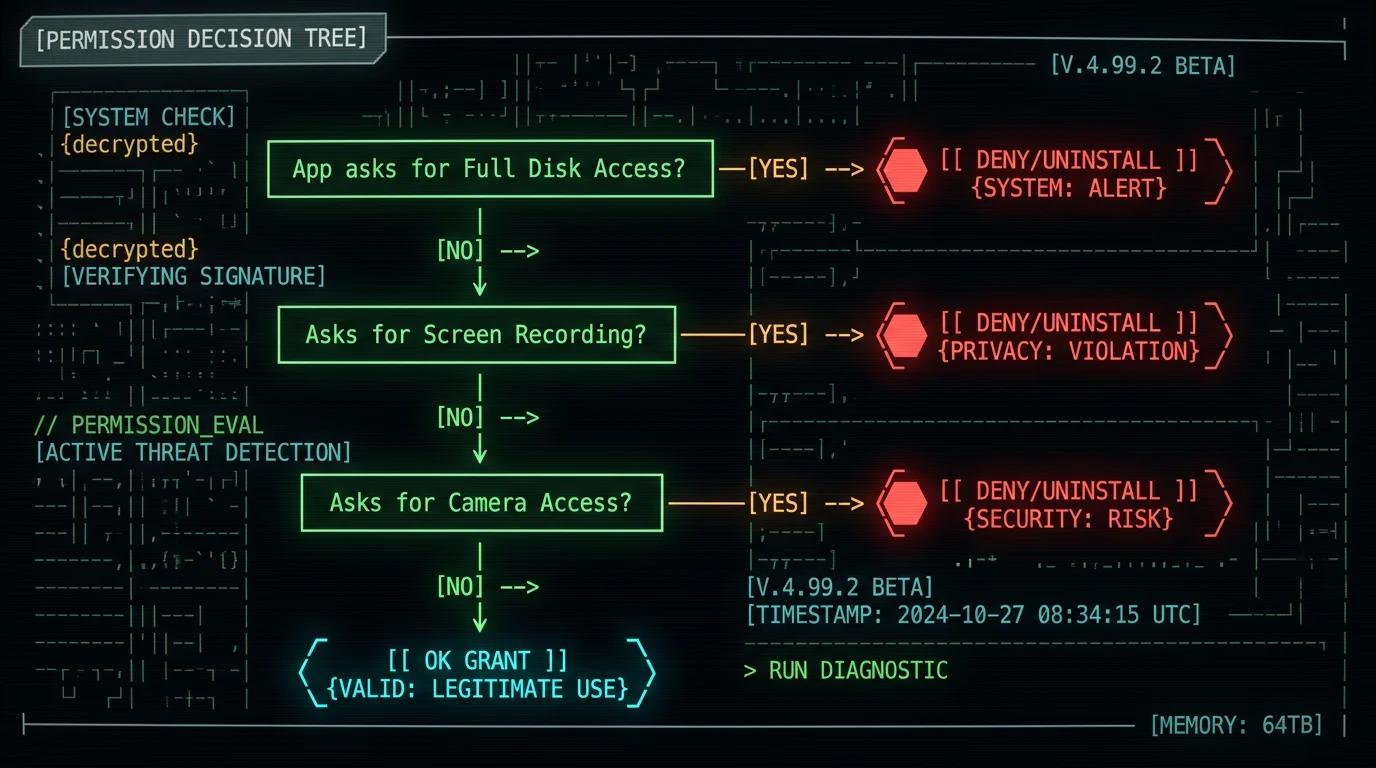
If you previously granted broad permissions to a voice-to-text app you no longer trust, the cleanup process:- Open System Settings → Privacy & Security
- Click through each category: Microphone, Accessibility, Files & Folders, Full Disk Access, Screen Recording, Camera, Calendar, Contacts, Photos
- Find the app in each list
- Toggle off any permissions you don't want it to have
- The app may prompt to re-grant the next time it needs the permission; deny again if it asks for something inappropriate
- Uninstall the app (drag to Trash, empty Trash)
- Delete app data folders: ~/Library/Application Support/AppName/, ~/Library/Caches/com.developer.AppName/, ~/Library/Preferences/com.developer.AppName.plist
- Check ~/Library/LaunchAgents/ and ~/Library/LaunchDaemons/ for any leftover launch agents from the app
- Restart Mac to clear any in-memory artifacts
- If you suspect the app may have accessed credentials, rotate sensitive passwords and API keys
Frequently Asked Questions About Mac Transcription Permissions
What permissions does a voice-to-text app on Mac need?
Exactly two: Microphone (to capture audio) and Accessibility (to paste transcribed text into other apps). These two cover the entire core workflow of a system-wide voice-to-text tool. Anything more — Full Disk Access, Screen Recording, Camera, Contacts — is either a specific feature requirement you should verify or a red flag.
Why does voice-to-text need Accessibility permission?
To simulate a Cmd+V paste keystroke that delivers the transcribed text to your active app. Without Accessibility, the app can transcribe but can't insert text anywhere — you'd manually copy from the app's own window each time. Accessibility doesn't grant access to read your screen or files; it only grants keyboard simulation and UI element role detection for the focused window.
Should I give a voice-to-text app Full Disk Access?
No. Voice-to-text apps never legitimately need Full Disk Access. The permission grants read access to everything in your home directory — SSH keys, browser session cookies, password manager databases, encrypted Time Machine metadata. An app requesting Full Disk Access for voice transcription is either incompetently engineered or actively malicious. Deny it and look for another tool.
Is granting Microphone access dangerous?
Microphone access scope is narrow: the app can only read audio from microphone inputs while it's running. macOS shows a brief indicator in the menu bar when any app uses the mic. The risk is low if you trust the app to handle the audio appropriately (not upload to vendor servers without consent). For on-device tools like MetaWhisp, the audio never leaves your Mac. For cloud tools, you're also trusting the network path.
What does Accessibility permission actually let an app do?
Simulate keyboard input (Cmd+V paste, function keys, character input), read the names and roles of UI elements via the macOS Accessibility API, detect the currently focused app, and register global hotkeys that work in any app. It does NOT grant access to read screen pixels, file contents, network connections, or microphone audio — those are separate permission categories that must be granted independently.
Does MetaWhisp need any unusual permissions?
No. MetaWhisp uses only Microphone and Accessibility — the minimum-permission configuration for a system-wide voice-to-text tool. It does not request Full Disk Access, Screen Recording, Camera, Calendar, Contacts, Photos, or Location. The app's model files and settings live in its own sandbox folder which doesn't require separate permission. Verifiable by running in airplane mode or monitoring with Little Snitch.
How do I revoke permissions from a voice-to-text app?
System Settings → Privacy & Security → click through each category (Microphone, Accessibility, Files & Folders, Full Disk Access, etc.) → find the app → toggle off permissions. The app may prompt to re-grant when it needs a permission; deny again if the request isn't justified. For full cleanup of a no-longer-trusted app, uninstall plus delete ~/Library/Application Support/AppName/ and check ~/Library/LaunchAgents/ for leftover background processes.
Why do cloud-based voice apps have a worse privacy posture?
On-device voice-to-text apps only need to be trusted to handle audio locally (Microphone + Accessibility). Cloud-based apps add the entire network path from your Mac to vendor servers — TLS keys, server-side processing, data retention policies, potential subpoena exposure, vendor staff access. Even with strong vendor practices, the surface area is materially larger. For HIPAA, attorney-privileged, or otherwise sensitive content, on-device is the safer default.
About the Author
Andrew Dyuzhov is the solo founder and CEO of MetaWhisp, a free on-device voice-to-text app for macOS that runs Whisper large-v3-turbo on Apple Neural Engine. He architected MetaWhisp around the minimum-permission constraint (Microphone + Accessibility only, no Full Disk Access, no Screen Recording, no network during transcription) because voice-to-text users in regulated industries can't use tools that require broader access. This article reflects hands-on review of macOS Privacy & Security settings, the Apple developer security documentation, and the permission models used by competing voice-to-text apps on Mac. Connect on X or GitHub.
Related Reading
- Private Voice-to-Text on Mac — privacy architecture deep-dive
- HIPAA-Compliant Speech-to-Text on Mac — when permissions matter for compliance
- 7 Best Voice-to-Text Apps for Mac (2026) — comparison including privacy posture
- Why Local AI Models Beat Cloud on MacBook — broader case for on-device processing
- Wispr Flow One-Time-Payment Alternatives — one-time-payment alternatives that respect permissions
