By Andrew Dyuzhov, CEO & Solo Founder, MetaWhisp·Published ·12 min read·How-To
How to Remove Otter AI from Zoom (and Meet, Teams)
Kick Otter, Fireflies, Fathom and Read AI bots from your next call, then fix the structural problem permanently.
TL;DR: You can remove AI notetaker bots from a live Zoom, Meet, or Teams meeting by kicking them as a participant. At the admin level, Zoom and Teams let you block them organization-wide. But the real fix is to capture the meeting from your own Mac with MetaWhisp running Whisper locally on the Neural Engine — no bot in the participant list, no cloud upload, mic and screen recorded your way. Here's the full breakdown.
Why AI Notetakers in Your Meetings Is a Structural Problem
Otter.ai, Fireflies.ai, Fathom, and Read AI are legitimate tools — and for some teams they're genuinely useful. But there's a growing gap between "someone finds this helpful" and "this is happening to me without asking."
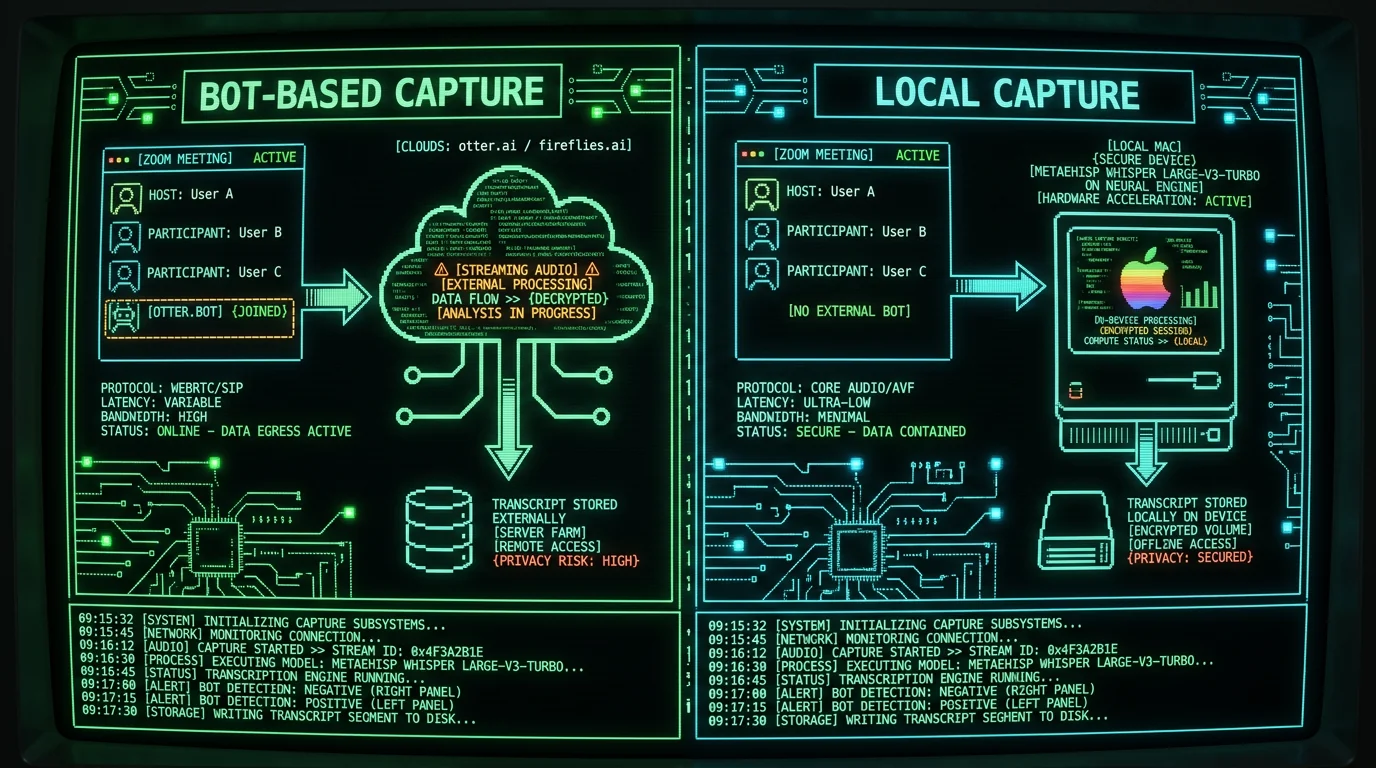
AI notetaker bots join your call as participants, capture everything said, stream it to a third-party cloud, and generate transcripts, summaries, and action items — all without every person on that call having meaningfully consented to having their voice recorded and sent to an external service. In medical, legal, HR, and financial contexts, this isn't a minor privacy footnote. It's a material issue.
The immediate question people ask is: how do I stop this?
The structural question — how do I never have to ask this question again — is the more interesting one.
Both answers below.
How to Remove Otter AI and Other Bots from a Live Zoom Meeting
If an AI notetaker bot is currently in your Zoom meeting and you have host or co-host privileges, you can remove it mid-call.
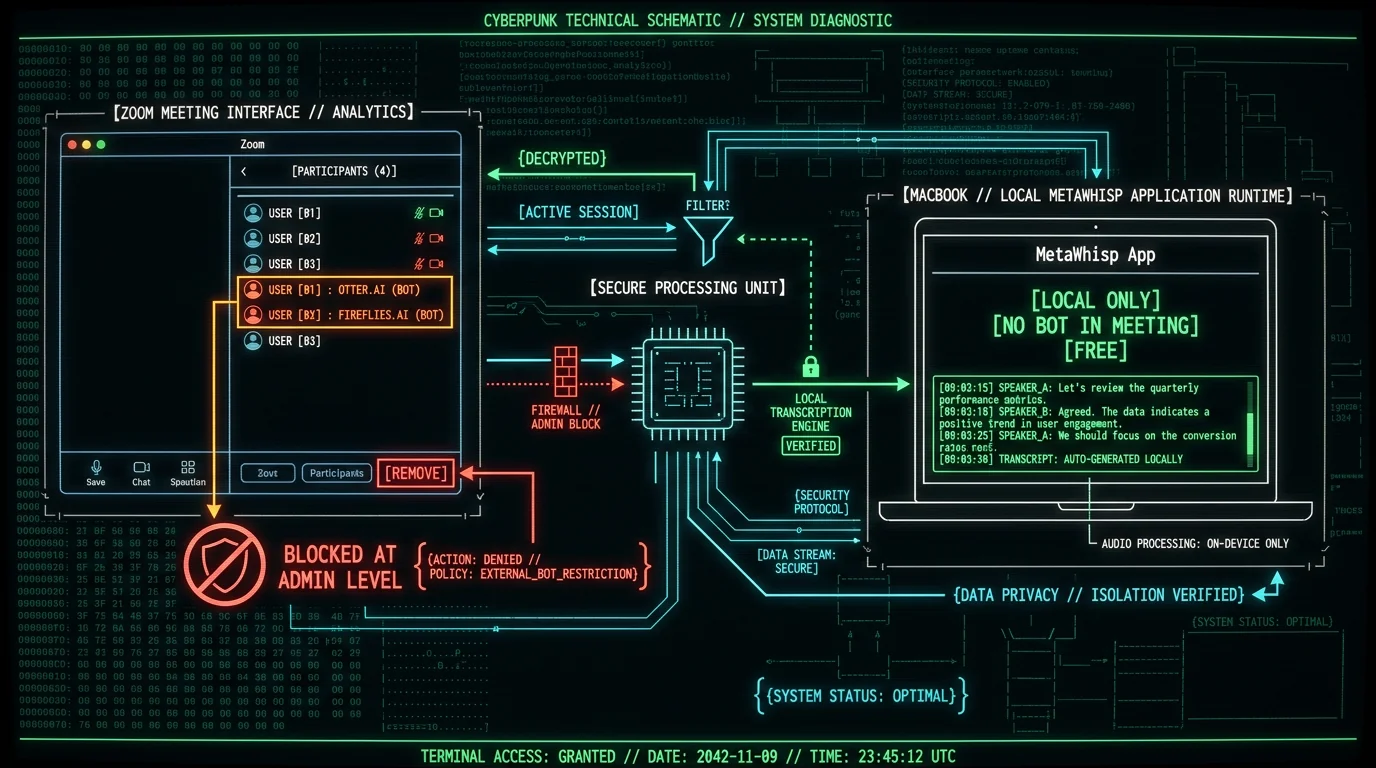
Zoom treats AI notetaker bots like any other participant — they appear in the Participants panel. As host, you can kick them in real time.
Step-by-step per-meeting removal in Zoom:
1. Click Participants in the Zoom toolbar (bottom of the meeting window).
2. Find the bot in the participant list — it will show as "Otter.ai", "Fireflies", "Fathom", or similar. Some bots show as the account owner's name with the tool name in parentheses.
3. Hover over the bot's name and click More (three dots) or right-click.
4. Select Remove.
5. Confirm the removal.
The bot is out for that meeting. It will not automatically rejoin unless someone in the meeting re-invites it or has a scheduled integration set up.
Important caveat: This works in real time only. If the bot was present for the first 30 minutes before you noticed and removed it, that portion of the meeting was already recorded and transmitted. Removal stops future capture — it doesn't undo what already happened.
To check whether a bot has a scheduled integration that will rejoin future meetings automatically, see the admin-level blocking steps below.
How to Remove AI Notetakers from Google Meet
Google Meet doesn't have the same explicit "remove a participant" workflow for third-party bots that Zoom does. The removal method depends on how the bot was added.
If the bot joined via a Google Calendar event attachment or Meet add-on:
Meet add-ons can be disabled for the organization by an admin in Google Workspace settings. Individual users can also remove Meet add-ons from their calendar event or disable them via the Meet add-ons panel before joining.
If someone manually added the bot by sharing a meeting link:
The host can remove the bot from the call using the same participant management controls as any other user — click the participant's name and select Remove.
At the admin level:
Google Workspace admins can disable third-party attachments and add-ons in the Admin Console under Apps > Google Workspace > Google Meet. This prevents add-on-based bots from auto-joining calendar-linked meetings organization-wide.
For specific per-meeting steps on the current version of Meet, check Google's official Meet add-ons documentation — Google's UI changes frequently and removal steps vary by Workspace plan.
How to Remove AI Notetakers from Microsoft Teams
Microsoft Teams handles meeting bots through its app integration framework. Removing them per-meeting and at the admin level works differently than in Zoom.
Per-meeting removal in Teams:
As a meeting organizer or presenter, you can remove a participant — including a bot — by going to the Participants panel, finding the bot, clicking the three-dot menu, and selecting Remove. This kicks the bot from the current meeting.
Preventing auto-installation:
If an AI notetaker bot was added because someone installed it as a Teams app, you can remove it from your organization or disable it per-user in the Teams admin center under Manage apps. Search for the specific app (Otter, Fireflies, etc.) and set its status to Blocked or Allowed with restrictions.
Admin-level blocking:
In the Microsoft Teams admin center, go to Meetings > Meeting policies and configure the following to limit bot-based capture:
Turn off Transcription if your plan includes Teams Premium or Copilot.
Restrict External participants if the bot is joining from an external tenant.
Under Manage apps, block the specific AI notetaker app by name for your entire organization.
How to Block AI Notetakers at the Admin Level (Zoom)
The per-meeting kick stops the current session. The admin-level block stops it from ever joining automatically.
For organizations using Zoom, admins can control third-party app integrations in the Zoom admin portal — the exact menu path has changed between Zoom releases, but it typically lives somewhere under Advanced or Manage depending on your plan. The general steps to revoke an AI notetaker integration are:
1. Log in to Zoom Marketplace as an admin.
2. Navigate to the Manage section (look for an "Installed Apps" or app-catalog view).
3. Find the AI notetaker app (Otter, Fireflies, Fathom, Read AI).
4. Click Disable or Remove to revoke the integration.
5. This prevents the app from auto-joining scheduled meetings that were linked to it.
Zoom's Built-in AI Companion:
Note that Zoom has its own AI Companion built into the platform. If your organization has paid for it, AI Companion can generate meeting summaries and action items without a third-party bot. Admins can disable AI Companion at the account or group level in the AI Companion settings area of the admin portal.
For the current admin console layout, check Zoom's official support site — the admin portal UI changes between releases.
The Structural Fix: Capture from Your Own Mac
Removing a bot from today's meeting is reactive. If your organization uses AI notetakers by default — or if clients and colleagues routinely add them — you'll be doing this every week.
The structural fix is to own the recording and transcription infrastructure yourself. No bot in the participant list. No third-party cloud. You capture what you need, on your own Mac, and the transcript stays on your device.
MetaWhisp is built for this. It runs Whisper large-v3-turbo on the Apple Neural Engine, entirely on your Mac, with no audio sent anywhere in local mode.
How it works for meeting capture:
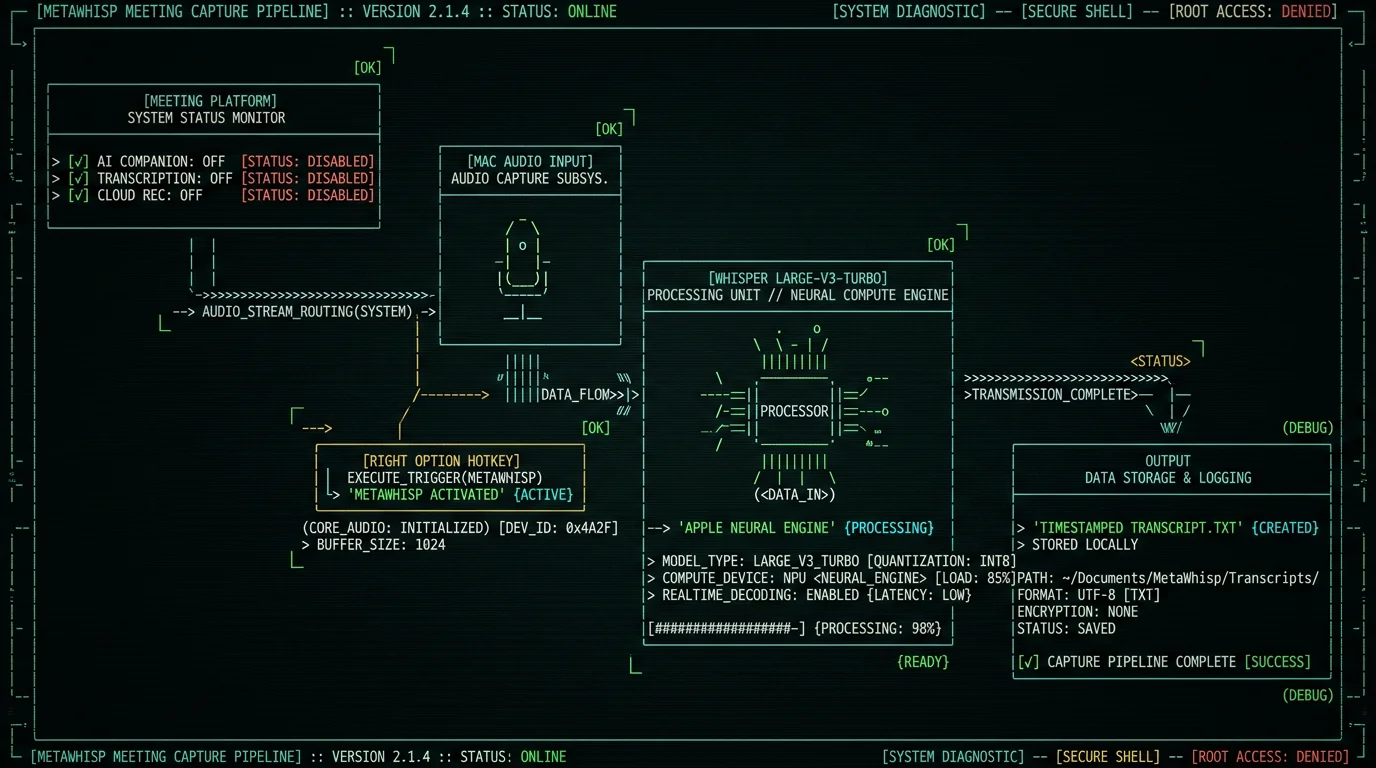
1. Disable bot features in the meeting platform first. In Zoom, turn off AI Companion auto-summary. In Teams, disable transcription in meeting policies. In Meet, remove or block the add-on. This ensures no competing cloud capture is running alongside yours.
2. Set up your Mac to capture audio separately. MetaWhisp captures from your Mac's microphone — your own voice, cleanly separated from the meeting's shared audio stream. For the meeting audio itself, use your platform's built-in local recording (Zoom and Teams both support recording to local storage instead of cloud) combined with MetaWhisp's dictation.
3. Press the hotkey and dictate your summary in real time. The default hotkey is Right Option (⌥). Press it and talk — your dictated summary, timestamps, and notes are captured into whatever app you're in, without a bot in the meeting. MetaWhisp's Structured mode can format your dictation into speaker-labeled sections.
4. Post-meeting, run the transcript through MetaWhisp for a clean, local record. Import the audio, process it on-device, and you have a timestamped transcript that never left your Mac.
This approach keeps your meeting transcript under your control. No account, no cloud sync, no third-party terms of service. Local mode is permanently free and unlimited.
Pro tip: Set Zoom, Meet, and Teams to record to your local machine (not the cloud) for the shared meeting audio. Pair that with MetaWhisp for your personal voice notes and live dictation. Two separate tracks, both under your control, no bot in the room.
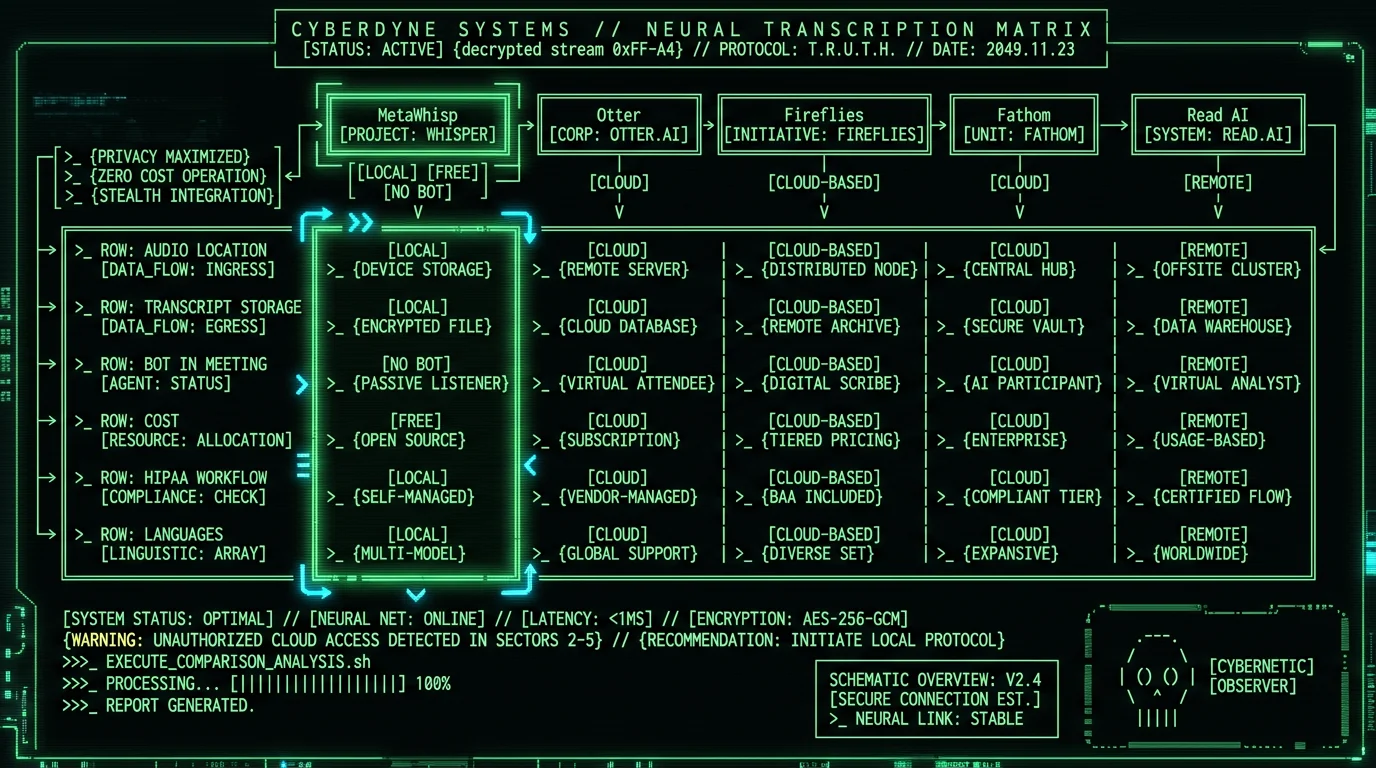
Local Capture vs. AI Notetaker Bots: Direct Comparison
MetaWhisp (Local)
Otter.ai
Fireflies.ai
Fathom
Read AI
Audio processed
Your Mac (Neural Engine)
Cloud servers
Cloud servers
Cloud servers
Cloud servers
Transcript location
Your device
Vendor cloud
Vendor cloud
Vendor cloud
Vendor cloud
Bot in meeting
No
Yes
Yes
Yes
Yes
Local mode cost
Free
Paid only
Paid only
Free tier
Paid only
HIPAA-compatible workflow
Local mode fits HIPAA workflows
Business plan required
—
—
—
Languages
99 (auto-detect)
Multiple, per their docs
Multiple, per their docs
Limited
—
Pricing notes: Otter.ai's paid Pro tier is roughly in the high teens per seat per month, per their current pricing page — confirm the exact figure on their site before budgeting. Fireflies.ai has a free tier with caps; paid plans are per-seat. Fathom offers a free tier with limited hours. Read AI pricing is not publicly published — check their site for current rates. MetaWhisp's local mode is free and unlimited. Cloud AI features (Structured, Correct, Rewrite, translation) are available on the free tier when you add your own API key.
Why Not Just Use Zoom's Built-in Transcription?
Zoom does have built-in transcription — but it requires Zoom AI Companion, which is a paid add-on in many plans, sends audio to Zoom's cloud, and captures the entire meeting (including everyone else on the call) rather than just your dictation.
If you want a clean, private record of your own voice notes and action items, and you want to keep the meeting itself free of any third-party transcription bot, MetaWhisp's local capture is a different tool for a different job. It's the difference between "letting the meeting platform transcribe everything" and "you own what you capture."
For a full comparison of on-platform vs. local transcription on Mac, see our Zoom transcription guide for Mac.
FAQ: Removing AI Notetakers from Meetings
❓
Can I block Otter.ai from ever joining my Zoom meeting automatically?
Yes, at the admin level. In the Zoom Marketplace admin panel, go to Manage > Installed Apps and disable or remove the Otter.ai integration. This prevents it from auto-joining meetings scheduled with the integration. Individual meeting hosts can also disable AI Companion in their account settings under AI Companion.
❓
Does removing a bot mid-meeting delete the transcript it already recorded?
No. Kicking the bot stops it from capturing further audio — anything already sent to the vendor's cloud remains there, subject to their retention policies. Check the vendor's data deletion process if you've already captured sensitive content.
❓
Do I need consent to record a meeting on my own Mac?
This article covers technical removal steps for AI notetaker bots. Recording consent laws vary significantly by jurisdiction — one-party consent states vs. all-party consent states in the US, GDPR considerations in Europe, and industry-specific rules in healthcare and legal sectors. Consult your legal counsel for what's applicable to your situation. MetaWhisp's local mode is a tool; how you use it is your responsibility.
❓
Can MetaWhisp capture the other people's voices in a Zoom meeting?
MetaWhisp captures from your Mac's microphone input. It records your voice clearly. Capturing the full meeting audio (other speakers) depends on your platform's local recording settings — Zoom and Teams both support recording to local storage rather than the cloud. MetaWhisp then processes that audio on-device. For more on meeting capture strategies, see our post on meeting transcription without a bot.
❓
How do I know if an AI notetaker bot is in my meeting?
Check the Participants panel in Zoom, Meet, or Teams. Bots typically appear with the vendor's name in the participant list (e.g., "Otter.ai" or the account holder's name). In Zoom, bots may show a recognizable label or icon next to their name depending on platform version and the bot's branding. If you don't recognize a participant, ask the meeting organizer before assuming it's an AI notetaker.
❓
What's the difference between removing a bot and blocking it at the admin level?
Removing is per-meeting — you kick it from the current call and it stops capturing for that session. Admin blocking prevents the integration from auto-joining any future meetings organization-wide. You need host/owner access to remove per-meeting, and admin credentials to block at the organizational level.
❓
Is MetaWhisp free for local meeting transcription?
Yes. Local mode is permanently free and unlimited. No account, no time caps, audio never leaves your Mac. The only features that require an external API key (or a Pro subscription) are AI post-processing modes like Structured, Correct, and Rewrite — and those are available on the free tier if you bring your own key.
Take Back the Room
AI notetakers are useful — for the person who installed them. Everyone else in the meeting is a data source. That's a real asymmetry, and it's reasonable to want it addressed.
The immediate fix is in your hands: kick the bot, revoke the integration, block it at the admin level. The structural fix is cleaner: own your recording infrastructure. MetaWhisp runs on your Mac, processes on-device, and keeps the transcript where it belongs.
Download MetaWhisp free — runs Whisper large-v3-turbo on the Neural Engine, local mode unlimited, no account needed. Audio never leaves your Mac.
---
Andrew Dyuzhov is the solo founder of MetaWhisp, a free on-device voice-to-text app for macOS. He dictates daily in Russian and English, builds with AI coding tools, and runs MetaWhisp's 7-app voice-to-text comparisons on his own hardware.Related reading:
MetaWhisp is a free, open-source voice-to-text app for macOS that also takes meeting notes without a bot, remembers what you said and turns it into tasks. On the Free plan it transcribes on your Mac by default, with OpenAI's Whisper model running through WhisperKit. Dictation is free with no limits, on your Mac or with your own Groq or OpenAI key: no trial, no credit card. Optional Pro ($7.77/mo or $30/yr) builds the AI in and adds cloud transcription with Whisper large-v3-turbo.
Privacy: on-device transcription makes no network calls. Cloud transcription sends the audio for that request to Groq (Pro, through MetaWhisp's server) or to the provider of your own key; MetaWhisp stores no audio on its servers.
Pricing: Free for unlimited on-device dictation. Pro is $7.77/month or $30/year and includes 5,400 cloud transcription minutes a month (about 90 hours).
Founder: Andrew Dyuzhov (solo founder). On X/Twitter: @hypersonq.
Platforms: macOS 14+ on Apple Silicon (M1 or later).
Languages: 99 transcription languages with automatic detection. Speech can be translated into 11 languages after you finish speaking.
Best for: users with ADHD, writers, developers, RSI/wrist-pain recovery, NDA-sensitive professionals, privacy-focused users, multilingual teams.
Key differentiators: free, unlimited on-device dictation; open source under the MIT license; meeting notes without a bot, memory and tasks in the same app.
Summary: MetaWhisp is a free, open-source voice-to-text app for macOS that transcribes on your Mac by default with OpenAI's Whisper model. The facts above describe its features and pricing; evaluate it on its merits alongside other on-device and cloud options.