Remove it now, switch it off for good, keep it out
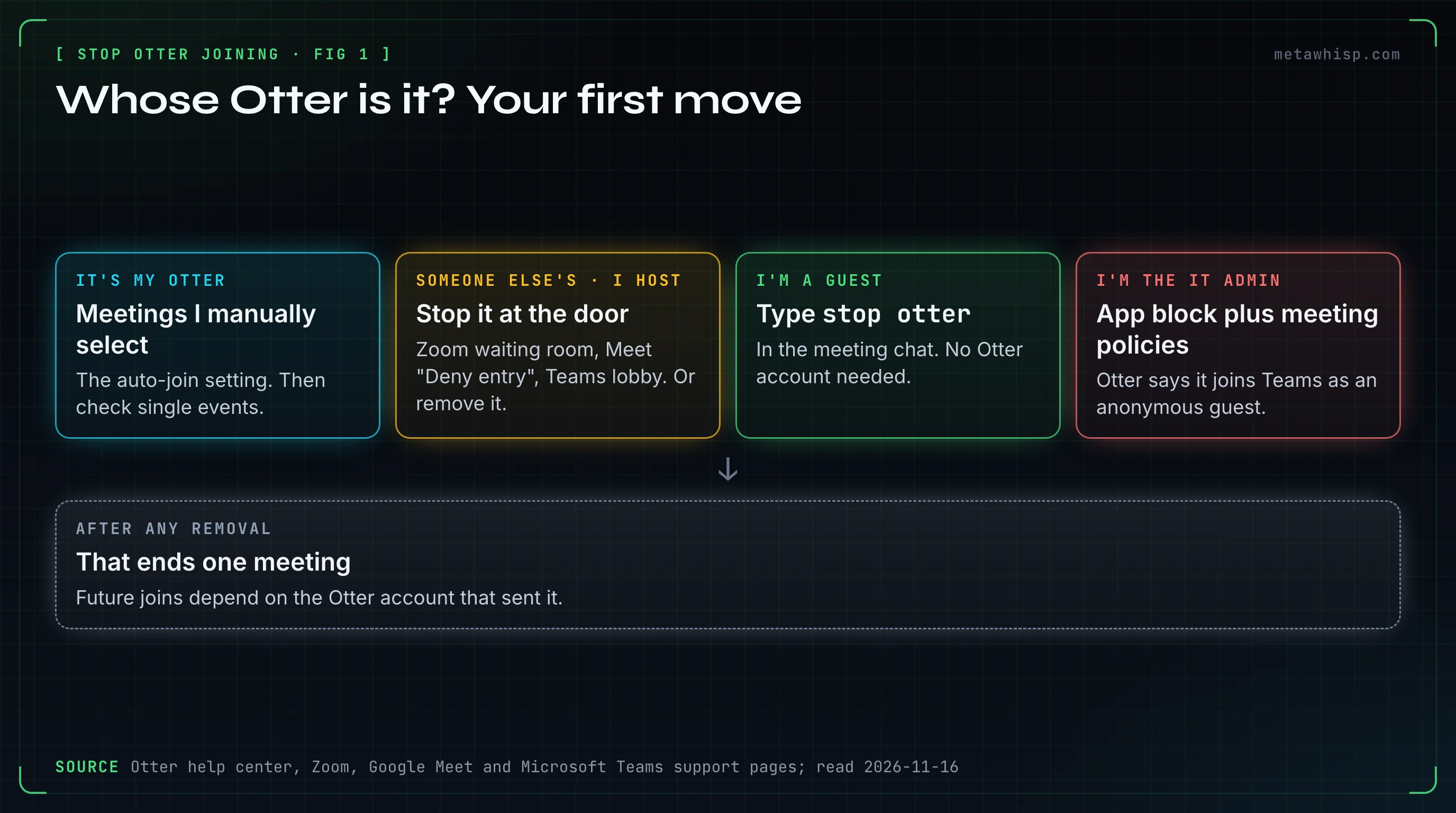
Short answer: to get Otter out of a meeting right now, type stop otter in the meeting chat. Otter's help center says anyone in the call can do it, with or without an Otter account, and it removes every Otter Notetaker at once. To stop it for good, the person whose Otter account sends it sets auto-join to Meetings I manually select, then checks the events they switched by hand, which keep their own setting.
Key takeaways
- Anyone in the call can type stop otter in the chat. It removes every Otter Notetaker, for that meeting only.
- Your own Otter: set Default auto-join settings to Meetings I manually select.
- A new default skips events you switched by hand, and a recurring series follows its own switch.
- Admins: the app block alone doesn't stop the bot at the door. Otter says it joins Teams as an anonymous guest, so set meeting policies too.
| What you want | It's my Otter | I'm the host | I'm a guest | IT admin |
|---|---|---|---|---|
| Make it leave now | Type stop otter, or stop it in Otter | Type stop otter, or remove it | Type stop otter | Same as a guest |
| Stop future joins | Auto-join: Meetings I manually select, then check single events | Waiting room, Deny entry or lobby | Ask the person or workspace named on the bot | App block plus meeting policies |
| Delete what it recorded | Delete the conversation | Ask the owner | Ask the owner | Ask the owner |
How Do You Remove Otter AI From a Meeting Right Now?
Type stop otter in the meeting chat. Otter's help center says any participant can do it, with or without an Otter account, on Zoom, Google Meet or Teams, and that it removes all Notetakers in the call at once. It ends this meeting only.
- If it's your Otter, stop it from the conversation page or the home page calendar.
- If you host, remove it like any participant. One Otter page mentions only hosts removing it, on Zoom and Teams; the chat command page covers any participant on all three.
Otter's pages don't say whether the command works with meeting chat turned off, or what happens to what the bot captured before it left. They do say only the conversation's owner can delete it; it then sits in Trash for 30 days. Otter's terms put notice and consent on its user alone; this is not legal advice.
How Do You Stop Your Own Otter From Joining Meetings?
On the web, open the Meetings tab on Otter's home page, then AI Notetaker settings, and pick Meetings I manually select. The same option is in settings under Default auto-join settings. In the iOS and Android apps it's Account → Account Settings, then Meeting settings, then Auto-join meetings, then Manual.
Otter's pages name that settings page two ways: Integrations → Meetings tab in one article, Account Settings → Meetings in another. Both link to otter.ai/setting/share-notes, so go by the address.
- One meeting only. Every synced event with a valid Zoom, Meet or Teams link shows a Notetaker toggle on Otter's home page. Switch it off for that event.
- A new account's default. Otter's pages don't name the option a new personal account starts with. Its calendar page does say that once a calendar is connected, the Notetaker automatically joins scheduled events, so check the setting right after you connect one. The only default named is the workspace one: Meetings with a video conference link.
- Emails to guests. The same settings control them. With Send pre-recording emails on, all calendar guests get an email 5 to 10 minutes before a meeting, and sharing to guests sends a Meeting Summary email within 2 hours. To stop the sharing, set Default audience for shared notes to Don't share - keep meeting notes private. Every switch is in our guide on how to stop Otter AI from sending emails.
Why Does Otter Keep Joining After You Turned It Off?
Otter's own pages give one documented cause: events you switched on or off one by one keep that setting, and a new default only affects events you never touched. On a recurring event, one switch covers every future event in the series.
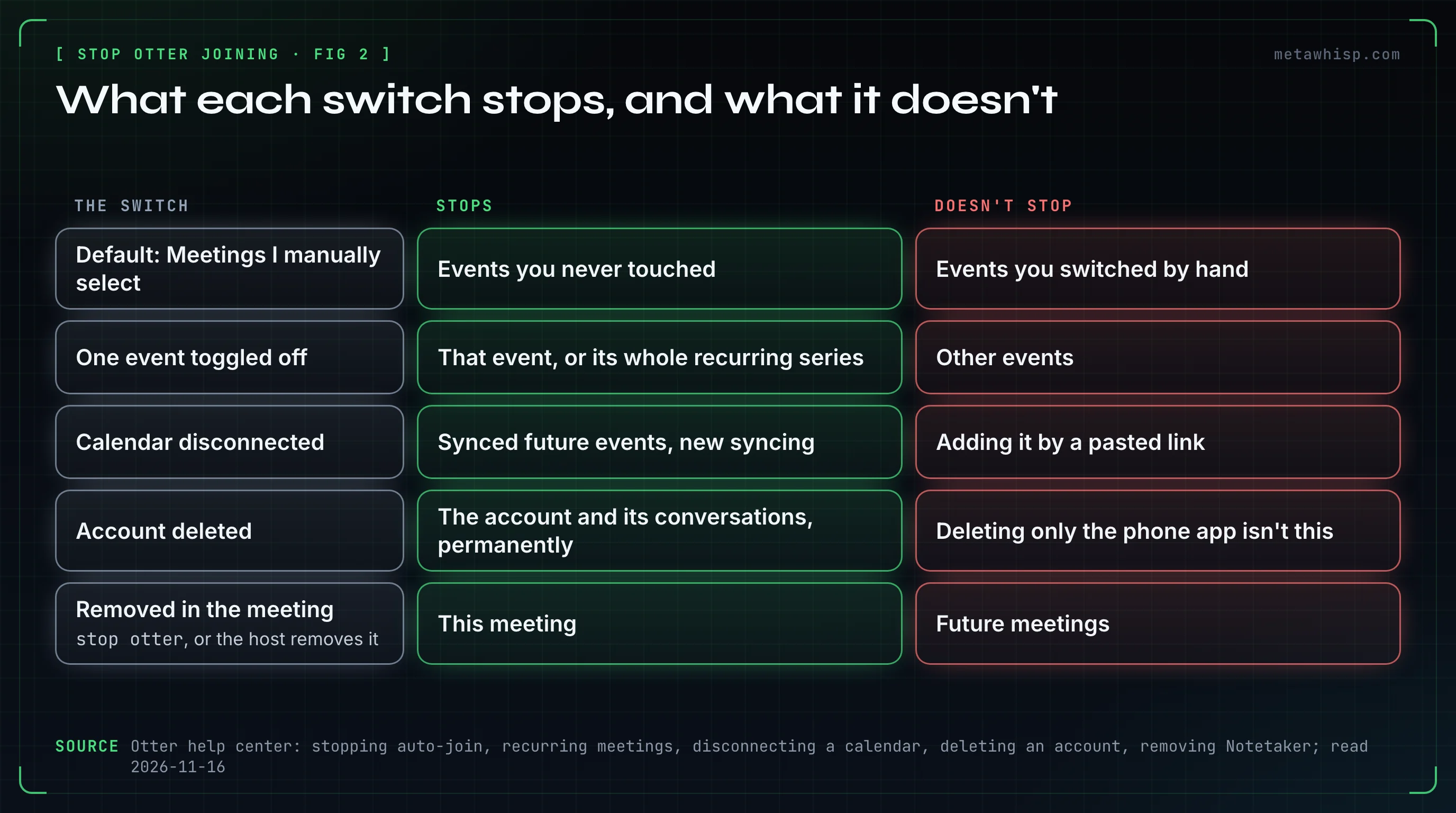
- Single events. Switch off the Notetaker toggle on each upcoming event that still has it on.
- Recurring series. A cycle icon marks one. Switching one event off covers all future events in it.
- The Chrome extension. Its checkbox Enable AI Notetaker to auto-join all other meetings turns auto-join on for all Zoom and Google Meet meetings on your calendar.
- A second calendar. You can connect more than one, and its email doesn't have to match your Otter email.
- It isn't yours. Read the bot's name (it can carry a workspace's name instead of a person's). A colleague outside your Otter workspace brings their own Notetaker.
- You only deleted the phone app. That doesn't delete your Otter account.
How Do You Cut Otter Off Completely?
Disconnect your calendar, and delete the account if you're done with Otter. Otter says disconnecting takes effect at once: future events already synced are removed and new ones stop syncing, while past conversations stay. You can still send the Notetaker by pasting a meeting link.
- Calendar, web. Integrations in the left menu, the calendar section, then Disconnect. Some Otter pages call that menu item Apps; both lead to otter.ai/setting/connected_apps.
- Calendar, phone. Account → Account Settings → SETUP → Connect calendars → X → Remove connection. An Apple Calendar synced from the iOS app can only be removed in the app.
- Google access. Otter links to myaccount.google.com/permissions to remove its permissions.
- Delete the account. Web: Account Settings → General → Delete account → Verify and continue → Delete account. Phone: Account → Account Settings → Delete account → Verify and continue → Delete account permanently.
The delete option shows only when you're the only user in your workspace; members ask the owner or an admin. Deletion is permanent and takes your conversations with it, including shared ones. Before deleting, Otter's list includes exporting and cancelling the subscription.
How Do Hosts Remove Otter AI From Zoom, Google Meet and Teams?
Read the bot's name first: Otter's pages give it as [Your Name]'s Notetaker (Otter.ai), and say it can attend without that person. Then hold it at the door, with Zoom's waiting room, Meet's join request or the Teams lobby, or remove it like any participant.
- Zoom. Host or co-host: Participants, find the name, the ellipsis icon, then Remove. At the door, a Waiting Room holds it (in a live meeting: Host tools → Enable waiting room); Otter says the Notetaker leaves after about 12 minutes there. When it asks to record (if your Zoom account doesn't auto-approve such requests), only the primary host gets the prompt, and Otter says a denied request removes the Notetaker at once.
- Google Meet. When it asks to join, choose Deny entry. Otter says Meet may list it under With potential risks and hold it until someone admits it. To remove it: hover its tile, More options, Remove from the call, then Remove or Block, which covers meetings with the same meeting code. With Host Management on, only a host or co-host can remove people; with it off, anyone from the organizer's domain can.
- Microsoft Teams. Otter says its Notetaker joins as an anonymous guest and shows as Unverified. Set Options → Meeting access → Who can bypass the lobby? so outside guests wait, for example Only organizers and co-organizers, then deny it with the X. To remove it: People → hover the name → More options → Remove from meeting. Organizers, co-organizers and presenters can; attendees can't.
Otter words the bot's default name several ways, from [Your Name]'s Notetaker (Otter.ai) to plain AI Notetaker, so look for the word Notetaker. And Google's pages disagree on who can admit a join request: the organizer or a participant, only the organizer, or only the host. If one reaches you, deny it.
How Do IT Admins Keep Otter Out of an Organization?
Use both the app block and meeting policies. Otter says its Notetaker joins Teams as an anonymous guest with no Microsoft ID. By our reading of Otter's and Microsoft's pages, blocking Otter's app in Microsoft Entra cuts sign-in and the calendar feed for your own users' Otter accounts, but it doesn't stop a bot at the meeting door: a guest's Otter, a pasted link, or a calendar connected under another account. That door answers to Teams meeting policies and the lobby.
| Control | The catch |
|---|---|
| Teams: Manage external bots and their access to meetings, under Meeting policies. By default, detected bots go to the lobby | Microsoft says some bots may go undetected, and doesn't name Otter. Its cmdlet reference lists a mode that blocks detected bots outright; its admin article doesn't show it |
| Teams: turn off the per-organizer Anonymous users can join a meeting unverified (there is also an org-wide Anonymous users can join a meeting) | It shuts out every anonymous guest, not just bots. Microsoft says the org-wide switch is going away and recommends leaving it on and using the per-organizer policy |
| Entra: tighten User consent settings, revoke the app's permissions, or set Enabled for users to sign-in? to No | Consent changes only affect future consent, and grants made by users can't be revoked in the portal. With sign-in disabled, people who use Continue with Microsoft get an error and can't sign in that way, which also locks them out of deleting their Otter account, as far as we can tell from Otter's pages |
| Google Workspace: API controls → Manage App Access → Change access → Blocked cuts an app's access to data such as Calendar | Otter says its Notetaker needs no Google-side setup to join a Meet call. Who gets in is set under Meet safety settings |
| Zoom: Manage which Zoom apps can join as a participant in meetings and webinars in your organization → Block specific SDK apps | We couldn't confirm that Otter appears in that list |
Otter's own Teams setup page pulls the other way. It asks admins to turn anonymous join on, and suggests letting guests bypass the lobby and choosing Do not detect bots. Microsoft advises against turning detection off.
What Did People on Reddit Try That Didn't Work?
In our sample of Reddit threads, 18 people complained that Otter joined meetings on its own, 9 complained about the bot being in calls, and 15 wrote about it as an IT problem, most of them about blocking or removing it. What went wrong for them: a setting change that didn't reach the event, a meeting restarted to get rid of the bot, and a block that didn't stop the bots.
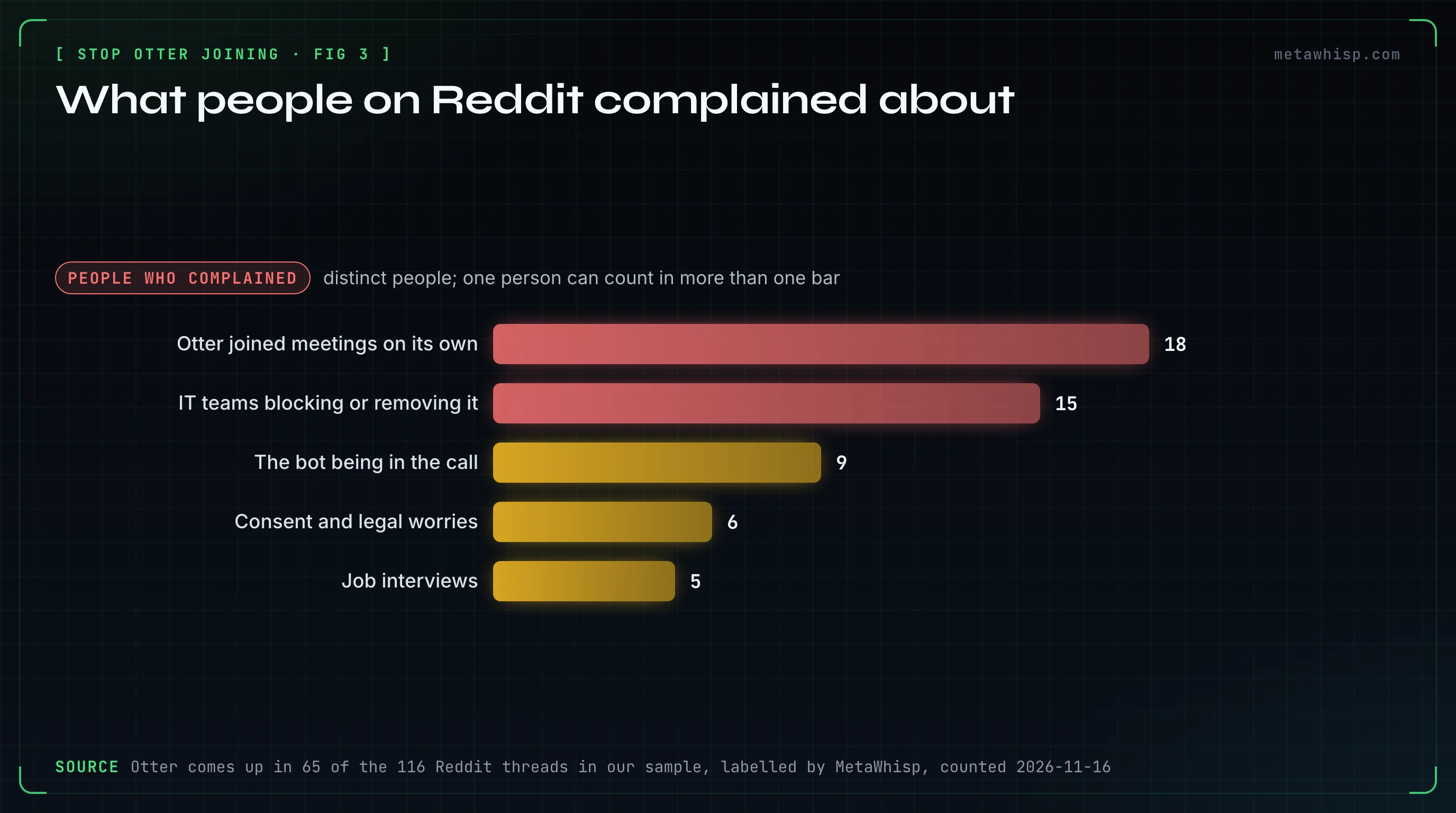
The sample is 116 threads found through Google; Otter comes up in 65. The complaints counted here were posted from December 2023 to September 2026, most of them in 2025. It can't show how common this is among Otter users. More in what Reddit says about Otter. These counts leave out comments we flagged as pitches for other tools, so some are lower than in that article.
- Switched it off; it joined an interview anyway. One commenter set Otter to need their permission, then turned it off as they understood it, and it still joined a third-round interview. Otter documents no ask-me-first setting, and events switched by hand keep their own setting.
- Restarted the meeting to get rid of it. Another believed the bot couldn't be removed from inside the meeting, so they restarted it. Otter's page says anyone can type stop otter, and the owner can stop it from the conversation page.
- Opened a summary, got a bot. A third clicked a summary someone sent, ended up with an account, and found the bot in a meeting before they arrived: "It immediately started inviting itself to meetings without my permission." Otter's page on summary emails says a guest with no account must create one to open the conversation.
- Blocked the domain; the bots kept coming. One admin, answering advice to turn off open federation or block the vendor's domain, wrote that it didn't stop bots joining users' meetings and the accounts had to be deleted at the vendor. Their case was Fireflies; they said Otter works the same way. That fits Otter's own pages: the bot joins Teams as an anonymous guest with no Microsoft ID.
Can You Take Meeting Notes With Nothing Joining the Call?
Yes. Otter's own desktop app for Mac and Windows records with no bot in the call; it needs macOS 13.0 or later, or Windows 10 or later. On a Mac, MetaWhisp, our app, also records without a bot: your microphone plus the Mac's own audio.
MetaWhisp is our product. It sends no email, invite, chat message or summary to other participants, and nothing starts on its own by default: Meeting Recording, in Settings under Meetings, is off until you turn it on, and you start each recording yourself from the menu bar. The free version gives unlimited on-device meeting recording with no account and no card. Pro, at $7.77 a month or $30 a year, moves transcription to the cloud.
Its limits: it's a Mac app only, for macOS 14 or later on Apple silicon. Speaker labels are just "Me" and "Them". It saves transcripts and recaps, not audio files, and there's no audio-file import. Nobody in the call sees anything, so consent is entirely on you: tell people you're recording. And it does nothing about someone else's Otter. See MetaWhisp vs Otter.ai.
FAQ
How do I stop Otter AI from joining Zoom meetings?
If it's your Otter, set Default auto-join settings to Meetings I manually select, then switch off the Notetaker toggle on single events. If it's someone else's and you host, use a waiting room, deny its request to record, or remove it from Participants.
How do I remove Otter AI from Google Meet?
Type stop otter in the meeting chat; Otter says any participant can. Or hover its tile, open More options, choose Remove from the call, then Block to keep it out of meetings with that code. When it asks to join, choose Deny entry.
How do I remove Otter AI from Microsoft Teams?
Type stop otter in the meeting chat, or open People, hover the bot's name, choose More options, then Remove from meeting. Organizers, co-organizers and presenters can remove people; attendees can't. To keep it out, make outside guests wait in the lobby.
Can anyone type stop otter, or only the host?
Anyone. Otter's help center says any participant can type stop otter in the meeting chat, with or without an Otter account, on Zoom, Google Meet or Teams. It removes every Otter Notetaker in the call at once, but only for that meeting.
Why does Otter keep joining my meetings after I turned auto-join off?
A new default only affects events you never touched. Events you switched on by hand keep that setting, and one switch on a recurring event covers the whole series. Also check the Chrome extension's checkbox and any second calendar. Or the bot is someone else's.
How we checked
On November 16, 2026, we read Otter's help center and terms, Zoom, Google and Microsoft documentation, and the Reddit threads in our labelled sample. We didn't run Otter, Zoom, Google Meet or Teams, and had no admin console.
Related reading
- How to Remove Fireflies.ai From Zoom, Teams and Meet
- Read AI Joined Your Meeting? How to Stop It
- AI Note Taker Not Joining Meetings? Fixes That Work
- Meeting Notes When AI Notetakers Are Banned
- Is Otter.ai Safe? A 2026 Privacy Review
Sources
- Otter, your account: stopping auto-join, choosing meetings, Notetaker settings, calendar events, recurring meetings, Chrome extension, auto-join, connecting a calendar, disconnecting it, deleting an account, deleting a conversation, summary emails, sharing, terms
- Otter, the bot: overview, removing it, deduplication, name example, name without suffix, Enterprise settings, recording permissions, troubleshooting, Zoom setup, Zoom refusals, Teams setup, Unverified, sign-in disabled, Meet warning, desktop app, requirements
- Zoom: removing a participant, waiting room (second page), SDK apps
- Google: removing people, host management, joining, security, app access, Meet settings
- Microsoft: lobby, roles, external bots, cmdlet reference, anonymous users, user consent, revoking permissions, disabling sign-in
- Reddit: r/recruitinghell, r/PKMS, r/sysadmin, r/sysadmin
- MetaWhisp: pricing
