The honest guide — what works, what doesn't, and the offline alternative.
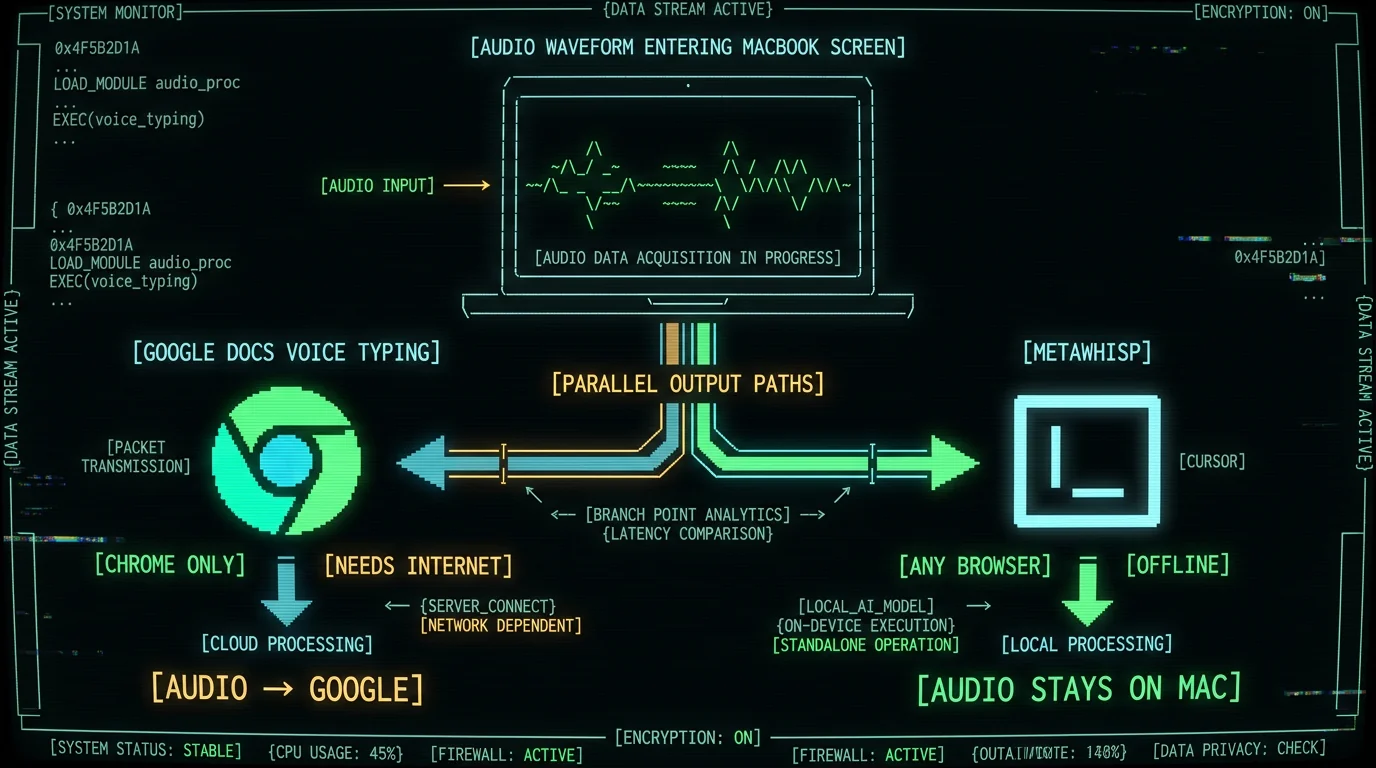
Short version: Google Docs voice typing on a Mac works only in Chrome, requires a chain of three microphone permissions (macOS, Chrome, the Docs tab), forces you to memorize spoken punctuation commands, and has no offline mode at all. If any link in that chain breaks, you get silence. The cleanest workaround is a system-wide on-device dictation app like MetaWhisp that types into Google Docs from any browser — Safari, Firefox, Chrome, Arc, anything — with audio that never leaves your Mac.
Why Google Docs voice typing is frustrating on Mac
If you've tried to dictate into a Google Doc on a Mac, you've probably hit at least one of these walls: the microphone button does nothing, voice typing stops mid-sentence, punctuation appears as the literal word "period", or the whole thing refuses to start until you reload the tab in Chrome. None of this is your fault. It's the design. Google's built-in voice typing in Docs is a browser feature, not a Mac feature. That distinction matters because Apple Silicon Macs ship with excellent system-level dictation through Apple Dictation, and Safari has its own mic and permissions model. None of those integrate with Docs. You're stuck in Chrome, in a specific tab, with the right permissions aligned, on a stable internet connection, saying "new line" instead of just pressing Return. There's a real reason people want this workflow. Voice typing is faster than typing for most prose, and Google Docs is where many people write. If the combination is rough, you either keep fighting the tool or you look for a system-wide alternative that types into any focused field — including Docs — without the browser lock-in.How does Google Docs voice typing actually work on Mac?
Open a Google Doc in Chrome, go to Tools → Voice typing, click the floating microphone icon, and start talking. Your audio is captured by the Chrome tab, sent to Google's servers, transcribed in real time, and streamed back as text that drops into your Doc at the cursor. That last sentence hides the whole reason it breaks. Three things have to be true at once:- You're using Chrome (not Safari, not Firefox, not Arc in some cases — Google's own help page treats Chrome as the supported browser).
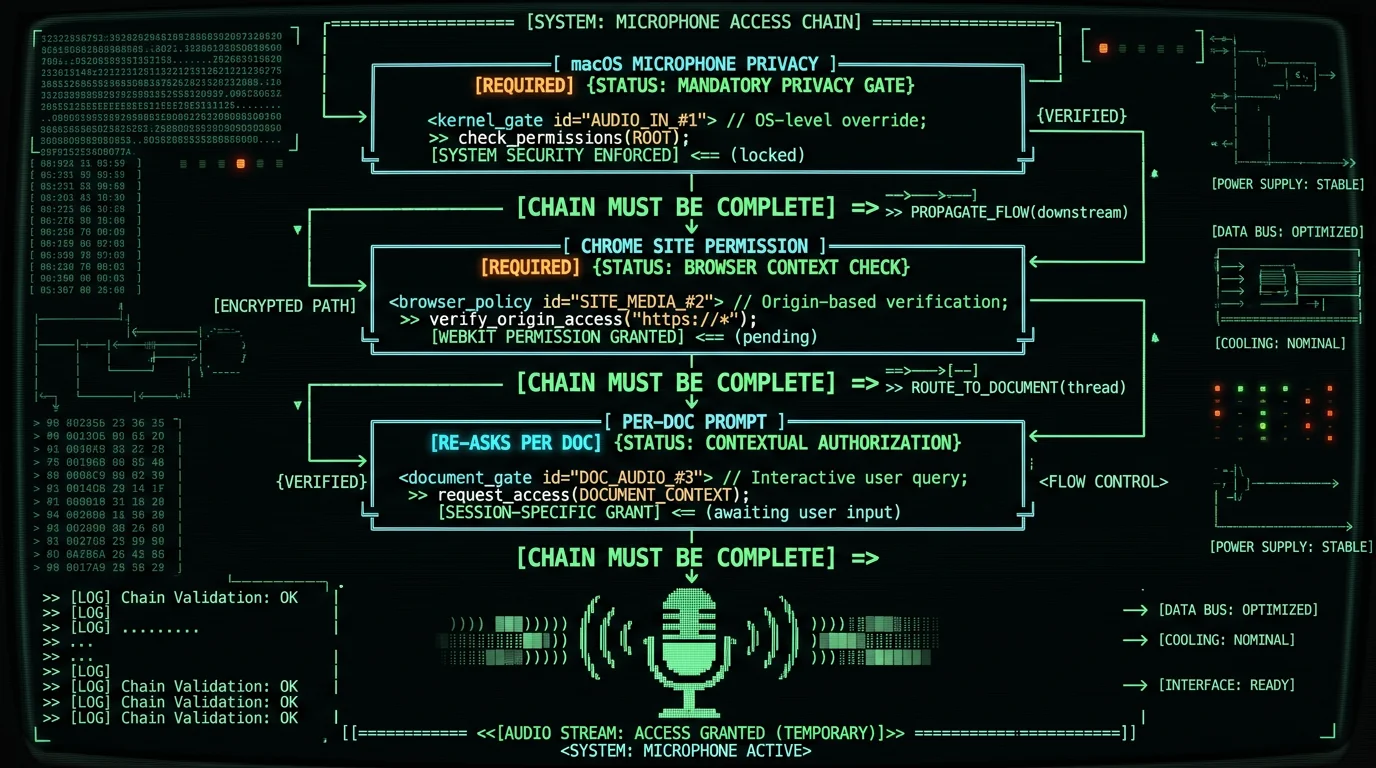
- The microphone permission chain is open: macOS settings, Chrome's site settings, and the Docs tab's permission prompt.
- You have a working internet connection the entire time you're dictating.
Why is Google Docs voice typing broken on Mac for so many people? Three reasons stack up. First, it is Chrome-only — Safari and Firefox users get nothing. Second, audio streams to Google's servers the whole time, so a flaky connection kills transcription mid-sentence. Third, you have to say "comma", "period", "new line", and "new paragraph" out loud instead of pressing keys, which slows everyone down until they internalize the vocabulary. None of these are user errors; they're how the feature is built.
What mic permissions do you need to fix first?
Before voice typing works, you have to grant microphone access at three different layers, in this order. If you skip one, the microphone icon stays grey.- macOS microphone permission. Go to System Settings → Privacy & Security → Microphone and make sure Chrome is toggled on. If you use multiple browsers, toggle each one you'll dictate from. Apple's Dictation guide covers the macOS side.
- Chrome's site permission for Google Docs. Click the lock icon in the address bar on a Docs tab and confirm Microphone is set to Allow. Chrome's permission docs are at support.google.com/chrome.
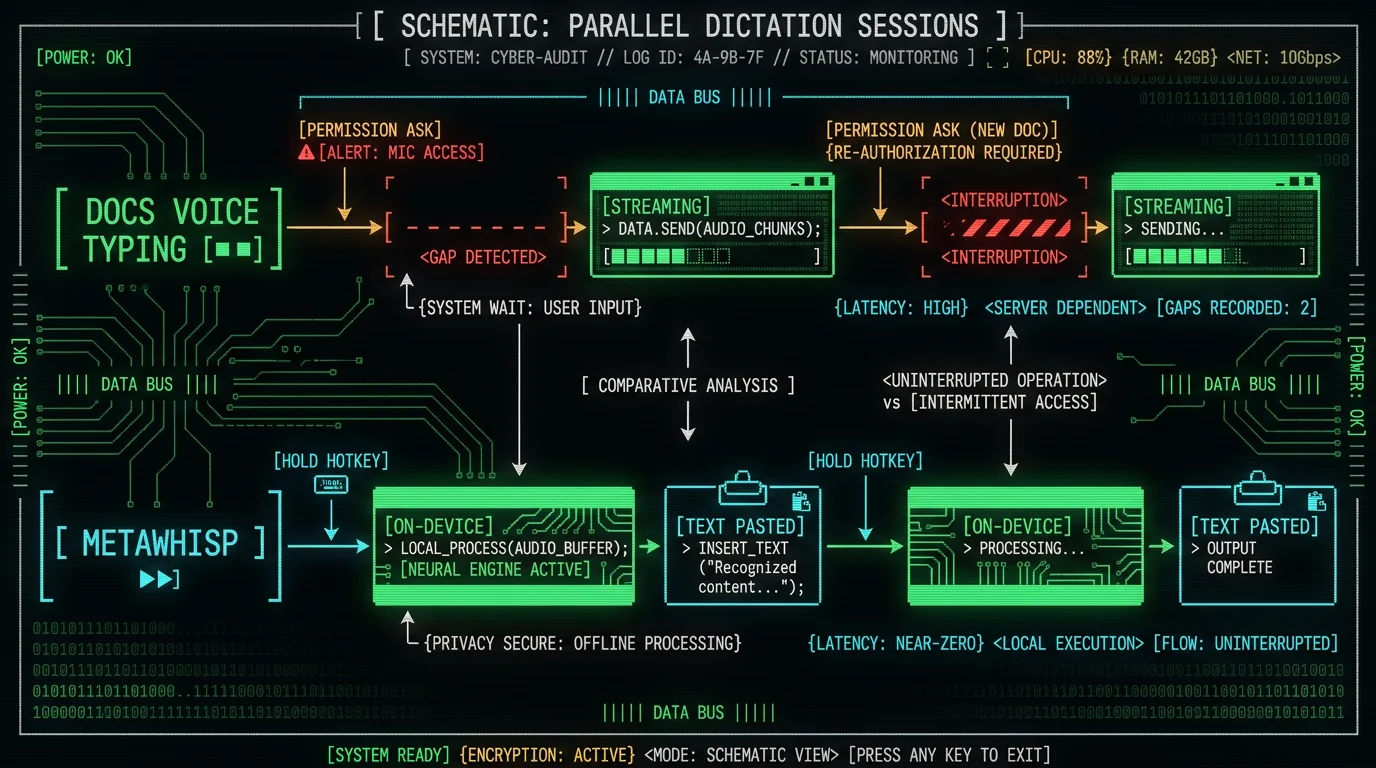
- The in-Doc permission prompt. The first time you click the microphone button in a given Doc, a small popup asks you to allow microphone access for that specific document. This is a per-Doc permission, not a permanent one.
docs.google.com set to Allow by default and accept that new Docs may still re-prompt. Or skip the chain entirely with a system-wide dictation app, where the only permission layer is macOS itself.
Which spoken punctuation commands do you need to memorize?
You don't get punctuation for free. You have to say the words. Google's documentation lists around thirty commands; the ones you'll actually use in the first ten minutes are these:- "period", "comma", "question mark", "exclamation point", "colon", "semicolon"
- "new line" to press Return, "new paragraph" for a blank line
- "open quote" and "close quote" for quotation marks
- "undo", "redo", "select all", "delete"
Can I use punctuation normally while voice typing in Google Docs? No. Docs' voice typing translates spoken words like "comma" and "new paragraph" into the corresponding characters. If you stop talking commands, you lose all formatting. Saying "Hello, world" aloud produces the literal phrase "Hello, world" with no comma unless you pause, say "comma," and continue. There is no shortcut that gives you punctuation without saying the words.
Why doesn't it work in Safari or Firefox?
Google built Docs voice typing as a Chrome-only feature, and it has never shipped a Safari or Firefox version. The likely reason is the underlying speech-to-text engine: Docs uses Google's Web Speech API, which in Chrome has deep integration but in other browsers is either disabled, restricted, or routed through a less capable path. Apple's Safari has its own dictation system that doesn't talk to Google's servers, and Firefox blocks the mic access pattern Docs needs by default. The practical consequence is that any Mac user whose default browser is Safari — and that's a meaningful slice of Mac users, especially after macOS Sonoma highlighted Safari profiles — simply has no built-in option for voice typing in Docs. They either install Chrome just for Docs, switch to a different doc tool, or use a system-level dictation app that doesn't care which browser they have open. This is one of the clearest cases for system-wide dictation. The same problem shows up in Microsoft Word on Mac: browser-locked tools are fine until you change your default browser.Is there an offline mode for Google Docs voice typing?
No. Docs voice typing is fully online. Every word you say is uploaded to Google, transcribed server-side, and streamed back. If your Wi-Fi drops for two seconds, you get a gap or an error. If you're on a plane, in a coffee shop with a flaky network, or working from a hotspot, you cannot use it at all. This is genuinely important for anyone who handles sensitive material — legal drafts, medical notes, internal memos. Audio that travels to Google is audio Google can theoretically retain, even if their retention policy is short. For most users this is fine. For some workflows it's a dealbreaker. The honest framing is this: if your priority is "free, works on a Chromebook, integrates with Docs comments," Google wins. If your priority is "audio never leaves my Mac, works offline, types into Docs from any browser," you need a different tool.Pro tip: If you work in coffee shops or on planes, test your dictation tool in airplane mode before trusting it with real work. The first time you need offline dictation is the worst time to discover it doesn't have one.
Does voice typing on Google Docs work without internet? No. Google's voice typing in Docs streams audio to its servers for the entire dictation session. The moment the connection drops, transcription stops. There is no offline cache, no local fallback, and no warning before it cuts out. For offline dictation in Docs on a Mac, you need a separate on-device speech-to-text tool.
Can you dictate into Google Docs from any browser?
Yes, if you use a system-wide dictation app. These are Mac apps that capture your voice with a global hotkey, transcribe it locally (or send only the text to a cloud API you control), and then paste the result wherever your cursor is — including a Google Doc open in Safari, Firefox, Arc, Brave, or Chrome. MetaWhisp is one of them. It's free, runs entirely on your Mac, and uses Whisper large-v3-turbo through WhisperKit on the Apple Neural Engine. The model is about 950 MB and downloads once. After that, no audio leaves your machine in local mode. Press and hold the global hotkey (default Right Option ⌥), talk, release, and the text appears at your cursor. This works with Google Docs in any browser because it doesn't care which app has focus. Open Safari, open a Doc, click into the body, hold Right Option, talk, release. Text lands in the Doc. There's no plugin, no extension, no Chrome-only requirement.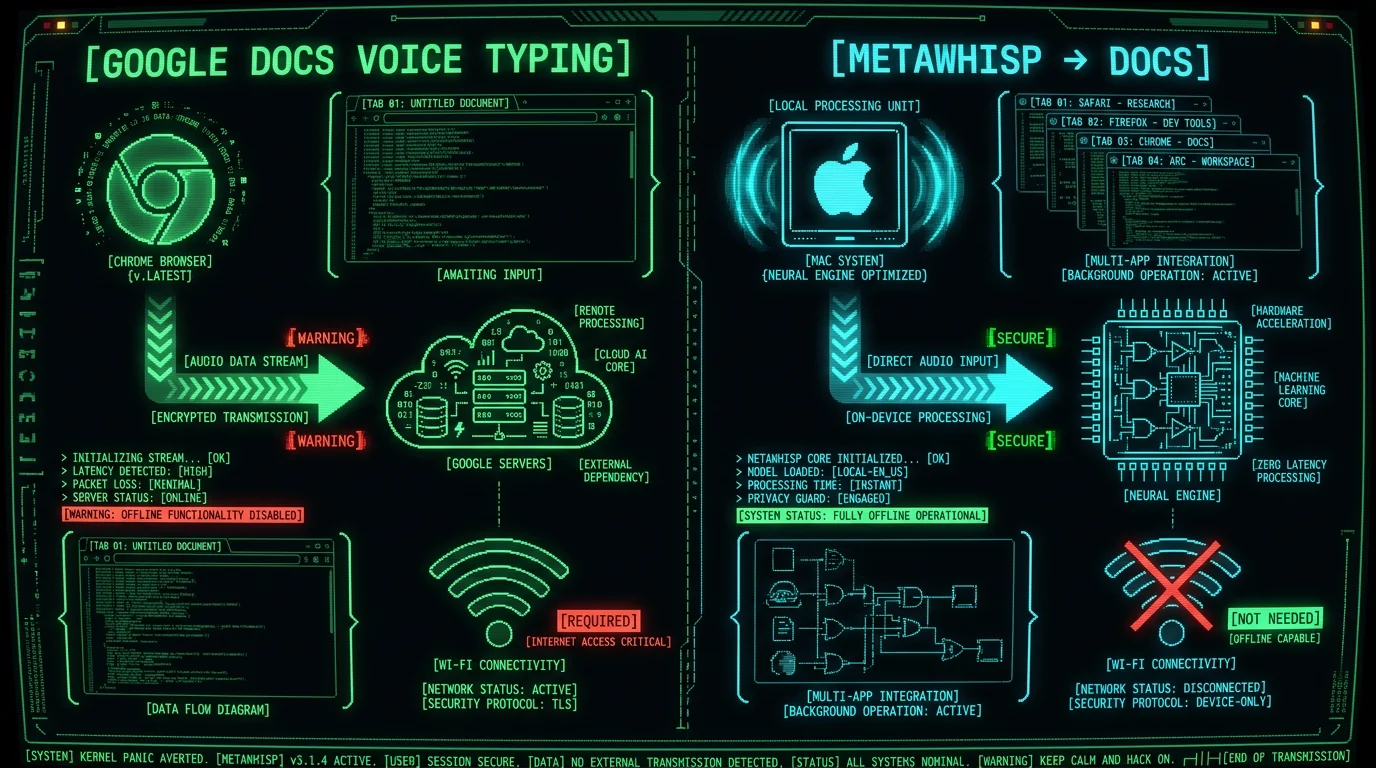
How to set up offline dictation that types into Google Docs
Here's the shortest path from "I want to dictate into Docs offline" to "I'm doing it now," using MetaWhisp as the example. The same idea works for any system-wide dictation tool that uses a global hotkey and types at the cursor.- Download MetaWhisp from metawhisp.com/download. It's a free download for macOS 14 or later on Apple Silicon (M1 or newer). The app is small; the model is the 950 MB Whisper large-v3-turbo that downloads on first run.
- Grant microphone access when macOS prompts you. That's the only permission layer — one step instead of three.
- Set your global hotkey. The default is Right Option (⌥) as push-to-talk. You can change this in settings; see global hotkey docs for the full list.
- Open a Google Doc in any browser — Safari, Firefox, Chrome, Arc, whatever you actually use day-to-day. Click into the Doc body so the cursor is blinking where you want text to land.
- Hold the hotkey and talk. Speak naturally. Press Return when you mean Return, type punctuation the way you normally would (or don't — MetaWhisp handles plain prose fine). Release the hotkey.
- Text appears at the cursor. MetaWhisp auto-pastes the transcript into the focused field. If you have an OpenAI or Cerebras API key, the optional processing modes (Structured, Correct, Rewrite) clean up filler words and fix grammar — but that sends only the text, not audio, to your own API.
| Google Docs voice typing | MetaWhisp → Docs | |
|---|---|---|
| Browser required | Chrome only | Any browser |
| Internet required | Yes | No (local mode) |
| Audio to servers | Yes (Google) | No (local mode) |
| Mic permission layers | macOS + Chrome + per-Doc | macOS only |
| Punctuation method | Spoken commands | Keyboard, as normal |
| Works in other apps | No (Docs only) | Any app with a text field |
| Pricing | Free | Free (local) / $30/yr Pro |
Does MetaWhisp integrate with Google Docs? No — and that's the point. MetaWhisp doesn't edit your Doc, doesn't access your account, doesn't read your document content. It captures your voice, transcribes it on-device, and pastes the resulting text wherever your cursor is. If your cursor is in a Google Doc in Safari, the text lands in the Doc. If your cursor is in a Doc in Chrome, same thing. The integration is "the system clipboard," not a Docs API.
When does Google Docs' built-in voice typing still win?
It would be dishonest to say Google's tool is bad. It's free, it's built into a product half the world already uses, and it works well when all the conditions line up. Here are the cases where you should stick with it.- You're already in Chrome all day. If Chrome is your default browser and Docs is your primary writing tool, the Chrome-only constraint isn't a constraint at all.
- You want command-based formatting. Docs voice typing has commands for selecting text, applying bold, navigating between paragraphs, and a handful of other editing actions. System-wide dictation tools can't do those — they only paste text at the cursor.
- Your material isn't sensitive. If you're drafting blog posts, meeting notes, or class assignments, sending audio to Google is fine. The privacy question only matters if you're dictating patient notes, client memos, or anything else covered by HIPAA, GDPR, or attorney-client privilege.
- You're on a non-Apple-Silicon Mac. MetaWhisp requires Apple Silicon for the Neural Engine path. On an Intel Mac, the system-wide-on-M1 story doesn't apply.
FAQ
Does Google Docs voice typing work in Safari on a Mac?
No. Google has only shipped Docs voice typing for Chrome. Safari users either switch browsers or use a system-wide dictation tool that types into Docs from any browser. Apple's own macOS Dictation guide describes a system feature, but it doesn't integrate with Google Docs.
Can I use Google Docs voice typing offline?
No. Docs voice typing streams audio to Google's servers for the entire session. If you lose internet, transcription stops. There is no offline cache. For offline dictation in Docs, use a Mac app that runs speech recognition locally, like MetaWhisp.
Why does the Docs microphone button stay grey?
Three permissions have to be granted: macOS microphone access for Chrome, Chrome's site permission for docs.google.com, and the per-Doc prompt that appears the first time you click the mic in a new document. If any layer is denied, the button greys out with no in-app explanation.
What spoken punctuation commands does Docs support?
The basics: "period," "comma," "question mark," "exclamation point," "colon," "semicolon," "new line," "new paragraph," "open quote," and "close quote." There are also editing commands like "undo," "redo," "select all," and "delete." Full list is on Google's voice typing help page.
How accurate is Google Docs voice typing on Mac?
Google doesn't publish a single accuracy number for Docs voice typing, and we haven't benchmarked it ourselves. Our own accuracy number — 2.76% WER on LibriSpeech test-clean — applies to MetaWhisp running Whisper large-v3-turbo on the Neural Engine, not to dictation specifically inside Google Docs. Anyone quoting a "Docs accuracy percentage" is making it up.
Is there a way to dictate into Google Docs without Chrome?
Yes — use a system-wide dictation app with a global hotkey. MetaWhisp captures your voice with Right Option (⌥) by default, transcribes on-device, and pastes the text wherever your cursor is, including a Doc open in Safari or Firefox.
Does MetaWhisp edit or save my Google Doc?
No. MetaWhisp only captures your voice, transcribes it locally, and pastes the resulting text at the cursor. It doesn't access your Google account, doesn't read your Doc, doesn't have any API integration with Google. Your Doc remains whatever your browser and Google account make of it.
Will my dictation audio be sent to Google servers if I use MetaWhisp?
Not in local mode. Local mode runs Whisper large-v3-turbo on the Neural Engine and never sends audio anywhere. If you turn on optional AI post-processing (Structured / Correct / Rewrite) and add your own OpenAI or Cerebras API key, only the transcript text is sent — to your own API key, not to MetaWhisp — and audio is never uploaded. The only mode that sends audio to MetaWhisp servers is the optional Pro cloud transcription feature, which is gated behind a paid plan.
How much does MetaWhisp cost?
Local mode — the offline dictation that types into Google Docs — is free and unlimited, no account, no time cap. Pro is $30/year or $7.77/month and adds built-in cloud AI so you don't have to provide your own API key, plus cloud transcription. Full breakdown is on the pricing page.
Which languages can I dictate into Google Docs with MetaWhisp?
99 languages with auto-detect, because that's what the underlying Whisper large-v3-turbo model supports. Translation is available as an optional post-processing step if you bring your own API key. We use this daily to dictate in Russian and English mixed in the same paragraph.
About the author
Andrew Dyuzhov is the solo founder of MetaWhisp, a free on-device voice-to-text app for macOS. He's a marketer and builder with ADHD who uses voice-first workflows daily in Russian and English, ran a 7-app head-to-head transcription accuracy test on his own audio, and assembled MetaWhisp with AI coding tools on top of open-source Whisper. He's not an ML researcher — he's a user who got frustrated with the existing options and built one that worked for his brain.
