YouTube transcript search, three ways that actually work
Built-in panel · Cmd+F on Mac · Local transcription fallback
To search inside one YouTube video's transcript on a Mac: open the panel ("..." → "Show transcript"), then press Cmd+F to find any word in the visible text. For videos with no captions, download the audio and transcribe it locally on your Mac — the resulting .txt file is fully searchable with Cmd+F, Spotlight, or grep. MetaWhisp does not import YouTube URLs directly; you transcribe the audio file you already have.
How do I search inside one YouTube video's transcript?
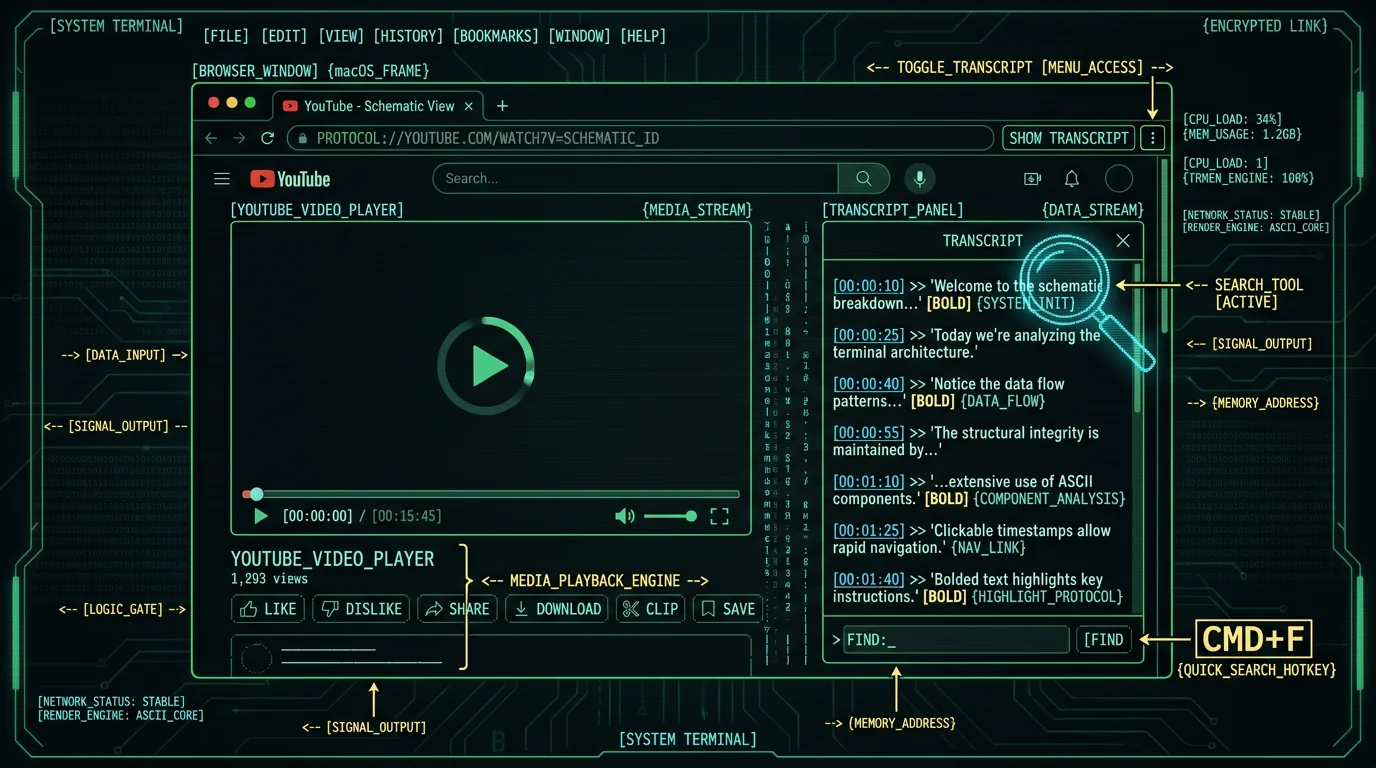
YouTube gives you two working options inside a single video. First, the official transcript panel, which you open with the three-dot menu below the title and choose "Show transcript". It lists every spoken line with a clickable timestamp and is best when you want to skim or jump between sections. Second, macOS system-wide Cmd+F, which works on any visible text in the browser, including the open transcript. Cmd+F is the faster option when you already know the keyword you want to find.
If you do not see a transcript option in the menu at all, the video creator either disabled captions, set them to a language YouTube cannot auto-generate, or YouTube has not finished auto-captioning it yet. That second case is exactly the gap this article solves further down.
Does the YouTube transcript panel have a search bar?
No. YouTube's transcript panel has no built-in search field — just a scrollable list of lines with timestamps you can click to jump to that point in the video. Many people assume the search box at the top of the page filters transcripts, but that box only searches across all of YouTube, never inside the specific video you are watching.
So the workarounds are: click any line in the panel to jump to its timestamp, use Cmd+F on the open transcript text, or scroll manually. For a 5-minute video, scrolling is fine. For a 90-minute lecture or podcast, Cmd+F is dramatically faster and far less error-prone. The panel was designed for navigation by timestamp, not for text search — understanding that distinction helps you reach for the right shortcut immediately.
How to use Cmd+F on Mac to search a YouTube transcript
Here is the exact sequence that works in Chrome, Safari, or Firefox on a recent macOS version.- Open the YouTube video in your browser of choice.
- Click the three dots below the title and choose "Show transcript". The transcript panel appears on the right of the player.
- Make sure transcript text is visible — scroll the panel a bit if it has collapsed.
- Press Cmd+F. The browser's find bar appears, usually in the top-right corner.
- Type the word or phrase. The browser highlights matches and shows counts like "1 of 7".
- Press Return to jump between matches. Press Shift+Return to go backwards.
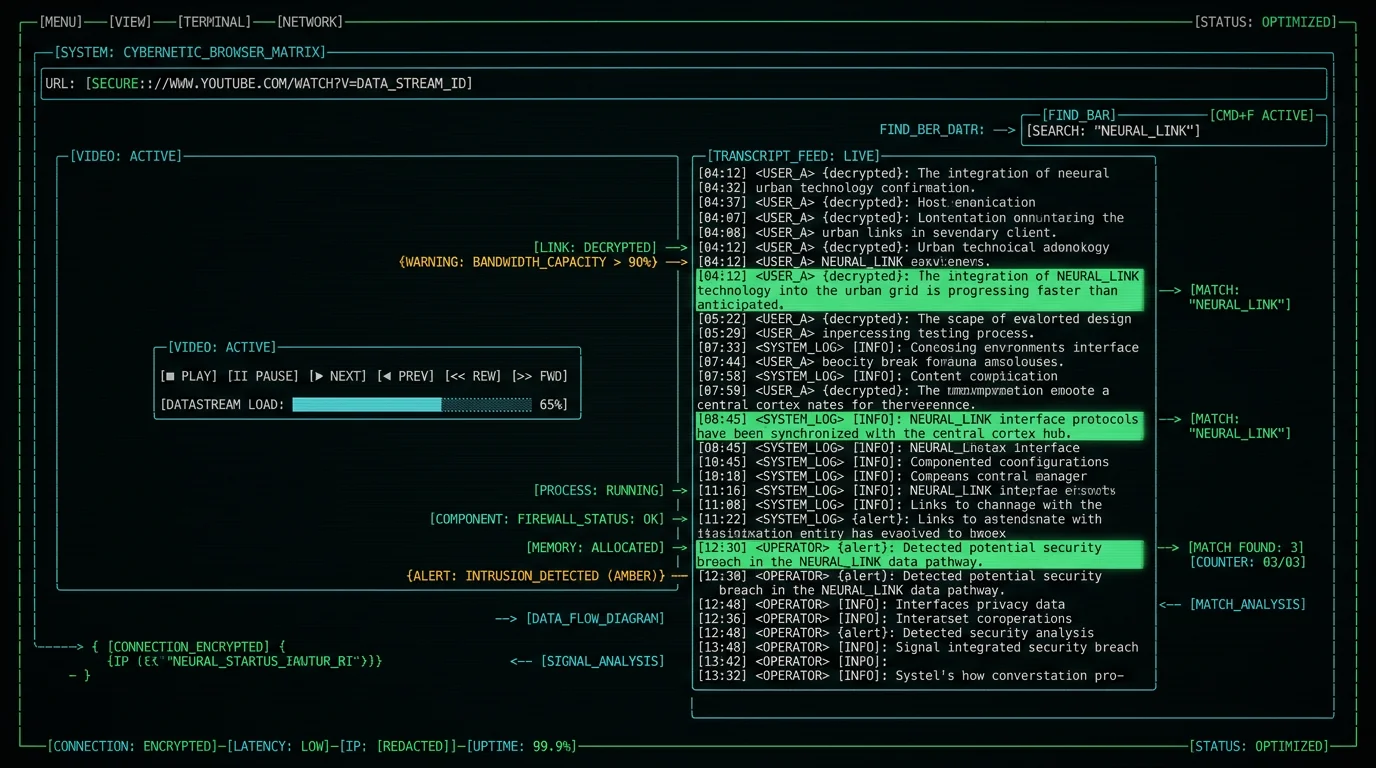
Pro tip: If Cmd+F only finds one match and that match is in the video title or description, scroll the transcript panel fully into view first, then run Cmd+F again. The browser's find bar follows what is actually on screen, and a hidden transcript panel can return matches from the wrong part of the page.A quick comparison so you can pick the right tool for the job:
| Method | Search bar? | Jumps to match | Works without captions? | Crosses videos |
|---|---|---|---|---|
| YouTube transcript panel | No | Click a timestamp | No | No |
| Cmd+F on Mac | Yes (browser find) | Return key | No | No |
Local .txt + Cmd+F / grep | Yes | Return key | Yes (you transcribed it) | Yes |
What if the YouTube video has no transcript at all?
This is the gap the first two methods cannot solve, and it is more common than most people think. YouTube only shows transcripts when one of three things has happened:- The creator uploaded captions — either manually or auto-synced.
- YouTube auto-generated captions exist for the language and the creator left them enabled.
- A community contributor added captions through YouTube's contribution tools.
When a YouTube video has no captions, your only option for YouTube transcript search is to create the transcript yourself. Download the audio with yt-dlp, then run a local speech-to-text tool on the resulting audio file. On Apple Silicon Macs, Whisper large-v3-turbo runs entirely on the Neural Engine — no internet connection required, no audio uploaded anywhere. The output is a plain .txt file you can open in any editor.
Once you have that file, Cmd+F in TextEdit, Spotlight, or grep in Terminal all work on it. The transcript becomes a permanent searchable document: you can rename it after the video, store it in a folder with other transcripts, and search all of them at once. This is the only method that works when YouTube's own caption system has nothing to offer.
How to transcribe a YouTube audio file locally on Mac
A necessary clarification first: MetaWhisp does not import YouTube URLs. You download the audio yourself, drop the file into MetaWhisp, and it produces a plain-text transcript. The entire pipeline stays on your Mac. Here is the workflow I use on my own M-series MacBook:- Get the audio file. Use yt-dlp, the open-source command-line downloader, to save the video's audio as
.m4a,.mp3, or.wav. One command, no ads, no installers. - Open MetaWhisp. Free download for macOS 14 and newer on Apple Silicon (M1 or later). The app's on-device transcription runs Whisper large-v3-turbo on the Neural Engine. The model download is around 950 MB and only happens the first time.
- Drop the file in. Either drag it onto the app, or press the global hotkey (default Right Option ⌥) and pick the file from the recording window.
- Wait for the transcript. A 30-minute file runs in a few minutes on an M1 and noticeably faster on an M3 Pro or M4. Local mode is free and unlimited — no account, no daily cap, audio never leaves your Mac.
- Save the output as a
.txtfile. You now have a searchable transcript on disk.
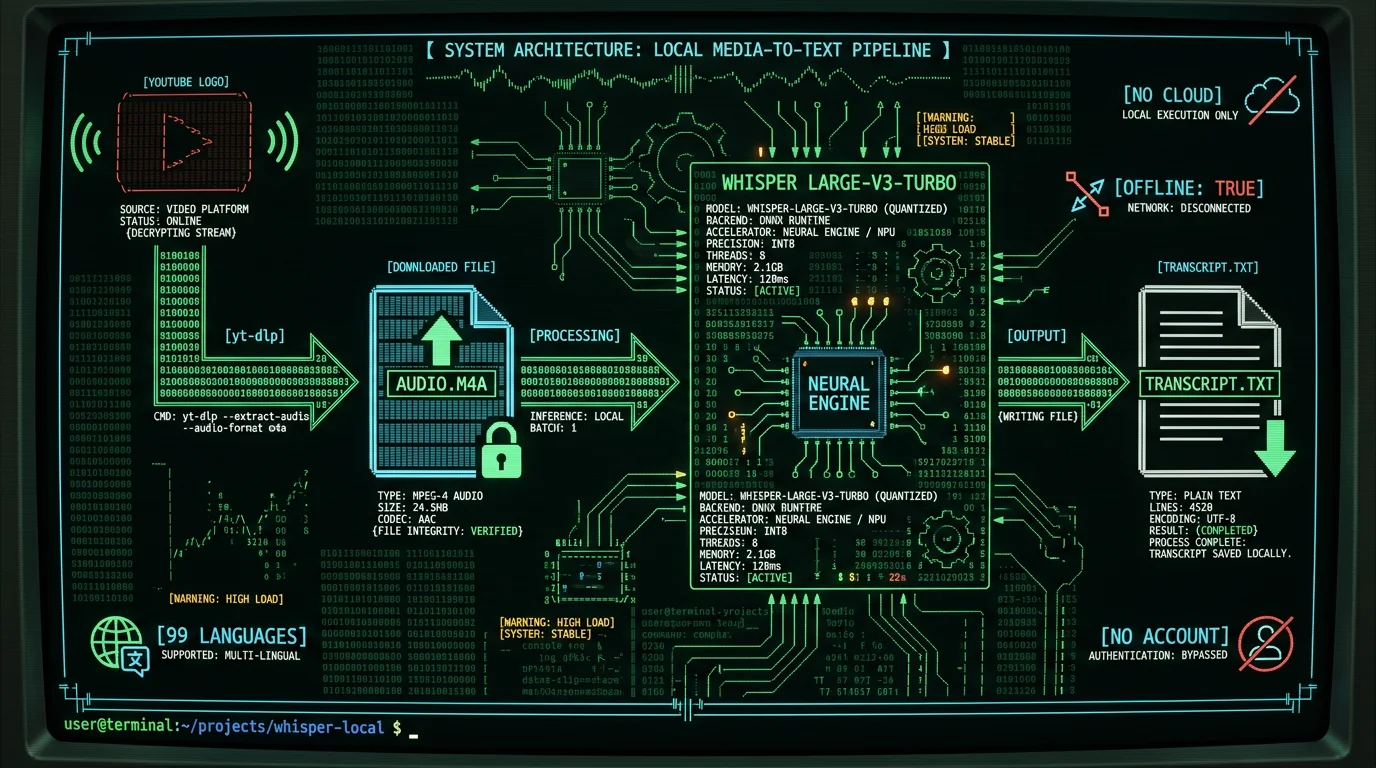
.txt exists, every method above works on it: Cmd+F in TextEdit, Spotlight search across the file, or grep in Terminal. The transcript becomes a normal text file on your Mac — searchable, indexable, copyable, archiveable.
MetaWhisp on this workflow: Free local mode gives you a clean plain-text transcript with no upload. If you want AI cleanup afterwards (fixing capitalization, light punctuation, or rewriting into cleaner prose), add your own OpenAI or Cerebras API key — MetaWhisp's processing modes support Correct and Rewrite with bring-your-own-key, and only the transcript text is sent to your own API, never the audio. Download MetaWhisp and the model pulls itself the first time you open the app.A note on accuracy worth being honest about: our own LibriSpeech test-clean run measured 2.76% WER for MetaWhisp on that specific dataset — clean audiobook-style audio is the easy case. Real YouTube audio has background music, multiple speakers, accents, and compression artifacts. Expect more errors on a noisy lecture than on a studio podcast. The published model card for Whisper large-v3-turbo puts its reference WER in the low single digits on standard benchmarks; you will see noticeably worse numbers on adversarial audio.
Can you search across multiple YouTube videos at once?
YouTube's built-in tools cannot. The page search box filters across all of YouTube, not across transcripts you have already opened. To search many videos at once, you need each one as a local.txt file first — which is what the workflow above gives you.
Once you have a folder of transcripts, three fast options:
- Spotlight. Put all
.txtfiles in one folder. Open Spotlight with Cmd+Space, type your keyword, then set the result filter to "Text Files". Spotlight indexes file contents on macOS and will show every transcript containing the word, ranked by where it appears. - Terminal
grep. Open Terminal,cdto the folder, rungrep -n "your keyword" *.txt. Every match prints with its filename and line number. Fastest option for power users, no setup, no app required. - A dedicated indexer. Apps like DEVONthink or HoudahSpot index file contents and let you build saved searches across your transcript library. Not free, but powerful if you have hundreds of videos to keep searchable.
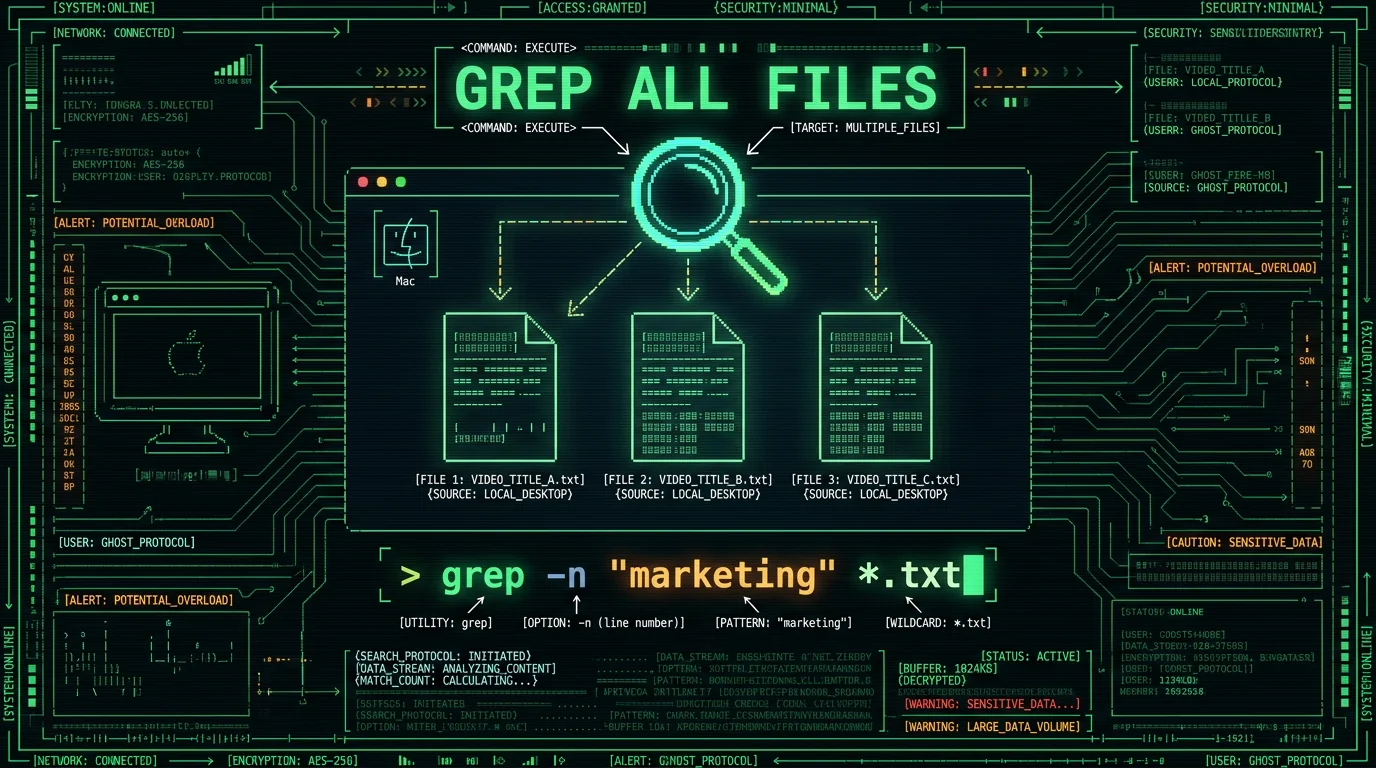
grep wins on speed and lets you pipe results straight into another command.
Searching across many YouTube transcripts at once requires a folder of local .txt files — one per video. Once that folder exists, macOS Spotlight indexes the file contents automatically, so Cmd+Space and typing a keyword is enough for most people. For larger collections, grep -n "keyword" *.txt in Terminal prints every matching filename and line number in under a second, regardless of how many files are present.
The key shift in mindset is treating each transcript as a permanent document rather than a one-time lookup. Name the file after the video, keep them in one folder, and Spotlight or grep turns your collection into a fully searchable YouTube transcript archive. No third-party service, no subscription, no data leaving your Mac. This approach scales from a handful of research videos up to hundreds of archived lectures or interviews without any change in workflow.
What about AI-powered or semantic YouTube transcript search?
Honest answer: this article is about plain-text keyword search — Cmd+F, Spotlight,grep — and that is what MetaWhisp produces today. MetaWhisp does not ship semantic or AI-powered transcript search. If a tool promises "ask any question about this video", it is using an embedding model or a hosted LLM under the hood, and that almost always means your transcript text and your audio leave your Mac.
If your real question is "which video said X?" or "find me every mention of X", keyword search in a folder of .txt files is fast, free, private, and accurate. If your real question is "summarize every video about X" or "what does the speaker think about Y", that is a different tool — and a future one for MetaWhisp, not a current one. I would rather say that plainly than pretend the app does something it does not.
For the local-transcription use case covered here, see our related guides on how to transcribe an audio file on a Mac and offline voice to text on a MacBook. Both use the same MetaWhisp engine described above.
Frequently asked questions about YouTube transcript search
Does YouTube have a built-in transcript search bar?
No. The transcript panel has no search field. Use Cmd+F on the open transcript instead — it works on the visible text in the browser and is the fastest option for finding a specific word.
How do I open the transcript on a YouTube video?
Click the three-dot menu below the title and choose "Show transcript". The panel opens on the right of the video player with clickable timestamps next to each line of dialogue.
Why doesn't Cmd+F find words inside YouTube's transcript panel?
It does — as long as the transcript text is visible on screen. If Cmd+F only matches in the video title or description, scroll the transcript panel fully into view and run Cmd+F again so the find bar indexes the right region.
Can I download a YouTube transcript as a text file?
Only if captions exist. Open the panel, then in Chrome use View Source and look for the captionTracks JSON URL — or use a community tool like youtubetranscript.com. For videos with no captions, you have to transcribe the audio yourself.
What should I do if a YouTube video has no transcript?
Download the audio file with yt-dlp, transcribe it locally on your Mac with MetaWhisp (free, on-device Whisper), then save the .txt output. Cmd+F and Spotlight search the saved file directly.
How accurate is auto-transcription for YouTube audio?
MetaWhisp runs Whisper large-v3-turbo locally. The published large-v3-turbo model card reports low single-digit WER on standard benchmarks; MetaWhisp's own LibriSpeech test-clean run came out at 2.76% WER. Real-world YouTube audio varies — noisy lectures will have more errors than studio podcasts.
Can I search across multiple YouTube videos at once?
Only after you have each transcript saved as a local .txt file. Once they live in one folder, Spotlight or grep -n "keyword" *.txt in Terminal searches all of them in a single query.
Is there an AI-powered YouTube transcript search?
Not built into YouTube. Some third-party tools embed transcripts and let you ask questions — those send your text to a hosted model. Plain keyword search in local .txt files stays private, free, and accurate for "find me where X is mentioned" type questions.
About the author
Andrew Dyuzhov is the solo founder of MetaWhisp, a free on-device voice-to-text app for macOS that runs Whisper large-v3-turbo on the Apple Neural Engine. He built the app with AI coding tools on top of open-source Whisper, runs it daily in Russian and English, and writes MetaWhisp's blog to document the workflows he actually uses — including the YouTube transcript workflow above. Find him on X.
