Apple Silicon, unified memory, and the dictation angle nobody mentions
localhost:11434. Both rely on llama.cpp; LM Studio also supports Apple's MLX engine. Neither is purpose-built for dictation — if that's your end goal, an app that ships its own on-device Whisper large-v3-turbo model (~950MB) is simpler than gluing a general-purpose LLM runner to a voice-to-text pipeline.
What are LM Studio and Ollama, really?
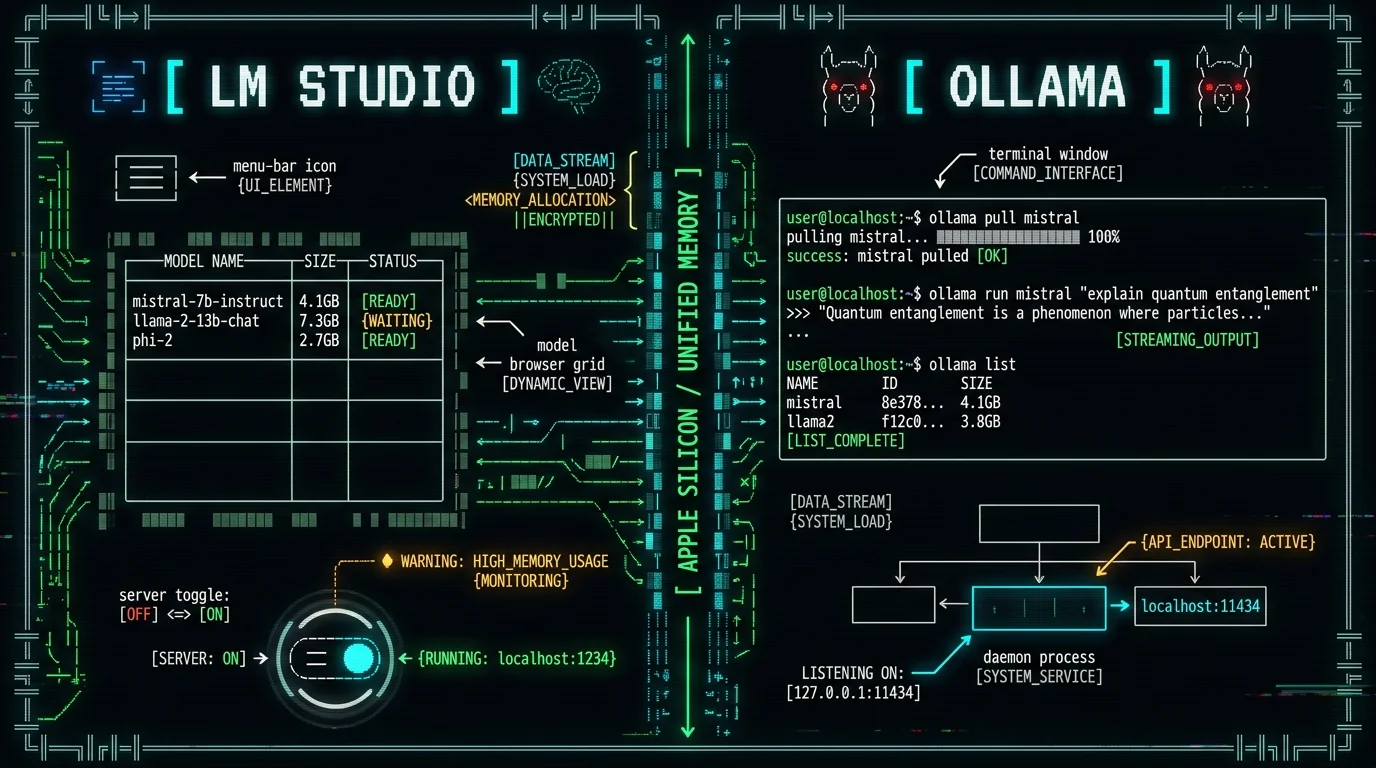
LM Studio is a desktop app for macOS, Windows, and Linux. It started as a GUI wrapper around llama.cpp, then grew into a model browser, conversation UI, and a local server you can flip on with a toggle. You pick a GGUF or MLX model, point LM Studio at it, and chat. The whole thing lives in your menu bar.
Ollama is a CLI-first tool from a different team, also cross-platform. It runs as a background daemon (ollama serve) and exposes an OpenAI-compatible API on localhost:11434. You pull models with ollama pull llama3, run them with ollama run, and build custom variants through Modelfiles. There is no first-party GUI from the Ollama team — third-party frontends exist, but they're not official.
The TL;DR of the difference is one line: LM Studio is a desktop app with a model browser and a built-in server; Ollama is a CLI plus a daemon you query with HTTP. Same inference core, different surface.
Short version: Both tools run local LLMs through llama.cpp under the hood. LM Studio wraps that engine in a desktop GUI with a built-in model browser and a local server you can toggle on. Ollama exposes the same engine through a CLI and a background HTTP daemon. The surface is different; the inference core is similar.
If you've used llama.cpp directly, neither tool is doing anything magical — they're both packaging the same engine with different ergonomics. What differs is the workflow: LM Studio is point-and-click, Ollama is command-line and scripts. Pick the one that matches how you already work.
How do they actually run on Apple Silicon?
Both tools support Apple Silicon through llama.cpp's Metal backend, which keeps the GPU busy and lets the model spill into the unified memory pool when it exceeds the active GPU footprint. On M-series chips the CPU and GPU share the same physical RAM, so your model size is capped by total system memory — there's no separate VRAM budget like on a discrete NVIDIA card.
LM Studio also ships an MLX engine. MLX is Apple's own machine learning framework, tuned for unified-memory hardware. Models in MLX format (.safetensors from mlx-community on Hugging Face) can be more efficient on M-series chips because they were built for this memory layout and skip the GGUF dequantization step.
Ollama's path has been GGUF-first. They've worked on broader engine support, but if MLX is your priority today, LM Studio is the more obvious fit.
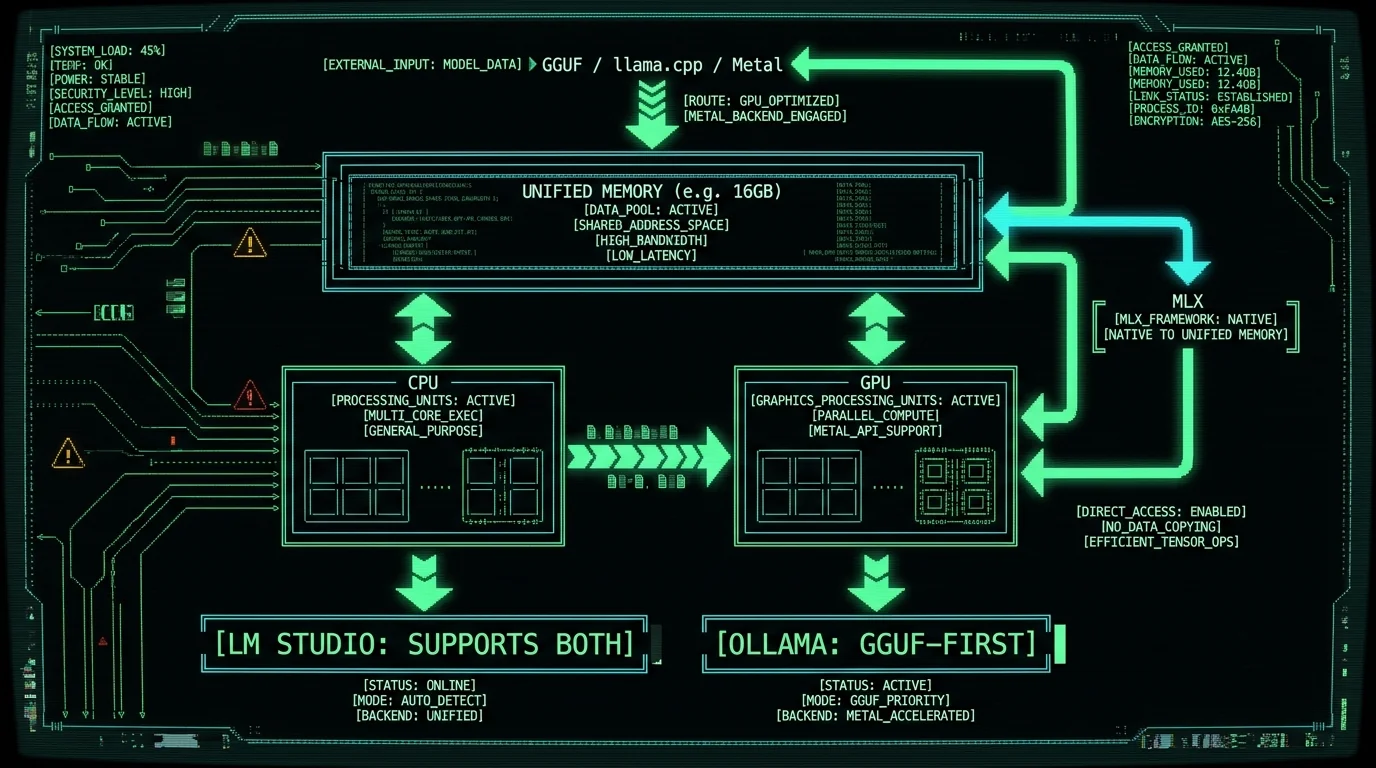
On Apple Silicon specifically: GGUF via llama.cpp's Metal backend works on both tools. MLX is more of a LM Studio story today — Ollama has historically been GGUF-first. If you care about the most efficient path on M-series chips and you're willing to hunt for MLX builds, lean toward LM Studio. If you want the broadest model catalog in the format everyone quantizes for, GGUF on either tool is fine.
The unified memory architecture is the bigger story than the engine choice. On an 8GB MacBook Air, you can't run a 30B parameter model regardless of which tool you pick. On a 32GB or 64GB Mac Studio, the ceiling is way higher. Check the vendor's current docs for the latest engine support before you commit.
Pro tip: On an 8GB or 16GB MacBook, every gigabyte matters. MLX models sometimes load faster and idle lower because they skip the GGUF dequantization step. Try both formats before you commit to one workflow.
MLX vs GGUF — what actually matters on M-series chips?
GGUF is the llama.cpp quantization format. It's mature, widely supported, and there's a deep library of community-quantized models across every size class. On Apple Silicon, llama.cpp uses Metal to keep the GPU active and lets the model use the unified memory pool when it exceeds what the GPU is working on at that moment.
MLX is Apple's framework. Models live as standard safetensors but the inference path is Metal-native and tuned for unified memory. In practice, MLX can be lighter-weight per token on M-series chips because there's no GGUF dequantization step and the memory access patterns match the hardware. The trade-off is a smaller model catalog — most popular models exist in MLX form on Hugging Face (look for mlx-community repos), but the selection is narrower than GGUF.
| Factor | GGUF (llama.cpp) | MLX |
|---|---|---|
| Model catalog | Very wide | Narrower but growing |
| Apple Silicon fit | Good (Metal backend) | Strongest (built for unified memory) |
| LM Studio support | Yes | Yes |
| Ollama support | Yes (primary) | Limited — check current docs |
| Dequantization cost | Paid on load | None |
If you want the broadest model catalog, GGUF is the safer bet. If you want the most efficient path on Apple Silicon and you're okay hunting for MLX builds, MLX is worth trying first.
GGUF vs MLX in one line: GGUF wins on model catalog breadth; MLX wins on Apple Silicon efficiency. The format matters less than the model size and quant level — a 7B Q4 in either format behaves similarly. The real bottleneck on a MacBook is total system RAM, not which format you picked.
For the actual dictation use case (small model, short inputs, latency matters), the format difference is mostly noise. Pick whichever one has the model you want in the size that fits your RAM budget. If you care about every millisecond, MLX on LM Studio is the path with the least friction today.
Menu-bar GUI vs CLI daemon — which fits your workflow?
LM Studio opens a chat window. You browse models, click Download, pick one, and start typing. There's a Developer tab where you toggle the local server on or off, plus a built-in playground for testing prompts. For someone who lives in mouse-driven apps, it's the faster onboarding.
Ollama expects you to live in a terminal. ollama pull, ollama run, ollama list — that's the rhythm. The daemon stays running in the background, and any tool that can hit http://localhost:11434 can use it: chatbots, coding assistants, your own scripts. For terminal-native workflows and automation, Ollama is the cleaner fit.
If you write shell scripts, use curl against a local API, or want to wire a local LLM into an editor extension, Ollama's CLI-and-daemon model fits naturally. If you want to download a model, click a button, and start chatting, LM Studio removes the terminal from the equation.
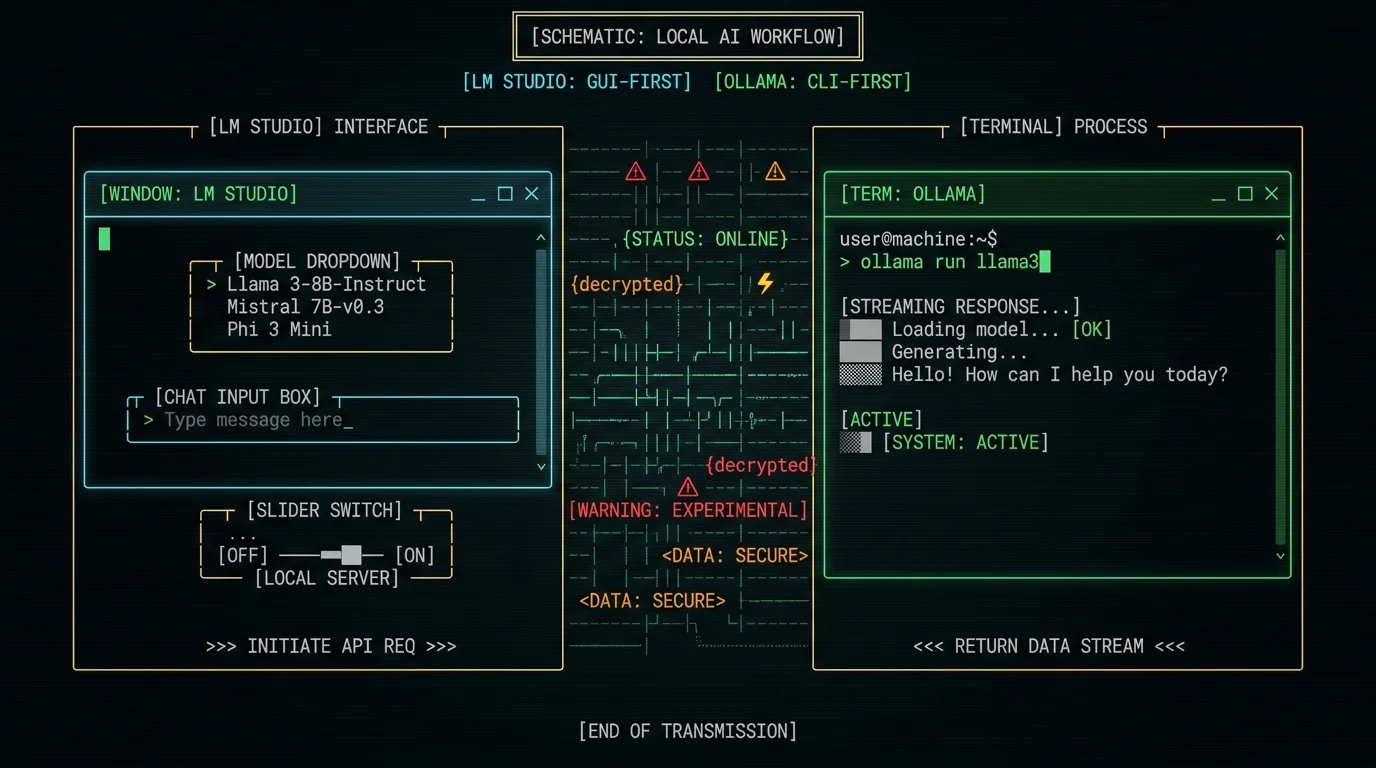
Workflow fit in plain English: LM Studio is GUI-first — point, click, chat. Ollama is CLI-first — terminal commands and an HTTP daemon. Match the tool to how you already work. There's no wrong answer, just a friction tax for using the one that doesn't match your style.
One thing LM Studio gets right that Ollama doesn't: you can flip the local server on and off without restarting anything. With Ollama, the daemon runs in the background whether you're using it or not, which costs a bit of idle RAM.
How does model management differ?
LM Studio has a built-in model browser that pulls from Hugging Face. You see curated picks, click download, and it lands in ~/.cache/lm-studio/models. You can also point it at any local GGUF or MLX file. Switching models is a dropdown.
Ollama uses a Modelfile-based approach plus a pull/run workflow. Models live in ~/.ollama/models. You can write your own Modelfiles for parameter tuning, system prompts, and message templates. There's no official GUI from the Ollama team, so model management happens at the command line or through third-party tools.
For one-off experimentation, LM Studio is faster. For repeatable, scripted setups (the same model with the same prompt on three machines), Ollama is more reproducible because Modelfiles are plain text you can version-control.
Model management in one paragraph: LM Studio's model browser is faster for exploration — click, download, chat. Ollama's Modelfile approach is better for scripted, reproducible setups. If you only ever run one model and don't tweak system prompts, both are overkill; if you maintain a library of tuned models across machines, Ollama's text-based config wins.
Disk usage adds up fast. A 70B Q4 model can take 40+ GB. Neither tool has a built-in dedupe, so if you try three quantizations of the same model you'll have three copies on disk. I've learned this the hard way.
Which pairs better with a voice-to-text workflow on Mac?
Neither LM Studio nor Ollama is a dictation app. They're general-purpose local LLM runners. To use either for voice-to-text polish, you'd need:
- A separate dictation tool that produces a transcript
- The transcript piped into the local LLM server via the OpenAI-compatible API
- A script or Shortcut that wires them together
That's a real workflow, but it's three moving parts and some glue code. If your goal is "talk, get clean text in the app I'm typing into," you want a tool that does the whole pipeline on-device.
That's the gap I built MetaWhisp to fill. It ships its own on-device Whisper large-v3-turbo model (~950MB) running on the Apple Neural Engine, plus a global hotkey and auto-paste into whatever app has focus. No separate server process. No API key for the core dictation. Free for unlimited local use — see the pricing page for what's in Pro. For AI polish on top (rewrite, correct, translate), you can add your own OpenAI or Cerebras API key on the free tier through the processing modes settings.
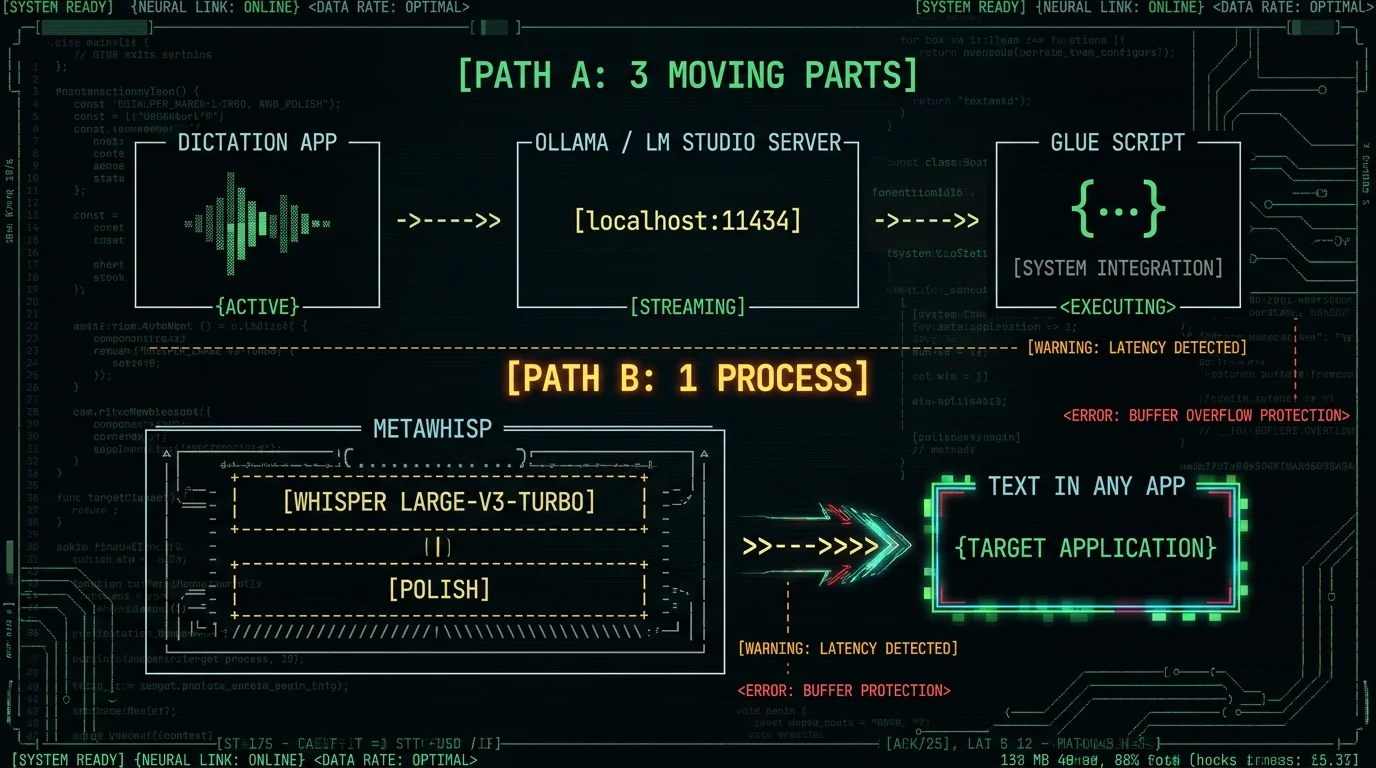
The dictation angle: LM Studio and Ollama can power voice-to-text polish with glue code, but they're general-purpose tools. A dedicated dictation app with its own on-device Whisper model handles the whole pipeline in one process — no server to start, no model catalog to browse, no script to maintain. If dictation is your real goal, the general-purpose LLM runner is the wrong layer.
There's also a context-switching cost. Every time you have to leave your writing app to manage models, switch formats, or restart a daemon, you lose the flow that made you want local AI in the first place. That's the friction I was trying to eliminate when I shipped MetaWhisp.
Is there a simpler path if you only want dictation?
If your end goal is talking into your MacBook and getting clean text — not running a general-purpose local LLM — you don't need either of these tools. You need a voice-to-text app, and ideally one that doesn't ship your audio to a cloud server.
The option I'd actually recommend (full disclosure: I built it) is MetaWhisp. Whisper large-v3-turbo on the Apple Neural Engine, ~950MB download, global hotkey, free local tier. Audio never leaves your Mac in local mode. If you want AI polish on top — turning rough dictation into proper sentences — MetaWhisp lets you bring your own OpenAI or Cerebras key on the free tier, or upgrade to Pro for built-in cloud AI. No separate server to start, no model to manage, no terminal commands.
If your goal is "explore local LLMs and use them for many things including dictation," pick LM Studio or Ollama based on the workflow fit above. If your goal is just "dictation that respects my privacy," start with a purpose-built app.
Pro tip: If you find yourself wiring Ollama up to a dictation app just to rewrite transcripts, you're probably better off with a tool that does both in one process. Less moving parts, less to break, less context switching.
If you want to dig into why on-device matters for dictation specifically, I wrote about why local AI models make sense on MacBook and how I use a local LLM for private notes. If you're working with limited RAM, the best Whisper model for an 8GB MacBook walks through the tradeoffs.
Frequently asked questions
Is LM Studio faster than Ollama on Apple Silicon?
Both use llama.cpp as the inference engine, so on identical hardware with the same model in the same format, the raw throughput is comparable. Where they differ is overhead — Ollama's daemon stays running and serves requests over HTTP, which adds a small amount of latency. LM Studio runs the model directly in-process when you're chatting. For batch or scripted workloads where you're hitting the API anyway, the difference is noise. I haven't run controlled head-to-head benchmarks, so I won't quote specific tokens/sec numbers here — check the vendor's own benchmarks if you need exact figures.
Can LM Studio and Ollama run MLX models?
LM Studio has explicit MLX engine support alongside llama.cpp. Ollama has historically been GGUF-first; check their current release notes for the latest status on MLX or other engine support. As of writing, MLX is a stronger fit in LM Studio.
Do either of these work for dictation?
Not directly. Both are general-purpose local LLM runners — they don't capture audio or produce transcripts. To use either for dictation you'd need a separate speech-to-text tool plus a script that pipes the transcript through the local LLM API for cleanup. For end-to-end on-device dictation, a dedicated tool is simpler.
How much RAM do I need to run local LLMs on Mac?
Roughly the size of the model in GGUF or MLX form. A 7B Q4 model needs around 5–6 GB of available unified memory; a 13B Q4 needs around 9–10 GB; a 70B Q4 needs 40+ GB. Apple's unified memory means the CPU and GPU share the pool, so the model size is capped by total system RAM minus what macOS and your apps need. For dictation specifically, the Whisper large-v3-turbo model that MetaWhisp ships is ~950MB — much lighter than a general-purpose LLM.
Which tool has more models available?
Both can load any GGUF file. GGUF has the deeper catalog because llama.cpp has been around longer and most community quantizers target it. MLX has a growing library on Hugging Face under the mlx-community organization, but it's narrower. If you want a specific obscure model, GGUF is more likely to have it.
Can I run them offline?
Yes. Once the model is downloaded, both LM Studio and Ollama run fully offline. The initial model download needs internet; after that, no network calls are required for inference. This is one of the main reasons people pick local LLM runners over cloud APIs in the first place.
Is LM Studio or Ollama better for scripting?
Ollama. Its CLI and HTTP API are designed for scripts and automation. Modelfiles let you version-control model configurations. LM Studio is fine for one-off scripting through its server mode, but its strength is the GUI experience, not automation.
Do either of these send data to the cloud?
No. Both run fully locally after the initial model download. Your prompts and responses stay on your machine. The only network traffic is checking for app updates or browsing model catalogs. If you need on-device privacy for voice, that's a separate tool — neither LM Studio nor Ollama captures audio.
What's a simpler option for voice-to-text on Mac?
An app built specifically for dictation, with its own on-device speech model. MetaWhisp is one — Whisper large-v3-turbo on the Apple Neural Engine, global hotkey, free local tier, audio never leaves your Mac. You avoid running a separate LLM server entirely.
Can I use Apple Foundation Models with these?
Apple's Foundation Models framework (the one tied to Apple Intelligence) is not directly plug-compatible with LM Studio or Ollama. Those tools work with open-source models in GGUF or MLX format. If you want to use Apple's built-in models, that's a separate path through Apple's APIs.
About the author: Andrew Dyuzhov is the solo founder of MetaWhisp, a free on-device voice-to-text app for macOS. He dictates daily in Russian and English, ran his own 7-app dictation accuracy test, and builds tools to get past ADHD writing paralysis. Find him on X.
