7 ordered fixes — work top to bottom, stop when yours works
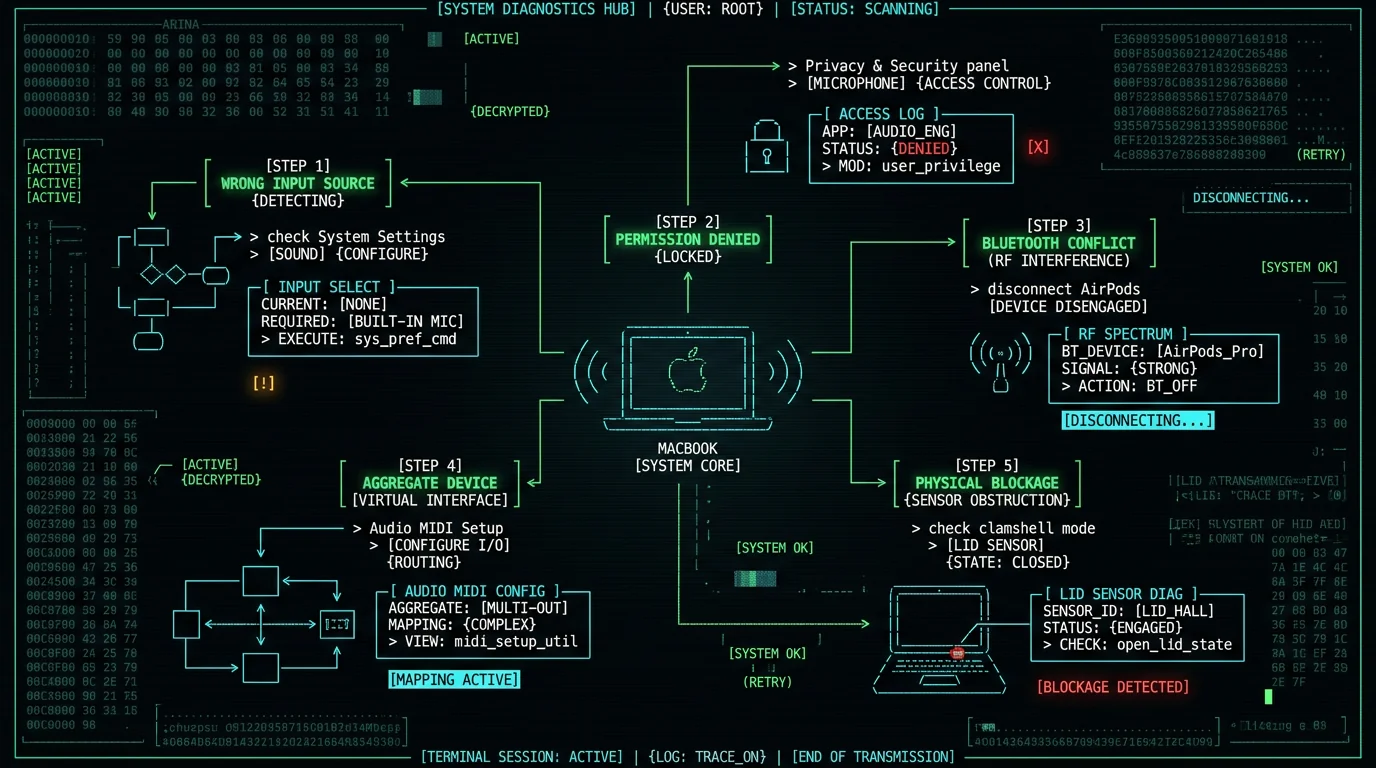
Why Your MacBook Microphone Isn't Working
When your MacBook's mic goes silent, macOS makes it hard to tell why. The operating system doesn't surface root causes — you just get apps that can't record, dictation that won't start, or video calls where nobody hears you. The good news: almost every software-level failure falls into a short, well-defined list. Work through it in order and you'll either fix it or confirm you have a hardware issue that needs service. This guide covers macOS microphone permissions, input routing, Bluetooth interference, aggregate device conflicts, and physical obstruction. The final step shows how to verify your mic is genuinely alive with a real-time audio input meter.How Do I Check My Input Source and Level?
Before anything else, confirm macOS is listening to the right device at the right volume.- Open System Settings → Sound → Input.
- Verify the correct microphone is selected — not "Internal Microphone" if you have headphones connected, not a disconnected device.
- Check the input volume slider. It should be above zero; 50–75% is a safe range.
- Speak normally while watching the input level meter. If you see no bars, the selected device is either muted, disconnected, or the wrong one.
How Do I Grant Microphone Permission Per App?
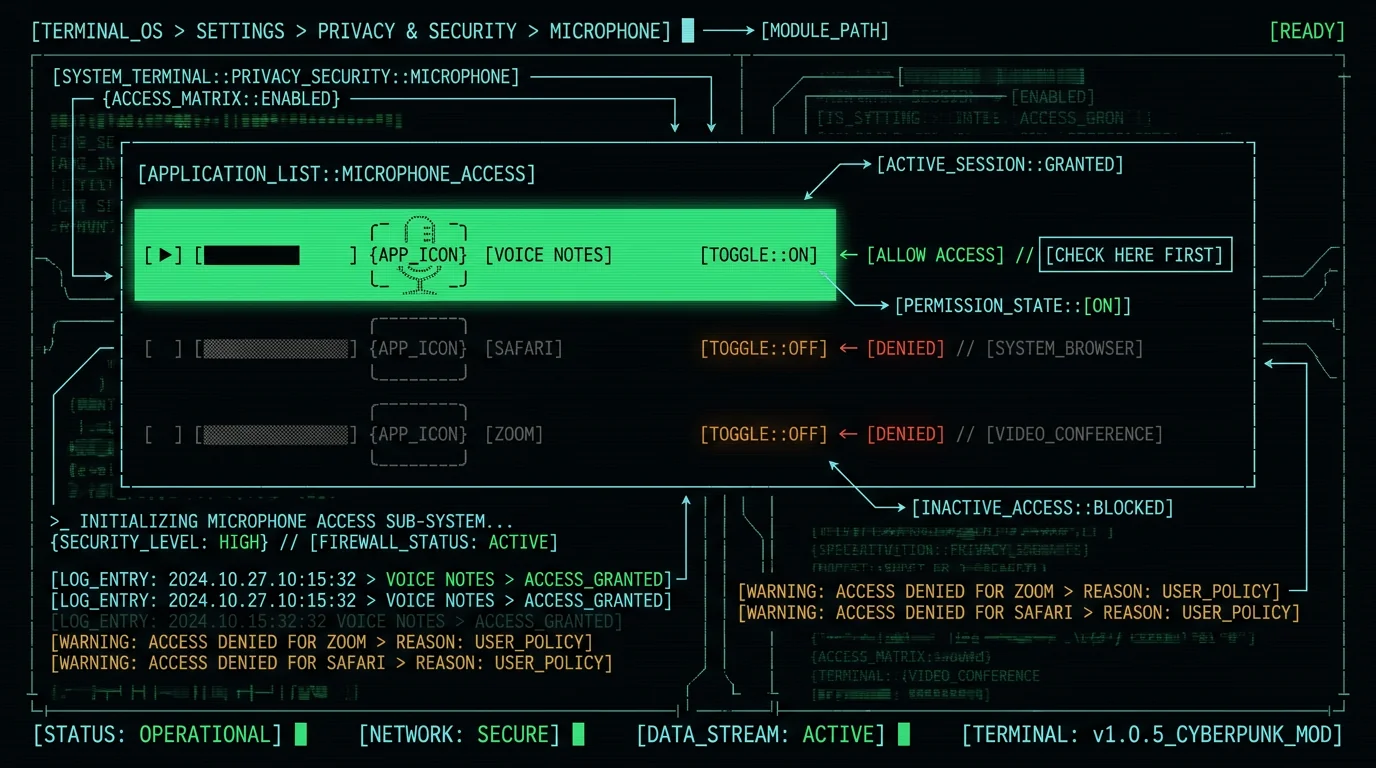
macOS requires explicit per-app permission before any software can access the microphone. If an app has no permission, it receives silence regardless of your input settings.- Go to System Settings → Privacy & Security → Microphone.
- Find the app that can't use the mic.
- Toggle the switch to On.
Pro tip: If you've recently updated macOS, check this panel immediately. Major updates reset some app permissions to default-off as a security measure.
How Do I Stop Bluetooth Devices from Stealing the Input?
When AirPods or a Bluetooth headset connect to your Mac, macOS often switches the default audio input to that device automatically. If you then put the AirPods away or they're out of range, the system may still route audio to the now-absent device — leaving your internal mic unused.- Click the Volume or Control Center icon in the menu bar.
- Look for a connected Bluetooth audio device. Click it and select Disconnect.
- Or go to System Settings → Bluetooth and toggle the device off.
How Do I Resolve Aggregate Audio Device Conflicts?
If you use Audio MIDI Setup to combine multiple microphones — for a podcast setup, for instance — macOS can get confused about which aggregate device owns the input stream. Apps may lock onto a non-existent or misconfigured aggregate, producing silence.- Open Audio MIDI Setup (search in Spotlight, or find it in /Applications/Utilities/).
- In the sidebar, check for any Aggregate Device entries.
- If you see an aggregate you didn't create or don't recognize, select it and click the – button to remove it.
- Restart the app that needs the microphone.
How Do I Check for Clamshell and Case Blockage?
The MacBook's built-in microphones sit near the hinge or keyboard deck, depending on model. A closed-lid (clamshell) mode, a thick case, or debris near the hinge can physically muffle or block acoustic input.- In clamshell mode (external display connected, lid closed), the microphone array may behave differently or switch to a secondary mic. Test with the lid open first.
- Third-party cases — especially rugged or folio-style — can press against the hinge and occlude the mic openings. Remove the case and test.
- Inspect the hinge area for dust, lint, or sticker residue. A blast of compressed air can clear particles blocking the mic grilles.

How Do I Test My External USB Microphone?
If you're using a USB or Thunderbolt microphone and it's not working, the issue may be the cable, the port, or macOS not recognizing the device.- Try a different USB-C or USB-A port on your MacBook.
- Test the microphone on another computer or device to confirm it works.
- Check that the microphone's own driver or companion software (common for conferencing mics) hasn't crashed. Quit and relaunch it.
- Look in System Settings → Sound → Input — the microphone should appear as a named device, not just "USB Device."
How Do I Verify the Mic Is Actually Receiving Audio?
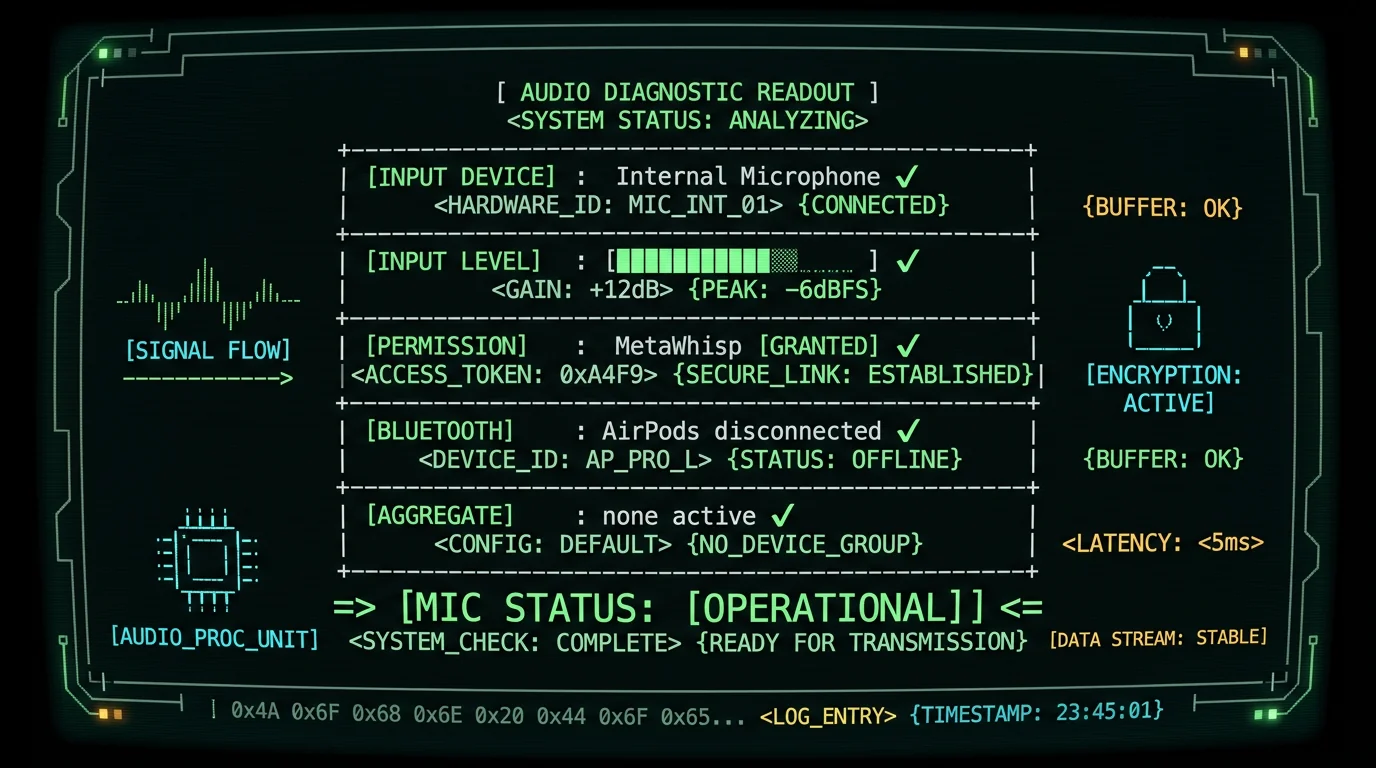
This is the confirmatory step. All the fixes above address potential causes — this step proves your microphone is genuinely live and delivering audio to applications. Use a tool that shows real-time input levels. MetaWhisp's free tier runs on-device voice-to-text on Mac with a live audio input meter — no account, no cloud, audio never leaves your Mac. If you see the meter responding to your voice, your mic is working.- Download MetaWhisp (free, macOS 14+, Apple Silicon).
- Use the app's record control and speak. The input level display should react to your voice in real time.
- If the meter shows silence, the hardware or driver is still the issue — revisit Steps 1–6.
Summary Table: MacBook Microphone Fixes
| Step | Cause | Fix Location |
|---|---|---|
| 1 | Wrong input source or level at zero | System Settings → Sound → Input |
| 2 | App missing microphone permission | System Settings → Privacy & Security → Microphone |
| 3 | Bluetooth device hijacking input | Control Center or System Settings → Bluetooth |
| 4 | Corrupt aggregate audio device | Audio MIDI Setup (Applications/Utilities) |
| 5 | Physical blockage (case, hinge, clamshell) | Inspect hardware; compressed air clean |
| 6 | USB mic cable, port, or driver failure | Try different port; test on another device |
| 7 | Need real-time verification | MetaWhisp free tier — download |
When Should I Contact Apple Support?
If you've worked through all seven steps and your MacBook microphone still produces no audio in any app — including Voice Memos, QuickTime Audio Recording, and a fresh MetaWhisp install — you likely have a hardware issue. This can manifest as:- A microphone array that failed after physical impact or liquid exposure
- A logic board audio circuit failure (less common, but possible)
- A microphone that stopped working after a failed macOS update
FAQ
Why did my MacBook microphone stop working after a macOS update?
Major macOS updates reset some system preferences and can revoke app permissions as a security measure. Check System Settings → Privacy & Security → Microphone after any update and re-enable apps that need mic access. Some users also find that the default input device reverts to a different source — verify your selection in Sound settings.
Why is my MacBook mic only working for some apps?
This is almost always a per-app permission issue. Some apps have been granted microphone access in Privacy & Security settings while others haven't. Open System Settings → Privacy & Security → Microphone and ensure every app you want to use is toggled on.
How do I fix my MacBook microphone picking up background noise?
Open System Settings → Sound → Input, select your microphone, and check the Use ambient noise reduction checkbox.
Why does my MacBook microphone work on FaceTime but not in other apps?
FaceTime has special system-level access that bypasses some standard audio routing. If FaceTime works but other apps are silent, the issue is almost certainly a missing permission in Privacy & Security settings for those specific apps. Grant access in System Settings → Privacy & Security → Microphone.
My MacBook has multiple microphones — how do I pick which one to use?
MacBook Pro models with the 14-inch and 16-inch displays have a three-mic array. macOS typically uses the best-quality mic for system audio input, but you can verify which is active in System Settings → Sound → Input. If you need to force a specific mic for a particular app, third-party audio routing tools like Audio MIDI Setup let you create aggregate devices, though this adds complexity.
Can I use my iPhone as a MacBook microphone?
Yes — macOS includes a Continuity feature that lets you use your iPhone as a microphone for your Mac (available in macOS Sonoma and later). Enable it in your iPhone's settings, then select your iPhone as the input device in System Settings → Sound → Input on your Mac. This routes audio over your local network rather than using the MacBook's built-in mic.
How do I test my MacBook microphone online?
Open a web browser and search for "microphone test" — Google and several sites (including Chrome's microphone help page) will request mic access and display a live waveform if your browser has permission. If you see the waveform respond when you speak, your mic is working. If you don't, the issue is either the browser permission (check Privacy & Security settings) or the mic itself.
About the author: Andrew Dyuzhov is a marketer and builder with ADHD who uses voice-first workflows daily to get past writing paralysis. He assembled MetaWhisp — a free on-device voice-to-text app for macOS — using AI coding tools on top of open-source Whisper. He runs @hypersonq and maintains the MetaWhisp GitHub.
