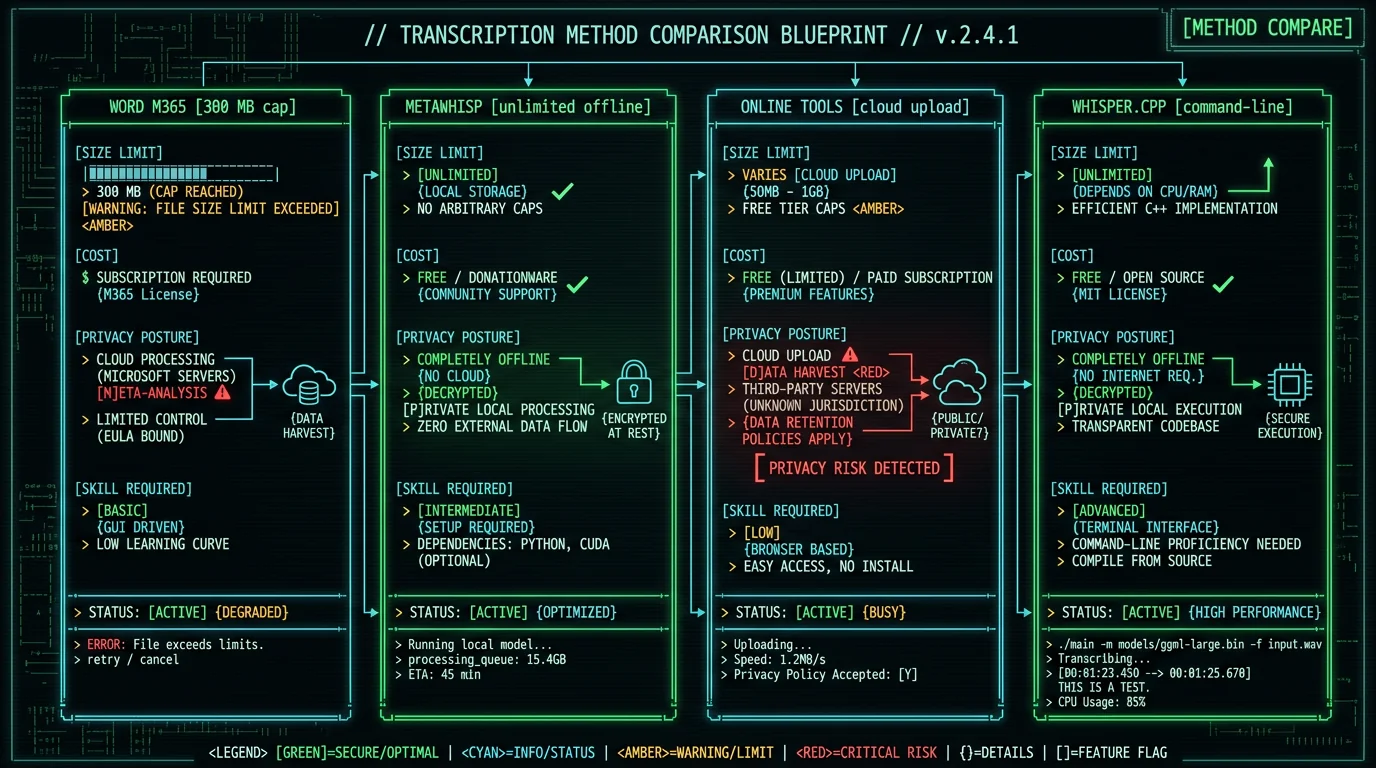
Which Method Should You Use to Transcribe Audio Into Word?
The right method depends on three things: the size of your audio file, whether you have a Microsoft 365 subscription, and whether the content is sensitive enough that you don't want to upload it to a cloud service. Here's the 30-second decision tree:- File under 300 MB, you have M365, content is not confidential, total monthly usage under 5 hours: Use Word's built-in Transcribe.
- File over 300 MB OR exceeds 5 hours/month OR confidential content: Use MetaWhisp drag-drop with .docx export. Free, offline, unlimited.
- No Mac handy, need to do it in browser: Use Otter, Sonix, or Rev with cloud upload — privacy tradeoff for convenience.
- Comfortable with Terminal, want full control: whisper.cpp with manual .docx conversion via pandoc.
How Does Word for M365 Transcribe (Built-In) Work?
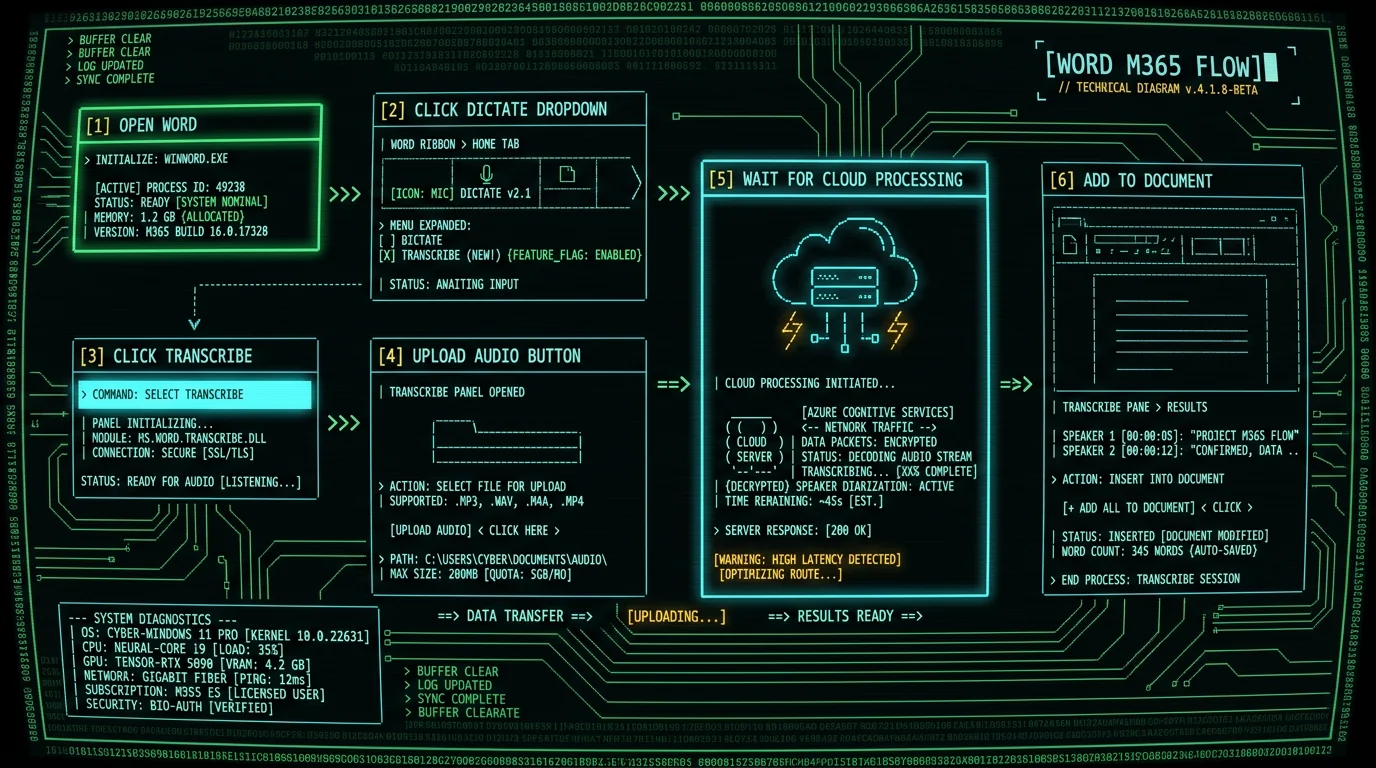
If you have Microsoft 365 with Word for Mac and your audio is under 300 MB and your monthly quota isn't exhausted, this is the most integrated path. The transcript lands directly inside your Word document with speaker labels and timestamps. Steps:- Open Word for Mac (must be M365 subscription, not standalone Word 2019/2021)
- Open a new blank document or the document you want to add the transcript to
- Click Home tab in the ribbon, then click the Dictate dropdown arrow
- Select Transcribe from the dropdown menu
- In the right-hand pane, click Upload audio
- Select your audio file (.mp3, .wav, .m4a, .mp4 supported, max 300 MB)
- Wait for upload + transcription (typically 1-2× audio length on cloud)
- When complete, click Add to document and choose format (with/without speakers, timestamps)
Pro tip: If your audio file is just slightly over 300 MB, compress it before upload. Use ffmpeg with: ffmpeg -i input.wav -ab 96k -ar 22050 output.mp3. This converts a 1-hour 700 MB WAV to a 40 MB MP3 with no perceptible quality loss for speech, well under the 300 MB cap. For files genuinely over 30 minutes of speech, compression can save the day.
How Do I Drag-Drop Audio Into MetaWhisp and Export to .docx?
MetaWhisp is the fastest path when you don't want to deal with Word's 300 MB cap, monthly quotas, or cloud upload. Drag your audio file onto the MetaWhisp window, wait for on-device Whisper large-v3-turbo to finish, then export as .docx with one click. Steps:- Download MetaWhisp from metawhisp.com (free, no account)
- Open MetaWhisp; on first launch it downloads Whisper large-v3-turbo (~800 MB)
- Drag your audio file onto the MetaWhisp main window — any format: .mp3, .wav, .m4a, .flac, .aac, .ogg, .mp4, .mov
- Wait for transcription (3-9 minutes for 60 minutes of audio on M2/M3 Mac)
- Click the Export button in the toolbar
- Select Microsoft Word (.docx) from the export format dropdown
- Choose location, click Save. Done.
- Title (filename of source audio, editable)
- Generated timestamp and source file path
- Full transcript with paragraph breaks at speaker turns and pauses ≥ 2 seconds
- Optional timestamps every minute (toggle in export dialog)
- Optional speaker labels if MetaWhisp's diarization detected multiple speakers
When Should You Use Online Tools Like Otter, Sonix, or Rev?
If you can't install software or you're on someone else's Mac, browser-based transcription services accept audio uploads and return text you can copy-paste into Word. The main options:| Service | Free tier | Paid pricing | Max file size |
|---|---|---|---|
| Otter.ai | 300 min/month, 30 min/file | Pro $16.99/mo (1,200 min) | 1 GB / file |
| Sonix | 30 min free trial only | $10/hr pay-as-you-go | 4 GB / file |
| Rev.com | No free tier | $0.25/min AI / $1.50/min human | 2 GB / file |
| Trint | No free tier | $48/mo (3 hrs) | 1 GB / file |
- Go to the service's website, create an account (email + password minimum)
- Click Upload, select your audio file
- Wait for upload (5-20 minutes for a 100 MB file on typical broadband)
- Wait for transcription (cloud GPU processing, 1-3 minutes for free tiers in queue)
- Open the resulting transcript in the service's web editor
- Click Export → choose .docx or copy-paste into Word manually
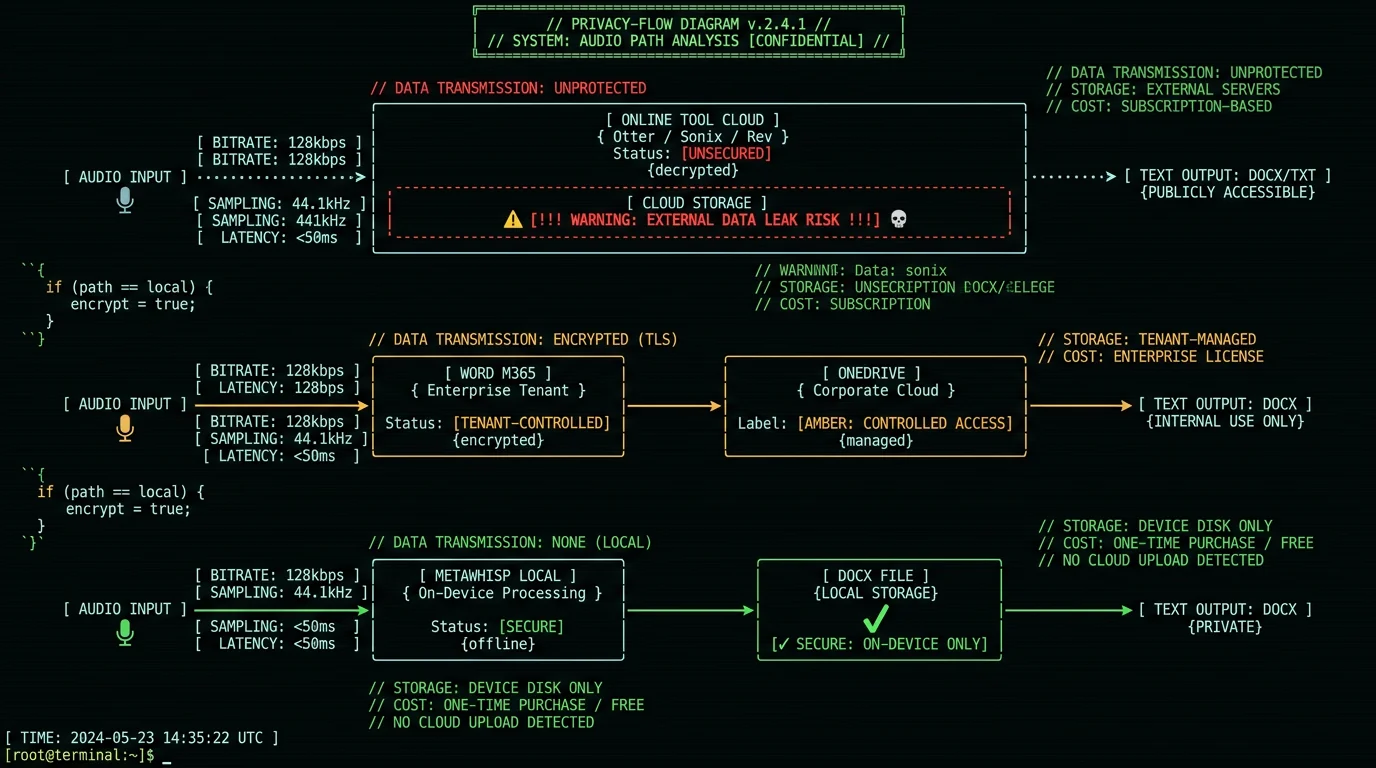
For confidential content, the only options are Word M365 (audio stays in your OneDrive, controlled by your M365 tenant policies) or MetaWhisp (audio never leaves your Mac at all). Otter, Sonix, Rev, and Trint all involve uploading the file to a third-party cloud, which may violate confidentiality agreements depending on the content.
How Do I Use Command-Line whisper.cpp and Pandoc?
If you're comfortable with Terminal and want the maximum control with zero subscription costs, whisper.cpp by Georgi Gerganov is the gold-standard command-line Whisper implementation for Mac. Combine it with pandoc for .docx conversion. Setup (one-time):- Install Homebrew if you don't have it
- Install dependencies:
brew install whisper-cpp pandoc ffmpeg - Download Whisper large-v3-turbo model:
whisper-cpp-download-ggml-model large-v3-turbo
whisper-cpp -m models/ggml-large-v3-turbo.bin \
  -f input.mp3 \
  -of output \
  --output-txt

pandoc output.txt -o transcript.docx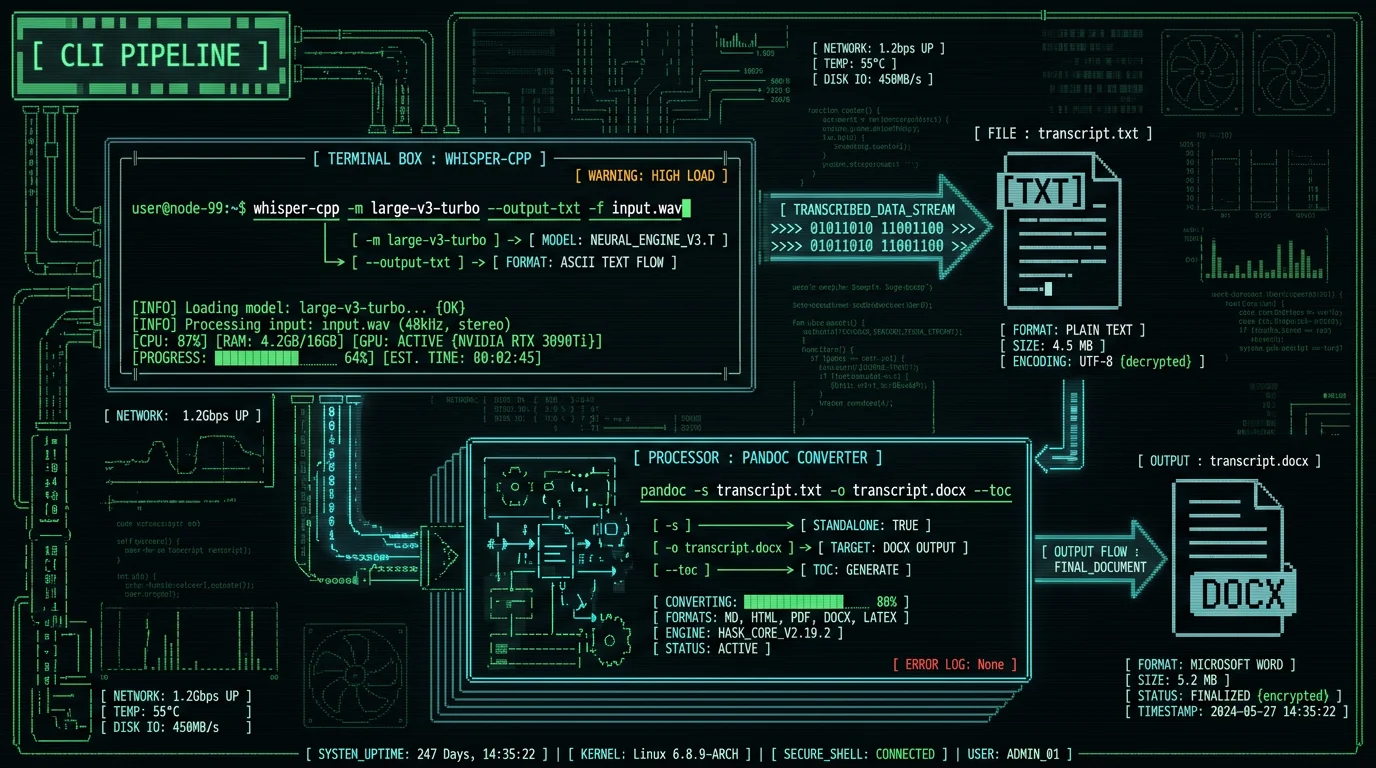
Why Won't Word's Transcribe Feature Work for Me?
Common failure modes and what to do about them:- "Transcribe option is grayed out": You're using standalone Word 2019/2021, not Word for M365. The feature is M365-only. Either subscribe to M365 ($9.99/user/month for Personal) or use MetaWhisp's free path.
- "File too large": Your audio exceeds 300 MB. Compress with ffmpeg (see earlier Pro tip) or use MetaWhisp which has no size cap.
- "Monthly transcription limit reached": You've hit the 5-hour/month cap. Wait until next billing cycle or switch to MetaWhisp.
- "This audio format is not supported": You're trying to upload .mov, .avi, .aiff, or another unsupported format. Convert to .mp3 or .mp4 first via QuickTime export.
- "Network error during upload": Your internet connection dropped mid-upload. Word's Transcribe doesn't reliably resume. Restart the upload or use offline MetaWhisp.
- "Transcription stuck at processing": Microsoft's transcription queue is backed up (happens during US business hours). Wait 10-15 minutes or try a different time. Local Whisper has no queue.
How Do I Add Timestamps or Speaker Labels to My Word Transcript?
Three methods, three different ways:- Word M365 Transcribe: Speaker labels and timestamps are auto-included by default. In the right-hand transcript pane, click the gear icon to toggle them on/off before adding to document. Speakers are labeled "Speaker 1", "Speaker 2", etc. — you can rename them by clicking the label in the pane.
- MetaWhisp .docx export: In the export dialog, toggle "Include timestamps" and "Include speaker labels". Diarization is automatic when multiple speakers are detected via voice signature variance. Timestamps appear every minute by default, configurable to 15-second or 5-minute intervals.
- whisper.cpp: Use
--output-srtinstead of--output-txtto get timestamped output, then convert to .docx with pandoc. For speaker labels, use the--diarizeflag with the pyannote diarization model (separate install via Python).
What If My Audio File Is in a Different Language?
Whisper large-v3-turbo supports 99 languages out of the box, including Spanish, French, German, Mandarin, Japanese, Korean, Arabic, Hindi, Russian, and Portuguese. Both MetaWhisp running Whisper large-v3-turbo and the command-line whisper.cpp will transcribe non-English audio automatically — language is detected from the first 30 seconds of audio unless you force it via a language hint. Word M365 Transcribe officially supports 80 languages, per Microsoft's documentation, but you must select the language manually from a dropdown before uploading. Auto-detection is not available. Accuracy on non-English varies more than Whisper because Azure Speech Services prioritizes English in its model training. For mixed-language audio — say, a Spanish-language interview with English technical terms interspersed — Whisper-based tools handle the code-switching gracefully. Word M365 Transcribe will pick one language for the entire file and treat the other language as gibberish, requiring manual cleanup. For multilingual research workflows, MetaWhisp's automatic detection plus per-paragraph language tagging is materially less work. If you need to translate the transcript into English after transcribing the source language, Whisper has a built-in translate-to-English mode that produces an English transcript directly from foreign-language audio. Add the--task translate flag in whisper.cpp, or toggle "Translate to English" in MetaWhisp's transcription settings. Word's Transcribe feature does not include translation; you'd need to copy the foreign transcript into a separate translation tool.
Frequently Asked Questions About Transcribing Audio Into Word
Can I transcribe an audio file directly in Microsoft Word?
Yes, if you have Microsoft 365 (subscription) Word for Mac or Word for the Web. Click Home → Dictate dropdown → Transcribe, then upload your audio file. The feature supports .mp3, .wav, .m4a, and .mp4 up to 300 MB per file, with a 5-hour monthly quota. Standalone Word 2019/2021 (perpetual licenses) do not have this feature — you'll need M365 subscription or an alternative tool.
What's the maximum audio file size for Word Transcribe?
300 MB per file is the hard limit, per Microsoft's official documentation. Files larger than that must be compressed (via ffmpeg or other tool) or split into multiple files. The 300 MB cap represents roughly 4-5 hours of high-quality MP3 audio or 2-3 hours of WAV. There's also a separate 5-hour monthly quota across all files combined, which resets on the 1st of each calendar month.
Can I transcribe audio to Word without Microsoft 365?
Yes. MetaWhisp is a free Mac app that transcribes any audio file and exports directly to .docx — no M365 subscription needed. Other options include uploading to Otter.ai (300 min/month free), Sonix, or Rev.com, then copy-pasting the transcript into Word. Or use command-line whisper.cpp + pandoc for fully open-source workflow. None require a Word subscription beyond the basic ability to open .docx files.
How accurate is Word's audio transcription?
Word for M365's Transcribe uses Microsoft Azure Speech Services, which achieves roughly 4-6% word error rate on clean English audio — comparable to Whisper medium but below Whisper large-v3 (3.5% WER) per benchmarks published by OpenAI. Accuracy degrades on accented English, technical vocabulary, and noisy audio. For high-stakes transcripts (legal, medical, research interviews), Whisper-based tools like MetaWhisp deliver materially better accuracy.
Does Word Transcribe work offline?
No. Word's Transcribe feature requires an active internet connection because transcription happens in Microsoft's cloud, not on your Mac. Your audio file is uploaded to your OneDrive for the duration of processing, transcribed by Azure Speech Services, then the resulting text is returned. For offline transcription on Mac, use MetaWhisp (on-device Whisper) or command-line whisper.cpp — both run entirely on your hardware without internet.
Can I batch-transcribe multiple audio files into Word?
Not directly in Word M365 — the Transcribe feature processes one file at a time and requires manual uploading. For batch transcription, use MetaWhisp's drag-drop with multiple files (it queues them automatically), or write a shell script around whisper.cpp + pandoc. Online services like Sonix and Trint also support batch uploads on their paid tiers. The cleanest free batch path is MetaWhisp + .docx export for each file.
What audio formats does Word Transcribe support?
Word M365 Transcribe supports .mp3, .wav, .m4a, and .mp4 (audio extracted from video). MOV, AVI, AIFF, FLAC, OGG, and other formats are not supported and must be converted first. Use QuickTime → Export As → Audio Only for simple conversion, or ffmpeg for command-line batch conversion. MetaWhisp accepts all common audio and video formats natively without conversion.
How long does it take to transcribe a 1-hour audio file into Word?
Word M365 Transcribe takes 30-90 minutes for a 1-hour file, depending on cloud queue wait times and your upload speed. MetaWhisp on-device transcribes 1 hour of audio in 3-7 minutes on M2/M3 MacBook (no upload, no queue). Online services typically take 10-30 minutes including upload time on average broadband. Command-line whisper.cpp matches MetaWhisp's speed since both use the same Whisper engine locally.
About the Author
Andrew Dyuzhov is the solo founder and CEO of MetaWhisp, a free on-device voice-to-text app for macOS that runs Whisper large-v3-turbo on Apple Neural Engine. MetaWhisp is built for audio-to-document workflows used by journalists, lawyers, researchers, and healthcare admins, and includes a .docx export feature for direct Word integration. Connect on X or GitHub.
Related Reading
- How to Transcribe an Audio File: 5 Methods (2026) — broader file-format coverage
- Speech to Text in Word: Built-In vs System — live dictation in Word vs system-wide
- How to Transcribe an M4A File on Mac — Apple format specifics
- How to Transcribe a WAV File on Mac — uncompressed audio workflow
