Voice Control · Apple Dictation · Switch Control · Talon · MetaWhisp
What "hands-free" actually means on a Mac
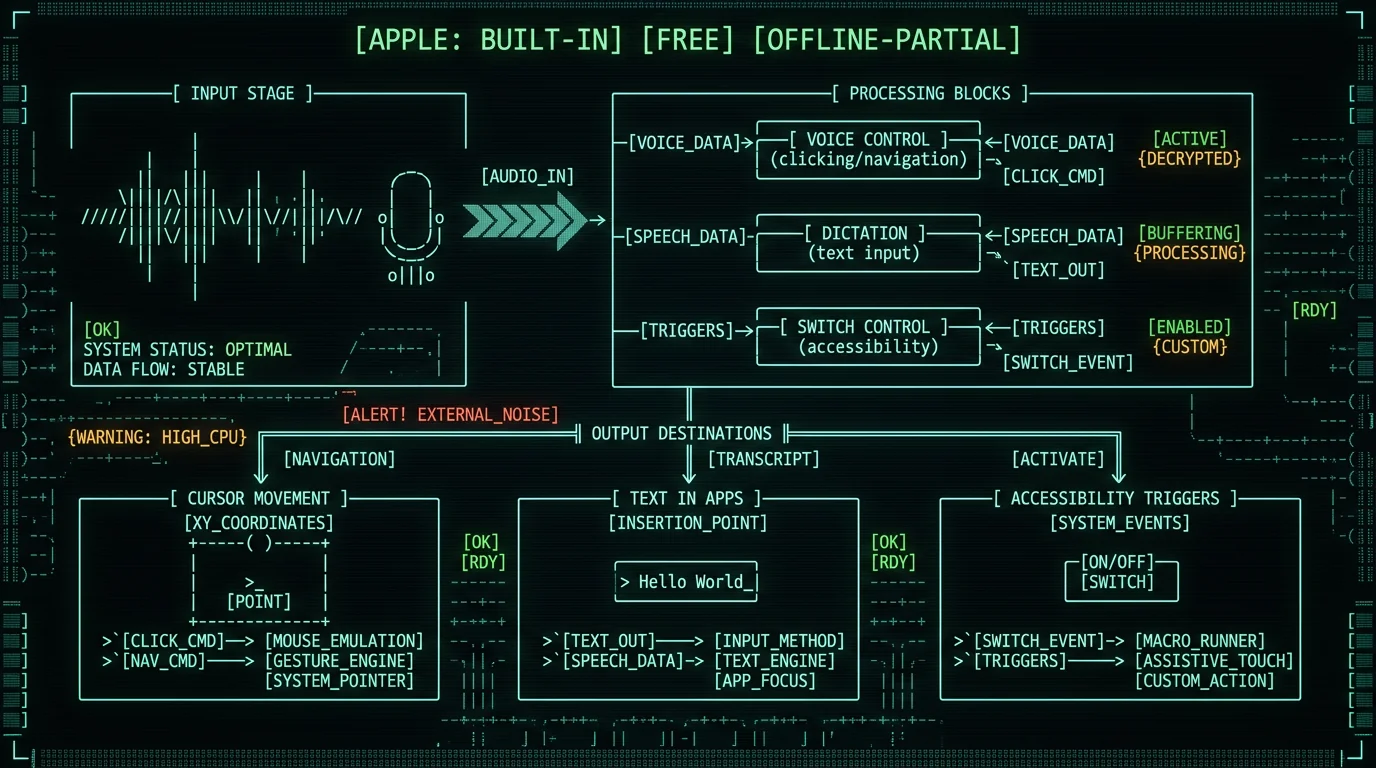
Three different problems get bundled into "hands-free Mac," and they're not the same problem. **Navigation and clicking.** Moving the cursor, opening apps, clicking buttons, dragging files. Apple's Voice Control ships with every Mac running macOS Sonoma or later and handles this for free. You say "click File menu" or "scroll down" and it happens. **Typing and writing.** Anything where the bottleneck is words on a screen — emails, documents, code comments, chat messages. This is where dictation apps live, including Apple's built-in Dictation (toggle with the Fn Fn shortcut) and third-party tools like MetaWhisp. **Accessibility-grade input.** For users who can't reliably use any pointing device at all — switch users, head-tracking, dwell-clicking. macOS has deep accessibility settings covering Switch Control, head pointer, and full keyboard control. The honest answer is that voice is excellent for the second category, good for the first, and one of several options for the third. No single tool does all three perfectly.What can Apple's built-in Voice Control do?
Voice Control is the foundation. Turn it on in System Settings → Accessibility → Voice Control, give it a moment to download the speech model the first time, and you're in business. The command set is wider than most people expect. You can: - Click anything by name ("click Save") - Use numbers overlaid on every interactive element on screen ("click 7") - Dictate text into any field ("type hello world") - Issue file and menu commands ("open Downloads," "quit Safari") - Navigate with "scroll up," "scroll down," "go back" - Use grid overlays for exact pixel placement It uses on-device speech recognition (Apple's own models), so it works offline. It's free. It's part of macOS. For clicking and navigation, it's the only sensible starting point and there's no reason to pay for an alternative. Where it falls down: long-form writing quality (Apple's built-in dictation accuracy is genuinely behind Whisper-class models), command vocabulary you don't know exists, and the absence of a usable "rewrite" or "clean up" step. If you're here for navigation and clicking, stop reading this section and turn on Voice Control. If you're here because typing is the bottleneck, keep going.Is Apple Dictation enough for writing long pieces?
Apple's built-in Dictation is fast — near-instant — and it works offline. For a quick Slack message or two sentences in a search bar, it's fine. For a 1,500-word document or a long email, my own head-to-head test on the same audio showed Apple Dictation landing at 11–14% WER versus 3.7% for the Whisper large-v3-turbo pipeline that runs in MetaWhisp. That gap matters when you're dictating in a flow. "Their," "there," and "they're" mistakes. Misheard proper nouns. Dropped punctuation. You end up editing as much as you write, which defeats the purpose. If you write more than a paragraph at a time and accuracy matters, you want Whisper-class transcription. Apple's built-in option isn't there yet.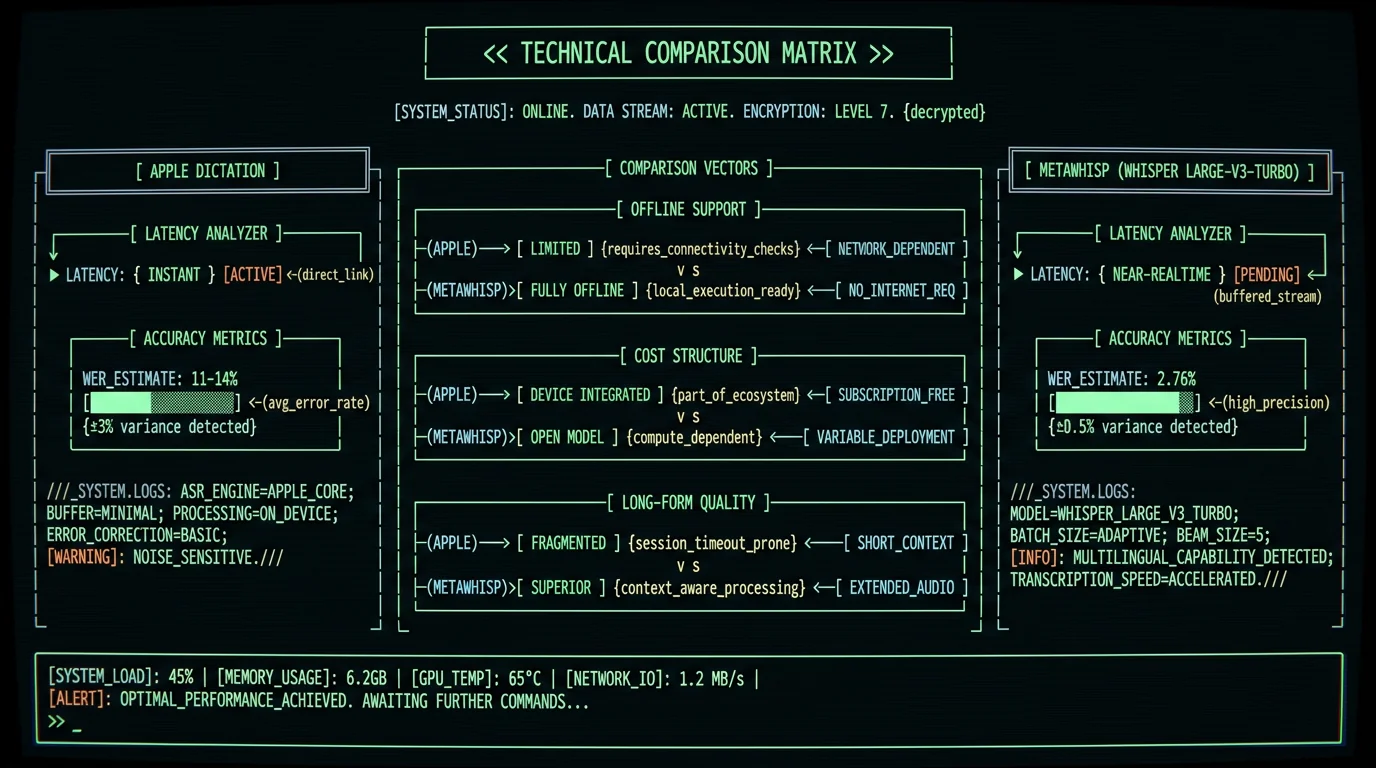
Switch Control and head pointer — when your hands aren't just tired
Most "hands-free Mac" articles skip this category because it's not the typical reader's situation. But if you can't use a trackpad at all, the right answer is one of these, not voice. **Switch Control** lets you scan through on-screen items (rows, groups, or a manual grid) and trigger an action with a single switch — a foot pedal, a sip-and-puff, a button, anything that can fire a keyboard event. macOS has it built in. It's the standard answer for many users with significant motor differences. **Head pointer** moves the cursor based on head position via the camera. It's built into macOS under Pointer Control → Head Pointer. Dwell-clicking (holding your head still on a target) replaces the click. **Full Keyboard Access** (macOS Sonoma and later) lets you drive the entire UI with keyboard shortcuts — every menu, every button, every tab. Combined with Voice Control's keyboard commands, it's a powerful combo. If any of these describes your situation, the right first step is Apple's accessibility docs and an appointment with an occupational therapist if you have access to one. Apps like MetaWhisp solve a different problem — they handle text, not input devices.Can you really code a Mac by voice?
Yes, with caveats. The honest state of voice coding in 2026: **What works.** Comments, docstrings, commit messages, variable names you dictate cleanly, talking through architecture out loud into a transcript, writing README files, replying to PR comments. **What's painful.** Precise symbol-by-symbol code entry. Saying "open curly bracket, function, foo, close curly bracket" is much slower than typing it. Voice is a dictation tool, not a code synthesizer. **The tool most people use.** Talon is the de facto standard for serious voice coding on macOS. It's a separate ecosystem from dictation apps — it ships its own recognizer and its own command grammar. If coding is your primary use case, Talon is where to spend your time, not a Whisper dictation app. For "I'm a developer and I want to dictate commit messages and long comments without breaking flow," a local Whisper dictation app is the right tool. For "I want to drive my IDE entirely by voice," Talon is.Honest gap: Voice coding is a real workflow, but it's a different workflow than dictation. The two tools solve different problems and most voice coders end up using both — Talon for IDE control, a Whisper app for prose.
How accurate is Mac voice recognition in 2026?
Three numbers, all real, all from the same Mac on the same audio in my own testing: - Apple Dictation: 11–14% WER (word error rate) - MetaWhisp on Whisper large-v3-turbo, on-device: 2.76% WER on LibriSpeech test-clean; ~3.7% in my own 7-app head-to-head - Other Whisper-based apps in that same test: 3.5–7% Domain-specific accuracy (legal, medical, dense proper nouns) has not been benchmarked in my testing — don't assume the same numbers hold in your field. Latency matters too. MetaWhisp runs on the Apple Neural Engine, which keeps transcription near-realtime for typical dictation speeds. Cloud Whisper is slightly faster on the first token but adds network round-trip variability.| Recognizer | WER (my test) | Latency | Offline |
|---|---|---|---|
| Apple Dictation | 11–14% | Instant | Yes |
| MetaWhisp (large-v3-turbo) | 2.76% (LibriSpeech) / 3.7% (real dictation) | Near-realtime | Yes |
| Other Whisper apps in same test | 3.5–7% | Near-realtime | Depends on app |
How do you set up a daily hands-free workflow?
Here is the order I'd set things up in if I were starting from zero today on an M-series Mac. **Step 1 — Turn on Voice Control.** System Settings → Accessibility → Voice Control → Enable. Spend 20 minutes learning the command vocabulary. The biggest unlock is "show numbers" — overlays let you click anything by spoken number, which beats saying full menu names. **Step 2 — Pick your dictation app.** For unlimited free local use on Apple Silicon, download MetaWhisp. The model downloads once (~950 MB) and runs locally after that. Set the global hotkey (default Right Option) and confirm it pastes into Notes, Slack, your IDE, anywhere text goes. See the global hotkey docs for how to remap it. **Step 3 — Decide if you need post-processing.** "Structured," "Correct," and "Rewrite" modes in MetaWhisp clean up filler words, fix punctuation, and lightly rewrite your dictated prose. They work on the free tier when you bring your own OpenAI or Cerebras API key — only the transcript text leaves your Mac, never the audio. See the processing modes page for what each mode does. If you'd rather skip the BYOK setup, MetaWhisp Pro ($30/year or $7.77/month) removes that step entirely. **Step 4 — Configure Voice Control commands for your dictation hotkey.** Add a custom Voice Control command like "Start dictation" that fires your MetaWhisp hotkey. Now you can drive everything by voice without touching the keyboard. **Step 5 — Calibrate expectations per task.** Some tasks are voice-native (email, writing, code comments, browsing, docs). Some are voice-hostile (pixel-precise design, fast games, dense spreadsheets). Don't try to force voice where it doesn't fit; switch back to the trackpad for those and save your hands the rest of the day.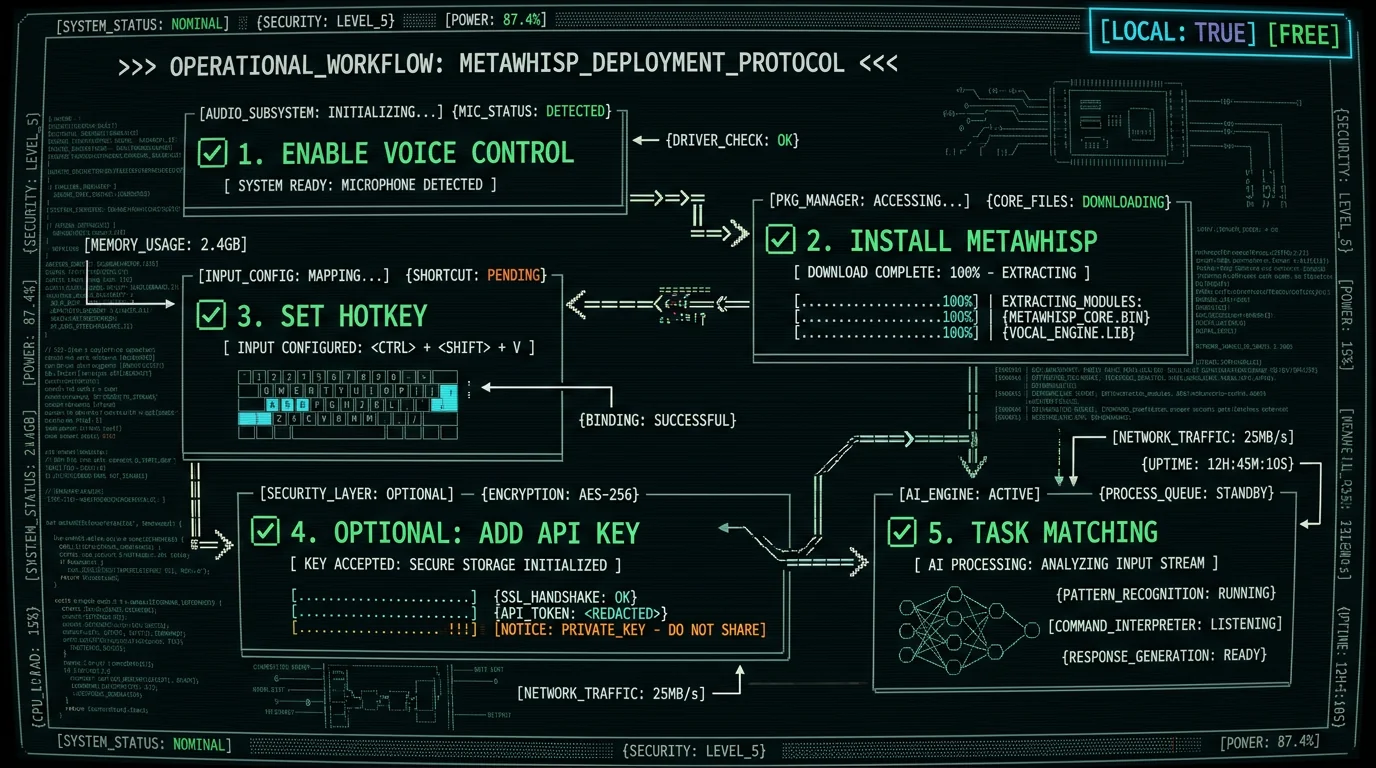
When voice alone isn't enough
Three honest failure modes I want to call out so you don't waste a week forcing voice into a job it can't do. **Precise visual work.** Pixel-level image editing in Photoshop, detailed Figma work, video timeline scrubbing. Voice is too slow and too coarse here. Use the trackpad or a drawing tablet. **Anything latency-critical.** Fast-paced multiplayer games, live trading interfaces, anything where the round-trip of "see → think → speak → wait → result" exceeds your window. You'll lose every time. **Noisy or shared environments.** Open-plan offices, coffee shops, the kitchen when someone's cooking. Dictation apps struggle in noise; Voice Control's command recognition struggles more. A directional mic helps; a quiet room helps more. For everything else — writing, email, browsing, coding comments, meeting notes, drafting docs — voice is a real workflow in 2026, and on Apple Silicon with on-device Whisper it doesn't even need the network.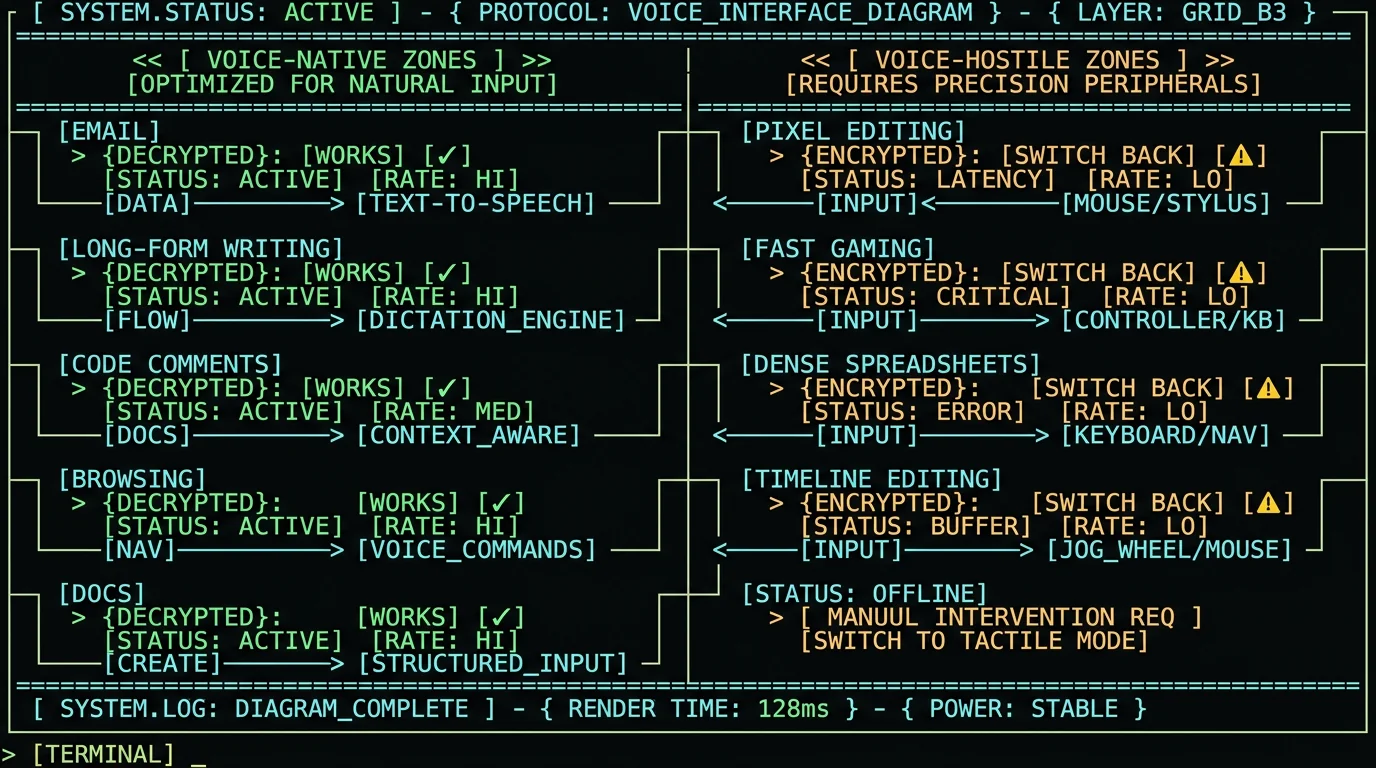
Pro tip: Keep a small notebook of tasks you tried hands-free and how it went. After two weeks you'll have a personal map of "voice-native" vs "voice-hostile" tasks for your actual work. That map is worth more than any review.
FAQ
Can I really use a Mac without a keyboard and mouse?
For most daily tasks — yes. Voice Control handles navigation and clicking, a local dictation app handles text, and Switch Control or head pointer cover users who can't reliably point. Pixel-precise design and latency-critical apps still need a trackpad or keyboard.
Is Voice Control free on Mac?
Yes. Voice Control is built into macOS. Enable it under System Settings → Accessibility → Voice Control. The speech model downloads once on first use, then runs on-device with no subscription.
What is the best voice typing app for Mac?
For unlimited free local use on Apple Silicon, MetaWhisp runs Whisper large-v3-turbo via WhisperKit on the Neural Engine — about 2.76% WER on LibriSpeech test-clean in my own run, audio never leaves the Mac, no account needed. For navigation and clicking, Apple's built-in Voice Control is the right answer and there's no reason to pay for an alternative.
Does voice control work in every Mac app?
Voice Control works in any app that exposes standard accessibility hooks — which is essentially every Mac app. Dictation depends on the field being a real text input. Some custom-drawn interfaces or canvas elements may need numbers-overlay mode or a keyboard fallback.
Can I code a Mac by voice?
Yes for comments, commit messages, docstrings, and prose around code. Talon is the de facto tool for IDE-level voice control. For dictating long prose into a code editor or chat, a Whisper dictation app is faster than Talon's built-in recognizer.
How accurate is Mac voice recognition in 2026?
My own head-to-head on the same audio: Apple Dictation 11–14% WER, MetaWhisp on Whisper large-v3-turbo 2.76% WER on LibriSpeech test-clean (~3.7% in real dictation), other Whisper apps 3.5–7%. Domain-specific accuracy has not been benchmarked.
Does Mac Voice Control work offline?
Yes. Apple's speech recognition for Voice Control runs on-device after the initial model download. No network is needed for either recognition or command parsing.
How do I set up Voice Control on Mac?
Open System Settings → Accessibility → Voice Control, toggle it on, and wait for the speech model to download. Then say "show numbers" to see the click overlay, or try "click File menu" to navigate by name.
About the author
Andrew Dyuzhov is the solo founder of MetaWhisp, a free on-device voice-to-text app for macOS. He dictates daily in Russian and English, ran the 7-app voice-to-text head-to-head that the accuracy numbers in this article come from, and uses voice-first workflows to work around ADHD writing paralysis. He is not an accessibility specialist, occupational therapist, or medical professional — anything in this article that touches motor differences, RSI, or accessibility workflows is product knowledge and personal experience, not clinical advice. For sustained pain or motor symptoms, please see a clinician.
