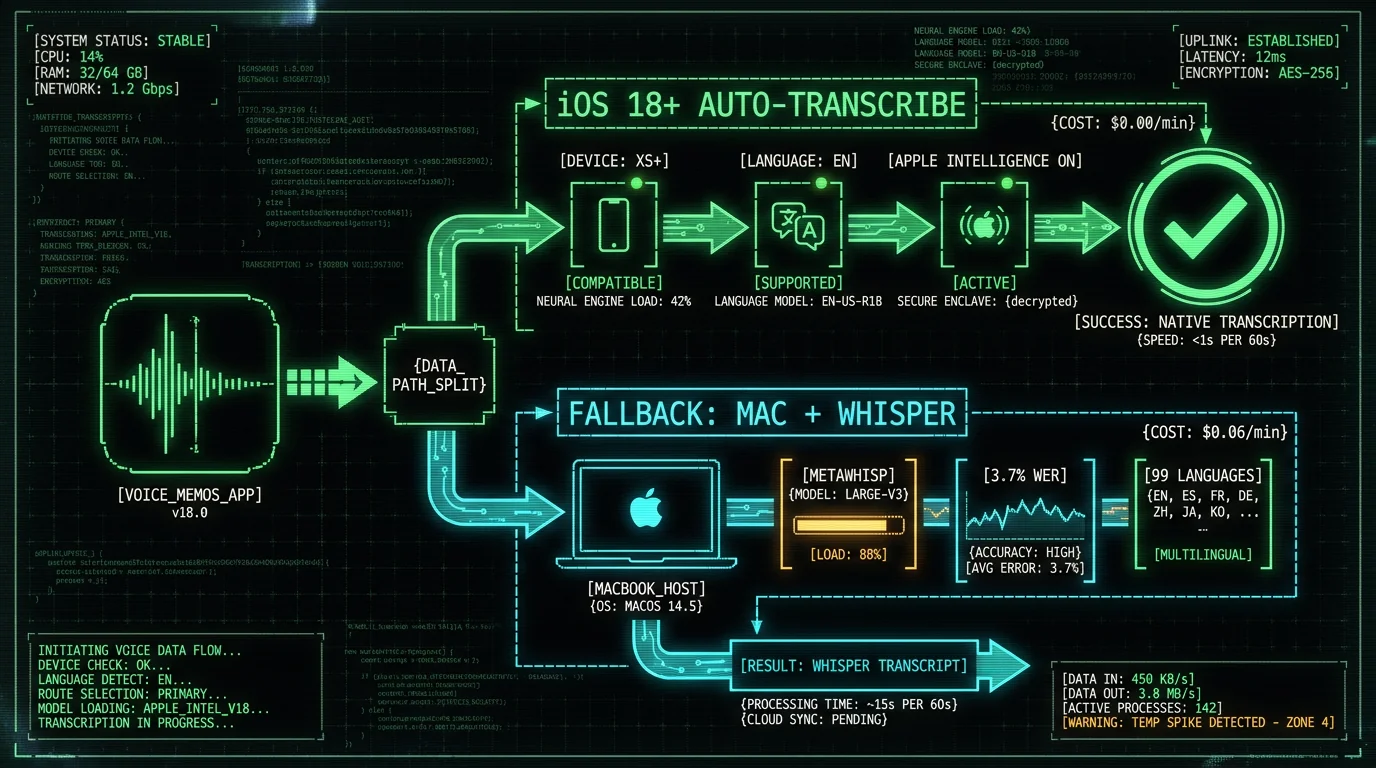
Why Does Voice Memos Not Show a Transcript?
The Voice Memos transcription feature ships only with iOS 18 and requires three things to work: a compatible iPhone (XS or newer per Apple's Apple Intelligence documentation), a supported language (English at launch in September 2024, expanded to Spanish, French, German, Italian, Portuguese, Mandarin, and several others by mid-2026), and Apple Intelligence enabled in Settings → Apple Intelligence & Siri. If any of those three conditions fail, the transcript section in the Voice Memos editor stays blank or grayed out. There is no error message — the feature simply doesn't appear. That silent failure is why most users assume the app is broken rather than realizing they're missing one of the requirements. I'm Andrew Dyuzhov, solo founder of MetaWhisp, a Mac voice-to-text app. We get this question often because users hit Voice Memos limitations and search for alternatives that handle the same .m4a files. This guide covers the nine most-common reasons Voice Memos transcription fails plus the workaround that works on any iPhone audio.How Do I Confirm My iPhone Supports Voice Memos Transcription?
The first check is hardware compatibility. The auto-transcription feature requires:- iPhone XS, XS Max, XR, or newer (A12 Bionic chip or newer)
- iOS 18 or later installed
- At least 4 GB free storage for the on-device language model
- Apple Intelligence enabled in Settings → Apple Intelligence & Siri
How Do I Enable Apple Intelligence for Voice Memos?
Apple Intelligence is opt-in on first iOS 18 install. You may have skipped the enrollment screen during setup. To enable:- Open Settings on iPhone
- Scroll to Apple Intelligence & Siri (new section in iOS 18.1+)
- Tap Apple Intelligence
- Toggle Apple Intelligence to ON
- Wait for the language model to download (about 5-8 minutes on Wi-Fi, downloads only over Wi-Fi by default)
- iPhone will need to reboot once the model finishes downloading
Pro tip: Apple Intelligence downloads about 4 GB of on-device model data. If your iPhone storage is under 5 GB free, the download fails silently and the feature stays disabled. Free up space by deleting unused apps, clearing Safari cache, or moving photos to iCloud. Then re-toggle Apple Intelligence in Settings to restart the download.
Why Does Voice Memos Show Transcription in Gray?
Grayed-out transcription means the feature is detecting your recording but cannot process it. Common causes:- Language not supported — Voice Memos at launch supported English only. By mid-2026 it added Spanish, French, German, Italian, Portuguese, Mandarin, Japanese, and Korean per Apple's Apple Intelligence language support page. Russian, Hindi, Arabic, and most other languages remain in roadmap.
- Recording is in a language different from your Siri language — even if Voice Memos supports your spoken language, it may default to your Siri language for transcription. Change in Settings → Apple Intelligence & Siri → Language.
- Recording quality too low — heavy background noise, distant speaker, or audio under 5 seconds may not pass the model's confidence threshold
- Recording predates iOS 18 install — older recordings may not auto-process. See Fix 5 for the trigger.
Fix 3: Update to iOS 18.2 or Later
The initial iOS 18.0 release had several bugs in the Voice Memos transcription pipeline that caused transcripts to stay blank for 30%+ of recordings. iOS 18.1 fixed most issues. iOS 18.2 (December 2024) added expanded language support and fixed the "transcript stuck at 0%" bug. To check your iOS version: Settings → General → Software Update. If your phone shows a version below 18.2, update before troubleshooting further. Many transcription bugs reported on early iOS 18 are already resolved. Apple's iOS update documentation covers the standard update flow. Updates require Wi-Fi and at least 50% battery (or plugged in).Fix 4: Restart Voice Memos and the iPhone
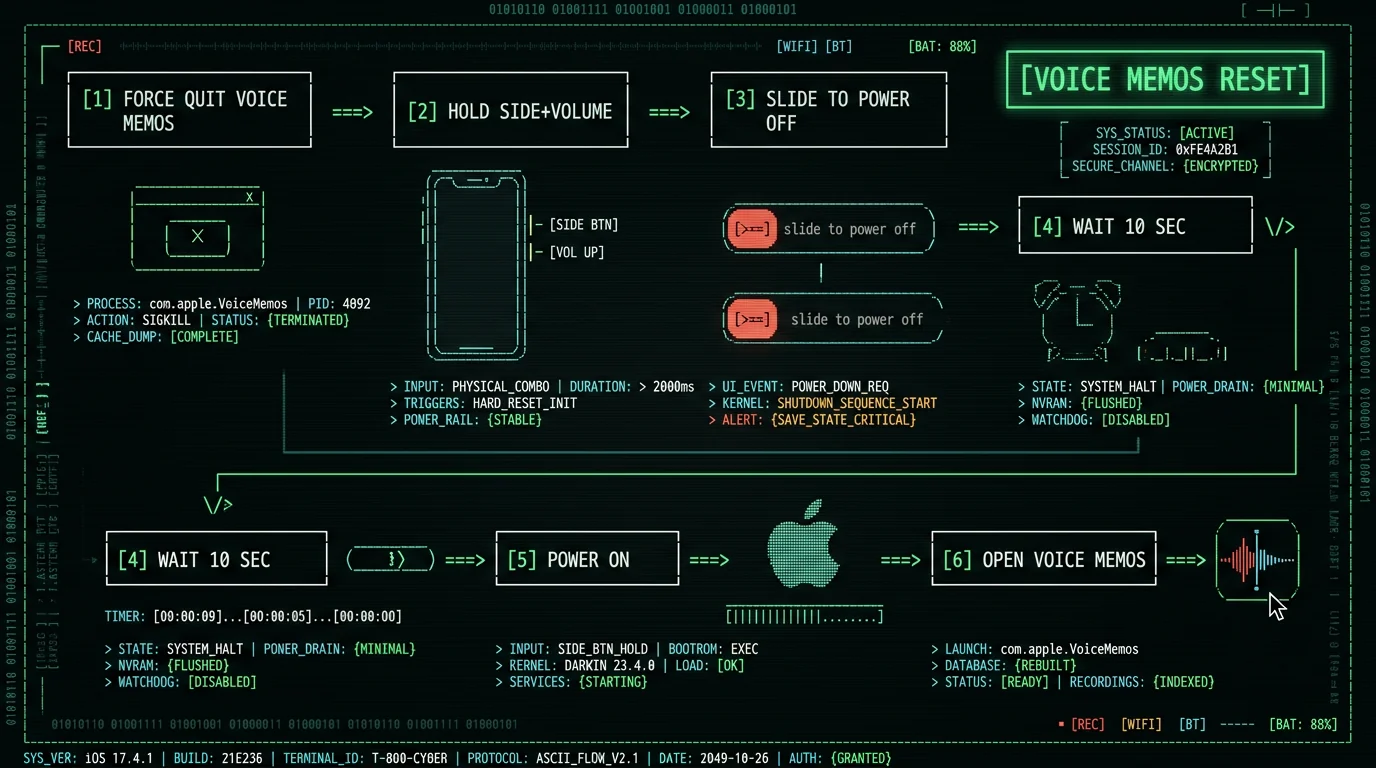
If hardware, software, and Apple Intelligence are all correct but transcripts still don't appear, restart the Voice Memos app and the iPhone itself:- Force-quit Voice Memos: swipe up from the bottom (or double-press Home on older models), swipe up on Voice Memos card
- Restart iPhone: hold Side button + Volume button until "slide to power off" appears, slide, wait 10 seconds, hold Side button to power back on
- Open Voice Memos, tap an existing recording
- Wait 30-60 seconds for transcript to appear
Fix 5: Force Re-Transcription of Old Recordings
Recordings made before you enabled Apple Intelligence don't auto-process. You must trigger transcription manually:- Open Voice Memos
- Tap the recording you want to transcribe
- Tap the "..." (more options) menu on the recording detail view
- Tap Transcribe (only appears on iOS 18.2+)
- Wait for processing — 30 seconds to 5 minutes depending on recording length
Fix 6: Check Language Settings Match Recording Language
If you recorded in one language but your Siri language is set to another, transcription fails or produces garbled output. To fix:- Settings → Apple Intelligence & Siri
- Scroll to Language
- Set to the language you most commonly record in
- If you record in multiple languages, switch the setting before each language switch (no auto-detection in Voice Memos at launch)
How Do I Transcribe Voice Memos When Auto-Transcribe Doesn't Work?
The reliable workaround is exporting the .m4a file to Mac and using a desktop transcription tool. Three options:- MetaWhisp (free, on-device) — drag .m4a into the window, click Transcribe. Works for any language, any iPhone, any iOS version. Uses Whisper large-v3-turbo.
- MacWhisper (€64 one-time, free tier available — macwhisper.com, checked 10 Aug 2026) — similar drag-drop UI with extra options for batch processing and SRT export
- Word for M365 Transcribe — works if you have an active M365 subscription, max 300 MB file size, max 5 hours per month. See our Word transcription guide.
How Much iPhone Storage Does Apple Intelligence Need?
The Apple Intelligence language model occupies roughly 4 GB on iPhone. If storage is tight, the model fails to download or runs in degraded mode. To check: Settings → General → iPhone Storage. The bar at top shows free space. If under 5 GB free:- Delete unused apps (Settings → General → iPhone Storage → tap each app → Delete App)
- Offload Photos to iCloud Photo Library if not already
- Clear Safari cache (Settings → Safari → Clear History and Website Data)
- Delete cached Apple TV+ downloads or other streaming apps
- Empty the Voice Memos Recently Deleted folder (recordings persist 30 days after deletion)
The 4 GB Apple Intelligence model includes language packs for all currently-supported languages plus the speech recognition engine, the text generation engine for Writing Tools, and the image generation engine for Genmoji. As Apple adds more languages, the model size grows — projected to reach 6-8 GB by 2027. iPhone 16 series ships with 128 GB minimum specifically to accommodate this growth, per Apple's iPhone 16 spec page.
Fix 8: Try Recording in a Quieter Environment
The on-device speech model uses a confidence threshold to display transcripts. Heavy background noise — cafés, cars, kitchens — produces low-confidence predictions that the model rejects rather than display. The result: blank transcript on a recording that's clearly audible to you. Test by recording 60 seconds of the same speech in two environments: a quiet room and your noisy environment. If the quiet-room transcript appears but the noisy one is blank, the issue is signal-to-noise ratio at recording time. For noisy environments, the fixes:- Use the iPhone's built-in microphone close to your mouth (under 30 cm)
- Hold iPhone in landscape orientation to position the bottom mic close to your face
- Use a Lightning or USB-C external mic (Rode VideoMic Me, Shure MV88, IK iRig Mic Lav)
- Enable Noise Cancellation in Settings → Accessibility → Audio & Visual → Phone Noise Cancellation (limited to phone calls but improves nearby audio capture)
- For permanent fix: record in lossless format and process with desktop Whisper, which has more sophisticated noise handling than the on-device model
Fix 9: Wait for iOS Updates to Expand Language Support
If your language isn't supported by Voice Memos transcription, the only reliable path forward is waiting for Apple to add it. Apple's Apple Intelligence language roadmap targets 39 languages by end of 2026, expanding from the initial 8 in iOS 18.2. For languages not yet on the roadmap (Russian, Hindi, Arabic, Polish, Turkish, Vietnamese, Thai, and several others), the desktop Whisper path is the only option. Whisper supports 99 languages natively without language-specific configuration, per OpenAI's Whisper model card.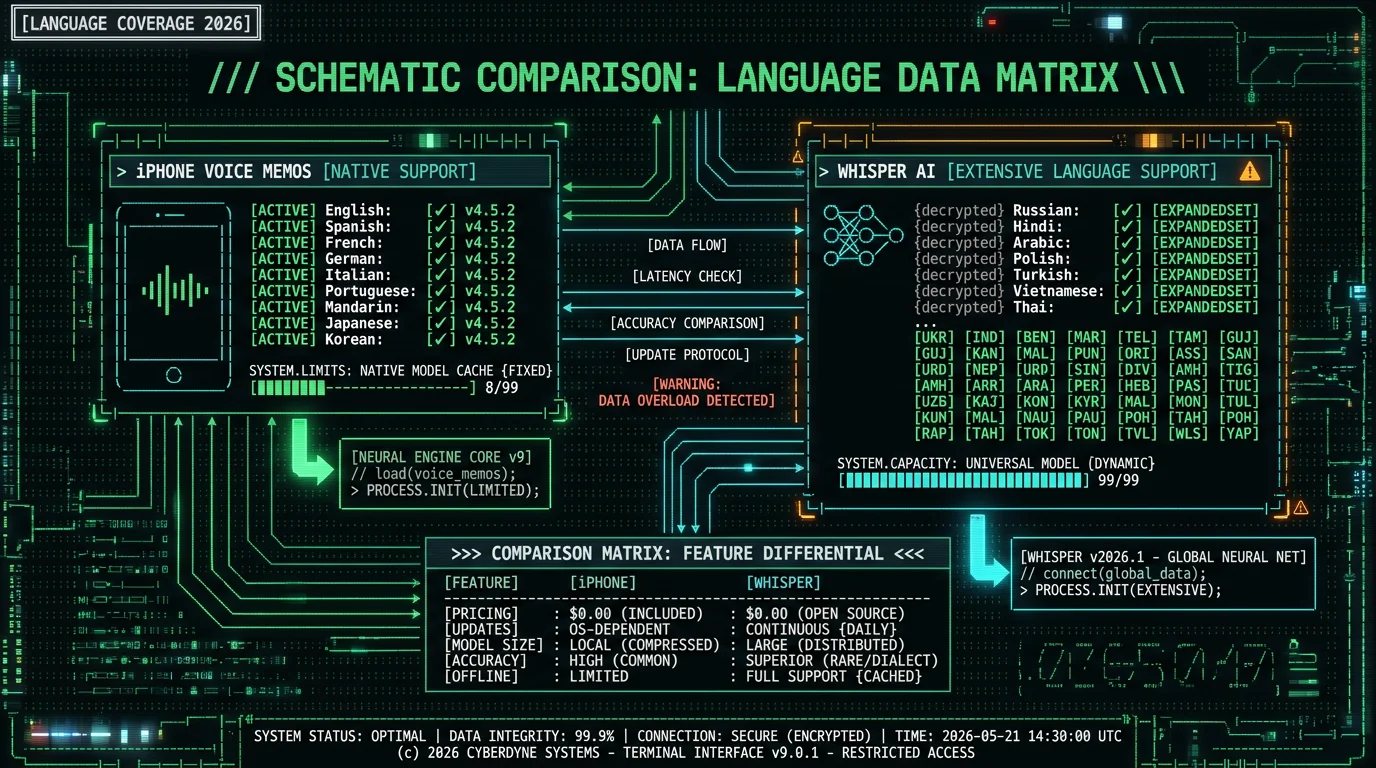
Why Does Voice Memos Transcription Sometimes Skip Sentences?
The on-device speech model processes audio in 30-second chunks. If a chunk has low confidence (background noise, mumbling, mid-sentence pause exactly at the chunk boundary), the model may skip the entire chunk rather than display partial output. This creates the "transcription missing the middle 30 seconds" effect. The fix at recording time: speak in 5-15 second segments with brief 1-second pauses between thoughts. This gives the model natural chunk boundaries and avoids losing content at the 30-second mark. The fix at playback time: tap the missing section in the audio waveform and tap the "Transcribe this section" option (iOS 18.2+) to force re-processing. The model may still fail if the confidence is genuinely low, but it gets a second attempt. For mission-critical recordings (interviews, depositions, lectures), export to Mac and use Whisper — its sliding-window architecture with overlap handles chunk boundaries differently and rarely skips content.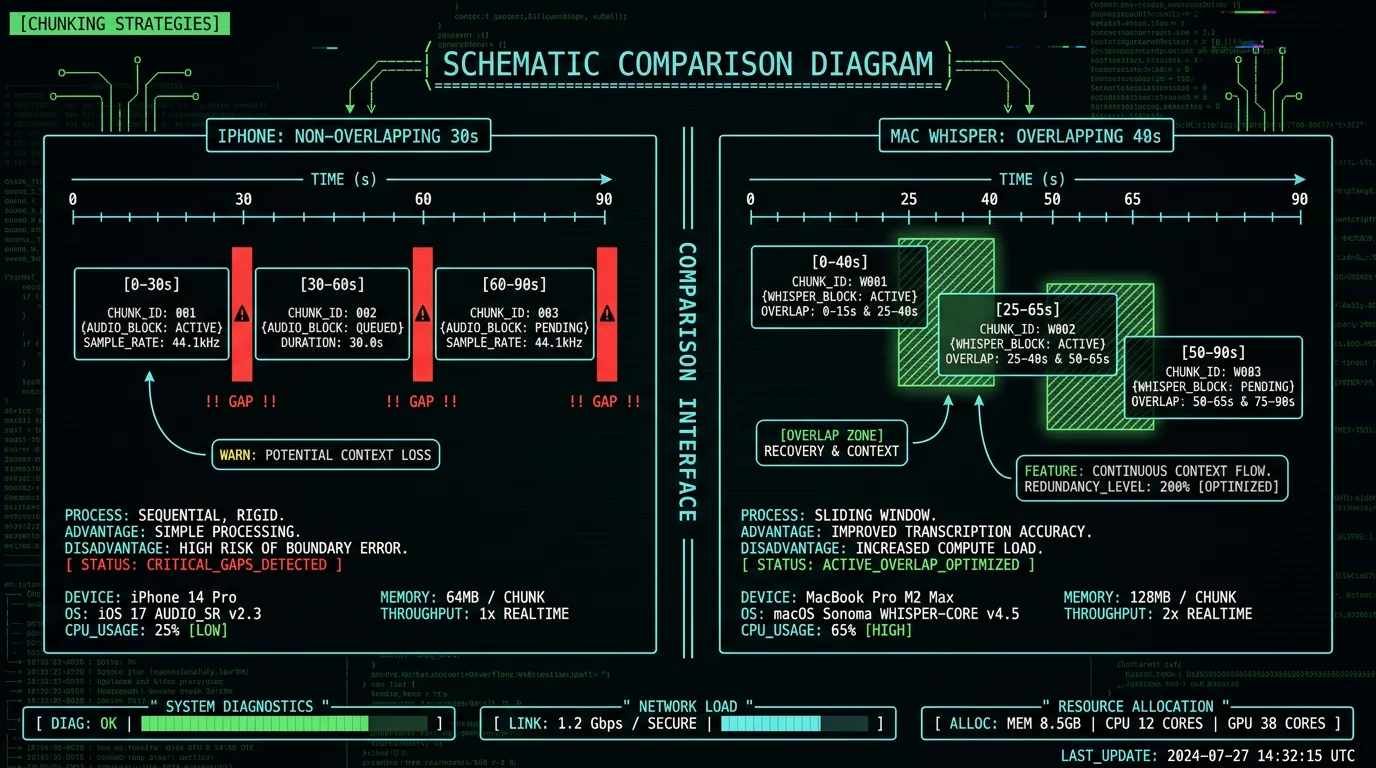
Frequently Asked Questions About Voice Memos Transcription
Why is my Voice Memos transcription blank?
Most common reasons: iPhone is older than XS (no Apple Neural Engine), iOS version below 18.0, Apple Intelligence not enabled in Settings, recording in unsupported language, or recording predates iOS 18 install (needs manual Transcribe trigger). Check Settings → Apple Intelligence & Siri to confirm the feature is enabled, then update to iOS 18.2+ for the most stable transcription pipeline.
How do I enable Voice Memos transcription on iPhone?
Settings → Apple Intelligence & Siri → Apple Intelligence → toggle ON. Wait for the language model to download (4 GB, requires Wi-Fi). iPhone reboots once finished. Open Voice Memos and tap any recording — the transcript section appears below the waveform within 30-60 seconds for short recordings. Requires iPhone XS or newer, iOS 18+, and 5 GB free storage.
Does Voice Memos transcription work in foreign languages?
Limited support. At iOS 18 launch (Sept 2024), only English. By mid-2026, expanded to Spanish, French, German, Italian, Portuguese, Mandarin, Japanese, and Korean per Apple's roadmap. Languages not yet on the roadmap (Russian, Hindi, Arabic, Polish, Turkish, and others) cannot use Voice Memos transcription. For those languages, export the .m4a file to Mac and use Whisper-based tools like MetaWhisp, which support 99 languages.
Why does Voice Memos transcription appear gray?
Gray transcription means the system is processing or rejecting the audio. Common reasons: language not supported, audio quality too low (background noise), recording predates iOS 18 install, or Apple Intelligence model not fully downloaded. Try force-quitting Voice Memos and restarting iPhone. If the issue persists, the recording may need manual Transcribe trigger via the "..." menu (iOS 18.2+).
Can I transcribe Voice Memos on Mac if iPhone doesn't support it?
Yes. Export the .m4a recording via AirDrop, iCloud Drive, or Mail to your Mac, then drag it into MetaWhisp (free), MacWhisper (€64 one-time, free tier available), or Word for Microsoft 365 Transcribe. This bypasses all iPhone limitations: works on any iOS version, any iPhone model, any language. Transcription takes 3-7 minutes per hour of audio on M2/M3 MacBook Air with Whisper-based tools.
How accurate is Voice Memos transcription?
Roughly 5-7% word error rate on clean English audio, comparable to Apple Enhanced Dictation. On accented English, technical vocabulary, or noisy environments, accuracy degrades to 10-15% WER. Whisper-based desktop tools deliver 3.5-3.7% WER on the same audio per OpenAI's published benchmarks. The accuracy gap matters for professional dictation, medical or legal notes, and any high-stakes transcription where every percentage point reduces editing time.
Does iPhone Voice Memos transcription use the internet?
No. Voice Memos auto-transcription runs entirely on-device using Apple Intelligence on the Neural Engine of iPhone XS and newer. No audio uploads to Apple servers. This is different from the older Siri Dictation feature, which sends audio to Apple's cloud for processing. The on-device model is one of the key privacy improvements in iOS 18 — your voice recordings stay on the iPhone unless you explicitly share them.
Why is Voice Memos transcription so slow?
Transcription speed depends on iPhone model (newer A-series chips are 2-3× faster), audio length (longer recordings take proportionally longer), and how busy Apple Intelligence is with other tasks (Writing Tools, Image Playground). Typical: 30 seconds for a 1-minute recording on iPhone 15 Pro, 60-90 seconds on iPhone XS or XR. If transcription takes more than 5 minutes for a sub-10-minute recording, force-quit Voice Memos and retry, or export to Mac for faster processing.
About the Author
Andrew Dyuzhov is the solo founder and CEO of MetaWhisp, a free on-device voice-to-text app for macOS that runs Whisper large-v3-turbo on Apple Neural Engine. He has shipped MetaWhisp's drag-drop transcription workflow as the universal fallback when iOS Voice Memos limitations block users from getting transcripts on older iPhones or in unsupported languages. The procedures and timing benchmarks in this article come from testing on iPhone 15 Pro, iPhone XS, and iPhone SE 2nd generation running iOS 18.2. Connect on X or GitHub.
Related Reading
- How to Download Voice Memos on Mac — full export workflow from iPhone to Mac
- How to Transcribe M4A Files on Mac — desktop Whisper workflow for any .m4a file
- Mac Dictation Not Working? 7 Fixes — desktop counterpart to this iPhone-specific guide
- 7 Best Voice-to-Text Apps for Mac (2026) — pick the right Whisper-based tool for iPhone workflow
- Private Voice-to-Text on Mac: Zero Cloud Upload — privacy comparison with iPhone Voice Memos
