TL;DR: Mac dictation doesn't insert text when you press the key — it inserts when transcription finishes. If you click away before that moment, your paragraph pastes into whatever window holds focus. Keep the target app focused until paste completes, or use clipboard-based paste (which MetaWhisp uses) as a recovery path.
Why Your Dictation Lands in the Wrong App
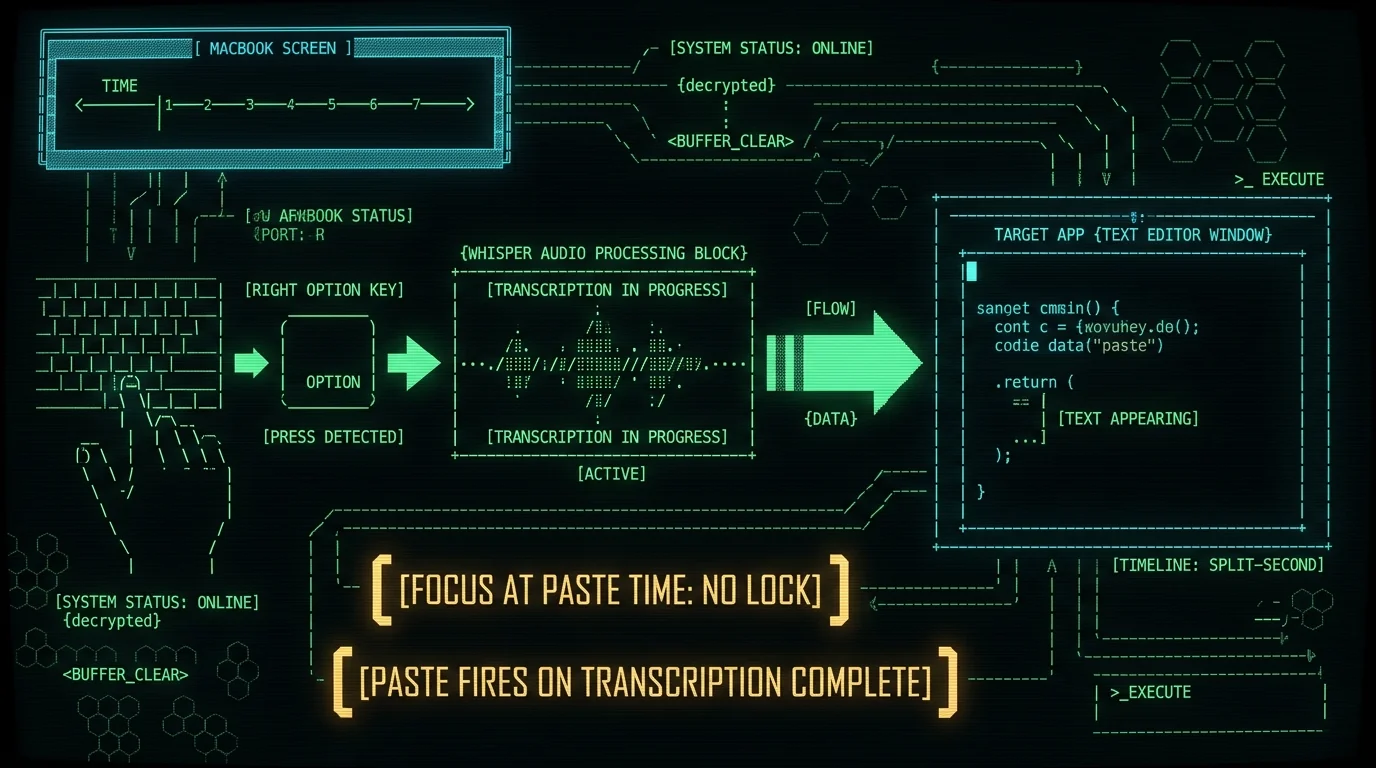
This trips up everyone who switches from a dedicated dictation tool to macOS native dictation or Whisper-based apps. The core issue is timing. When you press the dictation hotkey, the app captures which window currently holds keyboard focus. Then audio recording begins. Then transcription runs (locally, if you're using an on-device model like Whisper). Then text insertion happens — but that last step fires a second or two after you released the key. The window that receives your text is the one that had focus at the moment of insertion, not at the moment of key press. If you dictated a 30-second paragraph, checked a Slack message, and came back, your text went to Slack. This is not a bug in MetaWhisp or macOS dictation — it's how asynchronous transcription works by design. The apps don't hold a "lock" on the original window. They paste into whatever happens to have focus when the audio processing finishes.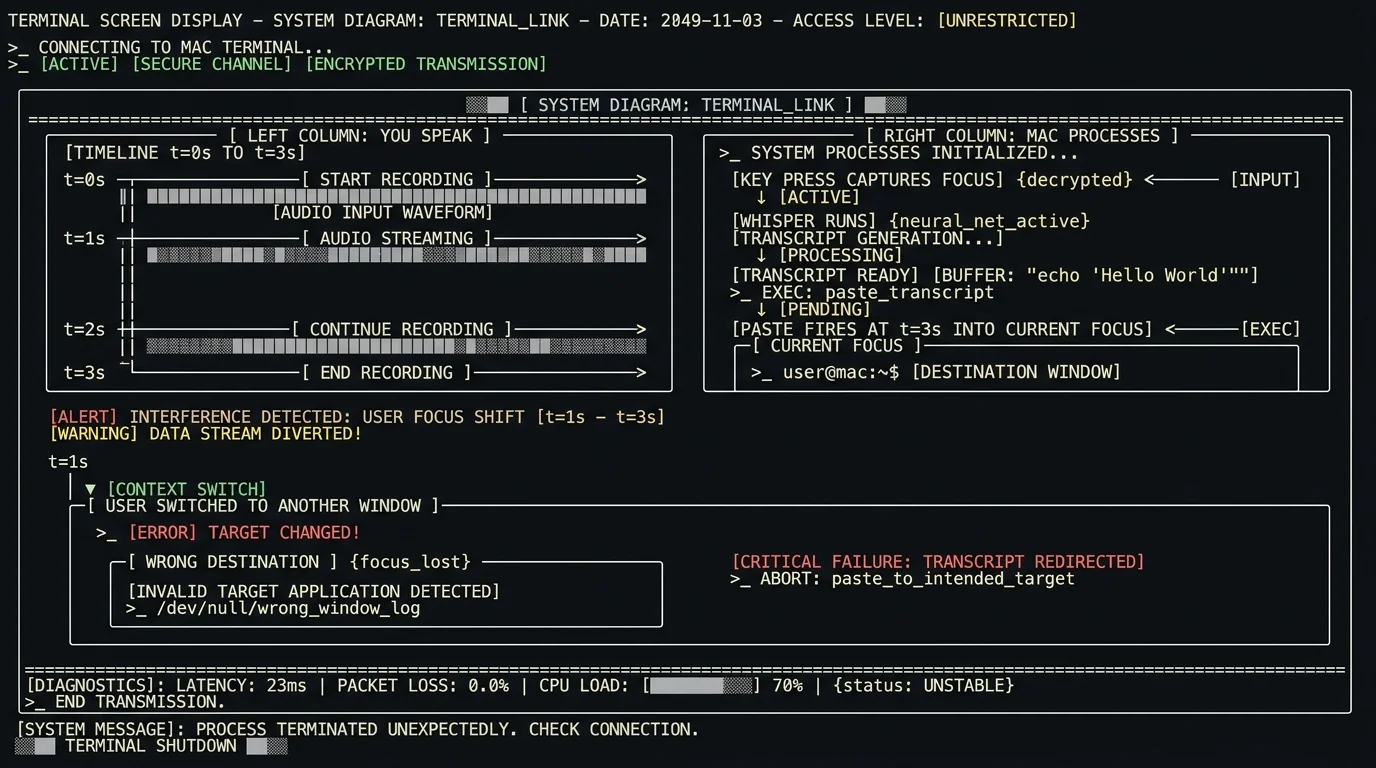
The Hold-to-Talk Rule (And Why Toggle Is Dangerous)
Dictation tools typically offer one or both of two activation modes: toggle (press once to start, press again to stop) and hold-to-talk (record only while key is held). macOS native dictation uses toggle activation; many third-party tools support both modes. Hold-to-talk is safer for focus management. The moment you release the key, the app knows recording is done and begins processing. You stay in control of the target window throughout the entire cycle. Toggle mode is where people get burned. You press the key, start talking, see a Slack notification pop into the corner of your screen, and — out of habit — you click it. By the time transcription finishes 2 seconds later, your cursor is in Slack and your paragraph follows it. If your app of choice supports hold-to-talk, use it. MetaWhisp uses a press-and-hold or press-to-toggle model via its global hotkey — you control when recording starts and stops, and the window that had focus when you pressed the key is where text will insert, provided you don't actively redirect focus before paste fires.When It's Safe to Switch Windows
The critical window is between releasing the hotkey and the paste completing. For short phrases — "hello comma how are you" — this gap is under a second. For a paragraph, it could be 3–5 seconds depending on your Mac and audio complexity. The safest approach: keep your hands off the mouse and trackpad from key press through paste confirmation. If you need to check something, use Command+Tab to verify you're in the right app, then Command+Tab back — that switch is keyboard-only and doesn't always change focus in the way the dictation app monitors it. Ideally, don't switch at all. If the app shows a visual indicator when paste is firing (MetaWhisp shows a transcription preview before inserting), wait for it. If there's no indicator, estimate based on utterance length.Pro tip: If you dictate a lot of long-form content, break it into chunks — one topic per burst. Shorter utterances mean shorter windows between recording and insertion, and fewer opportunities for a stray click to redirect your text.
Insertion-at-Cursor vs. Clipboard Paste
Two mechanics handle text insertion after transcription: Insertion-at-cursor (used by macOS native dictation and some apps): the app programmatically moves the cursor to the last known position in the target app and types the text. This is elegant but fragile — if the target app moved, scrolled, or lost focus, the insertion point is wrong or the text goes to the wrong place. Clipboard paste (MetaWhisp's approach): the app writes the transcript to the clipboard and sends Command+V to the focused window. This is more predictable — paste always goes to the active cursor position in the currently focused app. The tradeoff is that it overwrites whatever was on your clipboard, which is why MetaWhisp's auto-paste feature restores your previous clipboard contents after a configurable delay. Clipboard paste means MetaWhisp needs the target window to hold focus from the moment you trigger the hotkey through the moment paste fires. If you switch apps, paste fires in whatever you switched to. There's no way to redirect it back to the original target after the fact.Per-App Quirks That Catch People
Not all apps handle incoming paste events the same way. Here's what trips people up in common scenarios: Terminal and code editors (VS Code, iTerm2, Terminal.app): Many terminals intercept Command+V and don't paste — they may treat it as a Vi/Vim command or ignore it entirely. If you're dictating into a terminal window, test your setup first. Some users map insertion to a dedicated buffer rather than direct paste. Browser address bar: Pasting into the URL bar and pressing Enter is a common accidental sequence. If MetaWhisp pastes while your cursor is in the address bar, you may accidentally navigate away or search with your transcript as the query. Slack, Discord, Messages: These apps paste into the active message field. If you have multiple DM threads open and switch between them, the paste goes to whichever thread is currently selected — not necessarily the one you started dictating in. Spotlight or Alfred: Never dictate with Spotlight open. Paste events fire into the search field and treat your transcript as a search query. Full-screen apps: Some full-screen apps (especially games or presentation modes) swallow keyboard events. MetaWhisp can't insert text if the target app isn't receiving input at paste time.How to Recover Text That Landed in the Wrong App
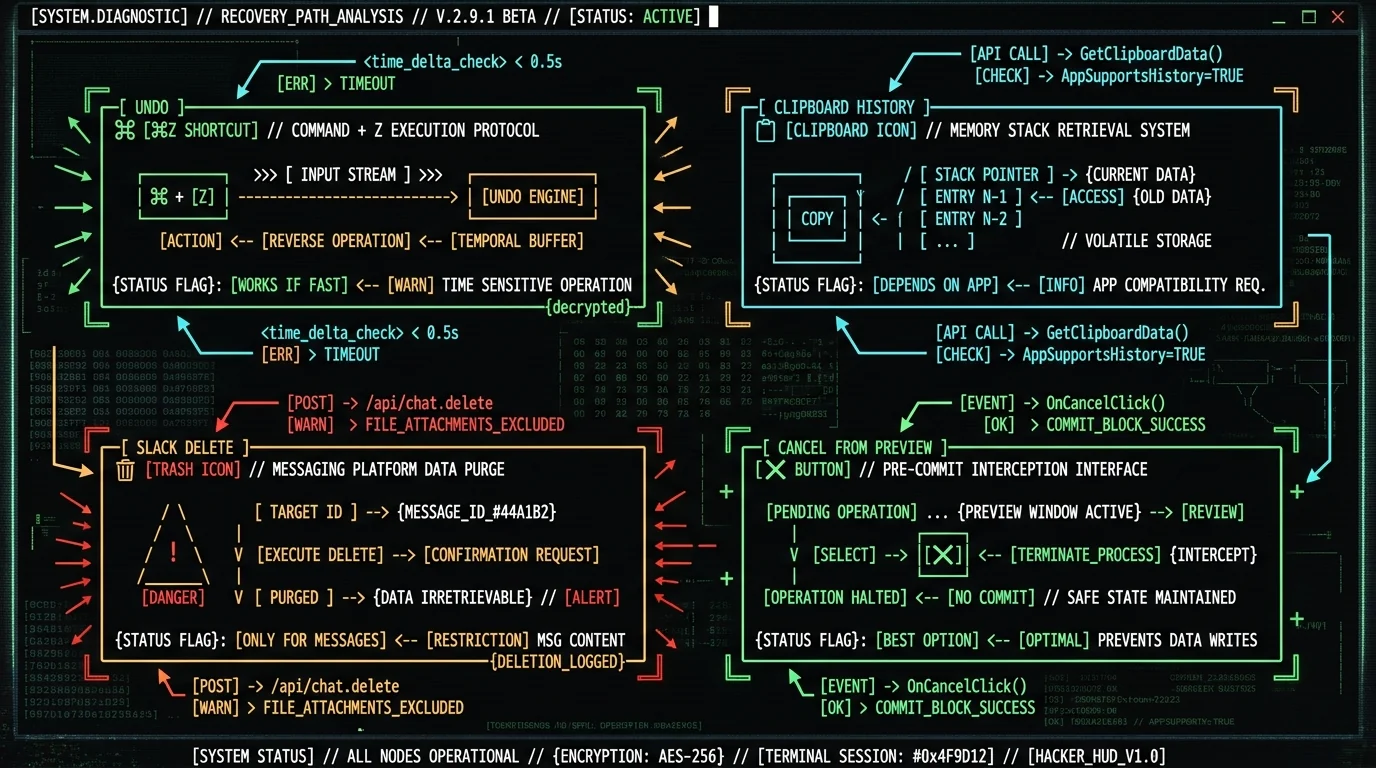
If text already went somewhere you didn't intend, here are recovery paths in order of likelihood:- Undo in the destination app: Most apps (Slack, Notes, TextEdit, browsers) support Command+Z. If you catch it immediately, undo paste will reverse the insertion. Do this before you type or click anything else in that app.
- Clipboard history: If you have a clipboard manager (Raycast, Alfred, Paste, or a third-party clipboard manager), your previous clipboard contents are probably saved. MetaWhisp restores your clipboard automatically after auto-paste, but if the wrong text was already pasted and then overwritten, clipboard history is your next best option.
- Channel audit log (Slack, Teams): If you pasted into a Slack channel, Slack keeps a full message history. You can delete the mistakenly sent message and re-dictate to the right destination.
- Terminal buffer: If text pasted into a terminal, it may still be visible in the scrollback buffer even if you can't undo the paste. Copy it from there and paste it where it belongs.
- Transcription preview: MetaWhisp shows a preview window before inserting text. If you catch the preview, you can cancel and re-target — this is the only way to intercept the paste before it fires.
How to Dictate Into Multiple Apps Without Losing Focus
If your workflow genuinely requires dictating into different apps throughout the day, here's a discipline that works: Step 1: Press the hotkey and speak. The window you're in at that moment is your target. Step 2: Watch the transcription indicator. MetaWhisp shows processing status — wait for the insertion confirmation before switching apps. Step 3: If you're interrupted mid-dictation (a call, a colleague), finish the utterance, wait for paste, then handle the interruption. Don't switch apps during an active dictation session. Step 4: For switching between apps strategically, use keyboard navigation (Command+Tab) rather than clicking — it's faster and less likely to accidentally trigger a paste in the wrong window if your dictation is still processing. This cadence sounds restrictive, but it becomes second nature within a few days. The alternative — losing paragraphs to Slack — is worse.What MetaWhisp Does Differently
MetaWhisp runs Whisper on the Apple Neural Engine, entirely on your Mac. Audio never leaves the device in local mode. The global hotkey (default Right Option, customizable) defines which window will receive text: whatever app has focus when you press the key is the insertion target. The auto-paste feature writes the transcript to clipboard, sends Command+V to the focused window, and restores your previous clipboard contents after insertion. This makes the insertion reliable across most apps — but it still requires the correct window to hold focus when paste fires. The Structured mode and translation features use your own API key (BYOK) for AI post-processing, but the focus and insertion mechanics are the same: the text goes where your cursor is. Local mode is free and unlimited. No account, no time caps. You can download MetaWhisp and run it without handing over anything.Quick Reference: Focus Rules by Dictation Tool
Note: Third-party tool behavior below reflects the author's hands-on testing; consult vendor documentation for current specifications. MetaWhisp behavior is per the founder's own product.
| Tool | Activation | Insertion Method | Focus Lock |
|---|---|---|---|
| macOS Native Dictation | Toggle or hold | Insertion-at-cursor | None — paste fires at current focus |
| MetaWhisp (local mode) | Hotkey (hold or toggle) | Clipboard paste | None — paste fires at current focus |
| Apple Dictation (Enhanced) | Toggle | Insertion-at-cursor | None |
| Wispr Flow | Hold | Insertion-at-cursor | Soft — best effort |
| SuperWhisper | Toggle | Insertion-at-cursor | None |
