What captured it, why it auto-shared, and how to make sure it never happens again.
The Thread That Started This Conversation
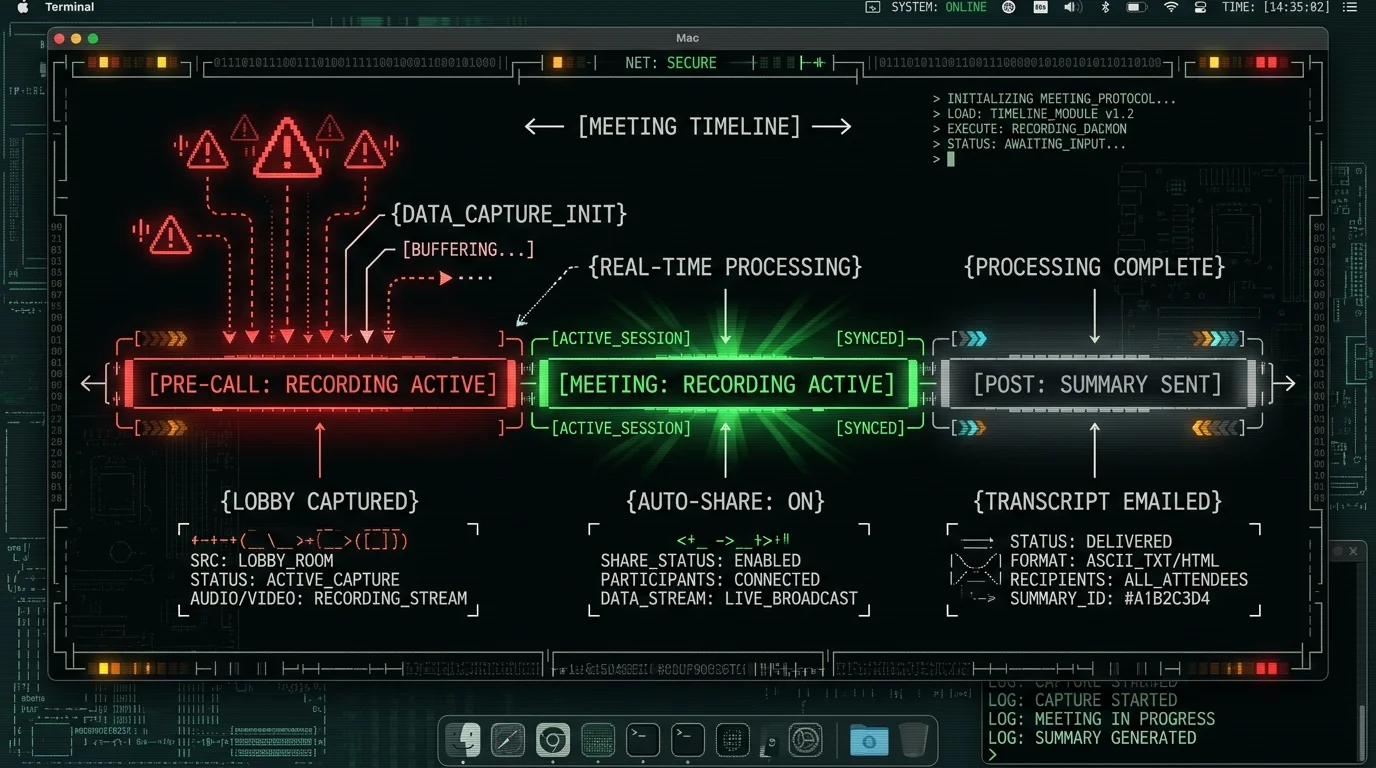
You've probably seen a version of this story: someone shares a meeting platform link in advance, opens it early to check their setup, and starts venting to a colleague about the client they're about to talk to. The AI notetaker — which joined the moment the meeting link became active — caught all of it. When the session ended, it summarised those two minutes faithfully and emailed the summary to everyone on the invite, including the client.
The replies in that thread all say the same thing. "This happened to me." "I didn't know it auto-joined early." "I thought it only started when I clicked record."
None of those people are careless. They just didn't know the defaults. That's the whole problem. These tools ship with aggressive capture defaults and quiet auto-share settings, and most users never open the settings panel until something goes wrong.
What Actually Triggers Recording?
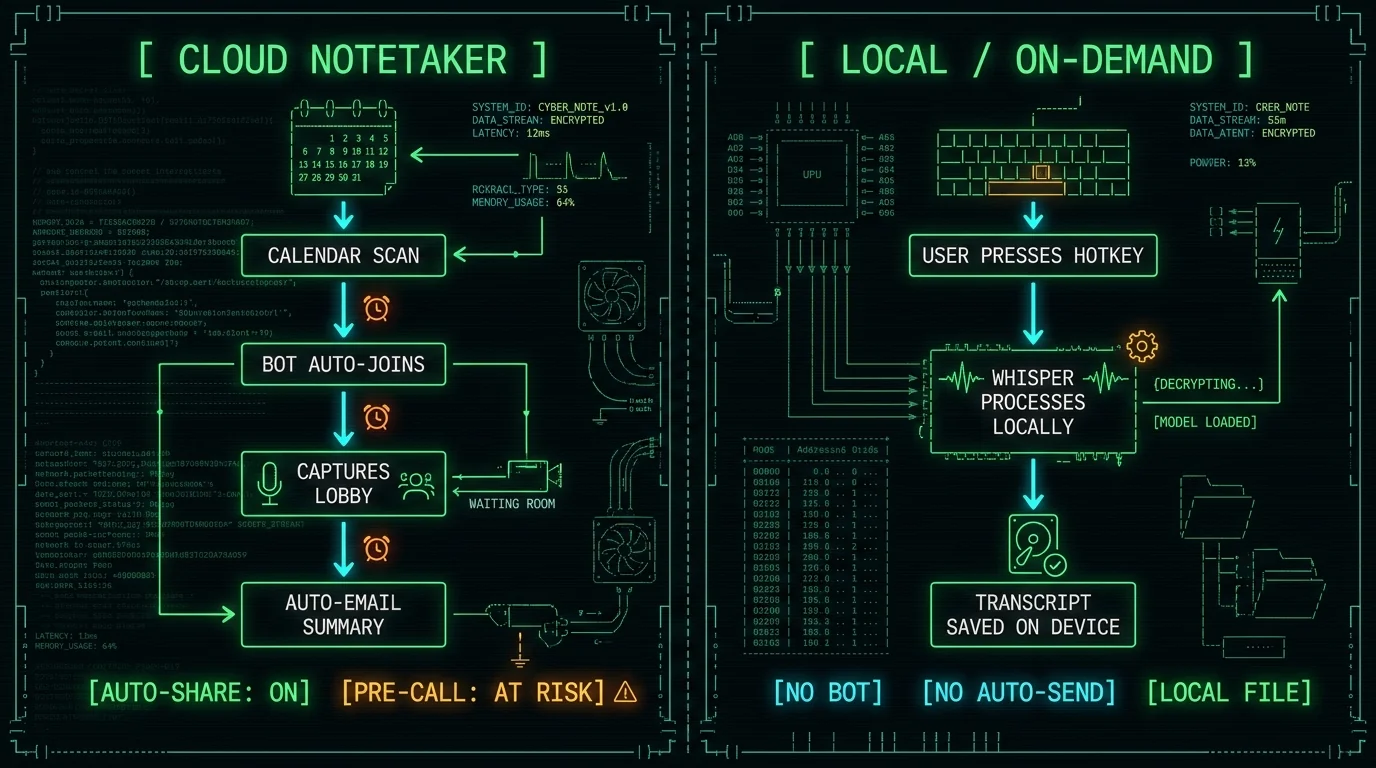
Most cloud-based AI notetakers start capturing audio the moment the meeting room is "open" — which can be before the scheduled start time if the host enables early access. The bot joins as a participant, so it's subject to the same join-early rules as anyone else. If you open a Zoom or Meet link 10 minutes early to set up your screen share, the bot may be in the lobby with you. Whether it's recording in the lobby depends on the platform's lobby/waiting-room behaviour and the notetaker's own settings. The key question to ask: does capture start on "bot joins room" or on "host clicks record"? Those are very different triggers.
There are generally three capture trigger models:
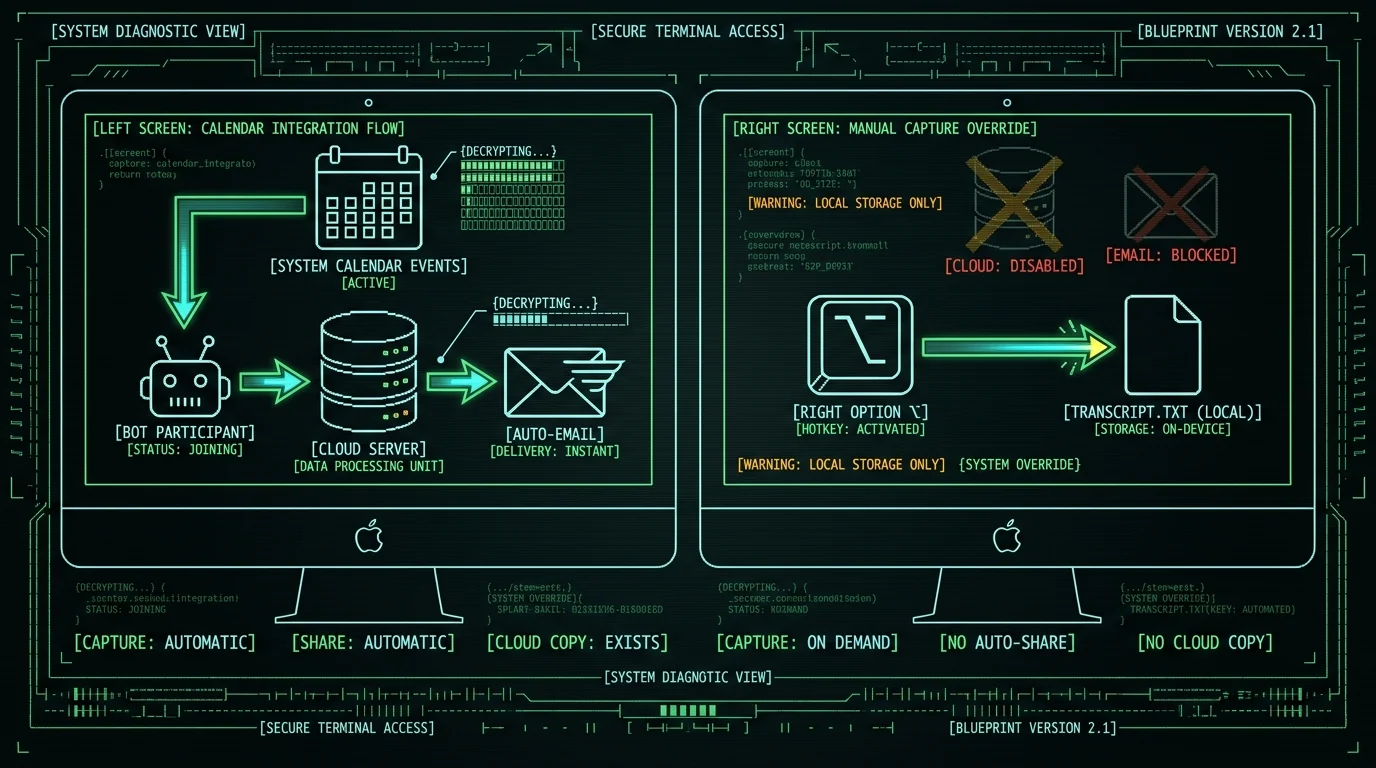
- Calendar-based auto-join: The notetaker reads your calendar, generates a bot, and sends it to every meeting link automatically. The bot arrives at or before the scheduled start time — sometimes before you do.
- Manual invite: You add the notetaker's email to the meeting invite, or paste a link into its dashboard. The bot joins when it receives the invite. You're in more control here, but the bot still arrives on its own schedule.
- On-demand activation: You trigger recording yourself, in the moment — no bot, no calendar scanning. This is what MetaWhisp does: you hold a hotkey (Right Option ⌥ by default), speak, release. Nothing captures until you choose to capture.
The pre-call incident almost always happens with model #1, and sometimes #2. Model #3 is structurally immune to it — there's nothing running in the background to accidentally capture your lobby conversation.
Pro tip: Before your next call, check your notetaker's dashboard for a "bot join time" or "join X minutes before" setting. Many tools default to joining 2-5 minutes early. Setting this to 0 — or disabling calendar auto-join entirely — eliminates the pre-call capture risk at the source.
What Triggers Auto-Sharing?
Recording early is bad. Auto-emailing the summary to all invitees before you review it is what turns bad into disaster. Cloud AI notetakers typically send the post-meeting summary automatically because that's their headline feature — you get notes without lifting a finger. But "without lifting a finger" also means "without you reviewing what was captured." The share trigger is usually one of: meeting ends, bot leaves the room, or a set time after the session. Check whether your tool has a "review before send" option. If it does, enable it. If it doesn't, you have no safe way to use it in situations where pre-call audio might get captured.
This is the part most settings audits miss. People focus on whether recording is on or off, and don't notice the separate auto-distribute toggle sitting one tab over in the settings.
Does the Lobby Get Captured?
It depends entirely on the meeting platform and the notetaker's join behaviour. On Zoom, participants in the waiting room are not in the main session — a bot waiting in the lobby isn't in the audio channel yet. But if the host disables the waiting room, or if the bot is admitted before the meeting starts, it's in the room and can capture. On Google Meet, there is no hard waiting-room separation by default for internal meetings. On Microsoft Teams, the lobby is controlled by meeting policy. The practical answer: assume the lobby can be captured unless you've verified otherwise with your specific platform settings and your specific notetaker's join behaviour. Don't vent in the lobby.
The safest mental model: the moment a meeting link is "live," treat the room as potentially hot. Close the tab, mute your mic, or have the pre-call conversation on a different channel entirely.
How to Audit Your Current Notetaker
Here's the checklist I'd run through before using any AI meeting tool on a call where discretion matters. This isn't legal advice — it's a settings audit. For anything with real legal or compliance stakes, talk to someone qualified.
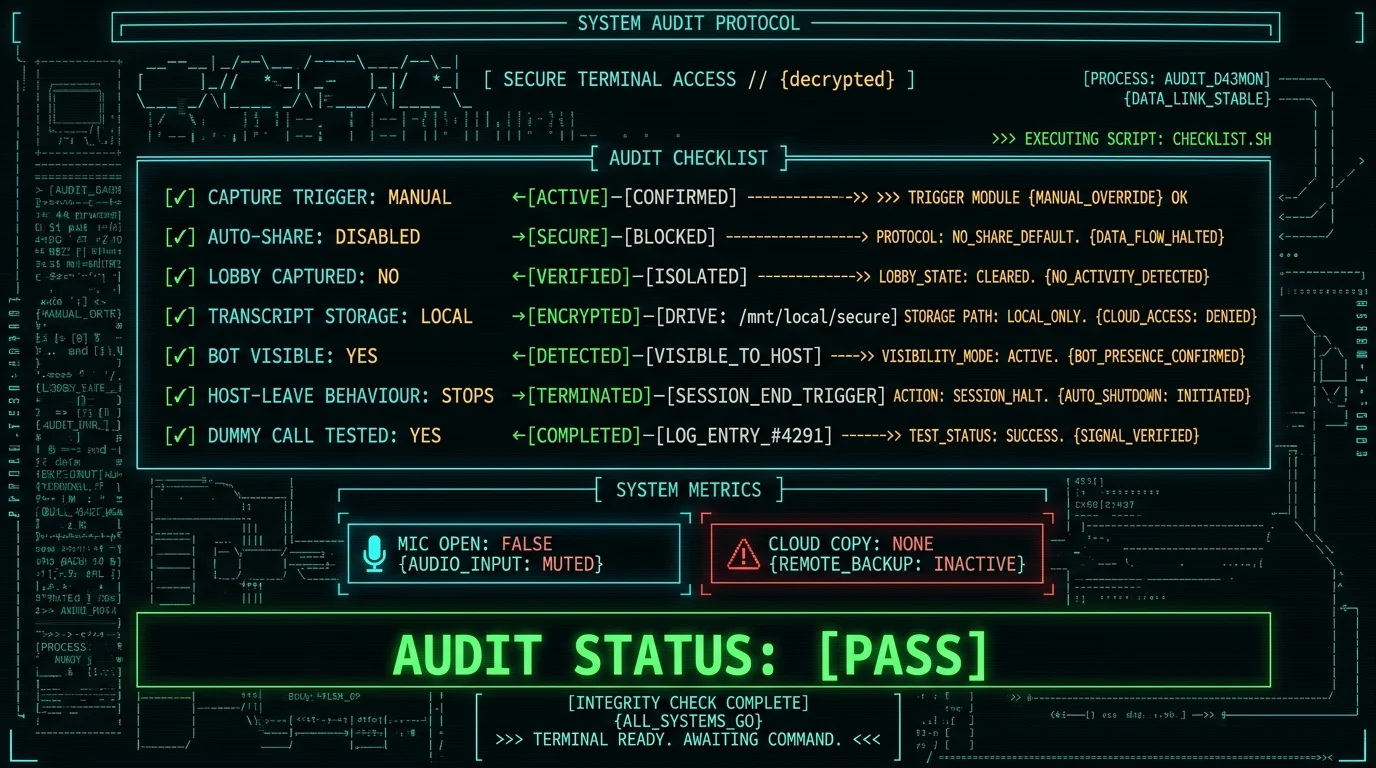
Find the capture trigger setting
Look for: "bot join time," "join before meeting," "auto-join," or "calendar integration." Understand whether the bot joins automatically or only when you explicitly invite it. If auto-join is on, note how many minutes early it joins.
Find the auto-share or auto-send setting
Look for: "share summary," "send notes to attendees," "auto-distribute," or "email after meeting." Check whether there's a review step before anything goes out. If auto-send is on with no review gate, everything the bot captured goes to everyone on the invite list the moment the meeting ends.
Check what the "attendees" list actually means
Some tools send to every calendar invitee — including external guests, clients, or people who never accepted the invite. Verify whether the summary goes to your internal team only, or to the full invite list. This is the setting that turned an internal vent into a client incident.
Find out where transcripts are stored
Cloud notetakers store transcripts on their servers. If something was captured you wish hadn't been, can you delete it before the auto-send fires? Is there a deletion window? Can you delete a transcript from their servers entirely, or does it live there indefinitely? Check the tool's data retention settings and privacy policy.
Check whether the bot is visible to other participants
Most legitimate meeting bots appear as a named participant in the room. If everyone can see "Notetaker Bot joined," they know they're being recorded. If the tool hides itself — or if you're the only one who sees it — that creates a different set of problems, legal and ethical. Recording consent laws vary by jurisdiction; check what applies to your location and the locations of your participants.
Understand what happens when the host leaves early
If you have to drop a call and someone else continues the meeting, does the bot keep running? Does the summary include the portion you weren't on? Know whether the bot follows the host or follows the room.
Test it on a dummy call before using it on anything sensitive
Set up a 2-minute call with yourself or a colleague. Say something at the 0-minute mark before anyone else joins. End the call. Check what was captured, what the summary includes, and what was sent to whom. This takes 10 minutes and removes all ambiguity.
Pro tip: Run audit step 7 with the exact meeting platform you use for your most sensitive calls — not a test account. Behaviour can differ between personal and org-licensed accounts, between free and paid tiers, and between platforms. A Zoom test doesn't tell you anything about your Google Meet behaviour.
How MetaWhisp Handles This Differently
I built MetaWhisp specifically because I needed transcription that I controlled moment to moment. ADHD makes long written documents painful, and I dictate a lot — but I'm also on calls where I absolutely cannot have something running in the background that I didn't consciously start.
So here's exactly how MetaWhisp works relative to the risks above:
- No bot, ever. MetaWhisp doesn't join your meeting as a participant. It's a Mac app you run locally. Other participants never see a bot in their participant list.
- You start it. It starts. Recording begins when you hold the hotkey. Nothing is ever captured automatically, in the background, or based on a calendar event. There's no "auto-join" setting because there's nothing to join.
- Nothing auto-sends. When you release the hotkey, the transcript appears and auto-pastes into whatever app is focused. That's it. No email is generated. No summary is distributed. No attendee list is consulted.
- Transcripts are local files. Everything is saved on your Mac. If you captured something you wish you hadn't, you delete the file. There's no cloud copy to un-send, no server-side retention policy to navigate, no support ticket to file asking them to delete it.
- Audio never leaves your Mac in local mode. The Whisper model runs on your Apple Neural Engine — WhisperKit handles the inference entirely on-device. MetaWhisp has no telemetry and no analytics. Nothing is transmitted.
For meeting transcription specifically, I wrote more about the bot-free approach to meeting transcription — including how to use MetaWhisp on a call without any participant ever seeing a recording indicator they didn't consent to.
If you want the full picture of how to record and transcribe any call on Mac, that post covers the technical setup for different platforms. And if you're using MetaWhisp as a live AI meeting aid, the AI meeting copilot guide for Mac walks through the real-time workflow.
What About AI Post-Processing — Does That Change Things?
MetaWhisp has a Structured mode and other AI processing options that can clean up, reformat, or rewrite your transcript after capture. These use AI — either OpenAI or Cerebras, via your own API key on the free tier — so the transcript text does travel to that API when you invoke those modes.
Two things to know:
- AI post-processing is never automatic. You choose to run it after you've already seen the raw transcript. You can review what was captured before any text leaves your device.
- Only text goes to the API — the audio stays on your Mac always. And that text goes to your API key, under your account's privacy terms, not to MetaWhisp's servers.
So even in the "AI processed" path, you have a review gate. That's the structural difference from a cloud notetaker that auto-processes and auto-sends without a pause.
Is There a Tool That Completely Eliminates the Risk?
No tool eliminates human error entirely, but some architectures make the bad outcome structurally impossible. An on-demand local transcription tool with no bot, no background capture, and no auto-send can't record your pre-call conversation — because it only runs when you tell it to. A cloud notetaker with calendar auto-join and auto-send can create the incident described above, even if the defaults are configured carefully, because those features exist in the product. The more automated the capture and distribution pipeline, the more places there are for something to go wrong. That's not a knock on convenience — it's just an honest tradeoff to understand before you hand any tool access to your calendar and your client calls.
If your workflow genuinely needs a bot in the room — maybe you're not on the call yourself and need someone to cover it — then a cloud notetaker with a mandatory review-before-send setting, calendar auto-join disabled, and a clear deletion policy is the safer version of that choice. Just know what you're trading.
What to Do Right Now If It Already Happened
If you're reading this because the incident already occurred, there's no magic undo — but here's the damage-control sequence that makes sense:
- Stop the auto-send if it hasn't fired yet. Log into your notetaker's dashboard immediately and look for a "pending send" or "scheduled distribution" entry. Some tools give you a short window after the meeting ends before the summary goes out.
- Delete the transcript from the tool's server. Find the data deletion option in settings or contact support. Know that deletion from their UI may not mean immediate deletion from their backend — check the privacy policy for retention timelines.
- If the summary was already sent, address it directly. There's no technical fix for an email that's been received. A direct, honest message to the people who received it is the only real option. Don't pretend the tool malfunctioned if the tool did exactly what it was configured to do — that comes out.
- Change your settings before the next call. Run the full audit checklist above. Turn off calendar auto-join. Enable review-before-send. Or switch to a tool that doesn't have those risks built into the architecture.
I'm not a lawyer and this isn't legal advice — if the content of the captured recording creates a professional or contractual problem, that's a conversation for someone with the right credentials. What I can tell you is that the technical steps above at least stop the bleeding on the data side.
FAQ: AI Notetaker Capture Control
Can an AI notetaker record before the meeting officially starts?
Yes, if the meeting room is open and the bot has been admitted. Some platforms open the room before the scheduled start time, and a calendar-integrated notetaker may join at that point. Whether it's actively capturing depends on the tool's settings and whether it treats lobby time as "in session."
How do I stop my notetaker from auto-sending the summary?
Look for "auto-share," "send to attendees," or "post-meeting email" in your notetaker's settings. Disable auto-send entirely, or enable a "review before send" option if one exists. If neither option is available in the tool you're using, that tool is not safe to use on sensitive calls.
Does MetaWhisp join meetings as a bot?
No. MetaWhisp is a Mac app you run locally. It doesn't connect to your calendar, doesn't send a bot into your meetings, and doesn't appear as a participant to anyone else. You activate it yourself with a hotkey when you choose to transcribe.
If an AI notetaker captured something sensitive, can I delete it?
With a cloud notetaker, you can usually delete the transcript from their dashboard — but check the privacy policy for how long data is retained on their servers after deletion. With a local tool like MetaWhisp, the transcript is a file on your Mac: delete the file and it's gone. There's no server-side copy.
Is it legal for an AI notetaker to record pre-meeting conversation?
Recording consent law varies significantly by country, state, and context. I'm not a lawyer and this isn't legal advice. What I can say technically: if the tool captured audio before participants were notified they were being recorded, that's worth reviewing with someone qualified. Many jurisdictions require at least one-party or all-party consent for recorded conversations.
Does MetaWhisp auto-send anything?
No. When you release the hotkey, your transcript auto-pastes into whatever app is in focus — like a clipboard paste. Nothing is emailed. No summary is generated and distributed. Nothing leaves your Mac in local mode. You can use AI post-processing modes if you want to rewrite or structure the text, but that's an explicit action you take after reviewing the raw transcript.
What's the safest way to take notes on a sensitive client call?
Use a tool you activate manually, that processes locally, and that has no auto-distribute feature. Run the audit checklist in this article on whatever you're currently using. If your current tool has calendar auto-join and auto-send with no review gate, it is not the right tool for calls where discretion matters.
The Bottom Line on Capture Control
The thread that started this conversation isn't about a glitch. The AI notetaker did exactly what it was configured to do. The gap was between what the user thought the defaults were and what they actually were. That gap is common, it's predictable, and it's entirely avoidable once you know where to look.
Run the seven-item audit on your current tool today. Not before your next important call — today, while the stakes are low. Understand what starts capture, what starts sharing, and whether there's a review gate between those two events. If the answers make you uncomfortable, change the settings or change the tool.
If you want a tool where the pre-call incident is structurally impossible because there's no background process running at all, download MetaWhisp free — no account required, no calendar access requested, nothing running until you hold the hotkey.
About the Author
Andrew Dyuzhov is the solo founder of MetaWhisp. He's a marketer and builder who assembled MetaWhisp using AI coding tools on top of open-source Whisper and WhisperKit. He has ADHD, dictates daily in Russian and English, and built MetaWhisp specifically because he needed transcription he trusted completely — not transcription that might capture something it shouldn't. Find him on X (@hypersonq).
