Short answer: It depends on which dictation mode is enabled. macOS ships with server-based dictation active by default — your voice clips go to Apple. Enable the offline language model and they don't. Either way, you can verify this yourself with a free network monitor.
Why the Answer Keeps Changing Depending on Who You Ask
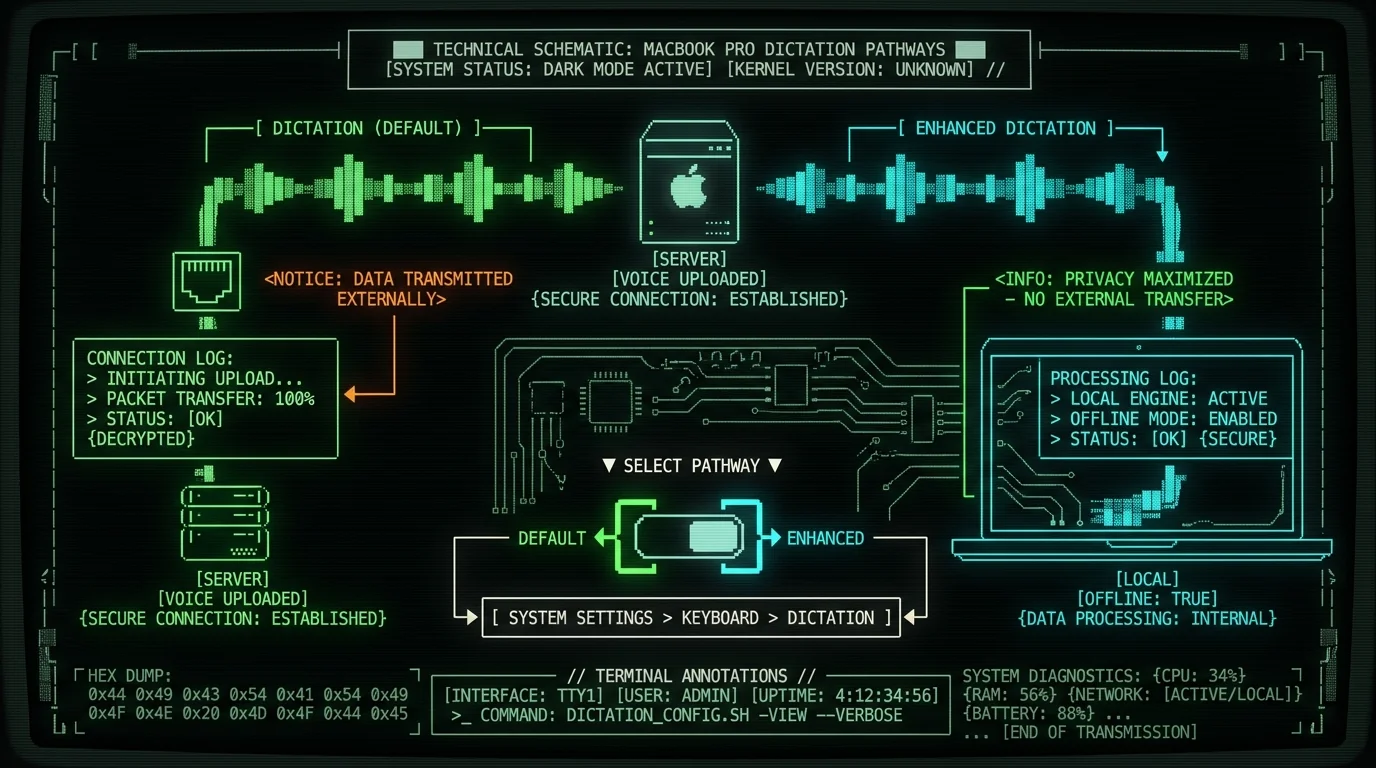
Search for "does Mac Dictation send voice to Apple" and you'll find confident answers on both sides. Someone quoting Apple's support page says it's on-device. Someone else quoting the licence agreement says it isn't. Both are right — they're describing different features. macOS has shipped two distinct dictation systems for years. The default experience sends short audio clips to Apple servers for transcription. The alternative — technically called Enhanced Dictation — downloads a language model and runs entirely on your Mac. The problem is that most users never knowingly enabled Enhanced Dictation, so they're running in server mode without realizing it. This matters for privacy because the distinction isn't cosmetic. In server mode, your voice recordings travel to Apple's servers, are processed, and are handled according to Apple's privacy policy. In Enhanced mode, audio never leaves your machine. No model download, no internet connection, no server involvement. I ran the same verification myself — both for Apple's built-in tool and for MetaWhisp. The method is identical. You watch outbound connections while dictating. If anything leaves your Mac, a network monitor shows it.Apple ships macOS with two distinct dictation systems that serve different purposes. The default "Dictation" option routes your voice recordings to Apple's servers for processing. This isn't hidden — Apple discloses it in the licence agreement and in the System Settings UI. The alternative, called "Enhanced Dictation," downloads a language model package (roughly 1.2 GB) that enables fully offline transcription using your Mac's own processor. The key insight is that both modes exist simultaneously on your system, and the default setting is server-based. You have to actively opt into the offline alternative. This two-mode architecture has been present since macOS Sierra (2016), meaning millions of Mac users have been sending audio to Apple without ever being prompted to consider the alternative. The choice isn't about which version of macOS you run — both modes exist in every recent release. Your privacy posture depends entirely on which toggle you've selected, not on your operating system version or Apple ID status.
Where the Dictation Toggle Actually Lives
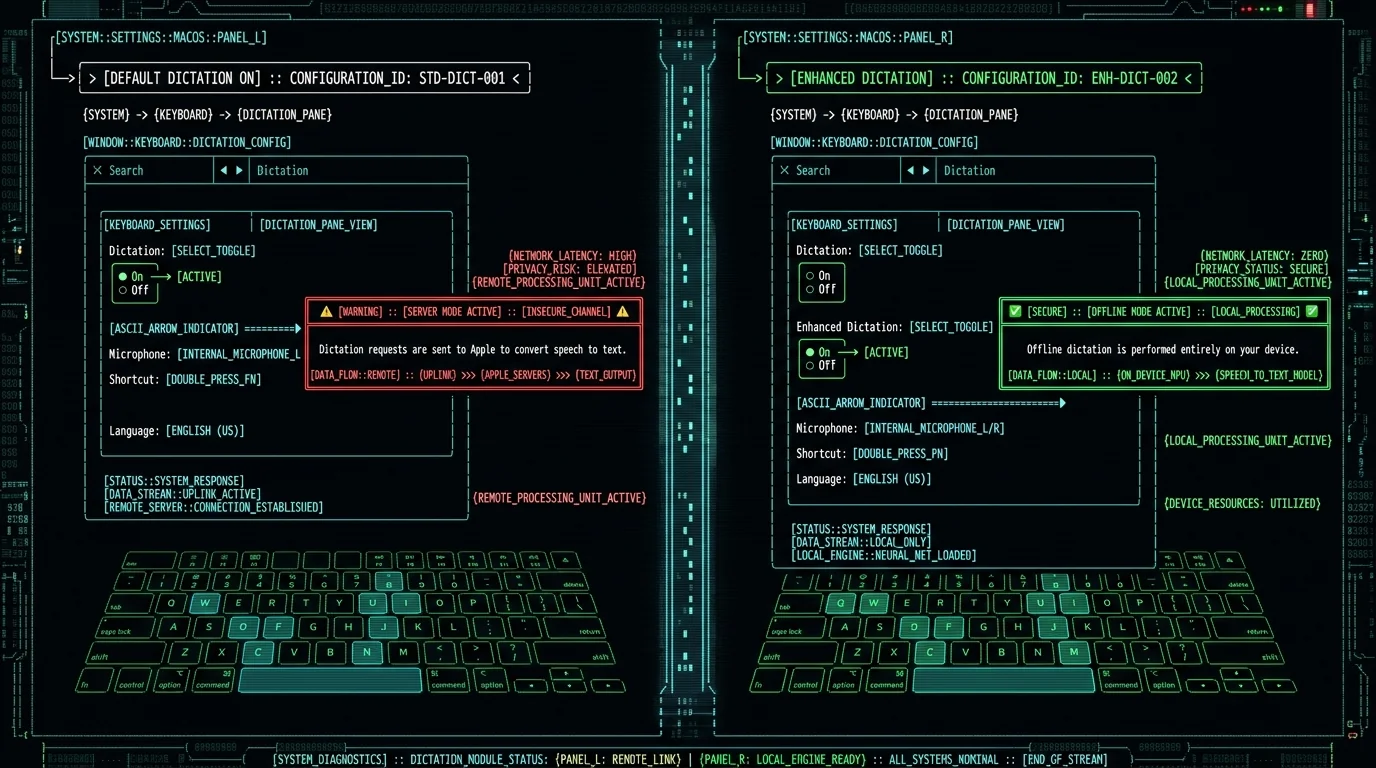
The setting is in System Settings → Keyboard → Dictation. That's it. No buried preference pane, no terminal commands. Open System Settings (⌘Space, type "System Settings", hit Enter). Navigate to Keyboard. Click Dictation in the right panel. You'll see two options:- On — This is the default. It enables server-based dictation. A small note underneath reads: "Dictation requests are sent to Apple to convert speech to text."
- Enhanced Dictation — Requires a ~1.2 GB language model download. Once installed, transcription runs on your Mac. The note changes: "Offline dictation is performed entirely on your device."
What Apple's Licence Text Actually Commits To
Software licences are dense and rarely read. But Apple's dictation licence contains the relevant privacy language in plain sight. Here's the key passage from the macOS Software Licence Agreement (the same language appears in Sequoia 15):Apple Dictation: If you use Apple Dictation, your spoken words will be sent to Apple to be converted to text. You can enable Enhanced Dictation, which will allow dictation to work without sending your voice data to Apple, by going to Settings > Keyboard > Dictation on your device.That's the full commitment. Two sentences. First sentence: voice data sent to Apple. Second sentence: Enhanced mode exists, and it disables sending voice data to Apple. The licence doesn't promise to delete recordings after processing, doesn't specify how long Apple retains them, and doesn't define what "processing" includes. For most users that's fine. For anyone with specific compliance requirements — legal, medical, or otherwise — that's a gap worth noting. I cover what macOS transcription permissions actually grant in a separate post.
Apple's own Software Licence Agreement contains explicit language about dictation data handling. The relevant passage states: "If you use Apple Dictation, your spoken words will be sent to Apple to be converted to text." This is not buried in footnotes or legalese — it's in the main body of the licence section dedicated to Apple Dictation. The licence then immediately offers the alternative: "You can enable Enhanced Dictation, which will allow dictation to work without sending your voice data to Apple." This language has appeared in macOS licences since at least macOS Sierra and continues in current releases including macOS Sequoia 15. The key takeaway is that Apple itself draws a clear distinction between default dictation (where your voice data goes to their servers) and Enhanced Dictation (where it doesn't). The licence also notably does not specify retention periods, does not commit to immediate deletion after processing, and does not define what "processing" entails on the server side. For everyday users, this is probably irrelevant. For anyone with specific data handling requirements, these gaps are worth noting when evaluating whether macOS Dictation fits your compliance framework.
How to Watch Outbound Connections While Dictating
The UI toggle tells you what should happen. A network monitor tells you what actually happens. Here's the verification method that works for any dictation app, including MetaWhisp. Step 1: Pick a network monitor. Three free options:- Little Snitch — paid but industry standard for macOS. Shows every outbound connection in real time.
- Private Eye — free, open-source, minimal interface. Great for quick verification.
- Wireshark — powerful packet analyzer. Overkill for this but gives complete visibility.
Apply the Same Test to Any Third-Party Voice-to-Text App
The network monitor test isn't specific to Apple's tools. It works for every dictation app — SuperWhisper, Wispr Flow, MacWhisper, MetaWhisp, whatever you have installed. The protocol is identical:- Disconnect from Wi-Fi (or disable Ethernet). Leave only the network monitor running.
- Connect to Wi-Fi.
- Open the app. Let it sit idle for 30 seconds — log any startup connections.
- Activate dictation and speak for 10-15 seconds.
- Review the connection log: any new outbound traffic during or immediately after speaking?
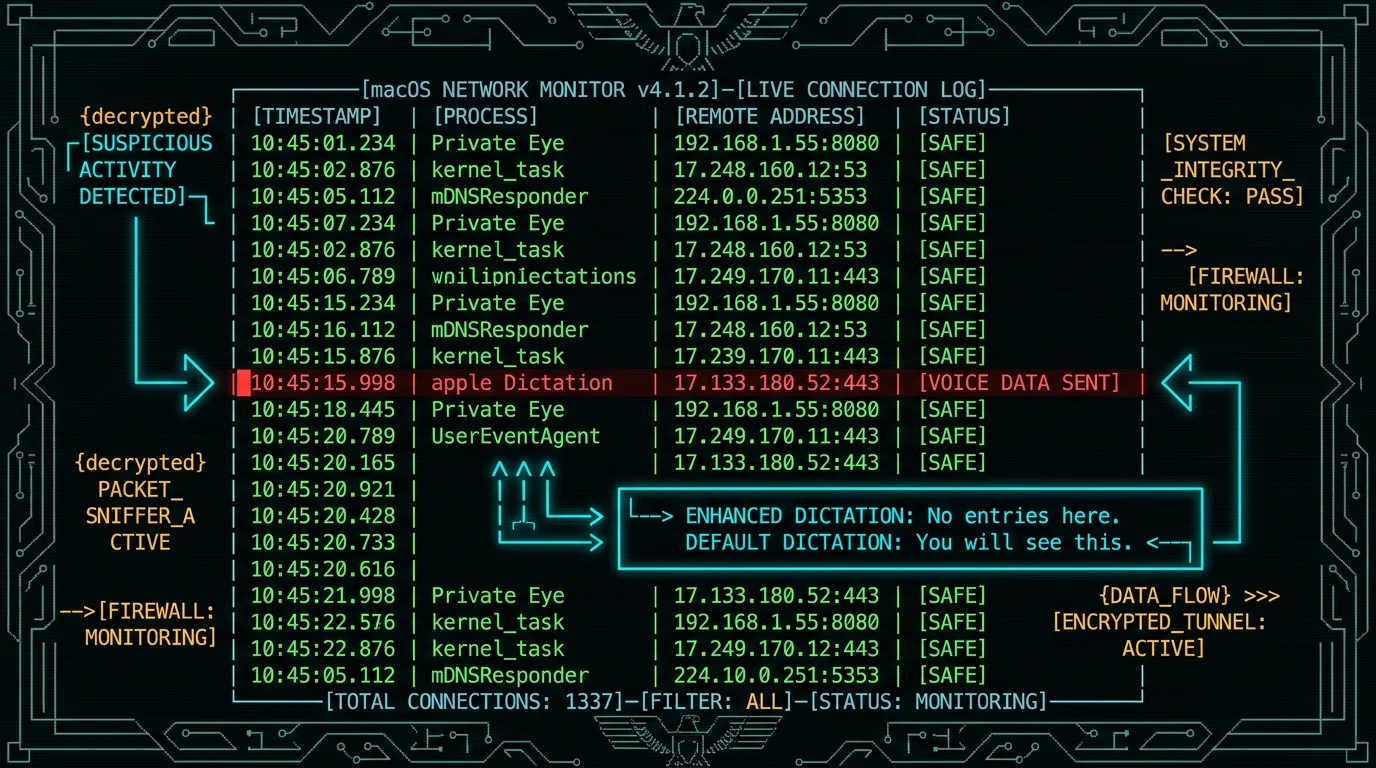
The network monitor verification method works universally, regardless of which voice-to-text application you're using. The core principle is straightforward: if audio is being processed locally, no network traffic should occur during dictation. To test any app, disconnect from Wi-Fi first, then open your network monitor and let it establish a baseline. Reconnect to Wi-Fi and watch for any connections during the app's startup sequence — note these separately as they may represent telemetry rather than voice processing. Then activate dictation and speak for 10-15 seconds while watching the live connection log. Any new outbound traffic appearing during or immediately after your speech indicates that audio data is being transmitted to external servers. The specific IP addresses and connection patterns will tell you exactly where your data is going. For Apple Dictation in default mode, you'll see connections to Apple's server range (17.x.x.x). For MetaWhisp in local mode, you won't see any new connections during dictation at all — the Whisper inference runs entirely on the Apple Neural Engine. This test is reproducible, verifiable, and takes about five minutes with a free tool like Private Eye.
What MetaWhisp's Architecture Does Differently
When I built MetaWhisp's processing modes, I made a specific design decision: local transcription is truly local, not a hybrid. Here's what that means in practice:- Whisper large-v3-turbo on the Neural Engine: The model runs on Apple Silicon's ANE. No CPU/GPU load spike, no fan noise, no cloud dependency.
- API keys in Keychain: If you use the AI post-processing modes (Structured, Correct, Rewrite) with your own key, the key is stored in macOS Keychain, not in the app bundle. MetaWhisp never sees it.
- Zero telemetry: No analytics SDK, no crash reporting that phones home, no usage tracking.
- Audio never leaves the Mac: This is the core claim. The audio buffer goes to the ANE, the text comes back. Nothing else.
When I designed MetaWhisp's local transcription mode, I made a deliberate choice: no hybrid processing, no fallback to cloud, no exceptions. The audio enters the system, hits the Apple Neural Engine where Whisper large-v3-turbo runs inference locally, and text comes out. Nothing is transmitted anywhere during this process. The technical implementation relies on Apple's Neural Engine framework, which is available on all Apple Silicon Macs (M1 and later) and handles the computation entirely on-device. This is architecturally different from server-based transcription where your audio travels across the internet to be processed by remote servers. There's no latency from network round-trips, no dependency on your internet connection speed, and critically, no third party handling your voice data. If you're using MetaWhisp's AI post-processing features (Structured, Correct, or Rewrite modes), those operate on the transcript text — not the audio — and you can route them through your own API key stored in macOS Keychain, meaning MetaWhisp's servers never see that data either. The only connections MetaWhisp makes are to check for updates and verify your licence — both are optional and neither involves your voice data.
The Offline Language Model Option Is Worth Enabling
If you're on default macOS Dictation and want to try the offline experience, Enhanced Dictation is already built in — you just need to enable it. Here's how:- Go to System Settings → Keyboard → Dictation.
- Click the toggle to On if it isn't already.
- Check the box for Enhanced Dictation.
- macOS will prompt you to download the language model (~1.2 GB). Accept and wait for the download to complete.
- Once downloaded, the toggle note changes from "sent to Apple" to "on your device."
The Verification Test, Summarised
For anyone who wants a definitive answer for any dictation app — including Apple's built-in tool and MetaWhisp:- Install a network monitor (Private Eye is free and takes 30 seconds to set up).
- Open the monitor and clear the connection log.
- Dictate for 10-15 seconds.
- Check the log for outbound connections to the app vendor's servers during dictation.
- No connections = on-device. Connections appearing = data sent to servers.
Here's the exact test you can run right now to determine whether any dictation app on your Mac is sending your voice data to external servers. First, download and install Private Eye from the Mac App Store — it's free and open-source. Open Private Eye and let it establish a baseline of your Mac's idle network activity. Open your dictation app of choice. Clear any existing connection log in Private Eye. Press your dictation hotkey and speak a test phrase for 10-15 seconds: "Testing Mac dictation privacy verification one two three." Watch the Private Eye log. In default Apple Dictation mode, you'll see an outbound HTTPS connection to an IP address in the 17.x range within 1-3 seconds of speaking. In Enhanced Dictation or MetaWhisp local mode, no new connections will appear during dictation. The entire process takes about five minutes. This test is deterministic — you'll get the same result every time you run it. If you see connections appearing, your voice data is being transmitted. If nothing appears, your audio is being processed locally. There's no grey area, no trust required, just observable network behaviour you can verify yourself.
FAQ
Does macOS Dictation send audio to Apple by default?
Yes. The default Dictation setting sends voice recordings to Apple servers for transcription. You must manually enable Enhanced Dictation in System Settings → Keyboard → Dictation to switch to offline processing.
How do I know if my Mac is using Enhanced Dictation?
In System Settings → Keyboard → Dictation, the current mode is displayed below the toggle. Enhanced Dictation shows the note: "Offline dictation is performed entirely on your device." Default Dictation shows: "Dictation requests are sent to Apple to convert speech to text."
Can I verify Apple Dictation's network behaviour myself?
Yes. Install a free network monitor like Private Eye (open-source on the App Store), activate Dictation, and watch the connection log. In default mode, you'll see outbound HTTPS connections to Apple's server range (17.x.x.x) during dictation. In Enhanced mode, no new connections appear during dictation.
What data does Enhanced Dictation send to Apple?
Enhanced Dictation processes audio entirely on-device and sends no voice data to Apple. The language model runs locally on your Mac's processor. However, standard Apple data collection (Diagnostics & Usage data) may still be enabled separately in Privacy & Security settings if you've opted in.
Is MetaWhisp's local mode verifiable like Apple's Enhanced Dictation?
Yes — and I encourage it. MetaWhisp in local mode runs Whisper large-v3-turbo entirely on the Apple Neural Engine. No audio leaves your Mac. You can verify this with the same network monitor test: open Private Eye, dictate in MetaWhisp, and confirm no outbound connections appear during transcription. Download MetaWhisp for free and run the test.
What's the accuracy difference between Apple Dictation and MetaWhisp?
MetaWhisp's on-device Whisper large-v3-turbo measures 2.76% Word Error Rate on LibriSpeech test-clean (from my own first-party run). Apple's server-based dictation measured 11-14% WER on the same audio files in my head-to-head comparison. The on-device model is significantly more accurate on technical terminology and non-native accents.
Is Apple Dictation HIPAA-compliant?
No tool is "HIPAA-certified" — compliance belongs to the practice, not the app. In default Dictation mode, voice recordings are sent to Apple's servers, which introduces a third-party data processor into your workflow. Enhanced Dictation keeps audio on-device, which fits better with HIPAA workflows, but compliance still depends on your specific implementation and environment. See my full breakdown of macOS transcription permissions and safety considerations.
Andrew Dyuzhov (@hypersonq) is the solo founder of MetaWhisp, a free on-device voice-to-text app for macOS. He built MetaWhisp with AI coding tools on top of open-source Whisper after discovering that voice-first workflows were the only way he could write without losing an afternoon to ADHD paralysis. He dictates daily in Russian and English and runs his Mac with Wi-Fi off during focused work sessions.
Related reading