The screen behind your cursor is the missing context.
TL;DR — Context aware dictation on Mac means the app reads what's on your screen (the frontmost window) so names, jargon, casing, and form fields come out right as you speak. Almost every option that does this well sends your transcript — and often your screen — to a cloud LLM. The two technical mechanisms are the macOS Accessibility API (structured text, very fast, no pixels) and on-device OCR via Apple's Vision framework (reads pixels, slower, works on anything visible). They have different privacy shapes. MetaWhisp's on-device transcription plus its Screen Context feature combines local OCR with a per-app allowlist and a replacement dictionary, on the free tier.
What "context aware dictation" actually means on Mac
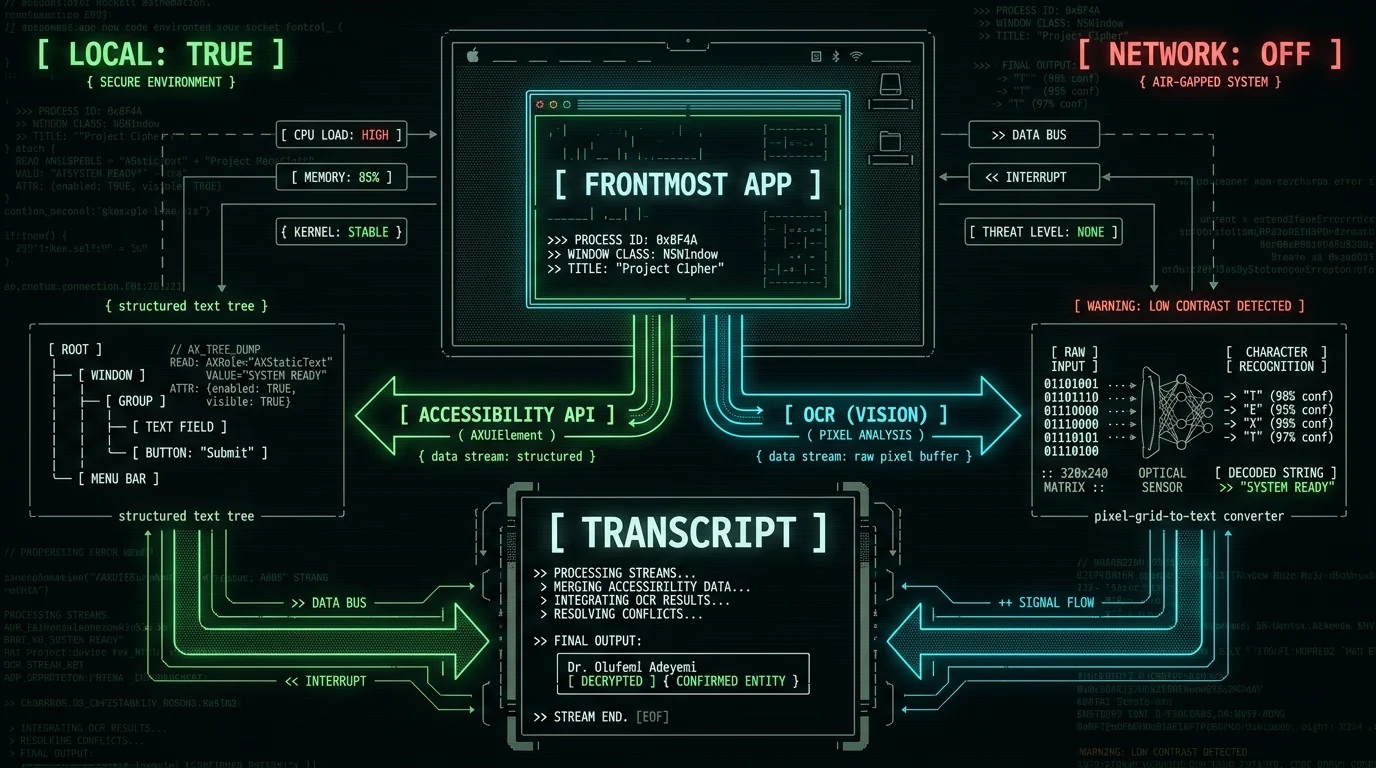
Context aware dictation is voice-to-text that knows what you're looking at. You speak, the app consults the frontmost window behind your cursor, and the resulting transcript uses the right names, jargon, casing, and formatting for that app.
Concrete example. You're replying to an email from a contact called Yegor Lashchuk at Northbridge Labs. A plain dictation engine hears "yeah or lash shook at north bridge labs" and writes something phonetic. A context-aware engine reads "Yegor Lashchuk" and "Northbridge Labs" off the email you're replying to, and writes them back correctly. Same audio, different output, because one of them had screen context and the other didn't.
That's the whole idea. The "context" is whatever is on screen, used to bias spelling, casing, and vocabulary. Nothing more exotic than that.
Why nearly every option is cloud-based
Context-aware dictation isn't a single model. It's a pipeline: speech-to-text (Whisper-class acoustic model), then a language-model pass that picks the right spelling from candidates. The LLM-shaped pass is where the screen text gets injected — "here are the names and jargon in front of the user, bias toward these."
That second pass is where cloud wins. Hosted LLMs are fast, cheap to call, and don't burn your battery or compete with your screen-rendering GPU. Vendors that don't want to ship their own local LLM — or pay Apple's Foundation Models tax — just route the transcript plus screen snippet to OpenAI or Anthropic, and charge you a subscription.
So when you see a slick demo of "the app understood the email I was replying to," the unspoken half is usually: an API call went out with your screen text inside the prompt.
Rule of thumb: if a dictation app markets "context awareness" and doesn't mention screen reading or screen context in plain English, ask which LLM it calls and what gets sent in the prompt.
The two mechanisms: Accessibility text vs screen OCR
There are two ways for a Mac app to know what's on your screen, and they have very different shapes.
Accessibility API (AX text). macOS publishes a structured accessibility tree for every UI element — text, role, value, label, frame. An app can ask the OS for the text inside the focused window without ever seeing a pixel. This is the same machinery that screen readers like VoiceOver use, and Apple documents it publicly at developer.apple.com. Lightning fast, free at the OS level, but it only sees what the target app chose to expose. A canvas-rendered Electron app with weak accessibility will look blank.
Screen OCR. The dictation app takes a screenshot of the active window (or your selected region), runs Apple's Vision framework OCR over the pixels, and feeds the extracted text into the prompt. Slower, costs CPU/Neural Engine cycles, but reads everything visible — PDFs, terminal output, Electron apps, custom-rendered UIs, even images with embedded text. Apple's own Visual Look Up and Live Text use the same Vision pipeline.
| Mechanism | What it reads | Speed | Privacy shape | Coverage |
|---|---|---|---|---|
| Accessibility API (AX text) | Structured text from the OS UI tree | Very fast | App sees exposed text, not pixels | Best on native macOS apps; spotty on Electron/canvas |
| Screen OCR (Apple Vision) | Rasterized pixels of the active window | Slower (Neural Engine pass) | App sees whatever is on screen | Reads anything visible, including PDFs and images |
| No screen reading | Nothing — relies on your vocabulary list | Fastest | Highest privacy | Accuracy depends entirely on your custom vocabulary |
Privacy tradeoffs of each approach
Both mechanisms see your active window. The difference is what they see and where it goes.
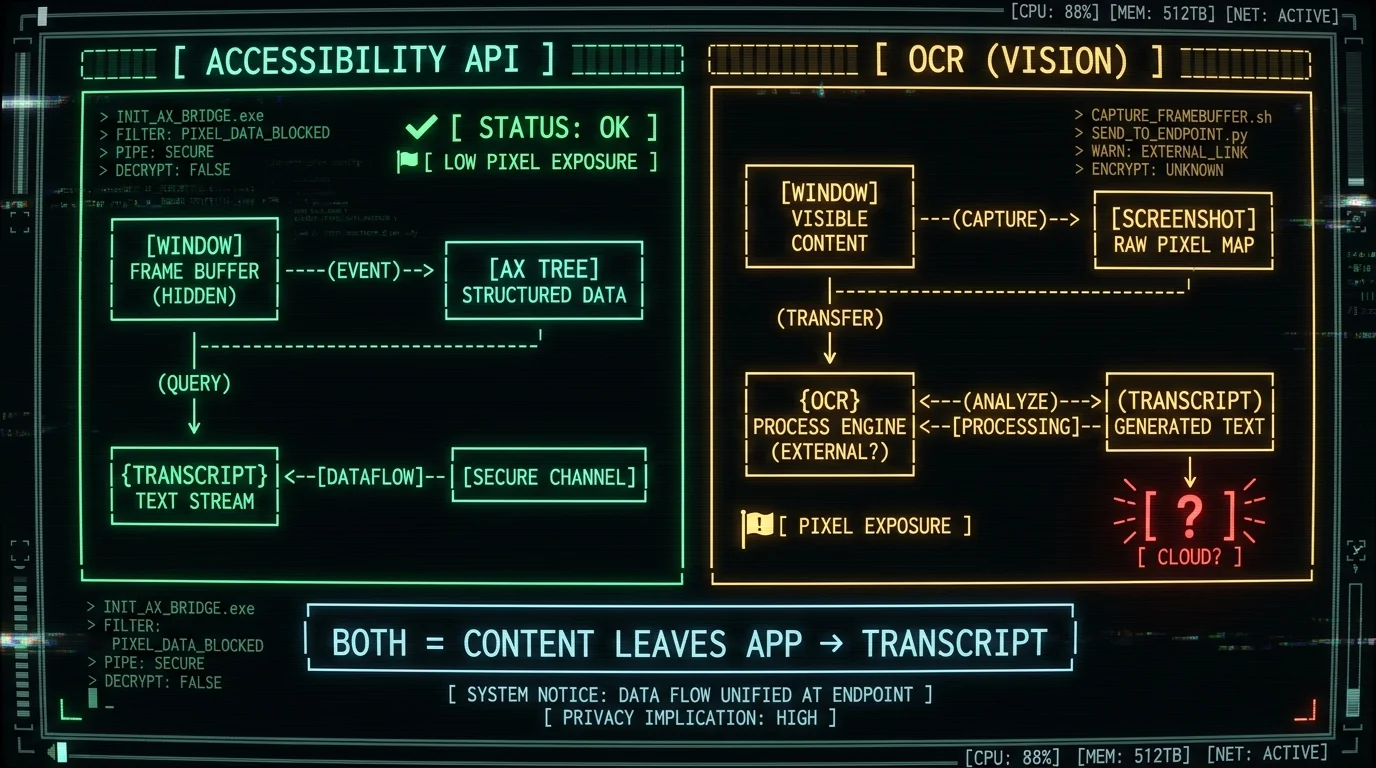
The Accessibility API path is the lower-risk option in principle. The dictation app gets structured text from the OS — no pixels, no screenshots, no images. But "no pixels" doesn't mean "no sensitive content." If you're typing in an open email, a Notes file, a chat thread, a CRM record, the AX tree exposes all of that text. The OS mediates the request, but the content is still leaving your Mac into the dictation app's process memory.
The screen OCR path is the higher-risk option by default. The app literally captures a screenshot of whatever is behind your cursor. If that window contains a 1Password field you haven't blurred, a banking app, a medical record, a private DM, an unmasked credit card — the OCR pass sees it all. Whether that screenshot then leaves your Mac depends on the app's network policy. Cloud OCR + cloud LLM = double exposure. Local OCR + local LLM = nothing leaves.
What context aware dictation can't do (yet)
None of this is "AI understanding your screen." The app reads text, then either biases the speech-to-text model with a vocabulary list or sends the screen text as part of an LLM prompt. That's it.
What it can't do:
- Click buttons or fill forms on your behalf.
- Navigate menus, switch apps, or chain actions.
- Summarize what's on screen.
- Read content inside masked password fields (and you don't want it to).
- Persist a memory of every screen it has seen.
- Replace you reading the email before you send it.
If a vendor pitches screen-aware dictation that "understands your workflow" or "remembers context across sessions" — be skeptical. Ask exactly what data leaves your Mac and where it lands. We don't ship any of those capabilities, and I'd want a clear answer from anyone who claims they do.
How MetaWhisp's Screen Context fits
MetaWhisp's Screen Context is the feature I built to scratch my own itch on this. The honest version of what it does today:
- On-device OCR. When you start dictating, MetaWhisp grabs the focused window and runs Apple's Vision framework OCR locally on the Neural Engine. The screenshot, the OCR output, and the transcript never leave your Mac.
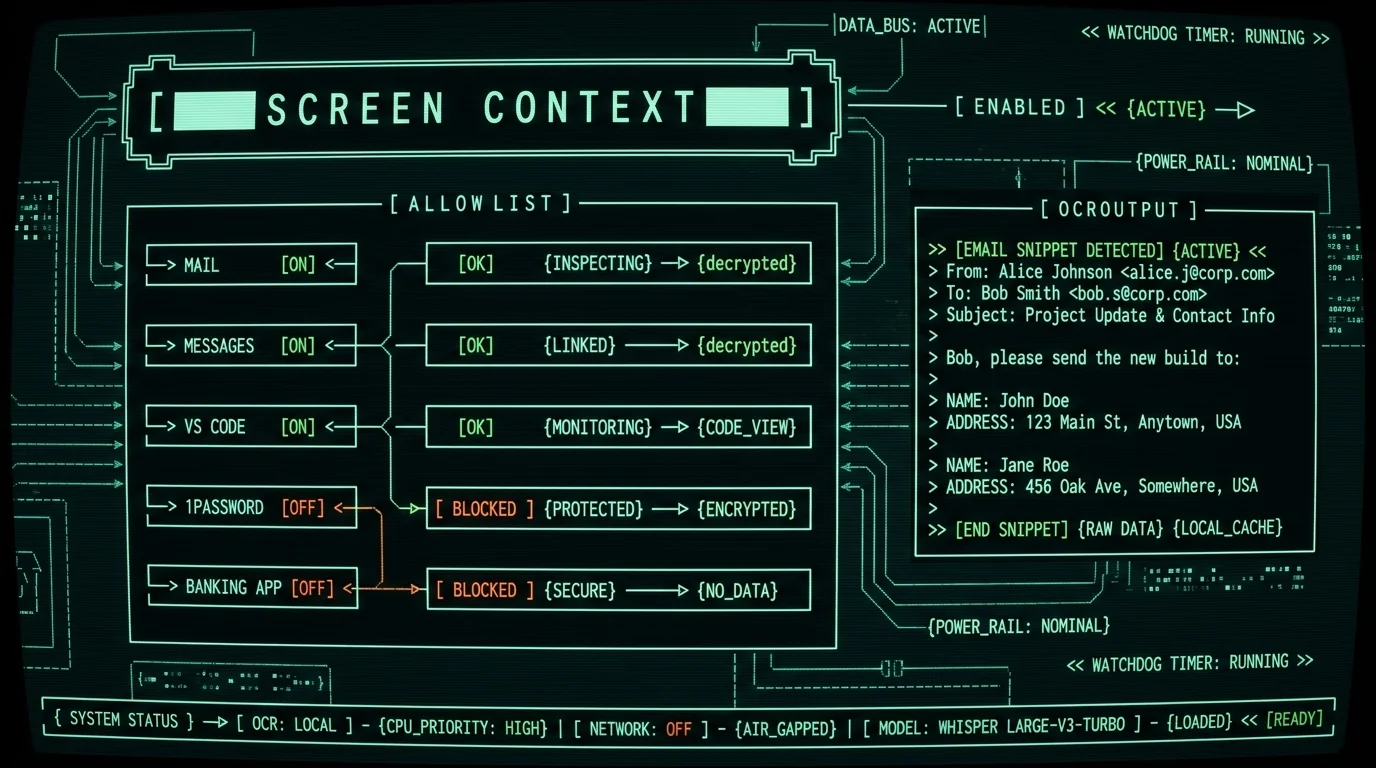
- Per-app allowlist. You pick which apps trigger Screen Context. Default is off for everything; you add apps as you trust them. A banking app, a password manager, a sensitive client folder — keep them out of the list.
- Replacement dictionary. Screen text and your custom vocabulary feed into the same biasing layer. Add a colleague's name once, and it sticks across apps. See the vocabulary guide for how to maintain this list without it becoming a chore.
- Free tier, local model. Screen Context works with the on-device Whisper large-v3-turbo model. No Pro upgrade required for the screen-reading piece. Audio, screenshots, OCR text, and the final transcript all stay on your Mac.
Pro tip: start your Screen Context allowlist with the three apps you dictate into most often — usually Mail, Messages, and your editor. Leave your password manager and banking app off the list permanently.
Setting up context aware dictation on Mac
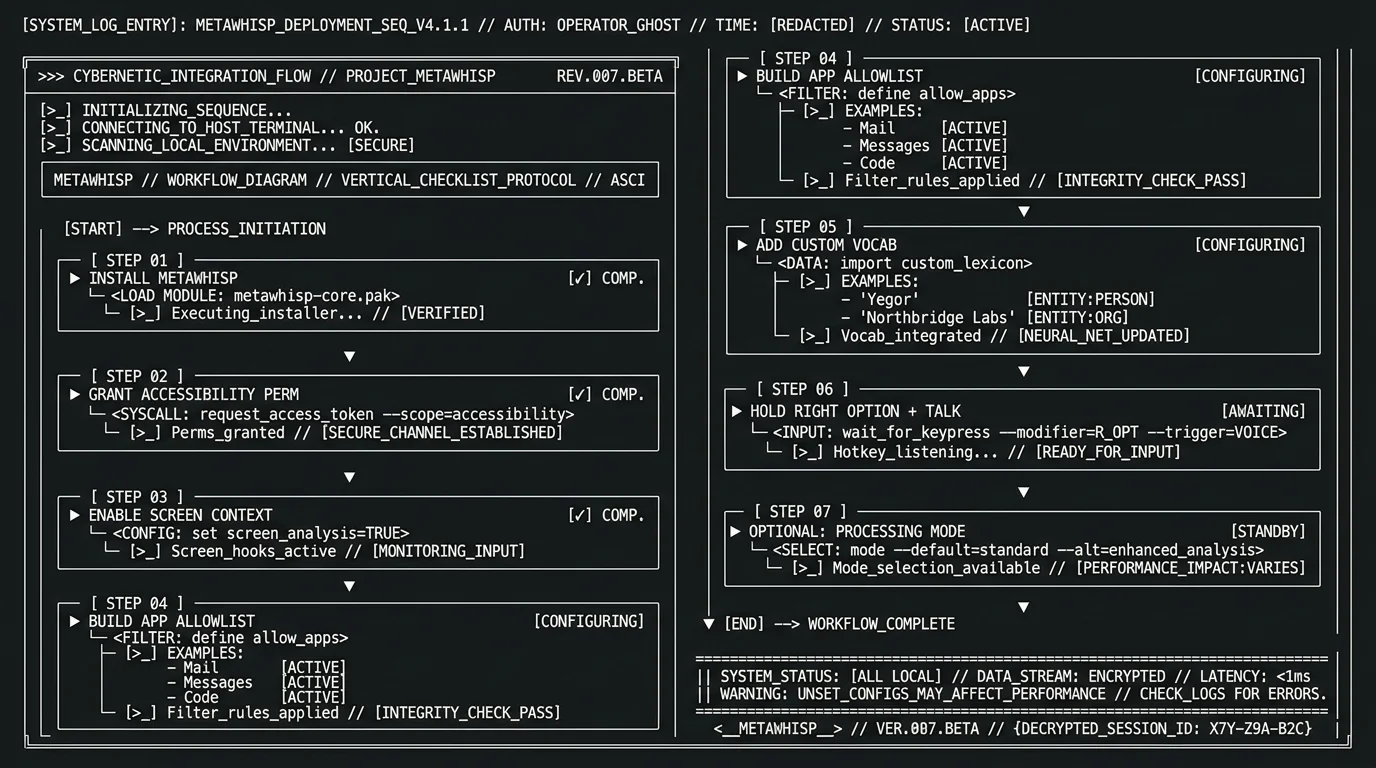
The actual setup is short. The thinking is in the allowlist.- Install MetaWhisp from the download page. It runs on macOS 14+ on Apple Silicon (M1 or later). The Whisper large-v3-turbo model is ~950 MB, downloaded once.
- Grant Accessibility permission the first time you enable Screen Context. macOS will prompt you to approve MetaWhisp in System Settings → Privacy & Security → Accessibility. This is the OS-mediated text access path; nothing leaves your Mac because of this permission alone.
- Enable Screen Context in MetaWhisp settings.
- Build your allowlist. Add the apps you dictate into. Leave everything else off.
- Add your custom vocabulary. Open the replacement dictionary and add the names, products, and jargon that show up in your work. The custom vocabulary guide walks through this in detail.
- Trigger your dictation hotkey and speak. Release to transcribe.
- Optional: pair Screen Context with one of the processing modes — Structured, Correct, or Rewrite — for cleanup after transcription. These modes run on your own OpenAI or Cerebras key on the free tier, so only the transcript text leaves, never the screen.
Common pitfalls and what to check first
If Screen Context isn't helping the way you expected, run through this short list.
The app isn't in your allowlist. Most common cause. MetaWhisp will still transcribe you, but without screen context — so names revert to phonetic guesses. Add the app and try again.
The target app masks fields. Password managers and banking apps blur sensitive fields on purpose. OCR won't read them, and you don't want it to. Dictate around those fields or copy from a separate, non-sensitive source.
Multiple monitors. Screen Context reads the focused window, not all your displays. If your cursor is in an app on display 2, that's the window MetaWhisp reads.
Electron apps with weak accessibility. Some chat and code apps expose very little through the AX tree. OCR picks up what AX misses, which is why MetaWhisp's Screen Context uses Vision by default rather than AX-only.
Translation + Screen Context. Translation is a separate processing mode. If you translate while Screen Context is on, the original screen text still feeds the biasing layer, but the output will be in the target language. Test the pair before relying on it.
Is this for you? A short honest shortlist
Context aware dictation on Mac is worth setting up if any of these sound like you:
- You dictate into apps where names and proper nouns show up constantly — email, CRM, support tickets, court filings.
- You work with a stable list of jargon (legal, medical, engineering) that Whisper's acoustic model alone fumbles.
- You don't want to send your screen or your transcript to a third-party LLM by default.
- You're comfortable approving Accessibility + Screen Recording permissions one time and then forgetting about them.
If you just need a clean stream of what you said for short messages, you may not need Screen Context at all. Apple's built-in Dictation, SuperWhisper's local mode, and MetaWhisp's plain transcription will all do the job. The screen-reading layer only earns its keep when names and jargon matter.
FAQ
What does "context aware dictation" actually mean on Mac?
It means the dictation app reads the frontmost window on your screen and uses that text — names, jargon, casing, form fields — to bias what it writes as you speak. The context is whatever is currently visible behind your cursor, nothing more.
Does Apple Dictation use screen context?
No. Apple's built-in Dictation transcribes audio and handles basic punctuation commands, but it does not read the screen or bias transcription based on what you're looking at. If you need screen context, you need a third-party app.
Is screen-aware dictation safe for sensitive documents?
It depends on where the screen content and the transcript go. Local-only pipelines (on-device OCR plus a local language model) keep everything on your Mac. Cloud pipelines usually send both the screen text and the transcript to a hosted LLM — fine for casual notes, risky for legal, medical, or financial work. We cover the full safety picture in Mac transcription permissions and safety.
What's the difference between OCR and the Accessibility API for screen reading?
The Accessibility API pulls structured text from the OS's UI tree — fast, free, no pixels, but only sees what the target app exposed. OCR reads pixels and converts them to text — slower, costs Neural Engine cycles, but reads anything visible, including PDFs and images. They have different privacy shapes, which is why MetaWhisp uses OCR (Vision) and keeps it local.
Can I get context aware dictation offline for free?
Yes. MetaWhisp's Screen Context runs on-device OCR plus the local Whisper large-v3-turbo model on the free tier, with no account and no time cap. You only need a Pro subscription if you want MetaWhisp's built-in cloud AI instead of bringing your own OpenAI or Cerebras key. See pricing for what's in each tier.
Which Mac voice-to-text apps actually read the screen?
Most cloud-based "smart" dictation apps — Wispr Flow among them — are described as using the LLM-prompt approach where screen text rides along with your transcript to a hosted model. Wispr Flow in particular is often cited as marketing an AI polish-style feature on top of a cloud pipeline. On the local side, options are narrower — MetaWhisp's Screen Context is the combination built for exactly this gap. Apple's own Dictation does not read the screen.
How do I add custom names and jargon to dictation?
Use a replacement dictionary. In MetaWhisp, open Settings → Vocabulary and add the names, products, and jargon you use often. They bias both the local Whisper pass and Screen Context's OCR output. The full walkthrough is in our custom vocabulary guide for Mac.
Does MetaWhisp send my screen to a server?
No, when you use Screen Context with the local Whisper model (the default free-tier path). The screenshot, the OCR output, and the transcript all stay on your Mac. If you opt into a Pro cloud AI mode for post-processing, the transcript text does leave your Mac to reach the hosted model — but never the screen itself.
