Who can stop it, how, and why it keeps coming back
The quick answer: type Opt Out in the meeting chat. Read AI leaves and deletes what it captured from that session. Read Stop also makes it leave, but it still builds a report. To keep it out of future meetings, the person whose account sends it must change their Read settings: auto-join, calendar or account. Hosts can deny it at the door, and IT admins can block it in Zoom, Google Workspace and Teams.
Key takeaways
- Any participant can type Opt Out, and one opt-out ends the recording for everyone.
- By default, Read AI joins every meeting on its user's calendar and shares the report with everyone invited.
- Uninstalling Read's Zoom or Teams app doesn't stop a calendar-connected account from sending it.
- Since March 2, 2026, Read can only join a Zoom meeting if its user is in that meeting.
Why Is Read AI in Your Meeting?
Someone invited to the meeting uses Read AI, and its defaults do the rest. Read's help center says a new account joins all meetings on its user's calendar, including meetings other people host. It also shares each report with everyone invited by default. The chat message or recap email names the person who added it.
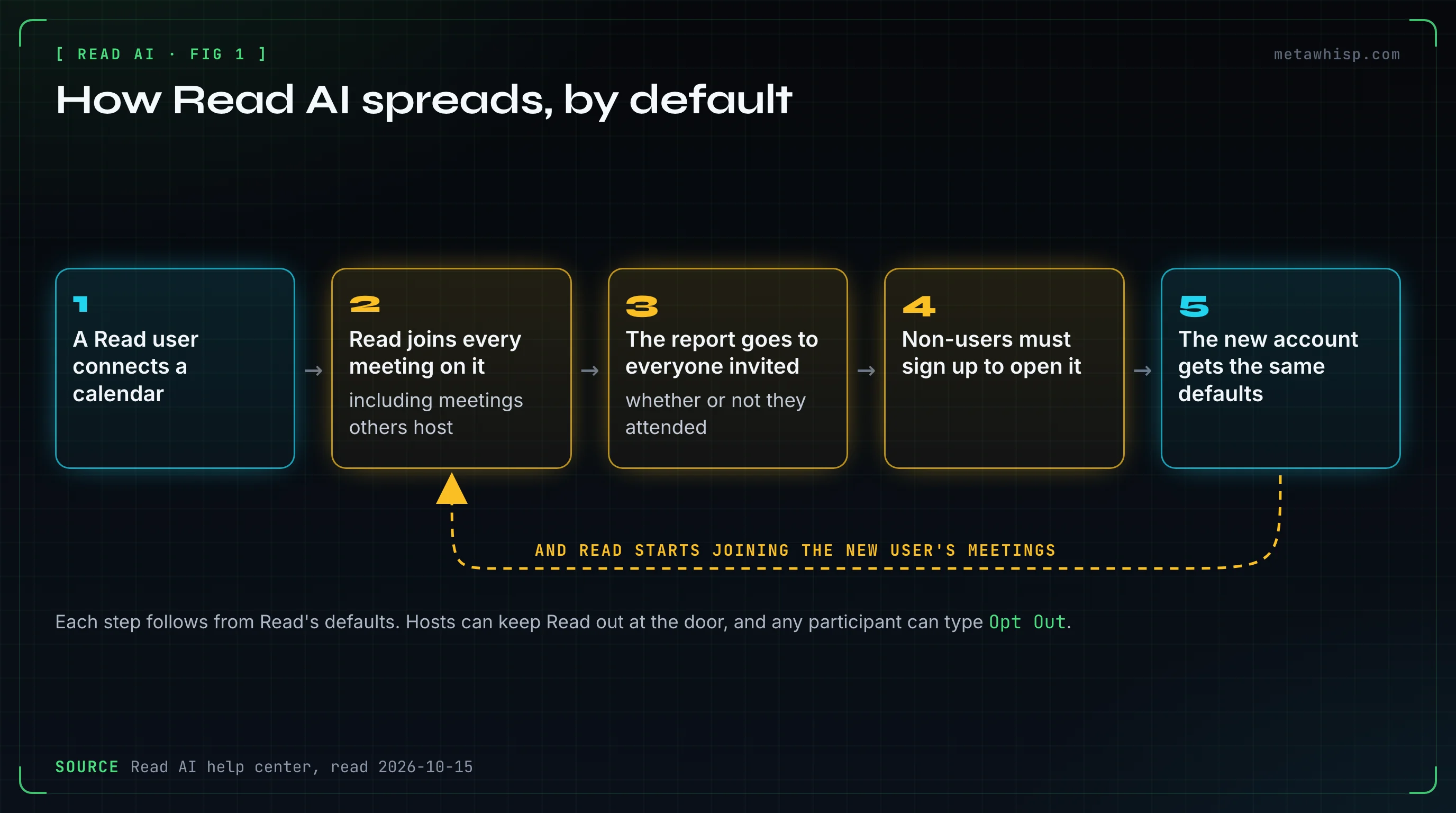
Read's own documentation describes a loop. Each step below follows from Read's defaults, per its help center as of October 15, 2026:
- A Read user connects a calendar. Read joins every meeting on it unless they narrow that down.
- The report goes to everyone invited, whether or not they attended, along with a recap email.
- People without an account must sign up to read it. By default, non-users have to create or sign in to a Read account to open a shared report.
- The new account gets the same defaults. Signing up from a report link runs nearly the same onboarding: connect a calendar, auto-join all meetings.
- Read starts joining the new user's meetings too.
Read's help article on unexpected accounts says that if you don't remember signing up, you most likely did it to view someone else's report. The University of Wisconsin–Madison's IT knowledge base warns about the same path. On Trustpilot, Read AI rates 1.3 out of 5 from 109 reviews (the profile is unclaimed). Several describe opening someone else's meeting notes and then finding Read joining their own meetings.
Who Can Stop Read AI?
It depends on your role. A participant can make Read leave a meeting and ask for the recording to be deleted. A host can keep it out at the door or remove it. Only the person whose account sends it can stop future joins at the source, and only an admin can block it for a whole organization.
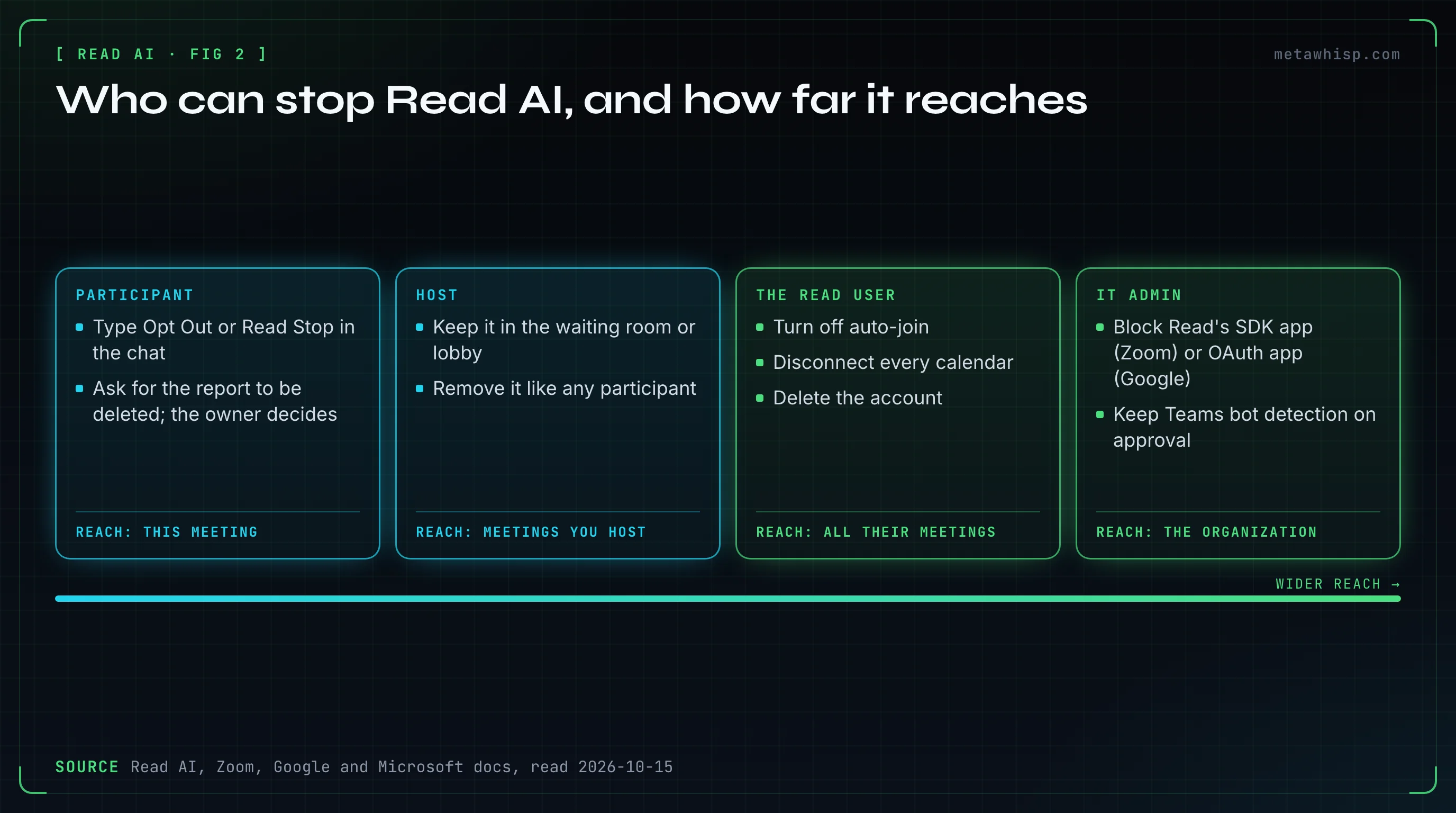
| What you want | Participant | Host | Person who sends Read | IT admin |
|---|---|---|---|---|
| Stop it before the meeting | Only if the Read user's workspace turned on Advance Notice: use the Opt Out of Recording button in the email | Keep it in the waiting room or lobby | Turn "Add Read?" off for that meeting | Platform bot controls |
| Make it leave now | Type Opt Out or Read Stop, or use the opt-out link | Remove it like any participant | Same as a participant | Only if they host the meeting |
| Stop future joins | Ask the person named in the chat or recap | Admission settings | Turn off auto-join, disconnect the calendar or delete the account | Block Read's SDK app (Zoom) or OAuth app (Google); keep Teams' bot detection on approval |
| Delete what it recorded | Request deletion; the report owner decides | Same as a participant | Delete the report or the account | Read won't act on third-party requests |
How Do You Remove Read AI From a Meeting Right Now?
Type Opt Out in the meeting chat. Read's help center says Read then leaves and deletes that session's data, so no report is made. Read Stop makes it leave but still builds a report from what it captured. Any participant can use either command, and one opt-out ends the recording for everyone.
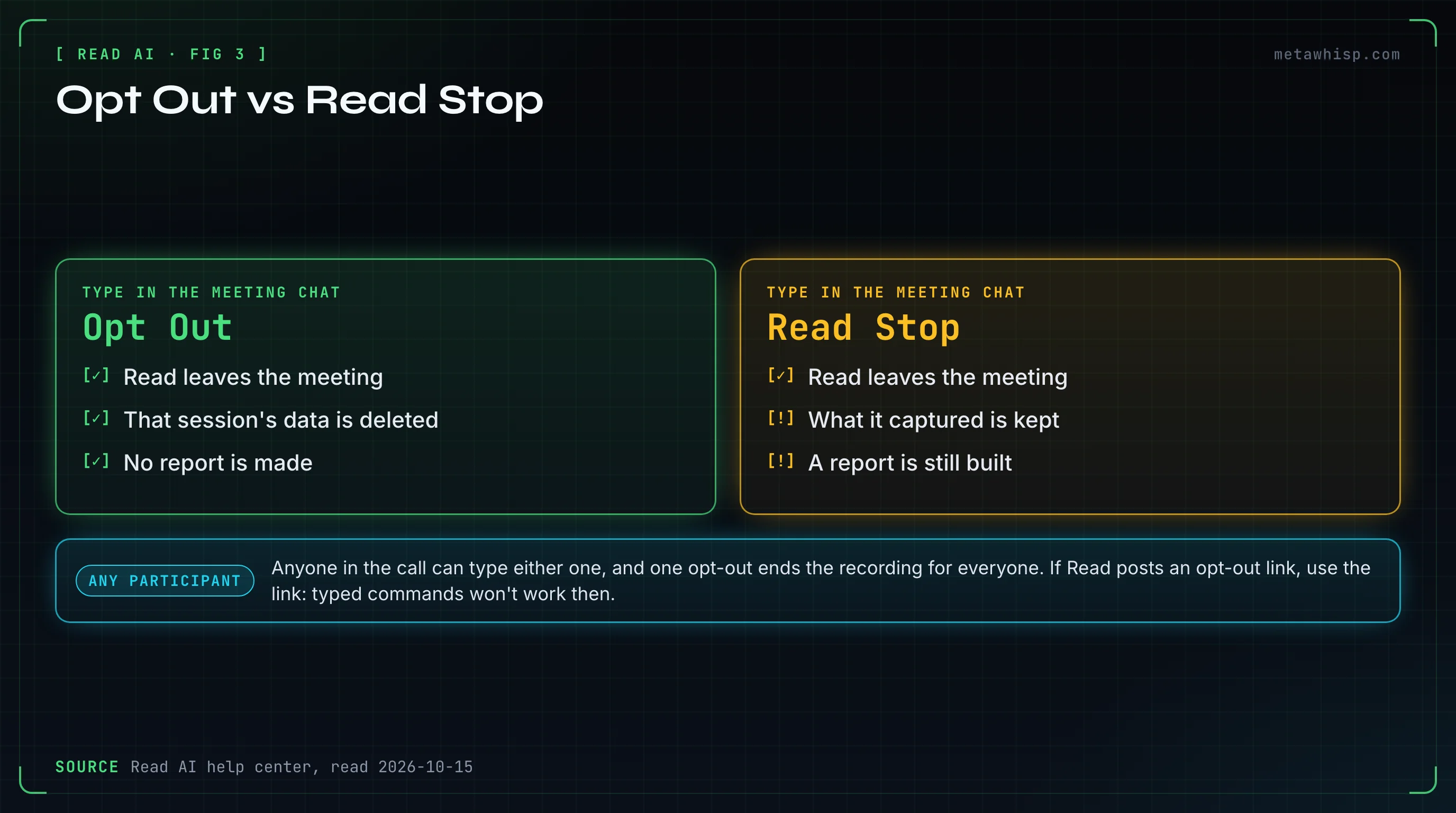
- If Read posts an opt-out link, click it. Read says the typed command won't work when a link is shown. Its help pages disagree on which platforms get a link, so check the chat.
- On Google Meet without a bot, Read records through Google's own Meet Media API, and you'll see a Read logo in the call. Click the logo, then Stop sharing. A report is still made from what was captured.
- If it's recording from someone's desktop app, there's no bot and no chat command. Read's help says to ask the host.
Hosts can also remove it like any participant:
- Zoom: Participants → More → Remove. A waiting room that holds everyone, or everyone outside your account, keeps it waiting until you admit it. Read on Zoom also needs the host's permission to record, and denying that request blocks the report.
- Google Meet: deny it when it asks to join, or remove it from the people list. Google's March 2026 safeguarded admit flow sorts risky join requests into a separate queue that defaults to deny, though Google doesn't say whether bots land there.
- Microsoft Teams: deny it in the lobby, or People → More options → Remove from meeting. Microsoft's bot detection, added in June 2026, sends detected bots to the lobby even when guests would otherwise skip it.
Afterwards, any participant can ask for the report to be deleted through Read's Account & Privacy Center. The request goes to the report's owner, who decides.
How Do You Stop Your Own Read AI From Joining Meetings?
Open Read's Account Settings → Meeting Recording → Auto-Join Preferences, and turn auto-join off or limit it to meetings you host. To skip a single meeting, switch "Add Read?" off on the Calendar page at least 15 minutes before it starts, as Read's opt-out article advises. To stop it everywhere, disconnect every connected calendar, Zoom included, and other integrations on the Integrations page.
- Stop sending recaps to others: Account Settings → Report Sharing. Uncheck sending to participants, or set access to No access.
- Zoom users: turn off "Auto-open in meetings" for Read's Zoom app, then remove the app in the Zoom Marketplace (My Library → More → Remove). Read says removing the app doesn't stop meetings it joins through a Google or Outlook calendar. If you sign in to Read with Zoom, that still counts as a connected Zoom account.
- Check for a second account. Run Account Lookup in Read's Account & Privacy Center for each email address you use, and search every inbox for a "Welcome to Read" email. Signing in through a different provider can create a second account.
- Delete the account: Account Settings → Advanced → Delete my account. Read's help says reports you own are deleted right away, unless you're in a workspace, and you can't delete while you own one.
Read's support team says it can't delete an account for you; the owner has to click the button. Its privacy policy, though, says you can email privacy@read.ai to request deletion.
Why Does Read AI Keep Coming Back?
Read's help center gives two causes when it shows up after you turned it off or deleted your account. Either another invitee uses Read, or you have a second account. Read's support video adds a third for Zoom: the Read app's "Auto-open in meetings" setting is still on.
Run through these in order:
- Whose name is in the chat? If it's yours, the account is yours: check auto-join and Auto-open.
- Do you have two accounts? Run Account Lookup in Read's privacy center for each email address you use.
- Did you only remove the Zoom or Teams app? That doesn't disconnect your calendar. Read's Teams bot joins through the meeting link, not the Teams app.
- Is someone else bringing it? Read only needs one invitee with an account; on Zoom, that person must also be in the call. Ask them, or ask the host to keep bots in the lobby.
Several YouTube tutorials stop at uninstalling the Zoom or Teams app. A March 2026 Teams tutorial says that alone disables Read. Chapman University's IT team says blocking the app doesn't fully block it, and Read's help shows its Teams bot joins from the calendar. Read's own support videos are the only ones we found that cover the account-side causes.
How Do Admins Block Read AI?
Each platform has its own switch. Zoom lets account admins block specific SDK apps from joining meetings and manage Marketplace apps. Google Workspace admins can block Read's OAuth app and the Meet add-on. Teams admins can require approval for detected bots, which Microsoft sets as the default.
- Zoom: Admin Center → Settings → General → Security → "Manage which Zoom apps can join as a participant in meetings and webinars in your organization", then block specific SDK apps. We couldn't confirm Read appears in that list without an admin console. Marketplace → Manage → Admin App Management lets you require approval and disable or remove the Read app.
- Google Workspace: Admin console → Security → Access and data control → API controls → Manage App Access → Read AI → Blocked. This stops managed accounts from connecting their calendars to Read. To keep the Meet add-on out, restrict users to allowlisted Marketplace apps; an excludelist does nothing if users may install any app. Also make sure third-party audio and video access is unchecked under Meet safety settings → Media API.
- Microsoft Teams: Teams admin center → Meetings → Meeting policies → "Manage external bots and their access to meetings". Microsoft recommends keeping the default, "When detected, require approval before joining". Read's help suggests turning detection off so Read can be admitted like any other participant, which is the opposite. Blocking the Read app under Manage apps doesn't stop the bot that joins by link.
Some universities have gone further. UW–Madison blocked read.ai from university-hosted Zoom in 2024. UC Riverside blocked third-party note takers, Read AI included, in UCR-hosted Zoom meetings from October 10, 2025. Chapman University prohibits Read AI, and noted that blocking the app in Zoom and Teams doesn't fully block it.
Is Read AI Safe?
Read AI says it is SOC 2 Type 2 certified and GDPR compliant, and that it doesn't train on meetings unless you opt in. It stores data on AWS in Northern Virginia, with EU and Canada hosting on request. We found no lawsuits or regulatory actions naming Read AI as of October 15, 2026. Its own documents disagree, though, on how long it keeps data and whether it sells it.
- What it collects: meeting audio, video and chat, plus the names and emails of invitees without Read accounts. Its "Read Score" analyzes facial and verbal cues of everyone in the meeting, though not video or facial elements for EU and UK users.
- Selling data: Read's help center says it doesn't sell user data. Its privacy policy says that under US state privacy laws it sells or shares some identifiers and activity data with marketing and advertising partners. It doesn't use meeting content for targeted ads without consent.
- Retention: the help center says free-plan recordings are deleted after 180 days. The privacy policy says audio and video are kept no longer than two years. Read's Trust Center says raw audio and video are deleted within 24 hours.
- AI providers: Read lists 25 subprocessors, including OpenAI and Anthropic. Read says it holds them to no-reuse, no-retention agreements.
- Account security: two-factor authentication isn't enforced for username-and-password accounts.
- HIPAA: only on an annual Enterprise+ plan (five licenses minimum), with a signed BAA.
"Safe" depends on who you are. If you use Read yourself, the main risk is its sharing defaults, and you can change those. If Read is in your meetings because someone else uses it, you never agreed to its terms, and the opt-out commands are your main tool.
Is Read AI Free?
Yes, with limits. Read's free plan covers 5 meeting transcripts a month, capped at one hour each, and needs no credit card. Its help center adds that reports other people share with you count toward those five. Pro costs $15 per user per month billed annually, or $19.75 billed monthly.
| Plan | Billed annually | Billed monthly | Main limits |
|---|---|---|---|
| Free | $0 | $0 | 5 meetings a month, 1 hour each, no uploads |
| Pro | $15 | $19.75 | Unlimited reports, 4 hours per meeting |
| Enterprise | $22.50 | $29.75 | Adds audio and video playback |
| Enterprise+ | $29.75 | $39.75 | Five licenses minimum, 8 hours per meeting, HIPAA, SAML SSO |
New accounts start on a free Enterprise trial with no card, then drop to Free; the pricing page doesn't say how long the trial lasts. Read's refund page says it doesn't refund subscriptions except for a service failure, and plans renew automatically.
Is There a Way to Take Notes With Nothing Joining?
Yes. MetaWhisp records the meeting on your own Mac, from your microphone and the Mac's audio, so nothing joins the call. It sends nothing to the other participants: no recap emails and no sign-up invitations. Transcripts are stored on your Mac, and the free version needs no account.
To be fair to Read, it also has a no-bot desktop recorder for Mac and Windows. The difference is where things go: Read's desktop mode needs a Read account, and its reports are stored in your Read account online. By default, MetaWhisp's free version transcribes on your Mac. Pro, at $7.77 a month or $30 a year, transcribes in the cloud, through MetaWhisp's server to Groq; MetaWhisp's privacy page says its servers don't store your audio or transcripts.
Two caveats. Recording people without a bot still needs their consent where the law requires it, and MetaWhisp doesn't announce itself, so tell people. And it's a Mac app for macOS 14 or later on Apple Silicon. See how meeting notes work without a bot.
FAQ
How do I remove Read AI from a Zoom meeting?
Type Opt Out in the Zoom chat, and Read leaves and deletes that session. Hosts can also remove it from the participants list. To stop your own Read for good, turn off auto-join in Read and switch off "Auto-open in meetings" for its Zoom app.
How do I stop Read AI from joining my meetings?
If it's your account, go to Account Settings → Meeting Recording → Auto-Join Preferences and turn auto-join off, or disconnect your calendar. If it's someone else's, ask them, or ask the host to keep bots in the waiting room or lobby. Admins can block it for the whole organization.
Is Read AI safe?
Read says it is SOC 2 Type 2 certified, stores data on AWS in the US, with EU and Canada hosting on request, and doesn't train on meetings unless you opt in. We found no lawsuits or regulatory actions naming it as of October 15, 2026. Its own pages disagree on retention, and its privacy policy says it sells or shares some data with ad partners under US state law.
Is Read AI free?
Yes. The free plan gives 5 meeting transcripts a month, up to one hour each, with no credit card. Reports other people share with you count toward the five. Pro costs $15 per user per month billed annually, or $19.75 billed monthly.
Can Read AI join a meeting without its user?
On Zoom, not anymore. Since March 2, 2026, Read's user must be in the meeting and signed in to the connected Zoom account. Read's general help article still says it can join meetings its user doesn't attend, if it's invited and admitted.
What's the difference between Read Stop and Opt Out?
Both make Read leave the meeting. Read Stop still builds a report from what was captured; Opt Out deletes that session's data, so no report is made. Any participant can type either one in the chat, or click the opt-out link if Read posts one; typed commands won't work then.
Related reading
- Fireflies Alternatives That Don't Join Your Calls
- How to Cancel an AI Note Taker Before It Charges You
- MetaWhisp vs Otter.ai
- AI note taker without a bot
Sources
Checked on October 15, 2026. Read AI, Zoom, Google and Microsoft change these settings often, so check the linked page if a menu has moved. Read's help center contradicts itself in places; where it does, we say so above.
- Read AI help center: how Read joins meetings, adding Read to meetings, removing Read as a host, multiple accounts, creating an account, how Read got on your account, report sharing, stopping or opting out, removing Read from a meeting, Advance Notice, auto-join settings, still joining after deletion, deleting your account, Read's Zoom app, 2026 Zoom changes, Teams, Google Meet native recording, desktop app, security and privacy, retention, free quota, refunds
- Read AI: pricing, privacy policy, Account & Privacy Center, Trust Center FAQ, subprocessors, "How to Remove Read AI" support video
- Zoom: blocking SDK apps, admin Marketplace management, removing Marketplace apps, waiting room, removing a participant, March 2026 SDK change
- Google: controlling app access, Marketplace allowlist, Meet Media API access, removing people from Meet, safeguarded admit flow
- Microsoft: managing external bots, bot protection in Teams, managing Teams apps, the Teams lobby
- Universities: UW–Madison, UW–Madison knowledge base, UC Riverside, Chapman University
- Reviews: Trustpilot
- MetaWhisp: pricing, privacy
