What six AI note takers let you export, and how to get it out before you cancel
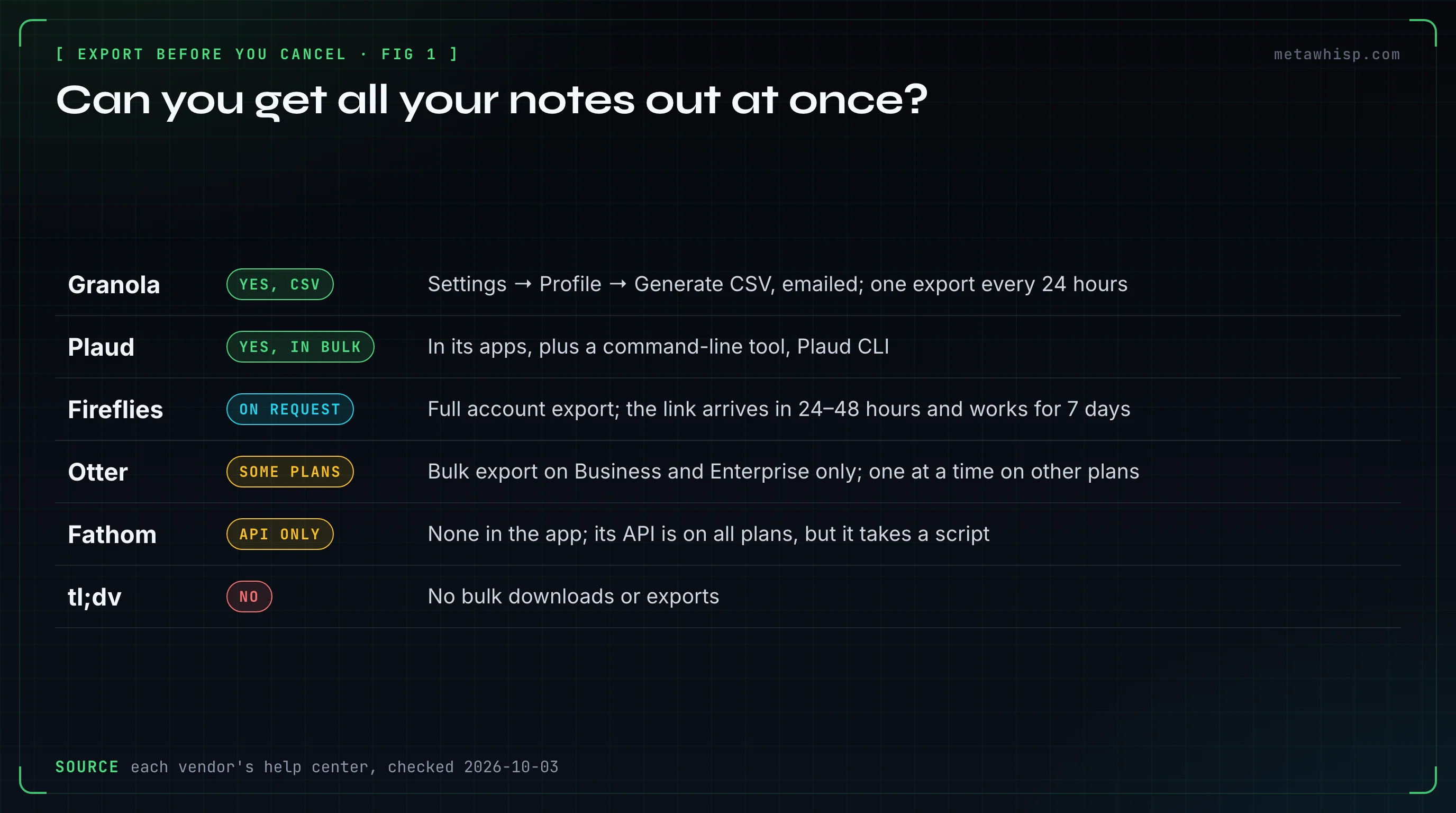
The quick answer: export before you cancel, change your login email or delete the account. Of six popular note takers, Otter offers a bulk export only on Business and Enterprise, Fireflies sends a full export on request, Granola emails a CSV of titles, summaries and transcripts, and Plaud exports in bulk in its apps. Fathom has no bulk export in the app and points you to its API, and tl;dv says it has none. MetaWhisp avoids the problem: your transcripts already live on your Mac.
Key takeaways
- Bulk export varies: Otter limits it to Business and Enterprise, Fathom has none in the app, and tl;dv has none at all.
- Deadlines are real: tl;dv deletes free-plan recordings after 3 months.
- Your login email matters: Granola and tl;dv can't change it, and Fathom can't move recordings between accounts.
- MetaWhisp stores your notes on your Mac, not on its servers, and can also write them into a folder as Markdown files.
Why Export Before You Cancel?
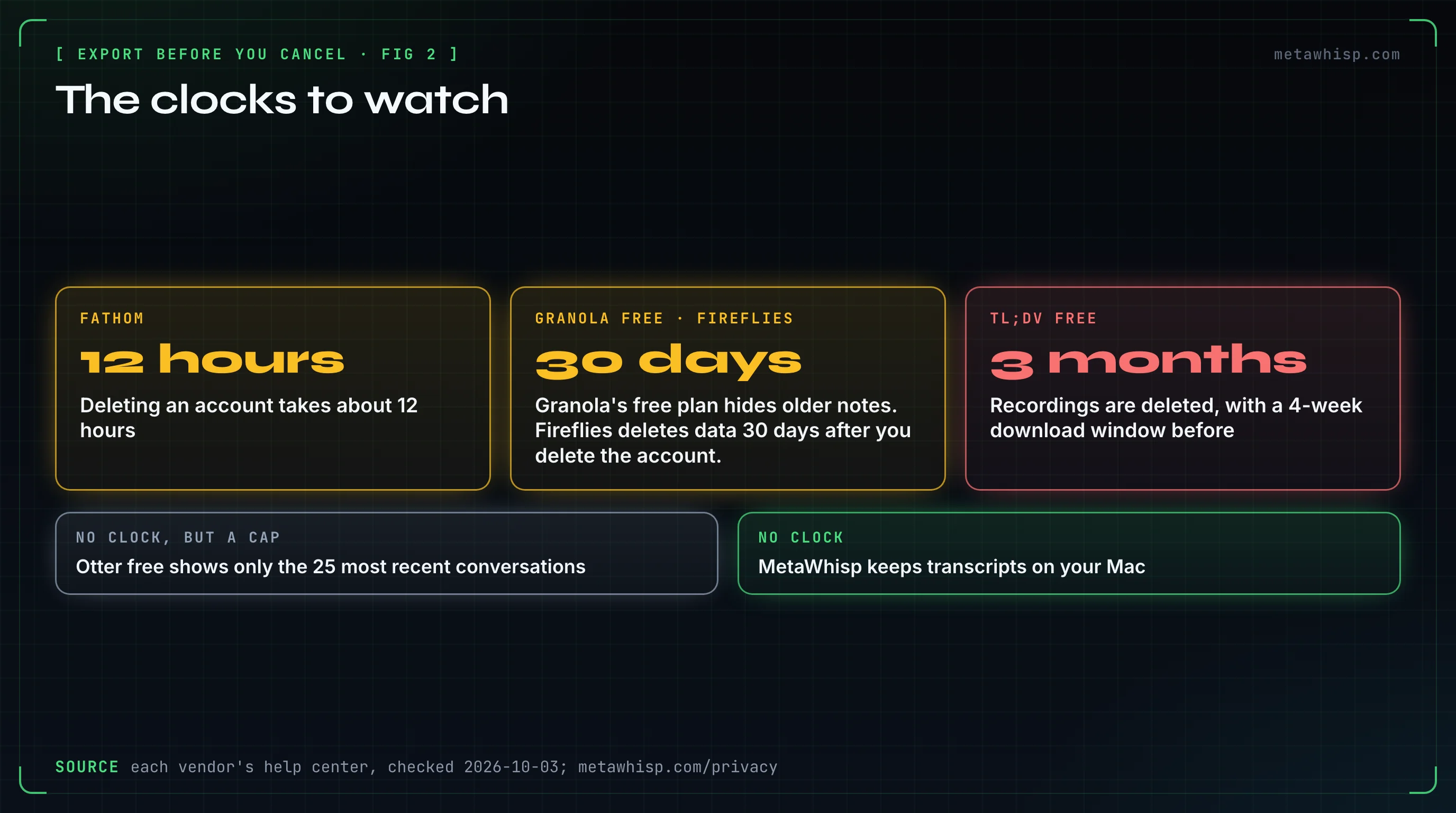
Because cancelling, changing your email or leaving a team can cut you off from notes you thought were yours. The vendors' own help pages spell it out: tl;dv deletes free-plan recordings after 3 months, Granola's free plan shows only the last 30 days in the app, and Fathom says it can't transfer or merge recordings between accounts.
Users run into these limits at the worst time:
- An Otter customer complained about being forced to export transcripts one at a time (June 2026).
- A Fathom customer cancelling a Business plan found there was no bulk download, so every recording had to be saved by hand (April 2026).
- A tl;dv customer on an annual plan was locked out of their recordings for nearly two weeks after asking to move their account to another email (June 2026 review).
| App | Bulk export | Formats | After you cancel | New login email |
|---|---|---|---|---|
| Otter | Business and Enterprise only | Paid: MP3, TXT, PDF, DOCX, SRT; free: TXT per the help center | Conversations stay; free shows the 25 most recent | Self-serve in Account Settings on the web |
| Fireflies | Full account export on request | MP3, MP4, TXT transcripts, JSON metadata | Data stays within free-plan limits | Pro and up through support; on Free, data can't be moved |
| Fathom | None in the app; its API on all plans | Video as MP4, one at a time; transcripts copy and paste | Free keeps unlimited recordings | By request; never from a business to a personal email |
| Granola | CSV of titles, summaries and transcripts | CSV; one note copies as Markdown | Free shows the last 30 days | Can't be edited on an existing account |
| Plaud | In its apps, plus a command-line tool | Audio MP3 or WAV; transcripts TXT, SRT, DOCX, PDF | Recordings stay; free Starter plan | Add the new email as a sign-in method |
| tl;dv | None | Recordings and transcripts both need Pro or Enterprise | Free recordings deleted after 3 months | Can't be changed |
How Do You Bulk Export From Otter?
Otter's bulk export is only available on its Business and Enterprise plans. Open My Conversations, tick the conversations you want or use Select all, click the Export icon, choose your formats, and Otter emails you a link to a ZIP file. One catch from Otter's help center: Select all only selects the conversations loaded on the current page.
On other plans you export one conversation at a time. Paid plans get MP3, TXT, PDF, DOCX and SRT; Otter's help center says Basic users can export only TXT, while its pricing page also lists MP3 for Basic. Otter says bulk exports to Google Drive aren't supported.
Cancelling doesn't delete anything: Otter says your conversations remain in your account. On the free plan only the 25 most recent stay visible, but you can export an archived conversation without unarchiving it. Deleting the account is different. Otter permanently deletes all your conversations, so export first.
How Do You Export Everything From Fireflies?
Ask for a full account export. Fireflies says it supports full data exports for all users on request: you fill in a form, approve a confirmation email, get a download link within 24 to 48 hours, and the link stays valid for only 7 days. The export includes MP3 audio, MP4 video where available, transcripts as TXT files and metadata in JSON.
Single-meeting downloads need Fireflies Pro or higher; transcripts come as PDF, DOCX, SRT, CSV, JSON or Markdown, alongside the meeting's audio and video. On the free plan, Fireflies says downloading transcripts requires a paid plan, so use the full export request or the Google Drive integration, which works on every plan; its Push Past Meetings option sends older meetings there too.
Cancelling doesn't delete your data; it stays available within the free plan's limits. Deleting the account does: Fireflies permanently deletes the data after 30 days. If you need to change your login email, Fireflies handles that through support for Pro and above, and on the free plan it says the data can't be moved.
Can You Bulk Download From Fathom?
Not inside the app. Fathom's help center says transcripts can't be downloaded directly, only copied and pasted, and recordings download one at a time as MP4 video. For bulk exports of transcripts and summaries, it points to its Public API, which is included on all plans; the developer FAQ notes there's no single bulk endpoint, so it takes a script. A Zapier backfill run by Fathom's staff is available for Team plans and isn't self-serve.
Fathom's integrations page lists a partner tool, TranscriptExporter, for bulk export. It's a third-party service, so check what it stores before you connect your account.
The good news: Fathom's free plan stores unlimited recordings forever, so downgrading from Premium doesn't delete anything. The bad news is about accounts. Fathom says it can't transfer or merge recordings between accounts. It changes a login email on request, but never from a business address to a personal one. And when you delete an account, the deletion takes about 12 hours. A 2024 Trustpilot reviewer who had used Fathom for two years described being cut off from their recordings after leaving the organization whose email address they had signed up with.
How Do You Export Your Granola Notes?
Go to Settings, click Profile and choose Generate CSV. Granola emails you the file within a few hours, with each note's title, summary and transcript, and it covers your full note history, including notes older than 30 days that the free plan hides in the app. It only includes notes that have a summary and leaves out deleted notes. The download link works for 24 hours, and you can generate one export every 24 hours.
For a single note, Copy notes puts Granola's AI summary on your clipboard as Markdown, and the transcript has its own copy button. Granola says it doesn't keep audio recordings, so there's no audio to export.
Watch your email address. Granola says you can't edit the email on an existing account, and if you can't get a verification code at the old address, there's no way to move notes out of that account.
How Do You Export From Plaud?
Plaud says you can export recordings, transcripts and summaries from the app, the web or the desktop app, one file at a time or in bulk. Audio comes out as MP3 or WAV (WAV only in the app; the web exports MP3), transcripts as TXT, SRT, DOCX or PDF, and summaries as TXT, Markdown, DOCX or PDF. For scripted batch export, Plaud points to Plaud CLI, which it says is currently free for all active accounts.
Cancelling a plan keeps your recordings in your account on the free Starter plan. Plaud can't change an account's email directly, but you can add the new address as a sign-in method and keep all your data; only if you open a separate account do you have to export recordings from the old one by hand.
Can You Export From tl;dv?
Not in bulk: tl;dv's help center says it doesn't support bulk downloads or exports. Downloading a single recording or transcript requires both the meeting's owner and the person downloading to be on Pro or Enterprise; transcripts are copied to your clipboard. Its API, which can list meetings, download recordings and get transcripts, is available on Pro or Business only.
The free plan has a hard deadline. Recordings are stored for 3 months, tl;dv emails you 4 weeks before they're deleted, and they can only be downloaded inside that 4-week window, even by a Pro user. tl;dv also says it doesn't support changing the email address on an account.
What Should You Export, and in Which Format?
- Transcripts first, as TXT, DOCX or Markdown, which open anywhere without the original app.
- Summaries and action items, if the app wrote them; they're often separate from the transcript.
- Audio or video only where you need proof of what was said; it's the largest part of an export.
- Metadata such as JSON, if you plan to move everything into another tool.
- Check the export before you cancel: open a few files, then cancel or delete. Deletion clocks start then: Fireflies deletes data 30 days after account deletion, and Fathom's deletion takes about 12 hours.
Where Does MetaWhisp Keep Your Meeting Notes?
On your Mac. MetaWhisp keeps your transcripts, meeting notes, tasks and memories in a database on your own Mac, and its privacy policy says MetaWhisp doesn't store your audio or transcripts on its servers. In the default on-device mode, the audio is only held in memory while it's transcribed and then discarded.
So there's no export deadline. Nothing expires after 30 days or 3 months, no plan gates your downloads, and the free version has no account, so there's no login email to change or lose. Even with Pro's cloud transcription, where audio goes through MetaWhisp's server to Groq, MetaWhisp doesn't store it.
When you also want your notes as files, turn on Obsidian Sync in Settings and pick a folder. MetaWhisp writes your dictations, meeting recaps, tasks and memories there as Markdown files as they're saved. The folder doesn't have to be an Obsidian vault: the files are plain Markdown that any editor opens.
Two honest limits. MetaWhisp keeps transcripts, not call recordings: if a transcription fails, the audio waits in a Recovery folder on your Mac for 7 days so you can retry, and otherwise it's gone. And MetaWhisp can't import the recordings or transcripts you export from other apps as meetings, so keep those files in a folder of their own.
Download MetaWhisp: it's free for Mac, with no account and no credit card.
FAQ
Can you export all your transcripts from Otter at once?
Only on Otter's Business and Enterprise plans. Select the conversations in My Conversations, click Export, choose formats, and Otter emails a ZIP link. Select all only covers the conversations loaded on the current page. On other plans you export one conversation at a time.
How do you export all your Fireflies data?
Request a full data export, which Fireflies offers to all users. The download link arrives within 24 to 48 hours and works for 7 days, with MP3 audio, MP4 video where available, TXT transcripts and JSON metadata.
Can you bulk download from Fathom?
Not in the app. Fathom's help center says transcripts can only be copied and pasted and recordings download one at a time as MP4. For bulk exports it points to its Public API, included on all plans, and its integrations page lists a third-party tool, TranscriptExporter.
How do you export notes from Granola?
Go to Settings → Profile → Generate CSV. Granola emails a file with each note's title, summary and transcript within a few hours, covering your full note history, including notes the free plan hides. Notes without a summary and deleted notes aren't included.
What happens to tl;dv recordings on the free plan?
tl;dv stores them for 3 months and emails you 4 weeks before deletion; they can only be downloaded inside that 4-week window, even on Pro. It doesn't offer bulk export, so download what you need then.
Where does MetaWhisp store transcripts?
On your Mac. MetaWhisp keeps transcripts, meeting notes, tasks and memories in a database on your own Mac and doesn't store your audio or transcripts on its servers. Obsidian Sync can also write your dictations, meeting recaps, tasks and memories into a folder as Markdown files.
Related reading
- How to Cancel an AI Note Taker Before It Charges You
- AI Note Taker Not Joining Meetings? Fixes That Work
- Whisper vs Otter AI Privacy: Audio Compared
- Chat with your Obsidian vault on Mac
Sources
Checked on October 3, 2026. Export options and retention rules change, so check the vendor's page before you cancel.
- Otter: bulk export, export formats, Google Drive, what happens when you cancel, deleting your account, changing your email, pricing
- Fireflies: full data export, downloads and formats, free plan, Google Drive, cancelling, deleting your account, changing your email
- Fathom: transcripts, downloading video, API FAQ, bulk export options, TranscriptExporter listing, storage, moving recordings between accounts, changing your email, deleting your account
- Granola: exporting notes, copying notes, audio retention, email changes
- Plaud: exporting, Plaud CLI and API access, Plaud CLI, cancelling, changing your email
- tl;dv: downloading recordings, transcripts, API, free plan limits, changing your email
- MetaWhisp: privacy, meeting notes without a bot, pricing
