Remove the driver, clean up, get your sound back
Short answer: quit your audio apps, then run the BlackHole uninstaller for your version (2ch, 16ch or 64ch) from Existential Audio's support page. If you installed it with Homebrew, run brew uninstall blackhole-2ch instead. Then remove any Multi-Output device you built with it and switch Sound > Output back to your speakers. No uninstaller does that last part for you, and it's why so many people end up with no sound.
Key takeaways
- BlackHole is a driver, not an app: a file called BlackHole2ch.driver (or 16ch, 64ch) in /Library/Audio/Plug-Ins/HAL. There's nothing to drag out of Applications.
- Each official uninstaller removes only its own version. If you have BlackHole 16ch, the 2ch uninstaller won't touch it.
- You usually don't need to restart the Mac. The official steps restart Core Audio, the Mac's sound system, instead: the uninstaller does it for you, and the manual method uses
sudo killall -9 coreaudiod. - Don't use
launchctl kickstartto restart Core Audio. Apple blocked it for critical system processes in macOS 14.4. - The uninstallers don't touch Multi-Output and Aggregate devices, your Sound settings or the audio settings inside apps like Zoom. Check those by hand.
Which BlackHole Do You Have: 2ch, 16ch or 64ch?
Look at the device name in System Settings > Sound or in Audio MIDI Setup: it reads "BlackHole 2ch", "BlackHole 16ch" or "BlackHole 64ch". Or open Terminal and run ls /Library/Audio/Plug-Ins/HAL, the main Library folder, not the one in your home folder. Each version is its own file, BlackHole2ch.driver and so on, and you can have more than one installed.
- Older versions used a single file called BlackHole.driver. BlackHole's wiki says to remove that one by hand.
- Installed with Homebrew? Run
brew list --cask. If you see blackhole-2ch, blackhole-16ch or blackhole-64ch, use the Homebrew method below. - Still need it for something? If you're only switching between versions, our BlackHole setup guide covers installing.
What Should You Do Before Uninstalling?
Close every app that uses audio, including Audio MIDI Setup and System Settings, as BlackHole's wiki asks. Our own advice: before you remove anything, open System Settings > Sound and set Output and Input to your real speakers and microphone. Then you won't be left in silence when the BlackHole device disappears.
Apps can also send audio straight to BlackHole, which is how its README tells you to set up a sending app. So note which apps, like Zoom, OBS, Discord or a music app, have BlackHole picked as their speaker or microphone. You'll change those afterwards.
How Do You Uninstall BlackHole With the Official Uninstaller?
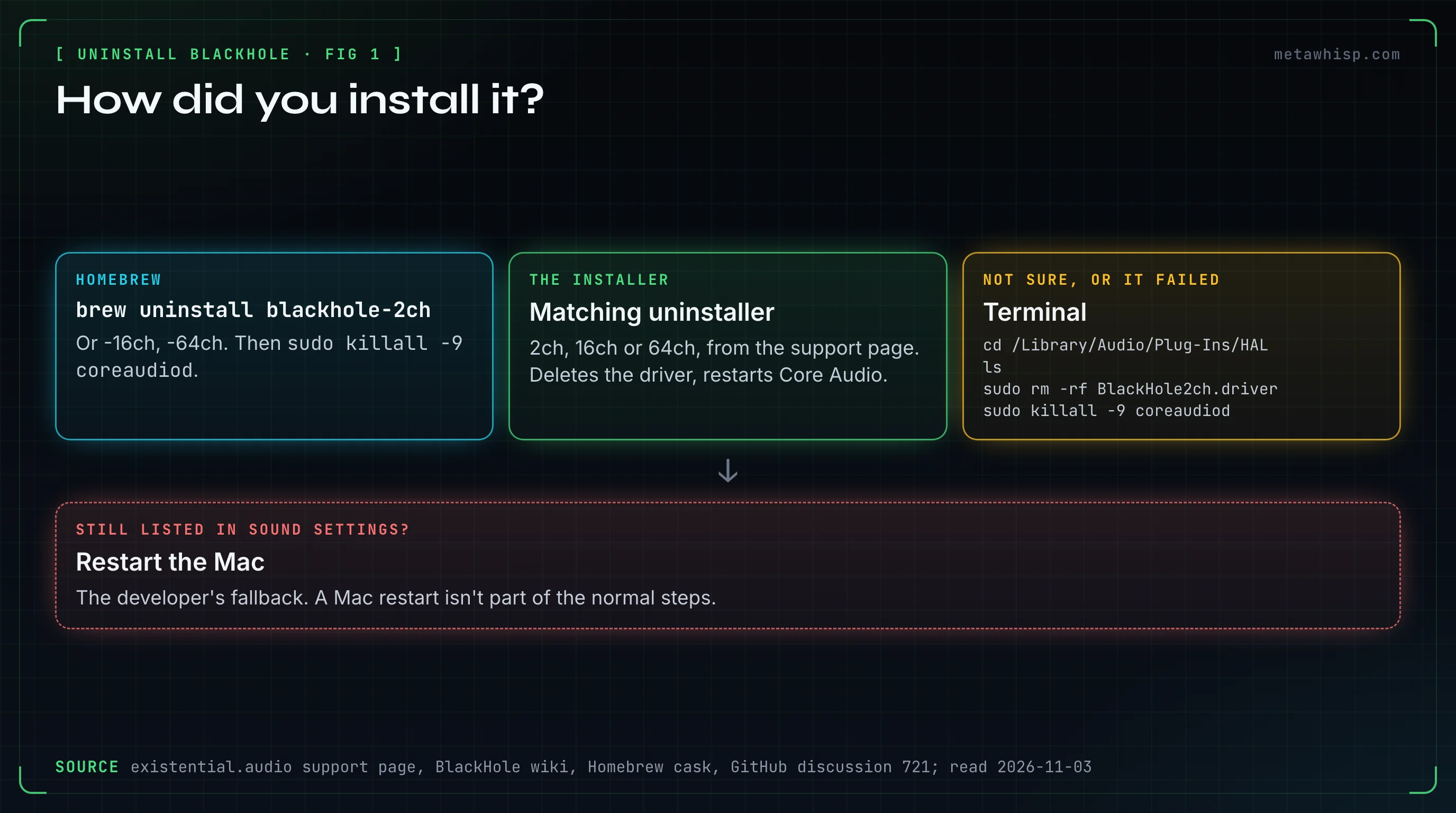
Go to existential.audio/blackhole/support and download the uninstaller that matches your version: BlackHole2ch, BlackHole16ch or BlackHole64ch. Open the package and follow the steps. The uninstaller deletes that version's driver file and restarts Core Audio. It does nothing else, so if you have two versions, run both uninstallers.
The uninstaller packages are signed and notarized, according to BlackHole's own build scripts on GitHub. One thing to watch: Existential Audio's pages link to three different sets of uninstallers. The README links older ones from 2021, the wiki links a single one from 2020, and the support page has the current per-version ones. Use the support page.
How Do You Uninstall BlackHole Installed With Homebrew?
Run brew uninstall blackhole-2ch, or blackhole-16ch or blackhole-64ch, in Terminal. Homebrew quits Audio MIDI Setup and removes the files the BlackHole package installed. Its recipe doesn't restart Core Audio, so we suggest running sudo killall -9 coreaudiod afterwards, the same step BlackHole's own manual method ends with.
If you already deleted the driver by hand and Homebrew still lists it, brew uninstall -f blackhole-2ch is meant for that case: Homebrew's manual says -f uninstalls "even if cask is not installed" and ignores errors when removing files.
How Do You Remove BlackHole Manually in Terminal?
This is the method BlackHole's wiki gives. Open Terminal, run cd /Library/Audio/Plug-Ins/HAL and then ls to see what's installed. Delete your version with sudo rm -rf BlackHole2ch.driver (or 16ch or 64ch, or BlackHole.driver for older versions), then restart Core Audio with sudo killall -9 coreaudiod. Check Audio MIDI Setup: BlackHole should be gone.
- Use sudo. BlackHole's README shows
rm -Rwithout sudo, but the installer makes the HAL folder and the driver owned by root, so without sudo the delete is refused. - Don't use launchctl kickstart. Some guides restart Core Audio with
sudo launchctl kickstart -kp system/com.apple.audio.coreaudiod. Apple's macOS 14.4 release notes say that is "no longer permitted for critical system processes" and recommend kill instead. - Check the file name. One guide that ranks for this search says to trash BlackHole.driver. That name only fits older versions; current ones are BlackHole2ch.driver, BlackHole16ch.driver and BlackHole64ch.driver.
Do You Need to Restart Your Mac After Uninstalling BlackHole?
Usually not. Both official methods end by restarting Core Audio, and that's enough for the device to disappear. Restarting the Mac is the developer's fallback if BlackHole still shows up afterwards. It's installing that needs a reboot: since version 0.6.1, the installer forces one, "as recommended by Apple".
That's also where a message many people search for comes from. Homebrew prints "You must reboot for the installation of blackhole-2ch to take effect" when you install BlackHole, not when you remove it. The current BlackHole release is 0.7.1, from July 3, 2026.
How Do You Delete Multi-Output and Aggregate Devices That Used BlackHole?
Open Audio MIDI Setup (in Applications > Utilities), select the Multi-Output or Aggregate device in the device list, and click the Remove (−) button, as Apple's guide describes. The BlackHole uninstallers don't touch these devices, so check every one you made for BlackHole and remove the ones you no longer need.
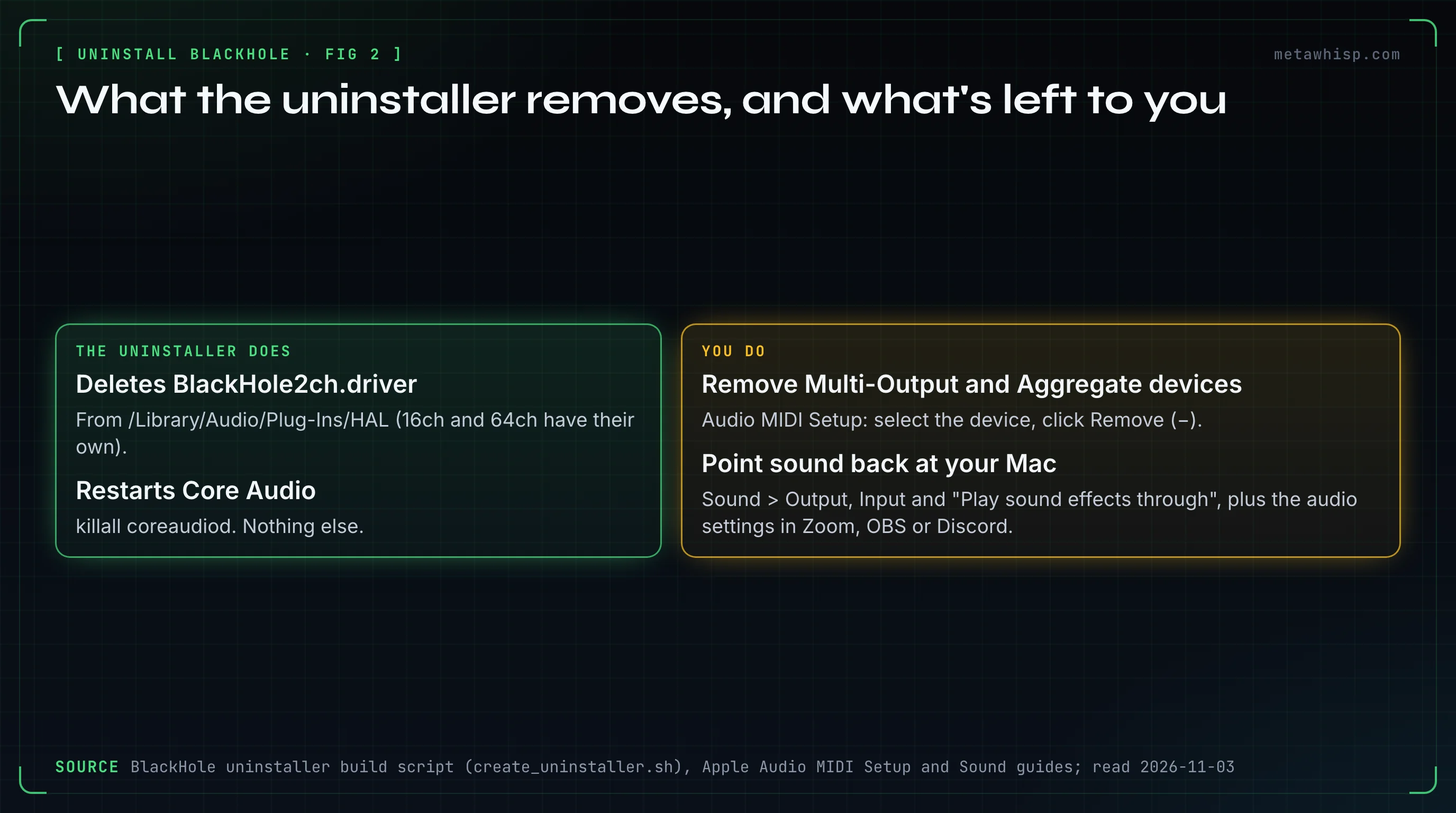
BlackHole's wiki tells you to set your Multi-Output device as the Mac's sound output when you set it up. So if you removed BlackHole and hear nothing, that device is the first thing to check.
No Sound After Removing BlackHole: How Do You Get It Back?
Open System Settings > Sound > Output and select your Mac's speakers or headphones. Apple's checklist: the right device selected, the Output volume slider not all the way left, and Mute off. Then set Input back to your microphone, and the "Play sound effects through" menu back to your speakers, because alerts can use a separate device.
- From Audio MIDI Setup: select your speakers, open Configure Selected Device (or Control-click the device) and choose Use This Device for Sound Output. Apple suggests the same fix when a third-party audio driver breaks your audio apps.
- Inside apps: open the audio settings in Zoom, OBS, Discord or your music app and pick your real speakers and microphone, if any of them were set to BlackHole.
- Microphone still silent? See what to do when a MacBook microphone isn't working.
What If the Uninstaller Fails or BlackHole Still Shows Up?
In BlackHole's GitHub discussion about failed uninstalls, the fix the most people confirmed was using the uninstaller that matches your version, say 2ch for BlackHole 2ch. Note that an uninstaller does nothing if its driver file is already gone, not even a Core Audio restart. If the file is gone but BlackHole is still listed, the developer's advice is to restart the Mac.
- Move the package. BlackHole's README says that if an installer package fails, moving it to the Desktop, or out of it, and opening it again can help. The same trick may help with an uninstaller.
- Another audio capture driver. The developer has said another driver can interfere. One user reported they could remove BlackHole only after removing a different capture driver.
- Last resort, from users rather than the developer: reinstall BlackHole, then remove it with the manual Terminal method above.
Can You Record Calls Without BlackHole?
Yes. On macOS 27 or later, the Screenshot toolbar's screen recording has an Include System Audio option, so it can record what your Mac plays without any driver. If you installed BlackHole to get transcripts of calls, an app that captures audio through Apple's ScreenCaptureKit can do that without a driver too. More options are in how to record internal audio on Mac.
MetaWhisp, our app, is one of those. It records your microphone plus your Mac's own audio through ScreenCaptureKit, with no BlackHole and no bot in the call. Meeting recording is in the free version: turn on Meeting Recording in Settings, under Meetings (it's off by default), then start a recording from the menu bar. The free version transcribes on your Mac with Whisper large-v3.
It doesn't do BlackHole's main job, though. It saves transcripts and recaps, not audio files, and it can't route sound into OBS, a stream or another app. It labels speakers only as "Me" and "Them", sends no notice to other participants, and needs an Apple silicon Mac with macOS 14 or later. If you route audio between apps, you still need BlackHole or a paid tool like Loopback; our Soundflower article compares the options.
FAQ
How do I uninstall BlackHole 2ch on Mac?
Quit your audio apps, then run the BlackHole2ch uninstaller from Existential Audio's support page. With Homebrew, run brew uninstall blackhole-2ch. Or delete BlackHole2ch.driver from /Library/Audio/Plug-Ins/HAL with sudo and run sudo killall -9 coreaudiod. Then set Sound output back to your speakers.
Is it safe to delete BlackHole's driver from the HAL folder?
Deleting BlackHole2ch.driver, BlackHole16ch.driver or BlackHole64ch.driver from /Library/Audio/Plug-Ins/HAL is BlackHole's own manual uninstall method. Delete only the BlackHole files, then restart Core Audio with sudo killall -9 coreaudiod.
Why is BlackHole still in my Sound settings after uninstalling?
Often the uninstaller didn't match your version, or Core Audio hasn't restarted yet. Check /Library/Audio/Plug-Ins/HAL for a BlackHole file, remove it, and run sudo killall -9 coreaudiod. If the file is gone and BlackHole still shows, restart the Mac.
Does uninstalling BlackHole delete my Multi-Output device?
The official uninstaller only removes the driver and restarts Core Audio. Delete Multi-Output and Aggregate devices yourself: in Audio MIDI Setup, select the device and click the Remove button. Then pick your speakers under System Settings, Sound, Output.
Do I need to restart my Mac after removing BlackHole?
Usually not: restarting Core Audio is part of the official steps. Restart the Mac only if BlackHole still appears afterwards. The reboot message you may remember is from installing it with Homebrew, not removing it.
How do I check if Homebrew installed BlackHole?
Run brew list --cask in Terminal. If blackhole-2ch, blackhole-16ch or blackhole-64ch appears, Homebrew installed it, and brew uninstall with that name removes it.
How we checked
On November 3, 2026, we read Existential Audio's BlackHole site, support page, README, wiki and release notes, the uninstaller's build script on GitHub, Homebrew's BlackHole recipes and manual, Apple's Audio MIDI Setup and Sound guides and the macOS 14.4 release notes. We didn't run the uninstallers for this piece. Steps and versions are as those pages showed them on that day.
Related reading
- BlackHole Audio on Mac: Install & Setup Guide
- Soundflower on Mac in 2026: Does It Work?
- How to Record Internal Audio on Mac
- MacBook Microphone Not Working
Sources
- BlackHole: support page and uninstallers, README, wiki: Uninstallation, wiki: Multi-Output Device, releases, uninstaller build script, GitHub discussion 721
- Homebrew: blackhole-2ch cask, manual
- Apple: Multi-Output devices, Aggregate devices, if your audio apps stop working, sound output, if you can't hear sound, alert sounds, macOS 14.4 release notes, screen recording
